ESP TOYOTA SUPRA 2022 User Guide
[x] Cancel search | Manufacturer: TOYOTA, Model Year: 2022, Model line: SUPRA, Model: TOYOTA SUPRA 2022Pages: 498, PDF Size: 104.06 MB
Page 48 of 498
463-1. CONTROLS
3-1.CONTROLS
This chapter describes all standard, country-specific and special equipment
available for the model series. It may therefore describe equipment and
functions which are not installed in your vehicle, for example on account of
the special equipment selected or t he country specification. This also
applies to safety-relevant functions and systems. Please comply with the
relevant laws and regulations when using the corresponding functions and
systems.
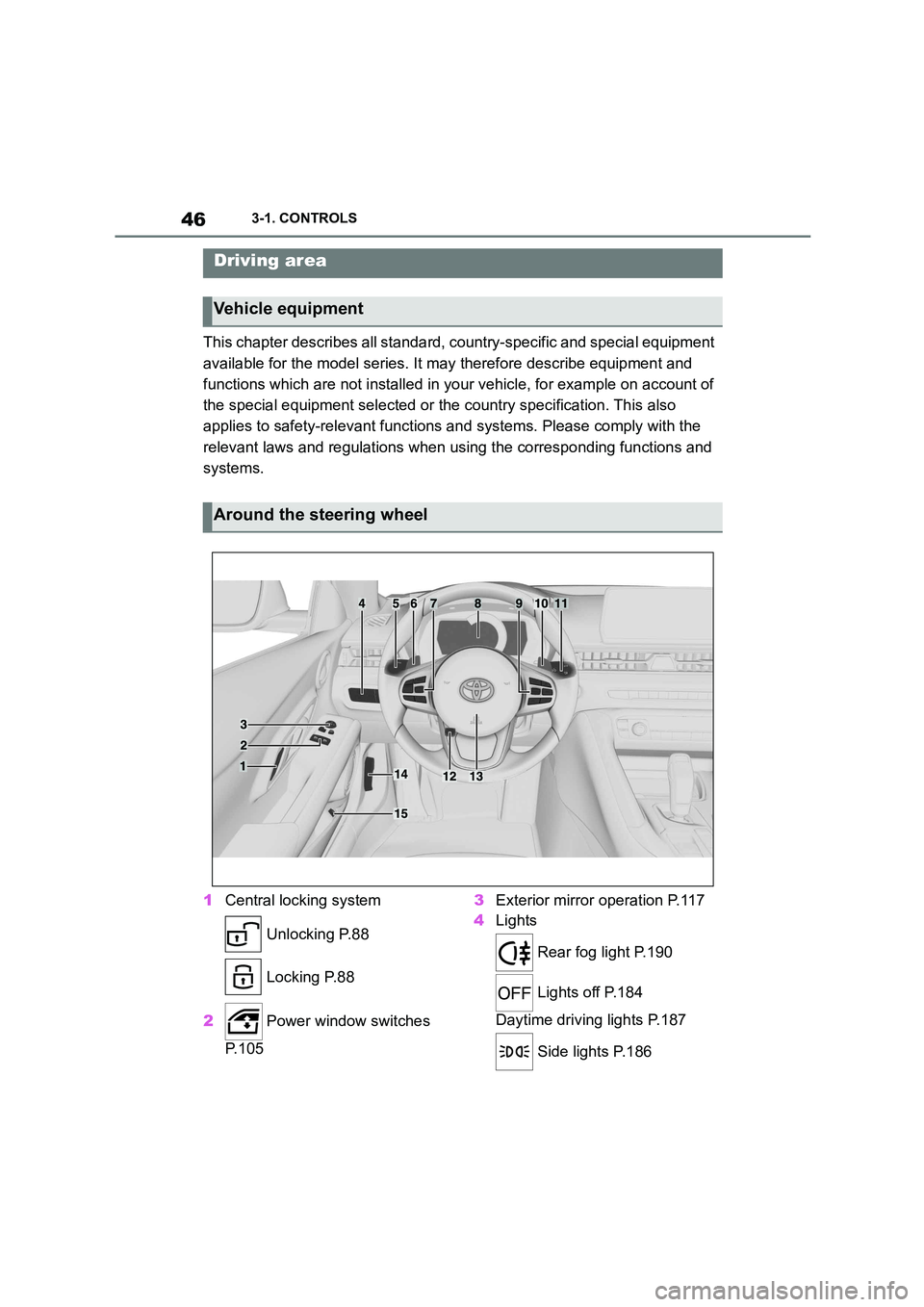
1 Central locking system
Unlocking P.88
Locking P.88
2 Power window switches
P. 1 0 5
3 Exterior mirror operation P.117
4 Lights
Rear fog light P.190
Lights off P.184
Daytime driving lights P.187
Side lights P.186
Driving area
Vehicle equipment
Around the steering wheel
Page 52 of 498
503-1. CONTROLS
This chapter describes all standard,
country-specific and special equip-
ment available for the model series.
It may therefore describe equip-
ment and functions which are not
installed in your vehicle, for exam-
ple on account of the special equip-
ment selected or the country
specification. This also applies to
safety-relevant functions and sys-
tems. Please comply with the rele-
vant laws and regulations when
using the corresponding functions
and systems.
Depending on the equipment, the
following cameras and sensors are
installed in the vehicle:
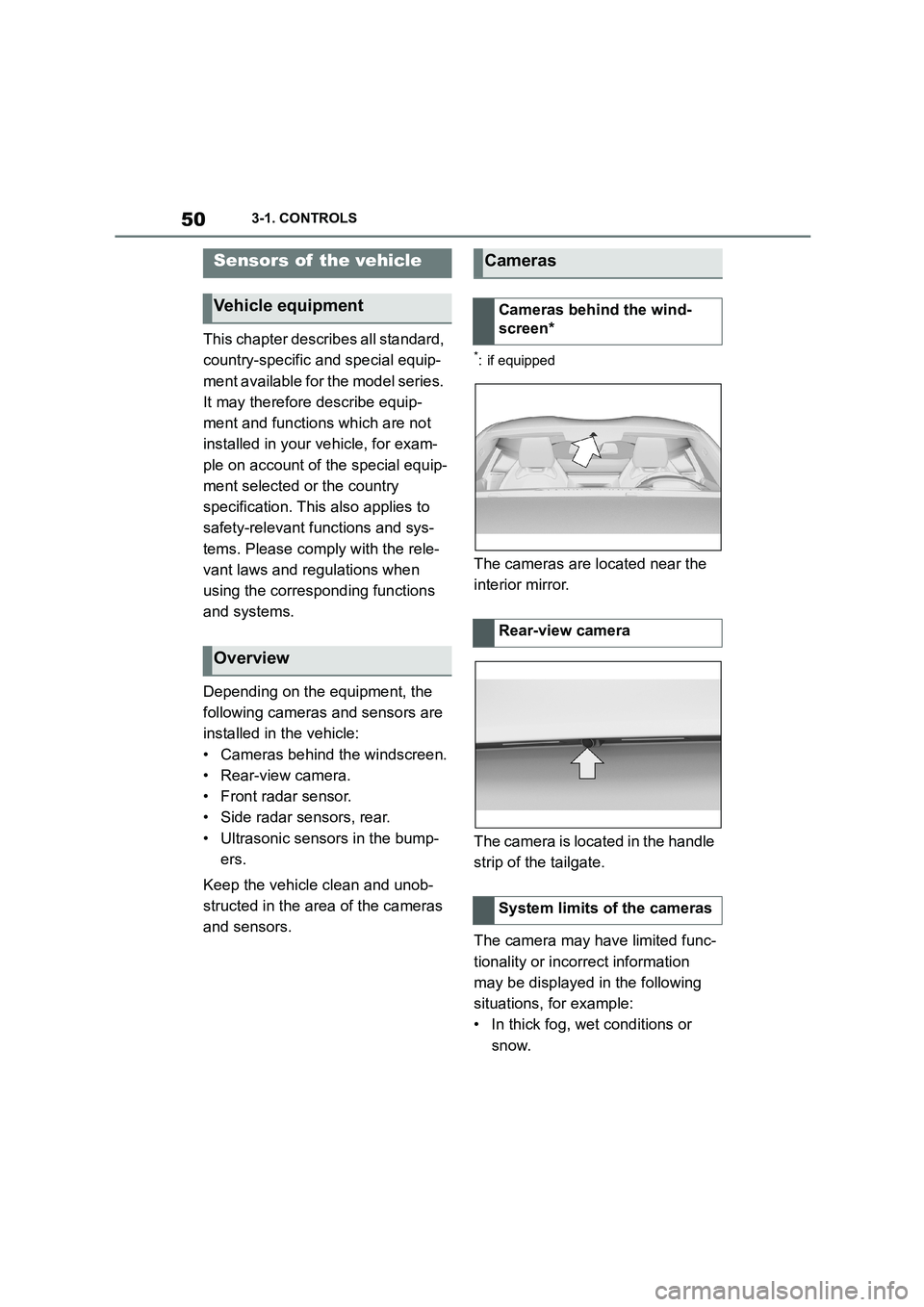
• Cameras behind the windscreen.
• Rear-view camera.
• Front radar sensor.
• Side radar sensors, rear.
• Ultrasonic sensors in the bump-
ers.
Keep the vehicle clean and unob-
structed in the area of the cameras
and sensors.
*: if equipped
The cameras are located near the
interior mirror.
The camera is located in the handle
strip of the tailgate.
The camera may have limited func-
tionality or incorrect information
may be displayed in the following
situations, for example:
• In thick fog, wet conditions or
snow.
Sensors of the vehicle
Vehicle equipment
Overview
Cameras
Cameras behind the wind-
screen*
Rear-view camera
System limits of the cameras
Page 55 of 498
53
3
3-1. CONTROLS
CONTROLS
This chapter describes all standard,
country-specific and special equip-
ment available for the model series.
It may therefore describe equip-
ment and functions which are not
installed in your vehicle, for exam-
ple on account of the special equip-
ment selected or the country
specification. This also applies to
safety-relevant functions and sys-
tems. Please comply with the rele-
vant laws and regulations when
using the corresponding functions
and systems.
Depending on the situation, the
vehicle is in one of the three states:
• Idle state.
• Standby state.
• Drive-ready state.
If the vehicle is in rest state, it is
switched off.
The vehicle is in idle state before
you open it from outside and once
you have left the vehicle and locked
it.Vehicle operating state
Vehicle equipment
General
Idle state
Principle
General
Safety notes
WA R N I N G
An unsecured vehicle can start mov-
ing and rolling away. There is a dan- ger of accidents. Before leaving the
vehicle, secure it to prevent it from
rolling away.
Observe the following to ensure that
the vehicle is secured against rolling
away:
• Apply the parking brake.
• Turn the front wheels towards the
kerb on upward or downward gradi-
ents.
• Additionally secure the vehicle on
upward or downward gradients, for example with a chock.
WA R N I N G
Unsupervised children or pets in the
vehicle can set the vehicle in motion and endanger themselves or other
road users, for example by the follow-
ing actions:
• Pressing the start/stop button.
• Releasing the parking brake.
• Opening and closing doors or win- dows.
• Engaging selector lever position N.
• Operating vehicle equipment.
There is a risk of accidents or injury.
Do not leave children or pets unsu-
pervised in the vehicle. When leaving the vehicle, take the remote control
with you and lock the vehicle.
Page 57 of 498
55
3
3-1. CONTROLS
CONTROLS
Switching on drive-ready state cor-
responds to starting the engine.
Some functions, for example Vehi-
cle Stability Control VSC, can only
be operated when drive-ready state
is switched on.
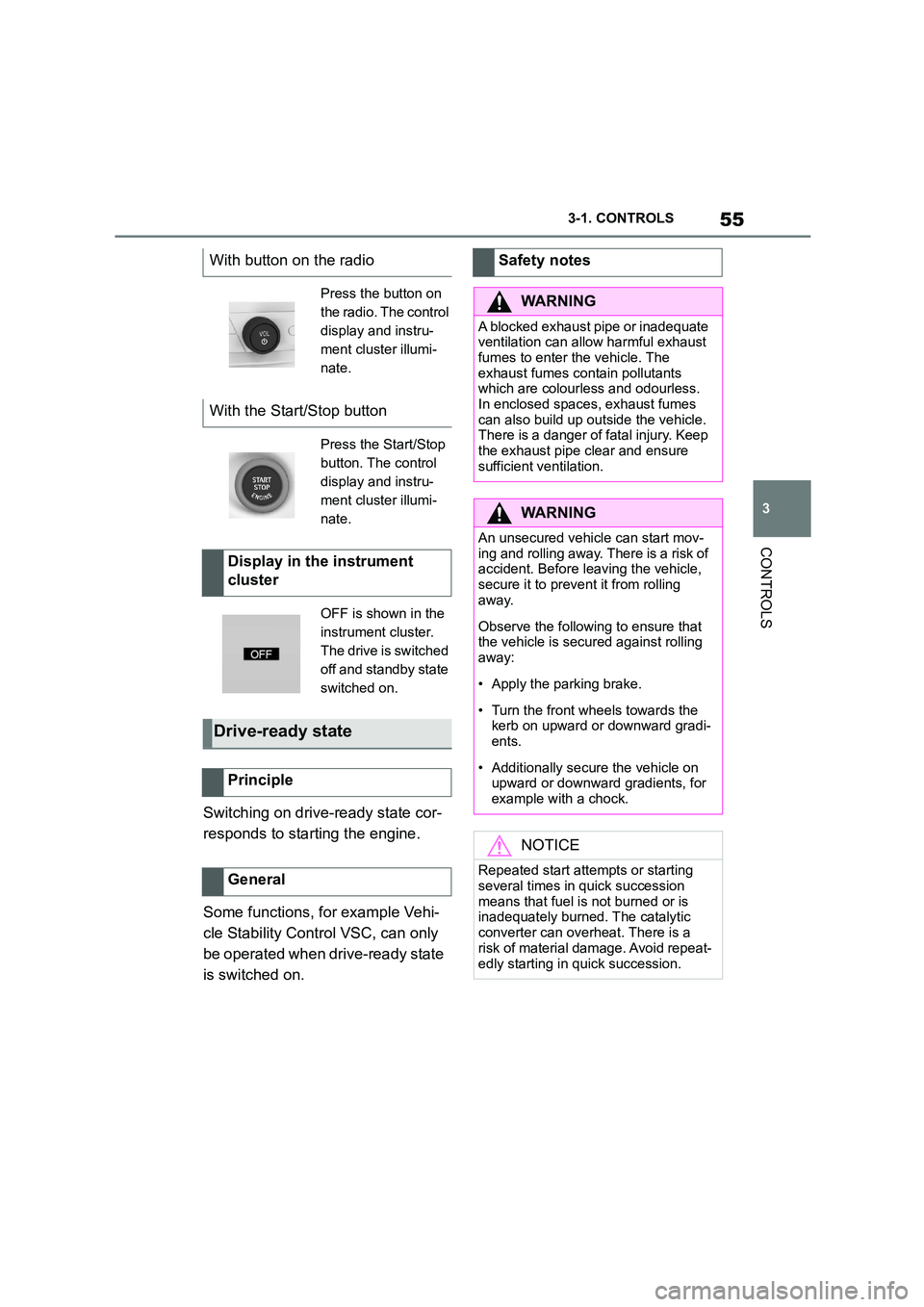
With button on the radio
Press the button on
the radio. The control
display and instru-
ment cluster illumi-
nate.
With the Start/Stop button
Press the Start/Stop
button. The control
display and instru-
ment cluster illumi-
nate.
Display in the instrument
cluster
OFF is shown in the
instrument cluster.
The drive is switched
off and standby state
switched on.
Drive-ready state
Principle
General
Safety notes
WA R N I N G
A blocked exhaust pipe or inadequate
ventilation can allow harmful exhaust fumes to enter the vehicle. The
exhaust fumes contain pollutants
which are colourless and odourless. In enclosed spaces, exhaust fumes
can also build up outside the vehicle.
There is a danger of fatal injury. Keep
the exhaust pipe clear and ensure sufficient ventilation.
WA R N I N G
An unsecured vehicle can start mov-ing and rolling away. There is a risk of
accident. Before leaving the vehicle,
secure it to prevent it from rolling away.
Observe the following to ensure that the vehicle is secured against rolling
away:
• Apply the parking brake.
• Turn the front wheels towards the
kerb on upward or downward gradi- ents.
• Additionally secure the vehicle on upward or downward gradients, for
example with a chock.
NOTICE
Repeated start attempts or starting
several times in quick succession
means that fuel is not burned or is inadequately burned. The catalytic
converter can overheat. There is a
risk of material damage. Avoid repeat-
edly starting in quick succession.
Page 59 of 498
57
3
3-1. CONTROLS
CONTROLS
This chapter describes all standard,
country-specific and special equip-
ment available for the model series.
It may therefore describe equip-
ment which is not installed in your
vehicle, for exampl e on account of
the special equipment selected or
the country specific ation. This also
applies to safety-relevant functions
and systems. Please comply with
the relevant laws and regulations
when using the corresponding func-
tions and systems.
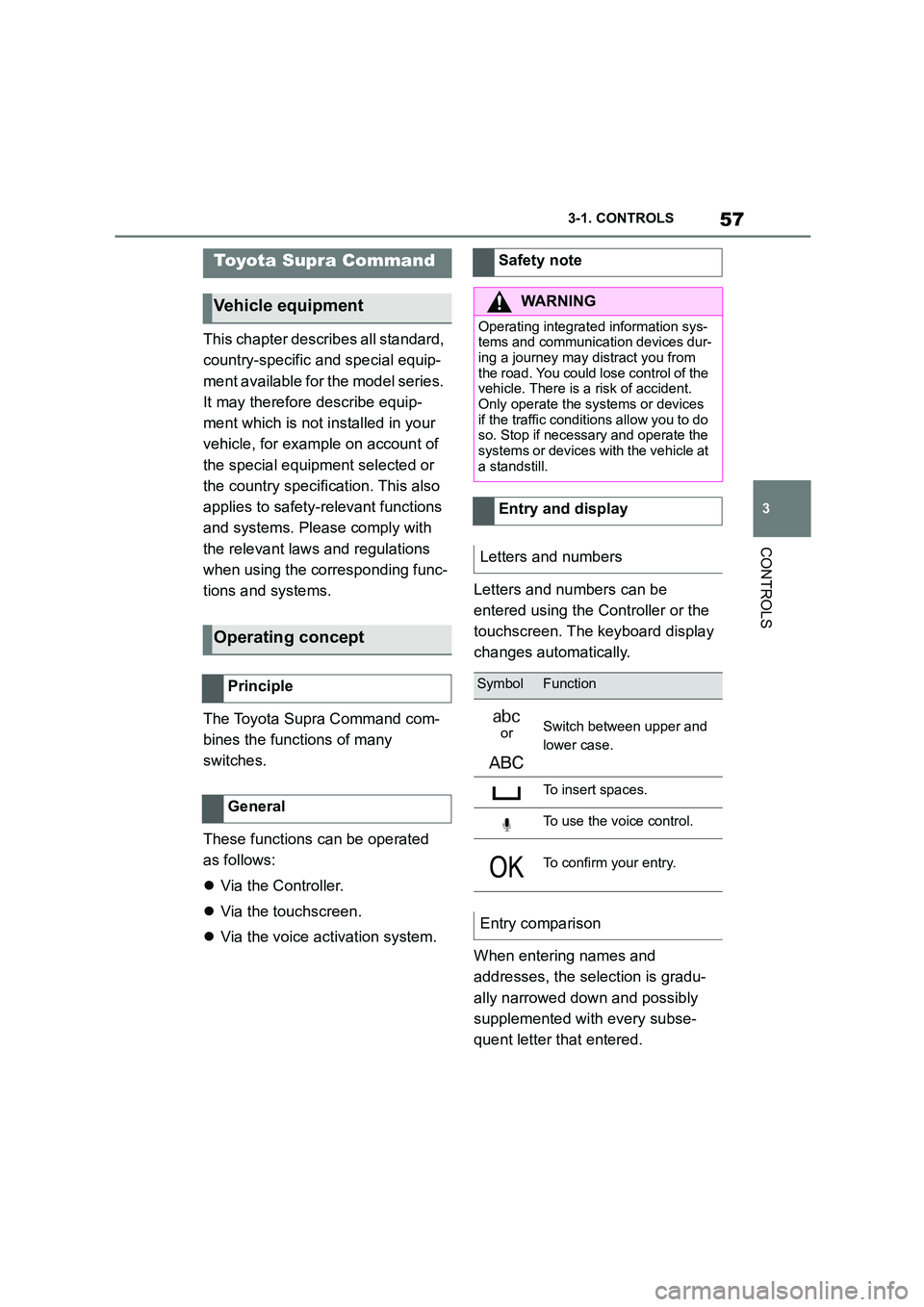
The Toyota Supra Command com-
bines the functions of many
switches.
These functions can be operated
as follows:
Via the Controller.
Via the touchscreen.
Via the voice activation system.
Letters and numbers can be
entered using the Controller or the
touchscreen. The keyboard display
changes automatically.
When entering names and
addresses, the selection is gradu-
ally narrowed down and possibly
supplemented with every subse-
quent letter that entered.
Toyota Supra Command
Vehicle equipment
Operating concept
Principle
General
Safety note
WA R N I N G
Operating integrated information sys-
tems and communication devices dur- ing a journey may distract you from
the road. You could lose control of the
vehicle. There is a risk of accident. Only operate the systems or devices
if the traffic conditions allow you to do
so. Stop if necessary and operate the
systems or devices wi th the vehicle at a standstill.
Entry and display
Letters and numbers
SymbolFunction
orSwitch between upper and
lower case.
To insert spaces.
To use the voice control.
To confirm your entry.
Entry comparison
Page 73 of 498
71
3
3-1. CONTROLS
CONTROLS
even if you change the volume of
other audio sources.
• Certain noises may be detected
and could result in problems.
Keep doors and windows closed.
• Noise from passengers or the
rear bench may interfere with the
system. Avoid background noise
in the vehicle while you are
speaking.
• Strong dialects may prevent
voice recognitio n from working
properly. Speak loudly and
clearly.
This chapter describes all standard,
country-specific and special equip-
ment available for the model series.
It may therefore describe equip-
ment which is not installed in your
vehicle, for example on account of
the special equipment selected or
the country specific ation. This also
applies to safety-relevant functions
and systems. Please comply with
the relevant laws and regulations
when using the corresponding func-
tions and systems.
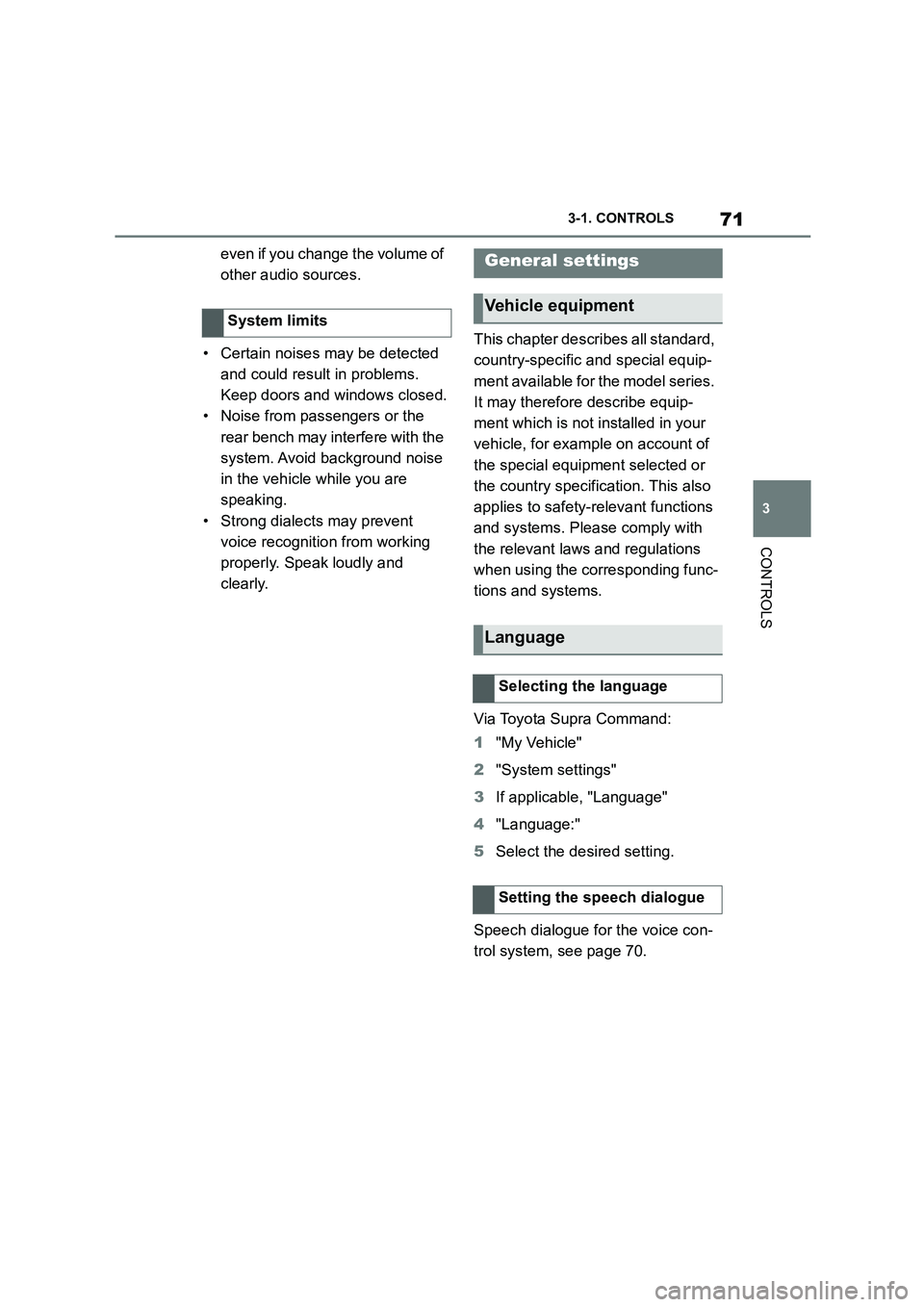
Via Toyota Supra Command:
1 "My Vehicle"
2 "System settings"
3 If applicable, "Language"
4 "Language:"
5 Select the desired setting.
Speech dialogue for the voice con-
trol system, see page 70.
System limits
General settings
Vehicle equipment
Language
Selecting the language
Setting the speech dialogue
Page 77 of 498
75
3
3-1. CONTROLS
CONTROLS
This chapter describes all standard,
country-specific and special equip-
ment available for the model series.
It may therefore describe equip-
ment which is not installed in your
vehicle, for exampl e on account of
the special equipment selected or
the country specific ation. This also
applies to safety-relevant functions
and systems. Please comply with
the relevant laws and regulations
when using the corresponding func-
tions and systems.
The vehicle offers various functions
which require data to be transferred
to Toyota or a service provider. The
transfer of data can be deactivated
for some functions.
If data transfer has been deacti-
vated for a function, then that func-
tion cannot be used.
Only perform settings with the vehi-
cle at a standstill.
Follow the instruct ions on the Con-
trol Display.
Via Toyota Supra Command:
1 "My Vehicle"
2 "System settings"
3 "Data privacy"
4 Select the desired setting.
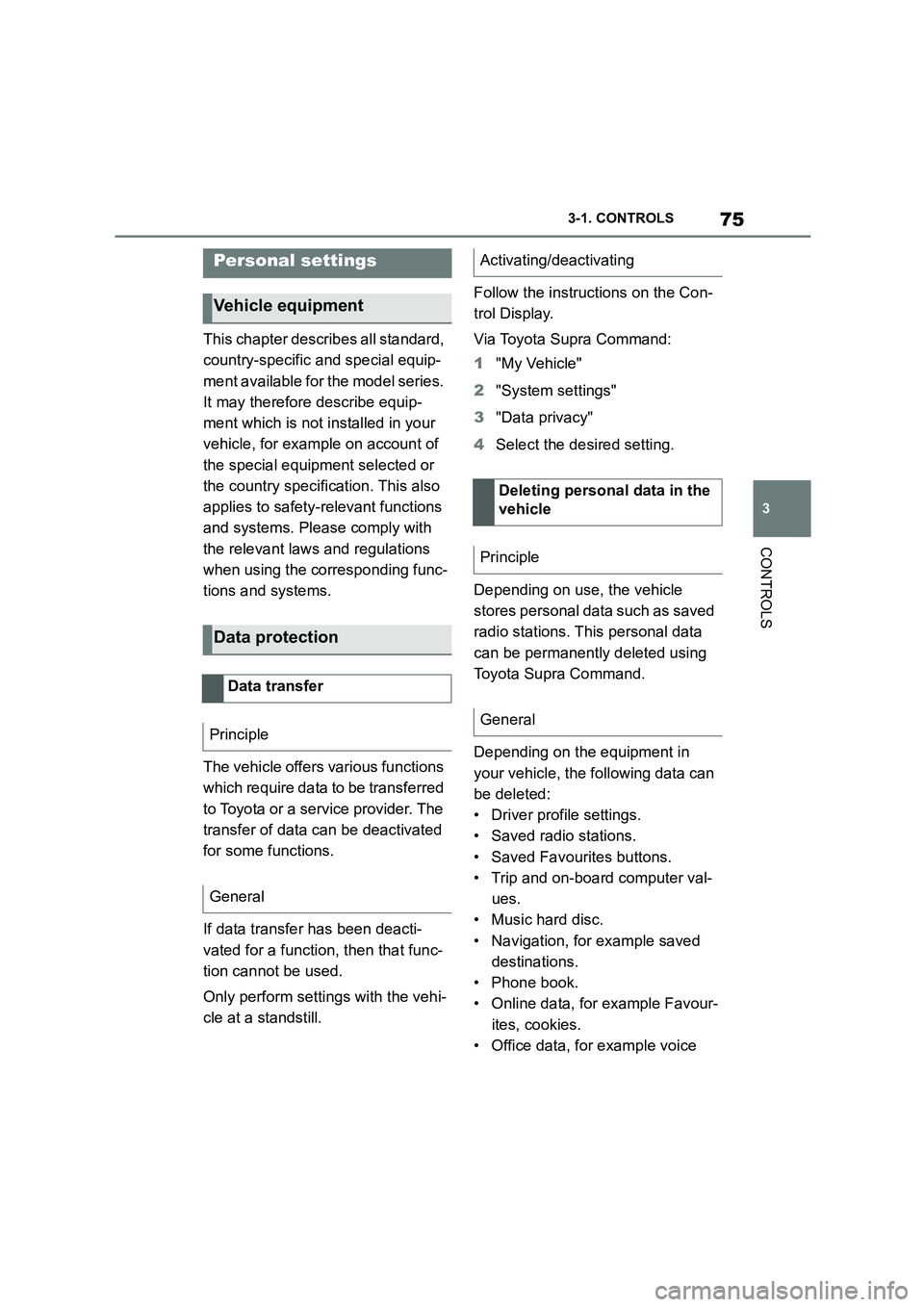
Depending on use, the vehicle
stores personal data such as saved
radio stations. This personal data
can be permanently deleted using
Toyota Supra Command.
Depending on the equipment in
your vehicle, the following data can
be deleted:
• Driver profile settings.
• Saved radio stations.
• Saved Favourites buttons.
• Trip and on-board computer val-
ues.
• Music hard disc.
• Navigation, for example saved
destinations.
• Phone book.
• Online data, for example Favour-
ites, cookies.
• Office data, for example voice
Personal settings
Vehicle equipment
Data protection
Data transfer
Principle
General
Activating/deactivating
Deleting persona l data in the
vehicle
Principle
General
Page 82 of 498
803-1. CONTROLS
This chapter describes all standard,
country-specific and special equip-
ment available for the model series.
It may therefore describe equip-
ment which is not installed in your
vehicle, for exampl e on account of
the special equipment selected or
the country variant. This also
applies to safety-relevant functions
and systems. Please comply with
the relevant laws and regulations
when using the corresponding func-
tions and systems.
Various types of connection are
available in the vehicle for using
mobile devices. Which connection
type to select depends on the
mobile device and the function you
wish to use.
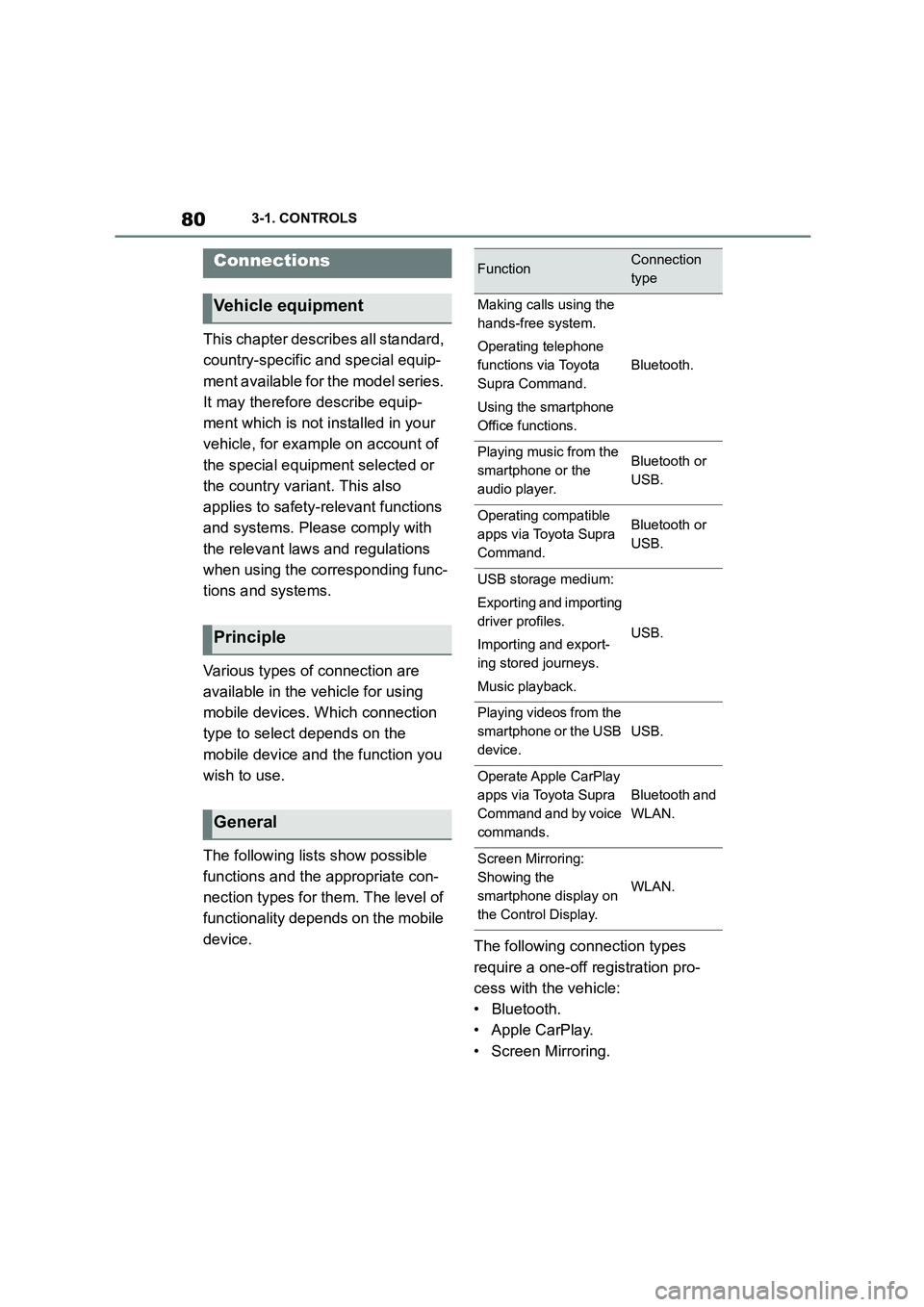
The following lists show possible
functions and the appropriate con-
nection types for them. The level of
functionality depends on the mobile
device. The following connection types
require a one-off registration pro-
cess with the vehicle:
• Bluetooth.
• Apple CarPlay.
• Screen Mirroring.
Connections
Vehicle equipment
Principle
General
FunctionConnection
type
Making calls using the
hands-free system.
Operating telephone
functions via Toyota
Supra Command.
Using the smartphone
Office functions.
Bluetooth.
Playing music from the
smartphone or the
audio player.
Bluetooth or
USB.
Operating compatible
apps via Toyota Supra
Command.
Bluetooth or
USB.
USB storage medium:
Exporting and importing
driver profiles.
Importing and export-
ing stored journeys.
Music playback.
USB.
Playing videos from the
smartphone or the USB
device.
USB.
Operate Apple CarPlay
apps via Toyota Supra
Command and by voice
commands.
Bluetooth and
WLAN.
Screen Mirroring:
Showing the
smartphone display on
the Control Display.
WLAN.
Page 84 of 498
823-1. CONTROLS
• "Telephone"
• "Bluetooth audio"
• "Apps"
• "Apple CarPlay"
• "Screen Mirroring"
The Bluetooth name of the vehicle is displayed in the Control Display.
6 On the mobile device, search for
Bluetooth devices in the vicinity.
The Bluetooth name of the vehicle is shown on the display of the mobile
device.
Select the Bluetooth name of the vehi- cle.
7 Depending on the mobile
device, either a control number
is displayed, or you will have to
enter the control number your-
self.
• Compare the control number
shown on the Control Display
with the control number in the
device display.
Confirm the control number in the
device and on the Control Display.
• Enter the same control number
on the device and via Toyota
Supra Command then confirm.
The device is connected and displayed
in the device list, see page 86.
There may be instances where the
mobile device does not function as
expected, even though all precondi-
tions have been met and all the
necessary steps have been carried
out in the correct order. Neverthe-
less, the mobile device does not
function as expected.
In such cases, the following expla-
nations may provide assistance:
Why could the mobile telephone
not be paired or connected?
• Too many Bluetooth devices are
paired to the mobile telephone or
the vehicle.
In the vehicle, delete Bluetooth connec-
tions with other devices.
Delete all known Bluetooth connections
from the device list on the mobile tele-
phone and start a new device search.
• The mobile telephone is in
power-save mode or the battery
is low.
Charge the mobile telephone.
Why does the mobile telephone no
longer respond?
• The applications on the mobile
telephone are no longer function-
ing.
Switch the mobile telephone off and on
again.
• Ambient temperature too high or
too low to operate the mobile
telephone.
Do not subject the mobile telephone to
extreme ambient conditions.
Why can telephone functions not
be operated via Toyota Supra Com-
mand?
• The mobile telephone may not
be configured correctly, for
example as a Bluetooth audio
device.
Connect the mobile telephone with the
telephone or additional telephone func-
Frequently Asked Questions
Page 86 of 498
843-1. CONTROLS
• Protect the USB device from
mechanical damage.
• Due to the large variety of USB
devices available on the market,
operation via the vehicle cannot
be ensured for every device.
• Do not expose the USB devices
to extreme environmental condi-
tions, for example very high tem-
peratures, see the operating
instructions of the device.
• Due to the large variety of differ-
ent compression techniques,
correct playback of the media
stored on the USB device cannot
be guaranteed in every case.
• To ensure correc t transfer of the
stored data, do not charge a
USB device from the socket in
the vehicle when the device is
also connected to the USB port.
• Depending on how the USB
device is being used, it may be
necessary to perform settings on
the USB device, see the operat-
ing instructions of the device.
Unsuitable USB devices:
• USB hard drives.
• USB hubs.
• USB memory card reader with
several inserts.
• HFS-formatted USB devices.
• Devices such as fans or lamps.
Compatible device with USB port.
The USB device is displayed in the
device list, see page 86.
*: if equipped
CarPlay makes it po ssible to oper-
ate certain functions of a compati-
ble Apple iPhone by Siri voice
operation and using Toyota Supra
Command.
• Compatible iPhone.
iPhone 5 or later with iOS 7.1 or later.
• Corresponding mobile radio con-
tract.
• Bluetooth, WLAN and Siri voice
operation are activated on the
iPhone.
• Booking of the Toyota Supra
Connect service: Apple CarPlay
preparation.
Via Toyota Supra Command:
1 "My Vehicle"
2 "System settings"
3 "Mobile devices"
4 "Settings"
5 Select the following settings:
Operating requirements
Connecting a device
Apple CarPlay preparation*
Principle
Operating requirements
Switching on Bluetooth and
CarPlay