light TOYOTA SUPRA 2022 User Guide
[x] Cancel search | Manufacturer: TOYOTA, Model Year: 2022, Model line: SUPRA, Model: TOYOTA SUPRA 2022Pages: 498, PDF Size: 104.06 MB
Page 48 of 498
463-1. CONTROLS
3-1.CONTROLS
This chapter describes all standard, country-specific and special equipment
available for the model series. It may therefore describe equipment and
functions which are not installed in your vehicle, for example on account of
the special equipment selected or t he country specification. This also
applies to safety-relevant functions and systems. Please comply with the
relevant laws and regulations when using the corresponding functions and
systems.
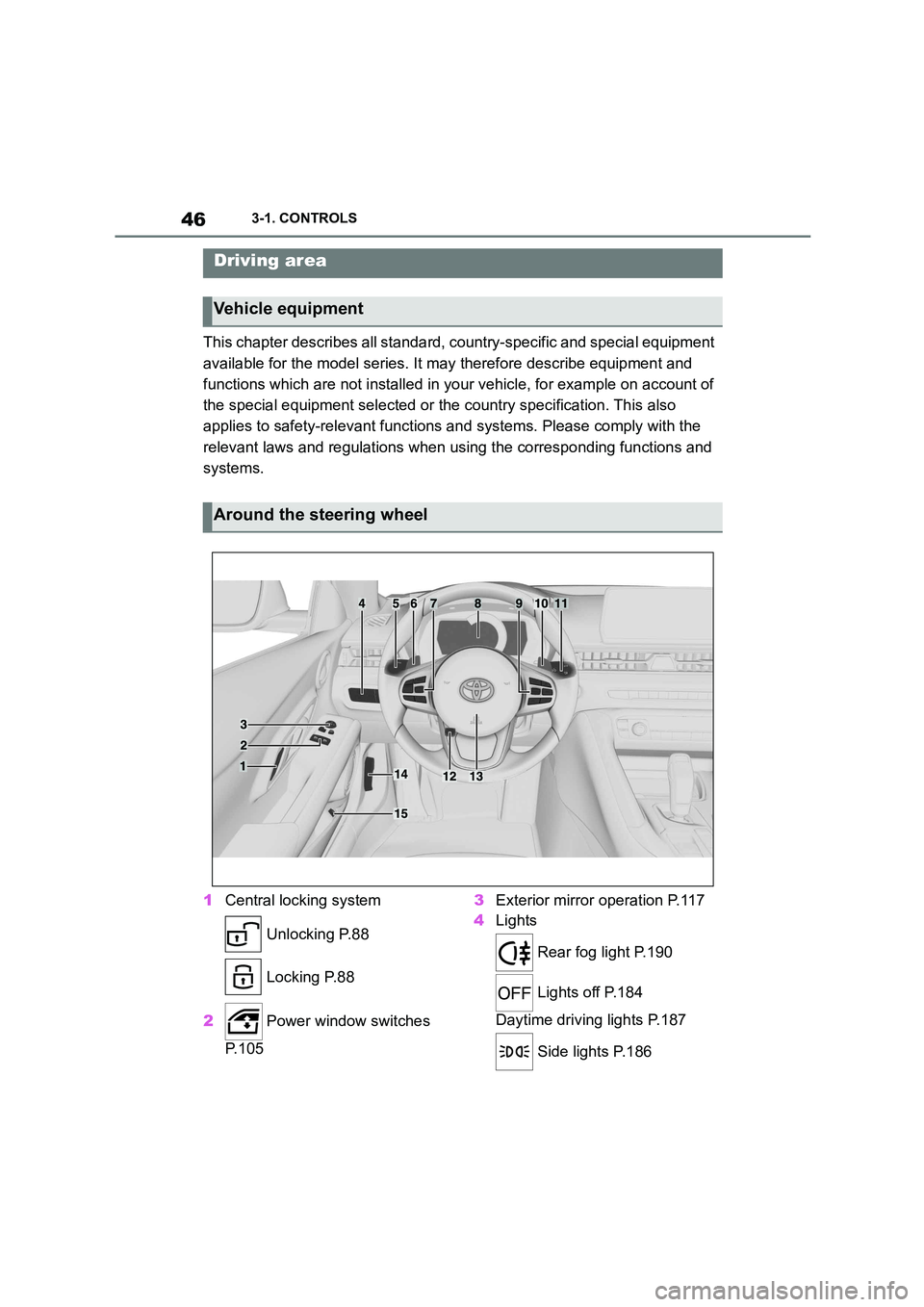
1 Central locking system
Unlocking P.88
Locking P.88
2 Power window switches
P. 1 0 5
3 Exterior mirror operation P.117
4 Lights
Rear fog light P.190
Lights off P.184
Daytime driving lights P.187
Side lights P.186
Driving area
Vehicle equipment
Around the steering wheel
Page 49 of 498
47
3
3-1. CONTROLS
CONTROLS
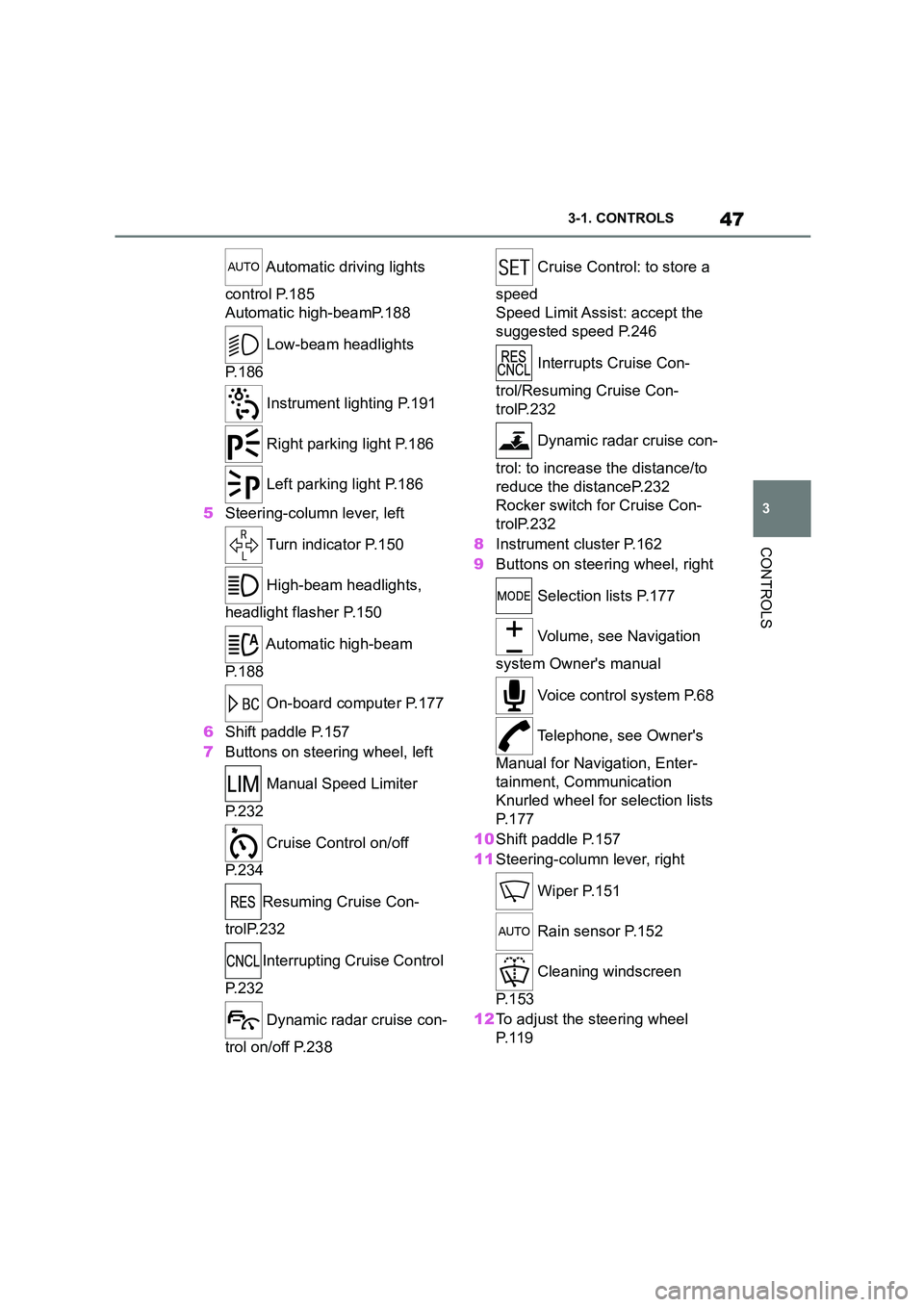
Automatic driving lights
control P.185
Automatic high-beamP.188
Low-beam headlights
P. 1 8 6
Instrument lighting P.191
Right parking light P.186
Left parking light P.186
5 Steering-column lever, left
Turn indicator P.150
High-beam headlights,
headlight flasher P.150
Automatic high-beam
P. 1 8 8
On-board computer P.177
6 Shift paddle P.157
7 Buttons on steering wheel, left
Manual Speed Limiter
P. 2 3 2
Cruise Control on/off
P. 2 3 4
Resuming Cruise Con-
trolP.232
Interrupting Cr uise Control
P. 2 3 2
Dynamic radar cruise con-
trol on/off P.238
Cruise Control: to store a
speed
Speed Limit Assist: accept the
suggested speed P.246
Interrupts Cruise Con-
trol/Resuming Cruise Con-
trolP.232
Dynamic radar cruise con-
trol: to increase the distance/to
reduce the distanceP.232
Rocker switch for Cruise Con-
trolP.232
8 Instrument cluster P.162
9 Buttons on steering wheel, right
Selection lists P.177
Volume, see Navigation
system Owner's manual
Voice control system P.68
Telephone, see Owner's
Manual for Navigation, Enter-
tainment, Communication
Knurled wheel for selection lists
P. 1 7 7
10 Shift paddle P.157
11 Steering-column lever, right
Wiper P.151
Rain sensor P.152
Cleaning windscreen
P. 1 5 3
12 To adjust the steering wheel
P. 1 1 9
Page 50 of 498
483-1. CONTROLS
13 Horn, entire area
14 To release the bonnet
P. 3 2 1
15 Unlocking the boot lid P.91
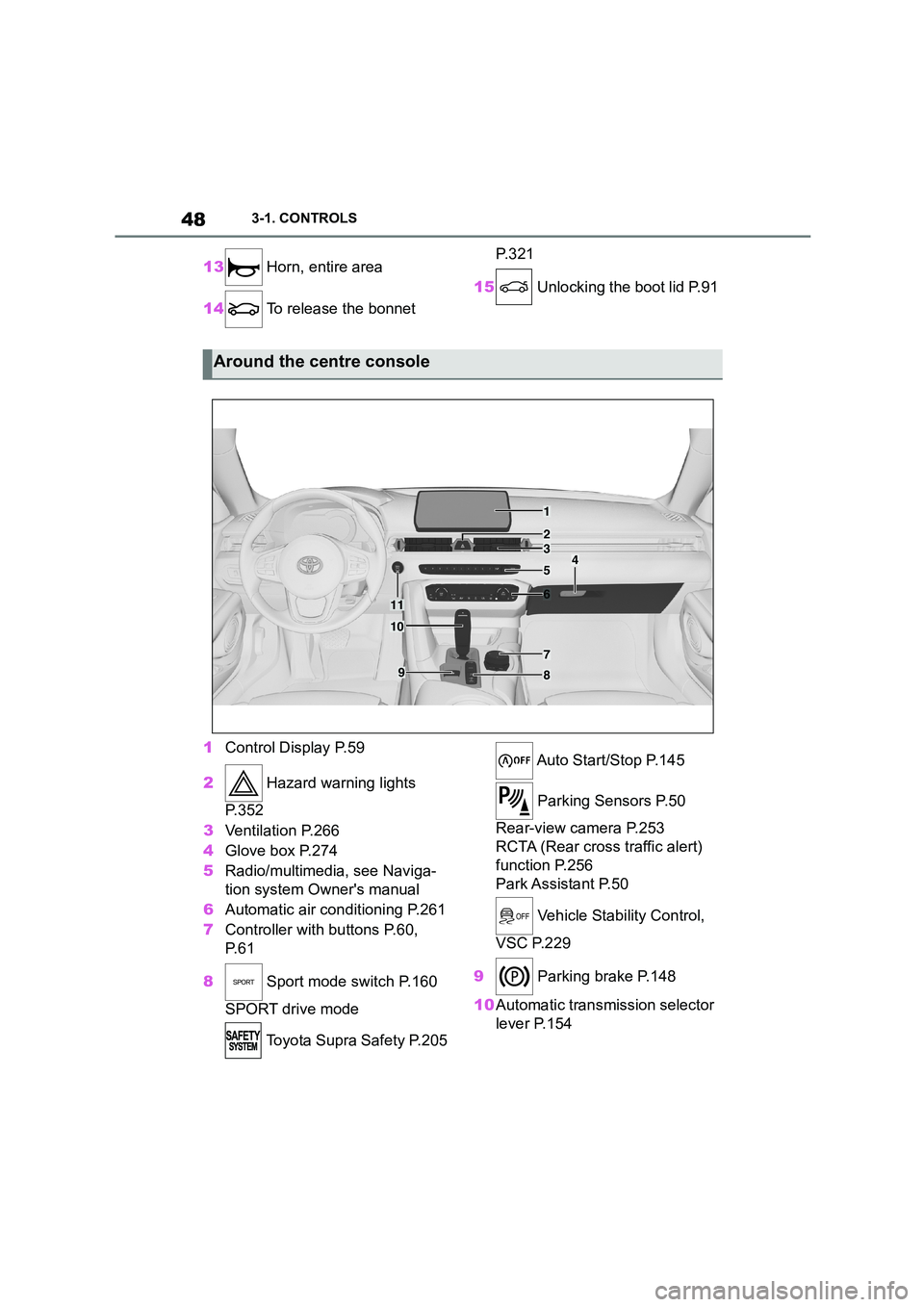
1 Control Display P.59
2 Hazard warning lights
P. 3 5 2
3 Ventilation P.266
4 Glove box P.274
5 Radio/multimedia, see Naviga-
tion system Owner's manual
6 Automatic air conditioning P.261
7 Controller with buttons P.60,
P. 6 1
8 Sport mode switch P.160
SPORT drive mode
Toyota Supra Safety P.205
Auto Start/Stop P.145
Parking Sensors P.50
Rear-view camera P.253
RCTA (Rear cross traffic alert)
function P.256
Park Assistant P.50
Vehicle Stability Control,
VSC P.229
9 Parking brake P.148
10 Automatic transmission selector
lever P.154
Around the centre console
1
4
23
5
6
7
89
10
11
Page 51 of 498
49
3
3-1. CONTROLS
CONTROLS
11 To switch drive-ready state on/off P.144
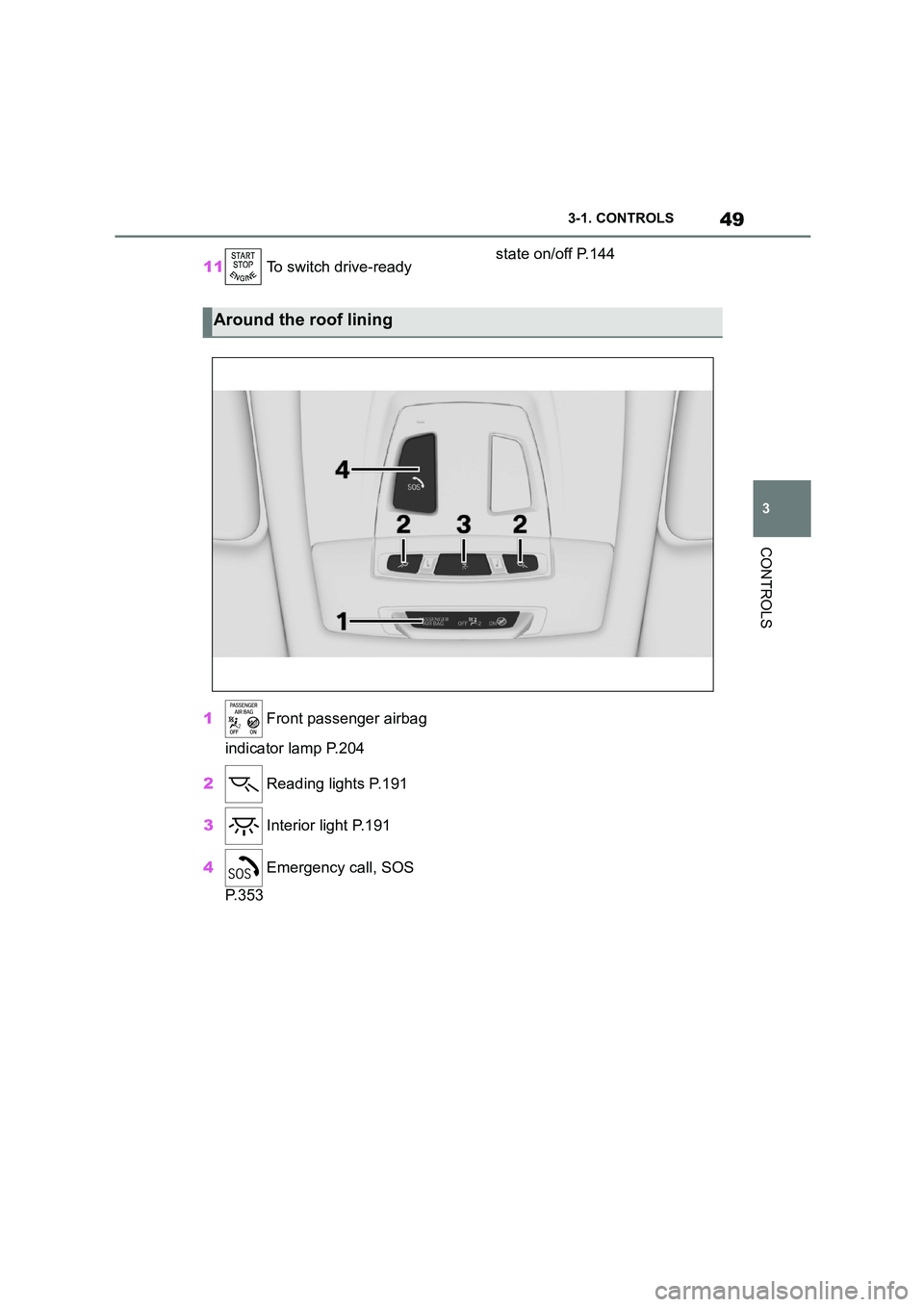
1 Front passenger airbag
indicator lamp P.204
2 Reading lights P.191
3 Interior light P.191
4 Emergency call, SOS
P. 3 5 3
Around the roof lining
Page 53 of 498
51
3
3-1. CONTROLS
CONTROLS
• On steep crests or dips or on
tight bends.
• If the camera field of view is
obscured, for example due to
windscreen fittings or stickers.
• If the camera lens is contami-
nated or damaged.
• In the case of bright oncoming
light or strong reflections, for
example if the sun is low in the
sky.
• In the dark.
• Camera behind the windscreen:
if the camera has overheated
due to excessively high tempera-
tures and has been temporarily
deactivated.
• Camera behind the windscreen:
during camera calibration imme-
diately after vehicle delivery.
A Check Control message may be
displayed if the system has failed.
*: if equipped
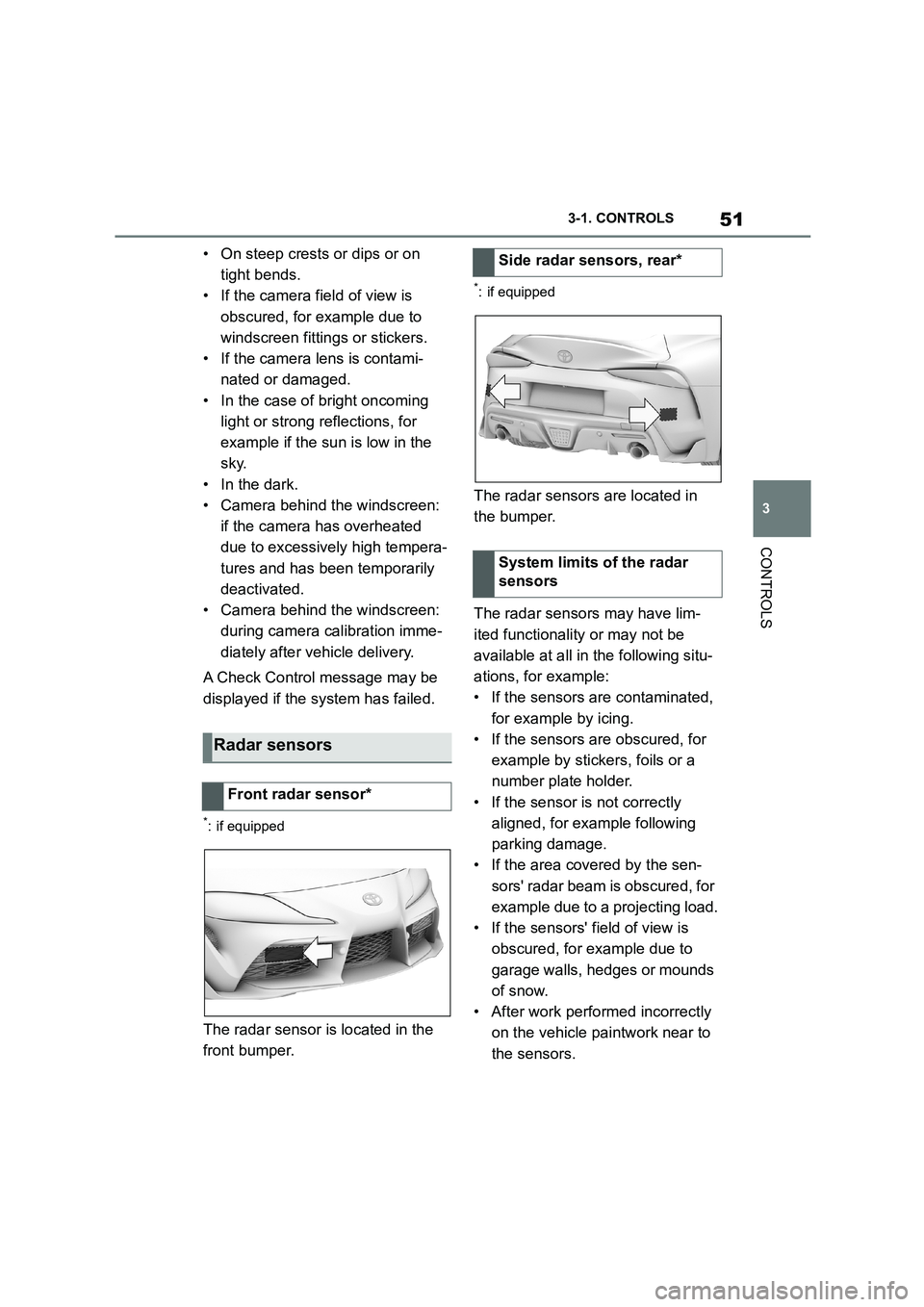
The radar sensor is located in the
front bumper.
*: if equipped
The radar sensors are located in
the bumper.
The radar sensors may have lim-
ited functionality or may not be
available at all in the following situ-
ations, for example:
• If the sensors are contaminated,
for example by icing.
• If the sensors are obscured, for
example by stickers, foils or a
number plate holder.
• If the sensor is not correctly
aligned, for example following
parking damage.
• If the area covered by the sen-
sors' radar beam is obscured, for
example due to a projecting load.
• If the sensors' field of view is
obscured, for example due to
garage walls, hedges or mounds
of snow.
• After work performed incorrectly
on the vehicle paintwork near to
the sensors.
Radar sensors
Front radar sensor*
Side radar sensors, rear*
System limits of the radar
sensors
Page 56 of 498
543-1. CONTROLS
The vehicle switches automatically
to idle state, for example under the
following conditions:
• After a few minutes, if no opera-
tion is performed on the vehicle.
• When the battery state of charge
is low.
• Depending on the Toyota Supra
Command setting: if one or both
of the front doors is opened
when exiting the vehicle after a
journey.
In some situations, Idle state will
not be established automatically,
for example during a telephone call
or if the low-beam headlights are
switched on.
After a trip, the rest state can be
established by opening the front
doors. For this purpose, the driver
and front passenger must exit the
vehicle.
Via Toyota Supra Command:
1 "My Vehicle"
2 "Vehicle setting"
3 "Doors/Key"
4 "Switch off after door opening"
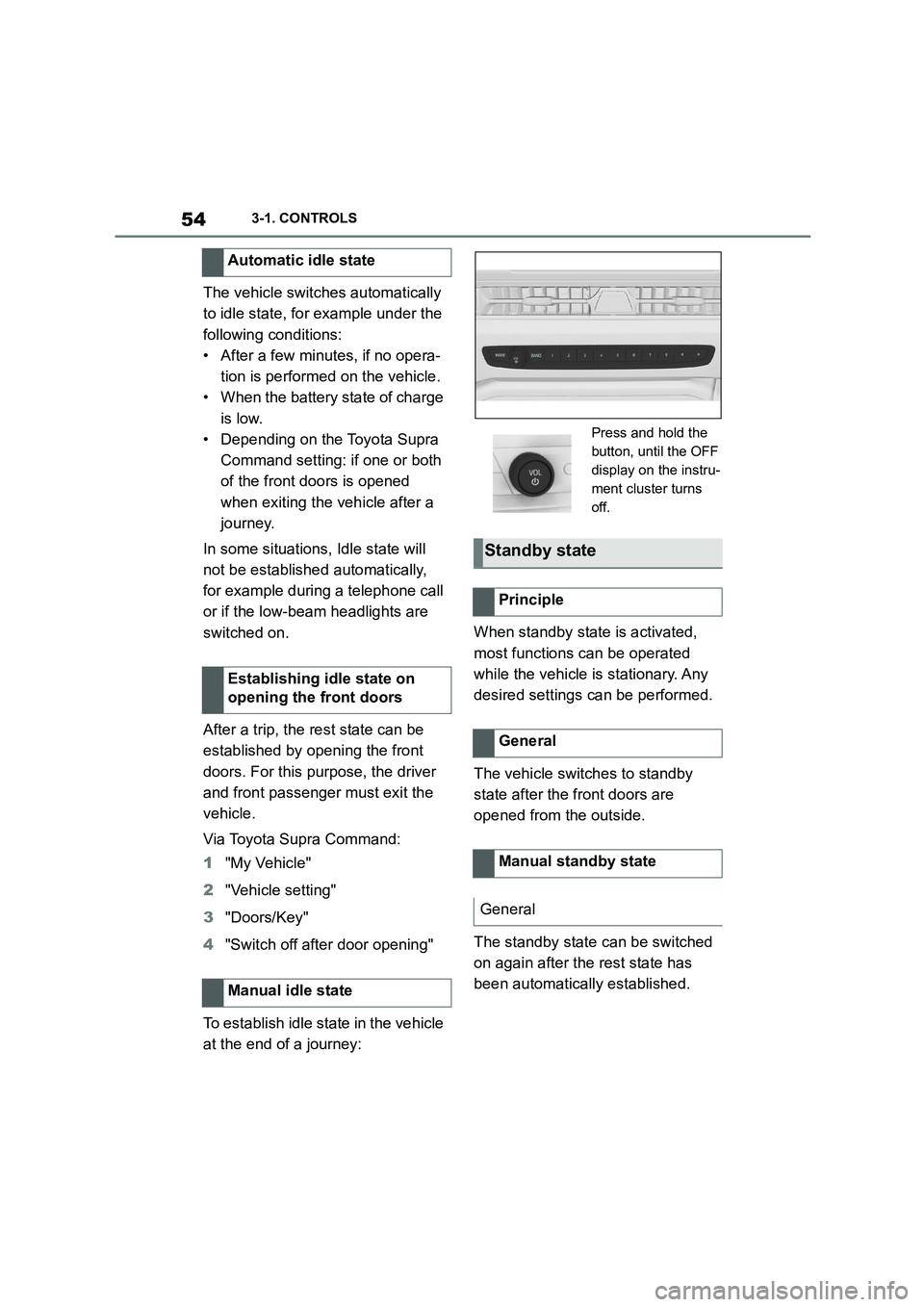
To establish idle state in the vehicle
at the end of a journey:
When standby state is activated,
most functions can be operated
while the vehicle is stationary. Any
desired settings can be performed.
The vehicle switches to standby
state after the front doors are
opened from the outside.
The standby state can be switched
on again after the rest state has
been automatically established.
Automatic idle state
Establishing idle state on
opening the front doors
Manual idle state
Press and hold the
button, until the OFF
display on the instru-
ment cluster turns
off.
Standby state
Principle
General
Manual standby state
General
Page 61 of 498
59
3
3-1. CONTROLS
CONTROLS
visible in the split screen even if
you switch to a different menu.
■Switching on/off
1 Press the button.
2 "Split screen"
■Selecting the display
The display can be selected in the
menus in which a split screen view
is possible.
1 Tilt the Controller to the right
until the split screen is selected.
2 Press the Controller.
3 Select the desired setting.
■Defining the screen content
The screen content can be defined.
1 Tilt the Controller to the right
until the split screen is selected.
2 Press the Controller.
3 "Personalise menu"
4 Select the desired setting.
5 Tilt the Controller to the left.
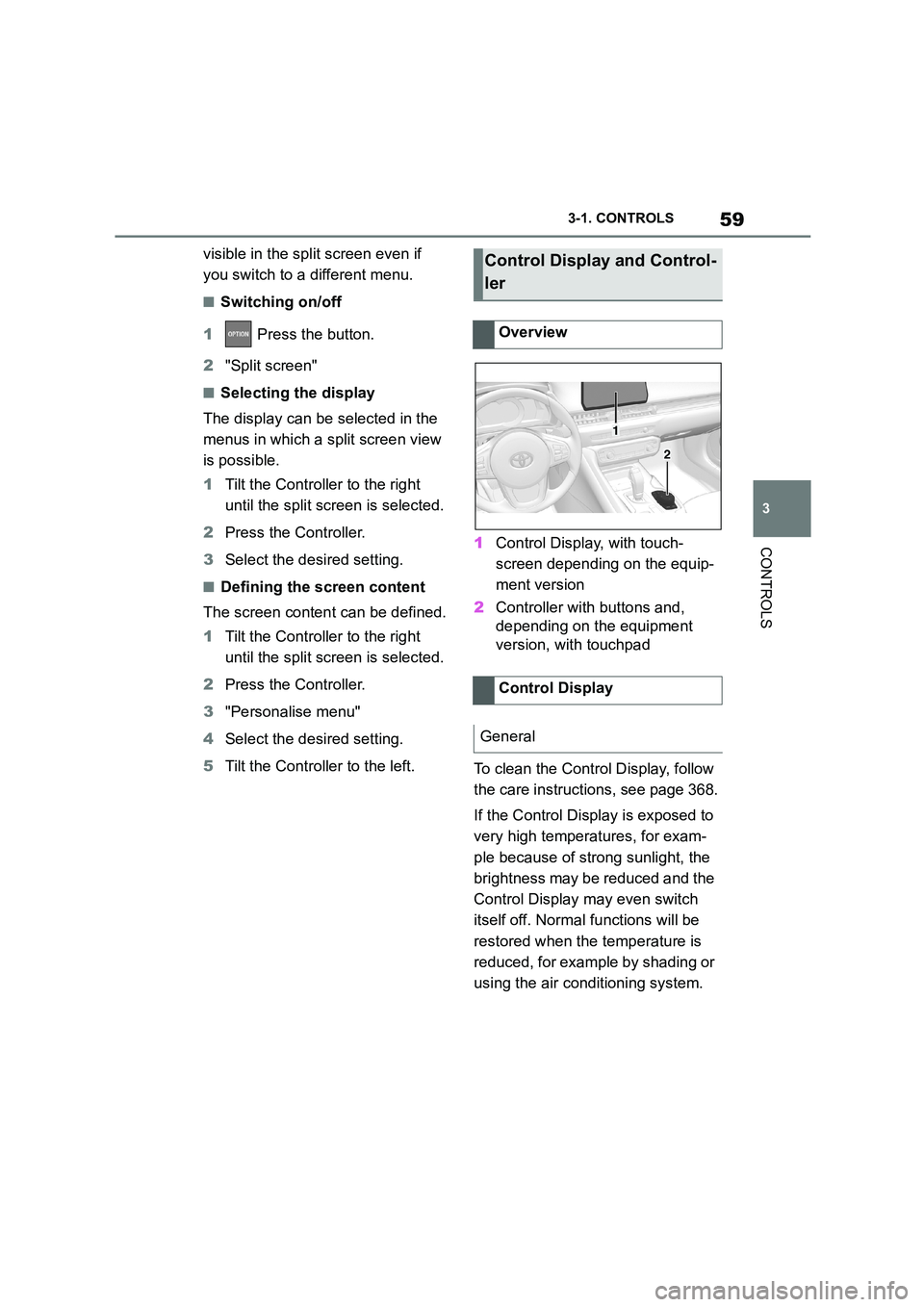
1 Control Display, with touch-
screen depending on the equip-
ment version
2 Controller with buttons and,
depending on the equipment
version, with touchpad
To clean the Control Display, follow
the care instructions, see page 368.
If the Control Display is exposed to
very high temperatures, for exam-
ple because of strong sunlight, the
brightness may be reduced and the
Control Display may even switch
itself off. Normal functions will be
restored when the temperature is
reduced, for example by shading or
using the air conditioning system.
Control Display and Control-
ler
Overview
Control Display
General
1
2
Page 64 of 498
623-1. CONTROLS
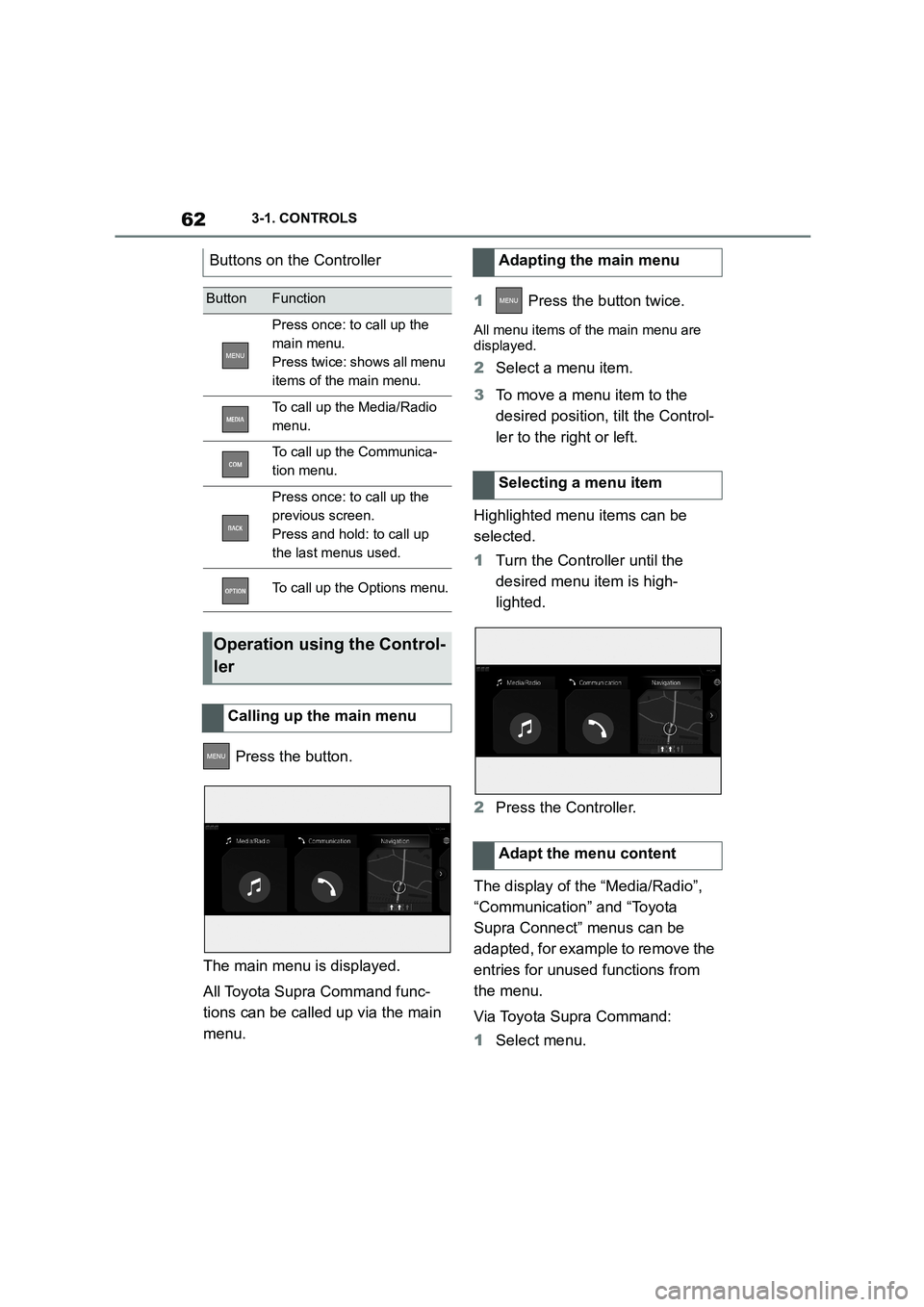
Press the button.
The main menu is displayed.
All Toyota Supra Command func-
tions can be called up via the main
menu.
1 Press the button twice.
All menu items of the main menu are
displayed.
2 Select a menu item.
3 To move a menu item to the
desired position, tilt the Control-
ler to the right or left.
Highlighted menu items can be
selected.
1 Turn the Controller until the
desired menu item is high-
lighted.
2 Press the Controller.
The display of the “Media/Radio”,
“Communication” and “Toyota
Supra Connect” menus can be
adapted, for example to remove the
entries for unused functions from
the menu.
Via Toyota Supra Command:
1 Select menu.
Buttons on the Controller
ButtonFunction
Press once: to call up the
main menu.
Press twice: shows all menu
items of the main menu.
To call up the Media/Radio
menu.
To call up the Communica-
tion menu.
Press once: to call up the
previous screen.
Press and hold: to call up
the last menus used.
To call up the Options menu.
Operation using the Control-
ler
Calling up the main menu
Adapting the main menu
Selecting a menu item
Adapt the menu content
Page 66 of 498
643-1. CONTROLS
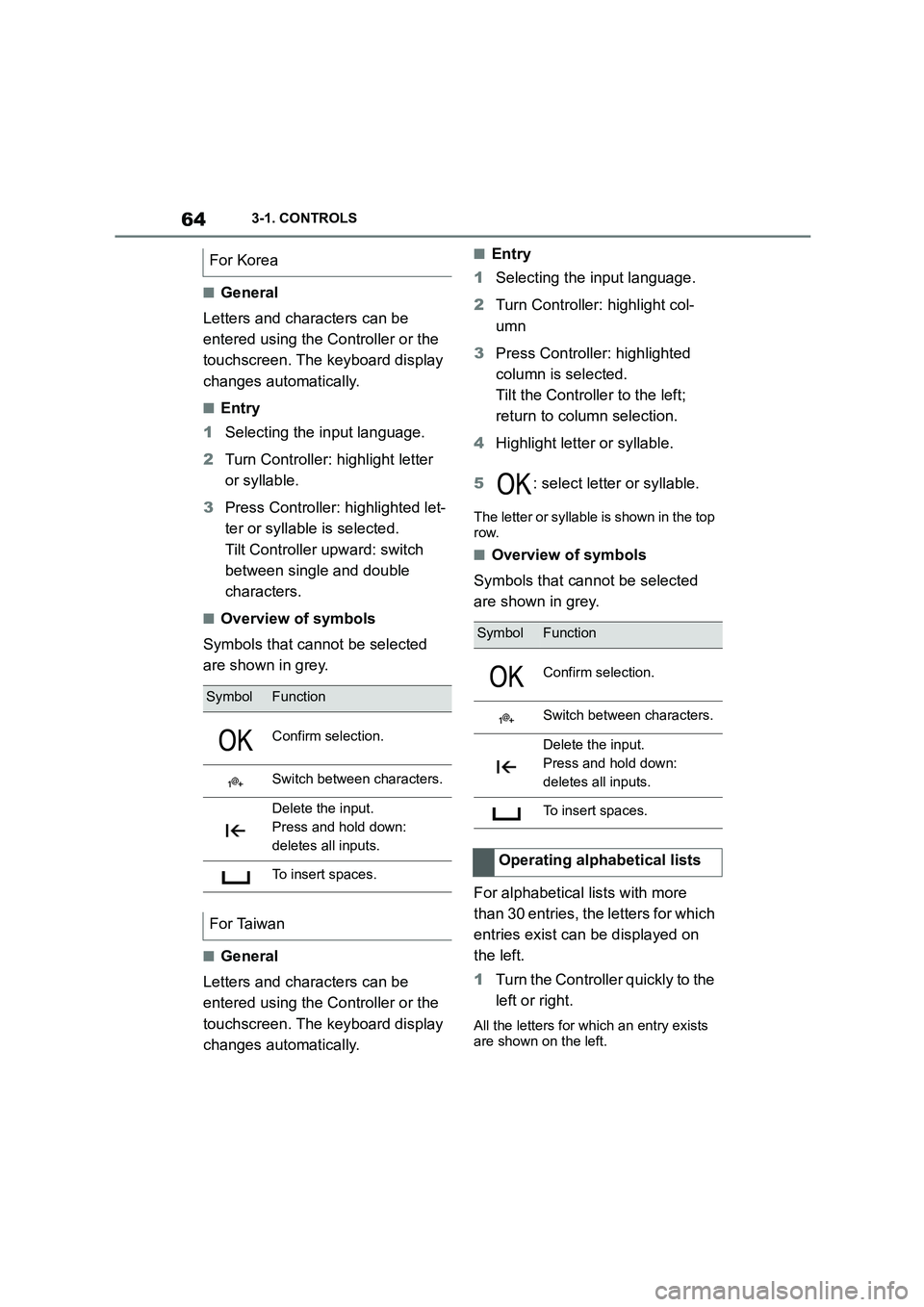
■General
Letters and characters can be
entered using the Controller or the
touchscreen. The keyboard display
changes automatically.
■Entry
1 Selecting the input language.
2 Turn Controller: highlight letter
or syllable.
3 Press Controller: highlighted let-
ter or syllable is selected.
Tilt Controller upward: switch
between single and double
characters.
■Overview of symbols
Symbols that cannot be selected
are shown in grey.
■General
Letters and characters can be
entered using the Controller or the
touchscreen. The keyboard display
changes automatically.
■Entry
1 Selecting the input language.
2 Turn Controller: highlight col-
umn
3 Press Controller: highlighted
column is selected.
Tilt the Controller to the left;
return to column selection.
4 Highlight letter or syllable.
5 : select letter or syllable.
The letter or syllable is shown in the top
row.
■Overview of symbols
Symbols that cannot be selected
are shown in grey.
For alphabetical lists with more
than 30 entries, the letters for which
entries exist can be displayed on
the left.
1 Turn the Controller quickly to the
left or right.
All the letters for which an entry exists
are shown on the left.
For Korea
SymbolFunction
Confirm selection.
Switch between characters.
Delete the input.
Press and hold down:
deletes all inputs.
To insert spaces.
For Taiwan
SymbolFunction
Confirm selection.
Switch between characters.
Delete the input.
Press and hold down:
deletes all inputs.
To insert spaces.
Operating alphabetical lists
Page 75 of 498
73
3
3-1. CONTROLS
CONTROLS
Depending on the country specifi-
cations, it is poss ible to select the
units of measurement for various
values, for example consumption,
distances and temperature.
Via Toyota Supra Command:
1 "My Vehicle"
2 "System settings"
3 "Units"
4 Select the desired menu item.
5 Select the desired setting.
If vehicle tracking is activated, the
current vehicle position can be dis-
played in the Toyota Supra Apps.
Via Toyota Supra Command:
1 "My Vehicle"
2 "Vehicle settings"
3 "Vehicle tracking"
4 "Vehicle tracking"
Information windows are automati-
cally shown on the Control Display
for some functions. Some of these
information windows can be acti-
vated or deactivated.
Via Toyota Supra Command:
1 "My Vehicle"
2 "System settings"
3 "Pop-ups"
4 Select the desired setting.
Via Toyota Supra Command:
1 "My Vehicle"
2 "System settings"
3 "Displays"
4 "Control display"
5 "Brightness at night"
6 Turn the Controller until the
desired brightness is obtained.
7 Press the Controller.
Depending on the lighting condi-
tions, the brightness adjustment
may not be immediately apparent.
The content displayed in some
menu items of the main menu can
be selected.
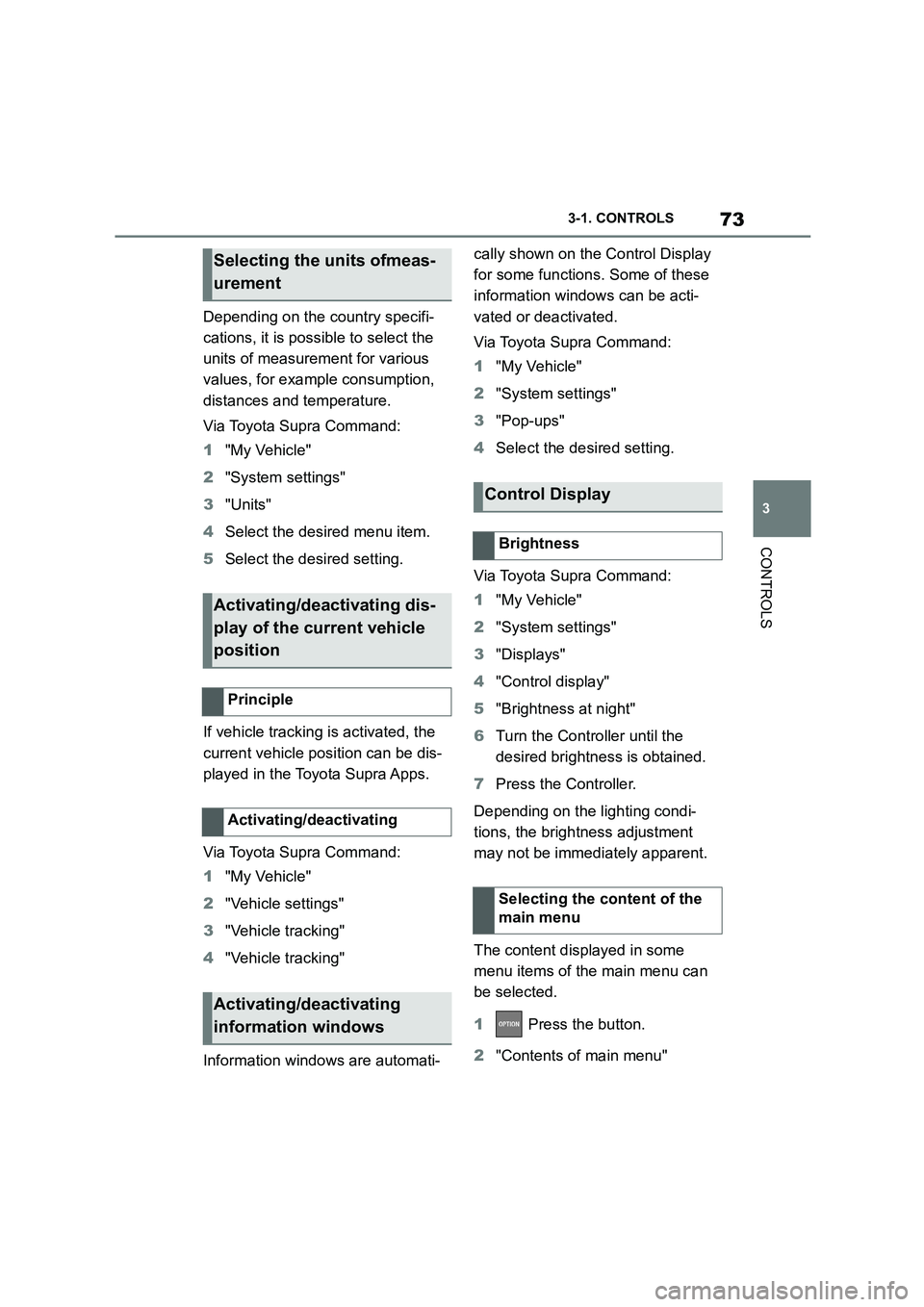
1 Press the button.
2 "Contents of main menu"
Selecting the units ofmeas-
urement
Activating/deactivating dis-
play of the current vehicle
position
Principle
Activating/deactivating
Activating/deactivating
information windows
Control Display
Brightness
Selecting the content of the
main menu