buttons TOYOTA SUPRA 2022 Owners Manual
[x] Cancel search | Manufacturer: TOYOTA, Model Year: 2022, Model line: SUPRA, Model: TOYOTA SUPRA 2022Pages: 498, PDF Size: 104.06 MB
Page 30 of 498
282-1. QUICK REFERENCE
objects before driving.
When backing up (reversing), if
you cannot see the area behind
the vehicle sufficiently, exit the
vehicle and check the area
before proceeding.
Refrain from driving when you are
fatigued or not feeling well.
Also, if driving for a long time, be
sure to stop and rest periodically.
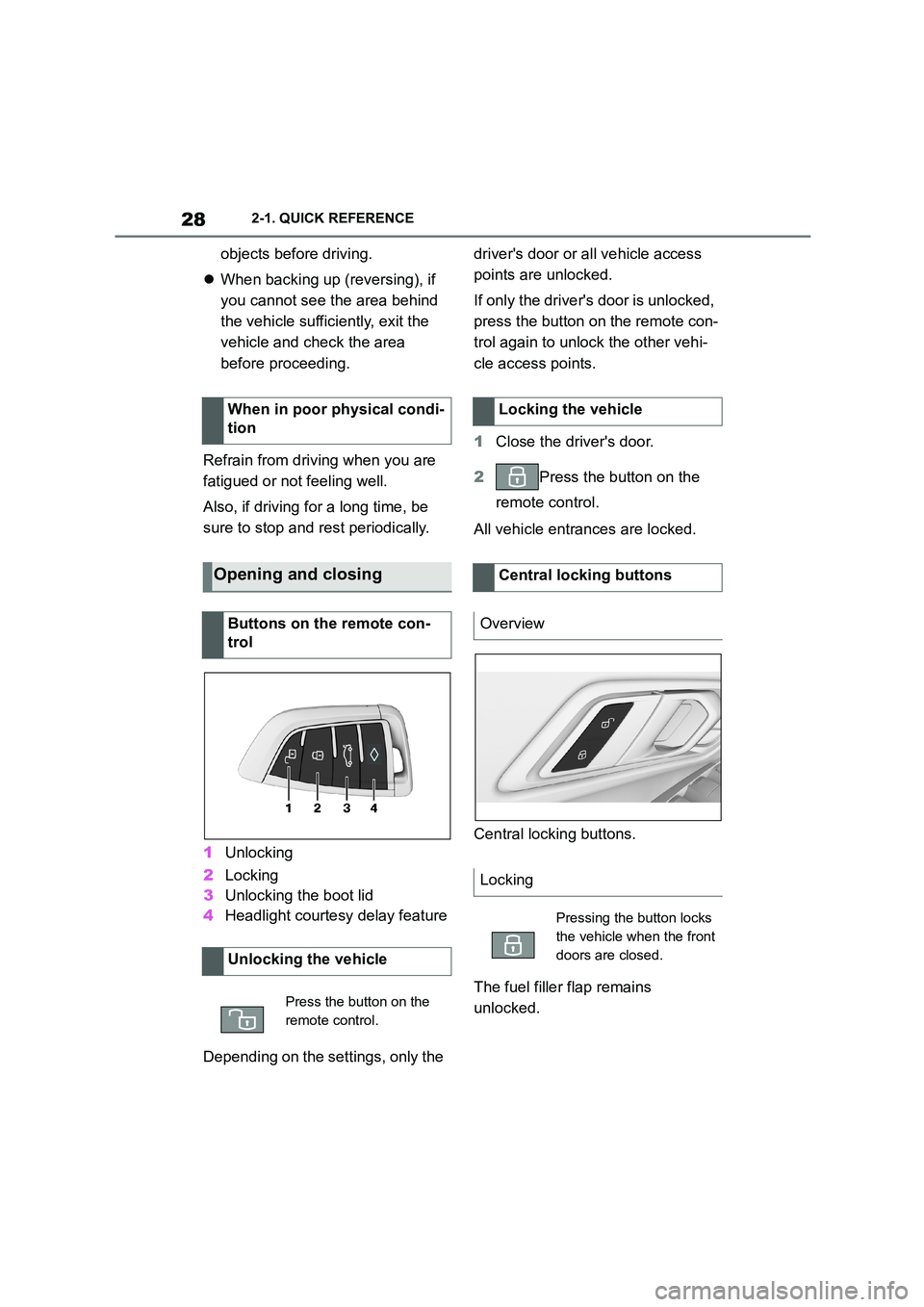
1 Unlocking
2 Locking
3 Unlocking the boot lid
4 Headlight courtesy delay feature
Depending on the settings, only the
driver's door or all vehicle access
points are unlocked.
If only the driver's door is unlocked,
press the button on the remote con-
trol again to unlock the other vehi-
cle access points.
1 Close the driver's door.
2 Press the button on the
remote control.
All vehicle entrances are locked.
Central locking buttons.
The fuel filler flap remains
unlocked.
When in poor physical condi-
tion
Opening and closing
Buttons on the remote con-
trol
Unlocking the vehicle
Press the button on the
remote control.
Locking the vehicle
Central locking buttons
Overview
Locking
Pressing the button locks
the vehicle when the front
doors are closed.
Page 33 of 498
31
2
2-1. QUICK REFERENCE
QUICK REFERENCE
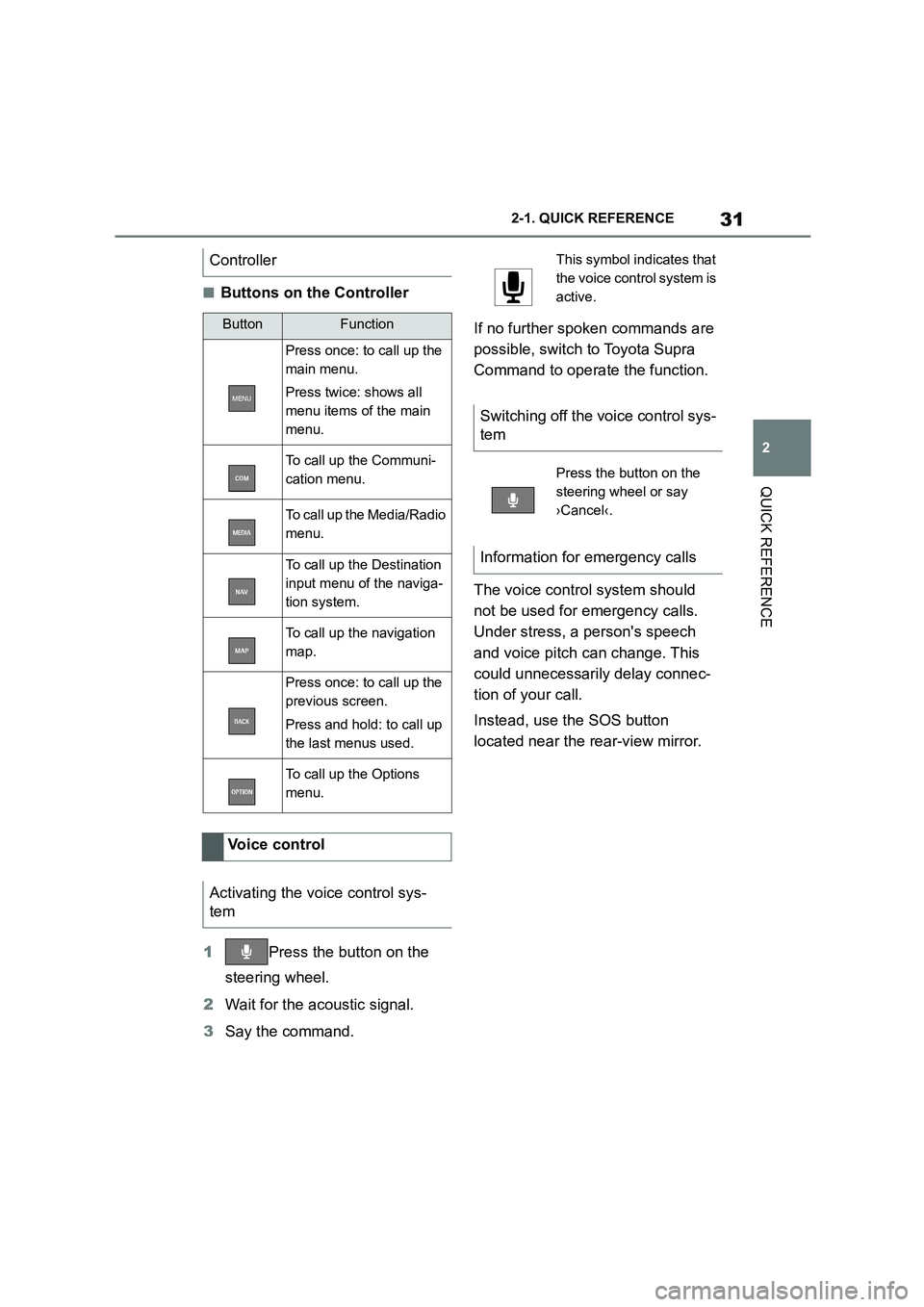
■Buttons on the Controller
1 Press the button on the
steering wheel.
2 Wait for the acoustic signal.
3 Say the command.
If no further spoken commands are
possible, switch to Toyota Supra
Command to operate the function.
The voice control system should
not be used for emergency calls.
Under stress, a person's speech
and voice pitch can change. This
could unnecessarily delay connec-
tion of your call.
Instead, use the SOS button
located near the rear-view mirror.
Controller
ButtonFunction
Press once: to call up the
main menu.
Press twice: shows all
menu items of the main
menu.
To call up the Communi-
cation menu.
To call up the Media/Radio
menu.
To call up the Destination
input menu of the naviga-
tion system.
To call up the navigation
map.
Press once: to call up the
previous screen.
Press and hold: to call up
the last menus used.
To call up the Options
menu.
Voice control
Activating the voice control sys-
tem
This symbol in dicates that
the voice control system is
active.
Switching off the voice control sys-
tem
Press the button on the
steering wheel or say
›Cancel‹.
Information for emergency calls
Page 35 of 498
33
2
2-1. QUICK REFERENCE
QUICK REFERENCE
The memory function enables the
following settings to be stored and
retrieved when required:
• Seat position.
• Exterior mirror position.
• Height of the Head-Up Display.
1 Set the desired position.
2 Press the button on the
driver's seat. The lettering in the
button is illuminated.
3 Press the desired button 1 or 2
at the driver's seat while the let-
tering is illuminated. A signal
sounds.
Press the desired button 1 or 2.
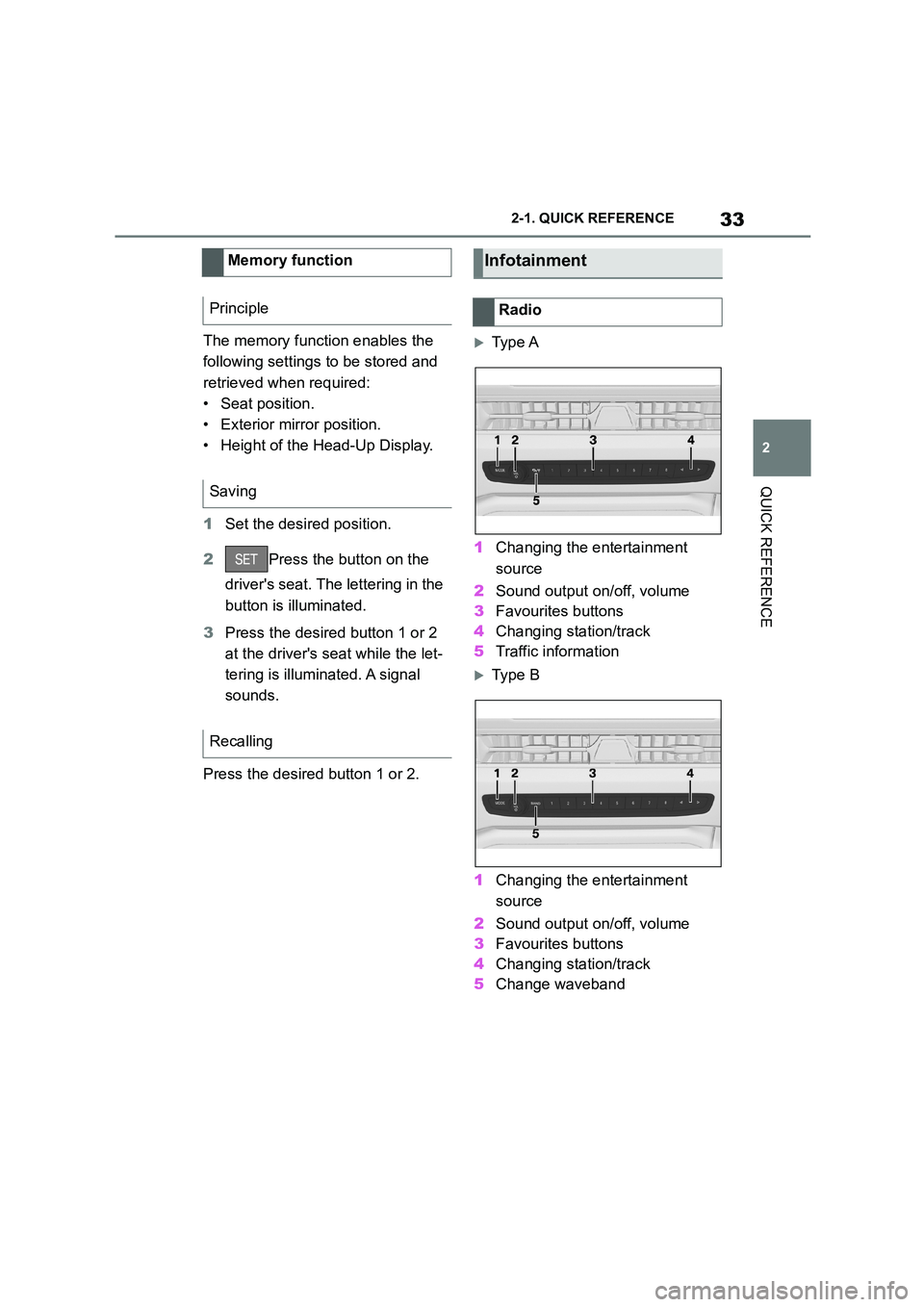
Ty p e A
1 Changing the entertainment
source
2 Sound output on/off, volume
3 Favourites buttons
4 Changing station/track
5 Traffic information
Ty p e B
1 Changing the entertainment
source
2 Sound output on/off, volume
3 Favourites buttons
4 Changing station/track
5 Change waveband
Memory function
Principle
Saving
Recalling
Infotainment
Radio
Page 36 of 498
342-1. QUICK REFERENCE
Once the mobile telephone has
been connected in the vehicle, it
can be operated using the Toyota
Supra Command, the buttons on
the steering wheel and by voice
control.
Via Toyota Supra Command:
1 "My Vehicle"
2 "System settings"
3 "Mobile devices"
4 "Connect new device"
5 Select functions for which you
would like to use the mobile
telephone.
The Bluetooth name of the vehicle is
displayed in the Control Display.
6 To perform other operations on
the mobile telephone; see the
user manual of the mobile tele-
phone: for example finding/con-
necting Bluetooth device or new
device.
The Bluetooth name of the vehicle is
shown on the display of the mobile tele-
phone. Select the Bluetooth name of the vehicle.
7 Depending on the mobile
device, either a control number
is displayed, or you will have to
enter the control number your-
self.
• Compare the control number
shown on the Control Display
with the control number in the
device display.
Confirm the control number in the
device and on the Control Display.
• Enter the same control number
on the device and via Toyota
Supra Command then confirm.
The device is connected and dis-
played in the device list.
Incoming calls can be accepted in
different ways.
• Via Toyota Supra Command:
"Accept"
• Press the button on the
steering wheel.
• Via the selection list in the instru-
ment cluster:
Select using the knurled wheel on the
steering wheel: "Accept"
Via Toyota Supra Command:
1 "Communication"
2 "Dial number"
3 Enter the numbers.
4 Select the symbol. The call is
made using the mobile tele-
Connecting mobile telephone
General
Connecting a mobile telephone
via Bluetooth
Telephony
Accepting a call
Dialling a number
Page 49 of 498
47
3
3-1. CONTROLS
CONTROLS
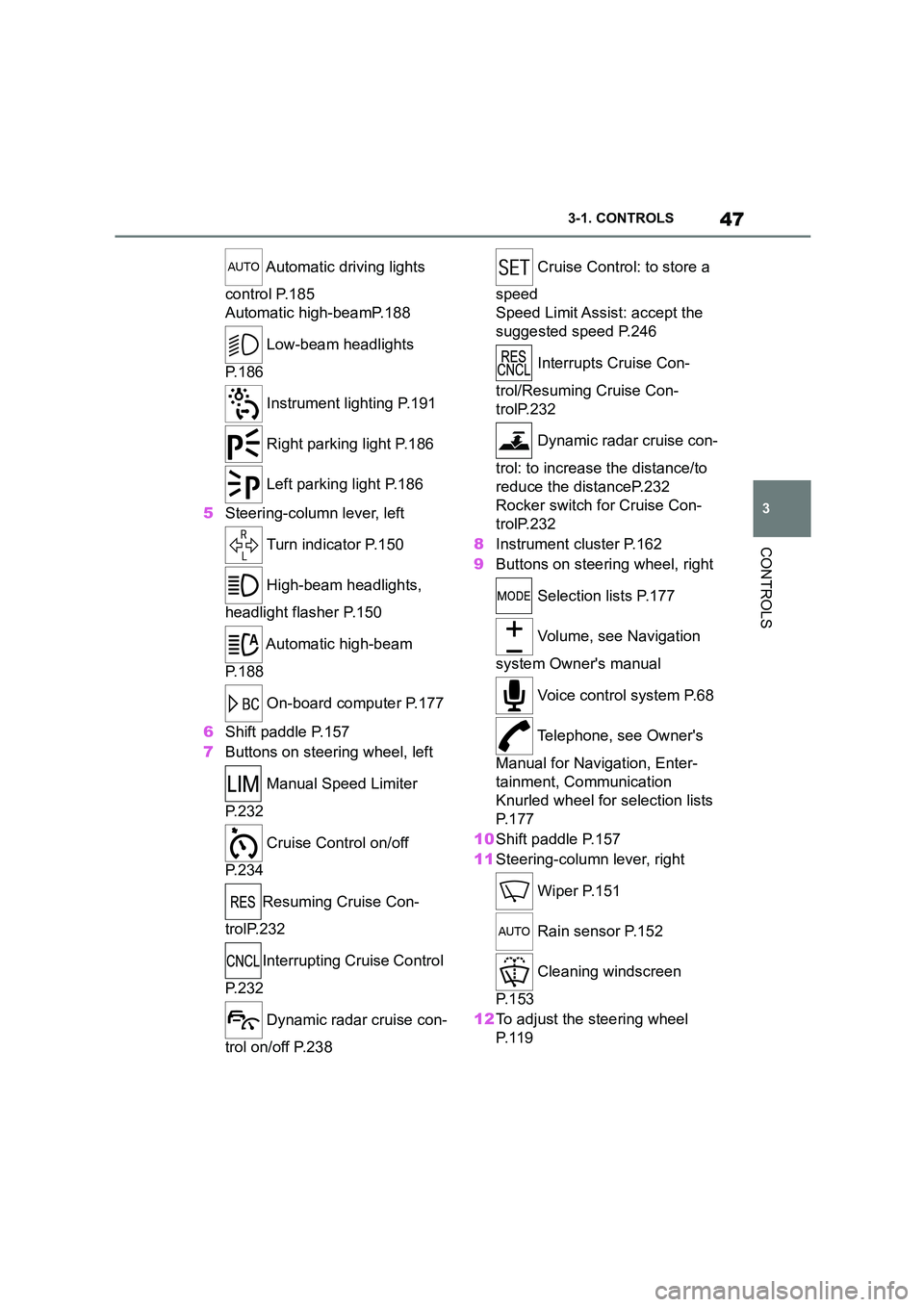
Automatic driving lights
control P.185
Automatic high-beamP.188
Low-beam headlights
P. 1 8 6
Instrument lighting P.191
Right parking light P.186
Left parking light P.186
5 Steering-column lever, left
Turn indicator P.150
High-beam headlights,
headlight flasher P.150
Automatic high-beam
P. 1 8 8
On-board computer P.177
6 Shift paddle P.157
7 Buttons on steering wheel, left
Manual Speed Limiter
P. 2 3 2
Cruise Control on/off
P. 2 3 4
Resuming Cruise Con-
trolP.232
Interrupting Cr uise Control
P. 2 3 2
Dynamic radar cruise con-
trol on/off P.238
Cruise Control: to store a
speed
Speed Limit Assist: accept the
suggested speed P.246
Interrupts Cruise Con-
trol/Resuming Cruise Con-
trolP.232
Dynamic radar cruise con-
trol: to increase the distance/to
reduce the distanceP.232
Rocker switch for Cruise Con-
trolP.232
8 Instrument cluster P.162
9 Buttons on steering wheel, right
Selection lists P.177
Volume, see Navigation
system Owner's manual
Voice control system P.68
Telephone, see Owner's
Manual for Navigation, Enter-
tainment, Communication
Knurled wheel for selection lists
P. 1 7 7
10 Shift paddle P.157
11 Steering-column lever, right
Wiper P.151
Rain sensor P.152
Cleaning windscreen
P. 1 5 3
12 To adjust the steering wheel
P. 1 1 9
Page 50 of 498
483-1. CONTROLS
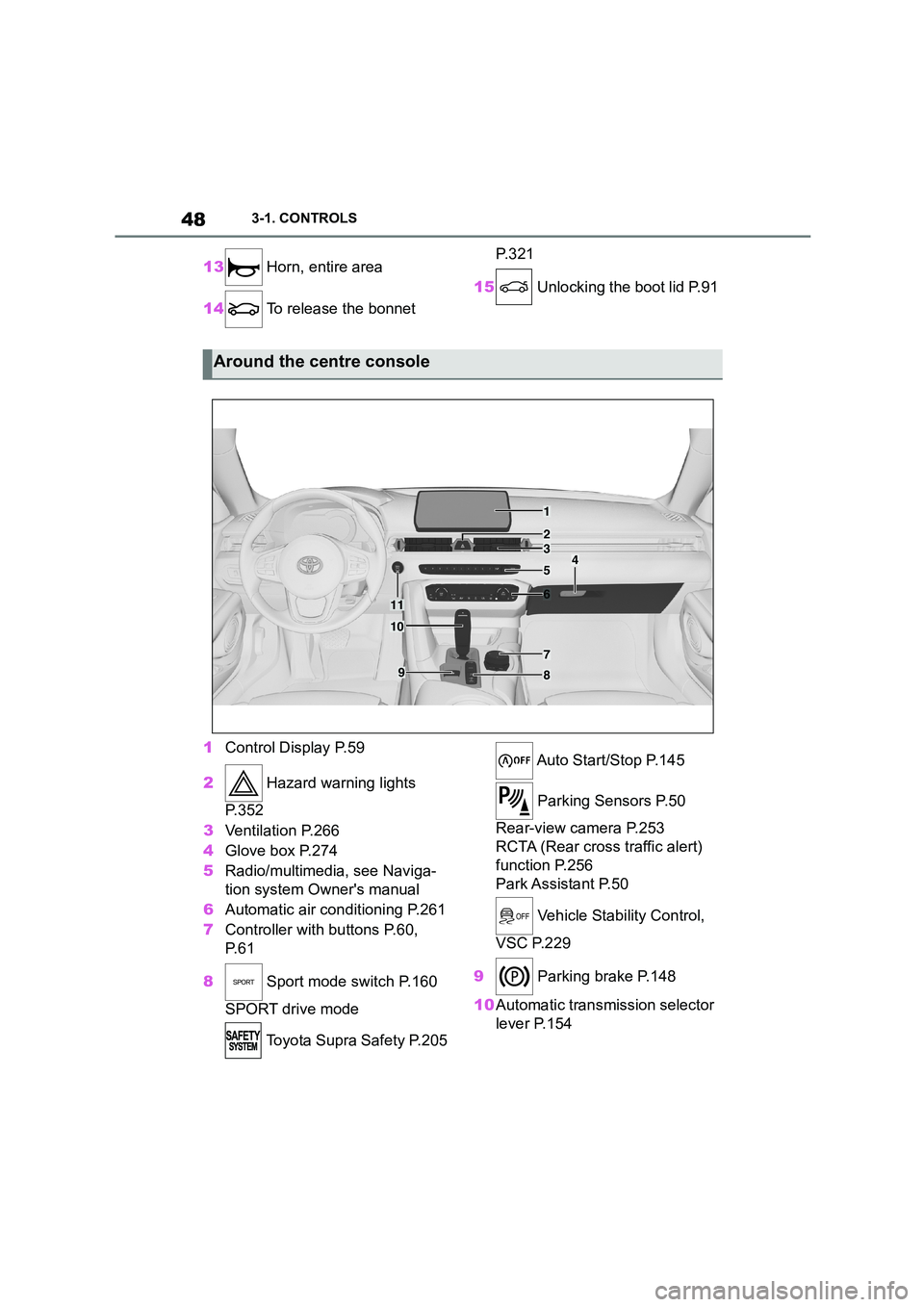
13 Horn, entire area
14 To release the bonnet
P. 3 2 1
15 Unlocking the boot lid P.91
1 Control Display P.59
2 Hazard warning lights
P. 3 5 2
3 Ventilation P.266
4 Glove box P.274
5 Radio/multimedia, see Naviga-
tion system Owner's manual
6 Automatic air conditioning P.261
7 Controller with buttons P.60,
P. 6 1
8 Sport mode switch P.160
SPORT drive mode
Toyota Supra Safety P.205
Auto Start/Stop P.145
Parking Sensors P.50
Rear-view camera P.253
RCTA (Rear cross traffic alert)
function P.256
Park Assistant P.50
Vehicle Stability Control,
VSC P.229
9 Parking brake P.148
10 Automatic transmission selector
lever P.154
Around the centre console
1
4
23
5
6
7
89
10
11
Page 61 of 498
59
3
3-1. CONTROLS
CONTROLS
visible in the split screen even if
you switch to a different menu.
■Switching on/off
1 Press the button.
2 "Split screen"
■Selecting the display
The display can be selected in the
menus in which a split screen view
is possible.
1 Tilt the Controller to the right
until the split screen is selected.
2 Press the Controller.
3 Select the desired setting.
■Defining the screen content
The screen content can be defined.
1 Tilt the Controller to the right
until the split screen is selected.
2 Press the Controller.
3 "Personalise menu"
4 Select the desired setting.
5 Tilt the Controller to the left.
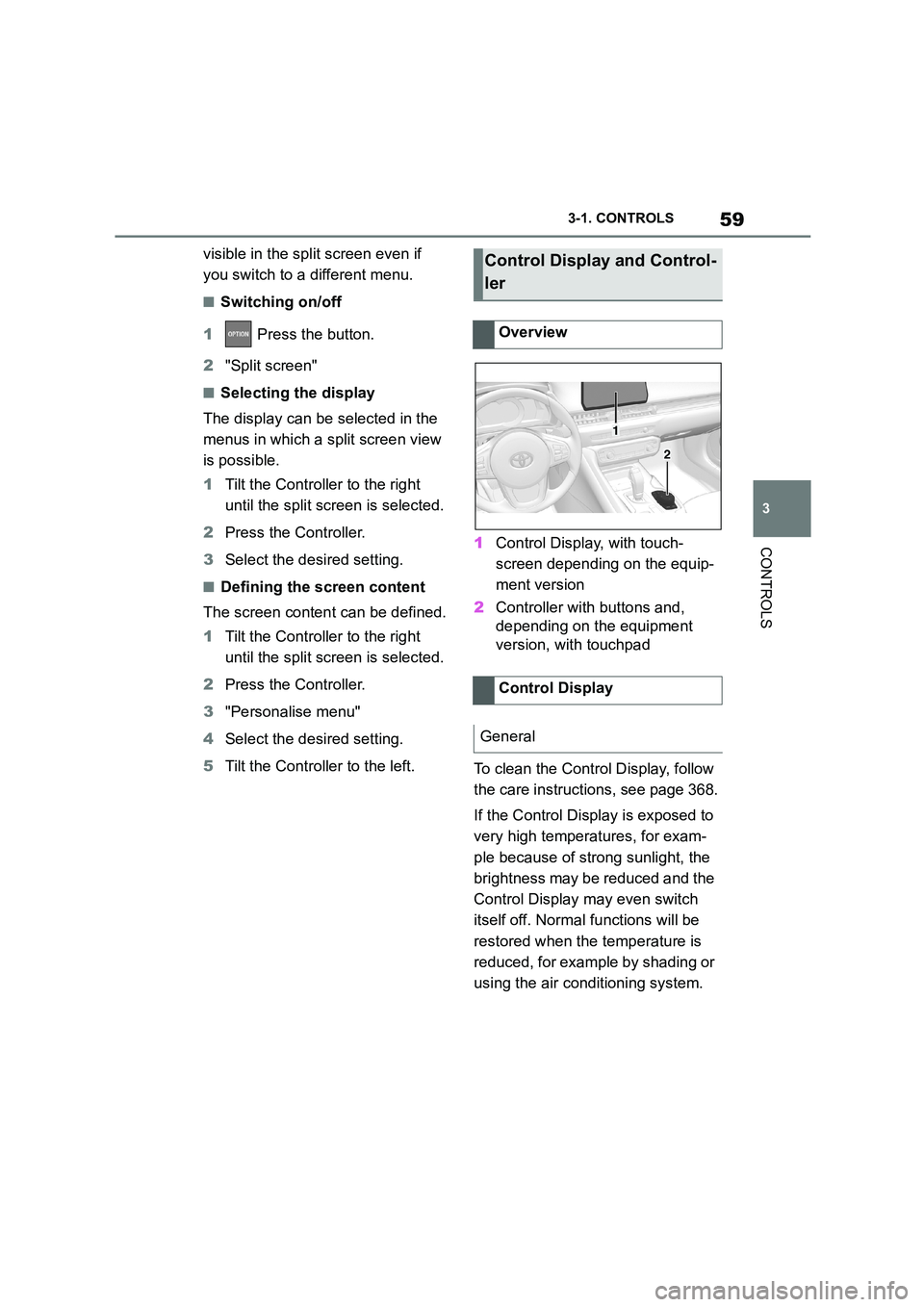
1 Control Display, with touch-
screen depending on the equip-
ment version
2 Controller with buttons and,
depending on the equipment
version, with touchpad
To clean the Control Display, follow
the care instructions, see page 368.
If the Control Display is exposed to
very high temperatures, for exam-
ple because of strong sunlight, the
brightness may be reduced and the
Control Display may even switch
itself off. Normal functions will be
restored when the temperature is
reduced, for example by shading or
using the air conditioning system.
Control Display and Control-
ler
Overview
Control Display
General
1
2
Page 62 of 498
603-1. CONTROLS
The Control Display is switched on
automatically after unlocking.
In certain situations, the Control
Display is switch ed off automati-
cally, for example if no operation is
performed on the vehicle for sev-
eral minutes.
The Control Display can also be
switched off manually.
1 Press the button.
2 "Switch off control display"
Press the Controller or any button
on the Controller to switch it back
on again.
The buttons can be used to call up
menus directly. The Controller can
be used to select menu items and
perform settings.
Some of the functions of the Toyota
Supra Command can be operated
with the touchpad of the Controller,
see page 66.
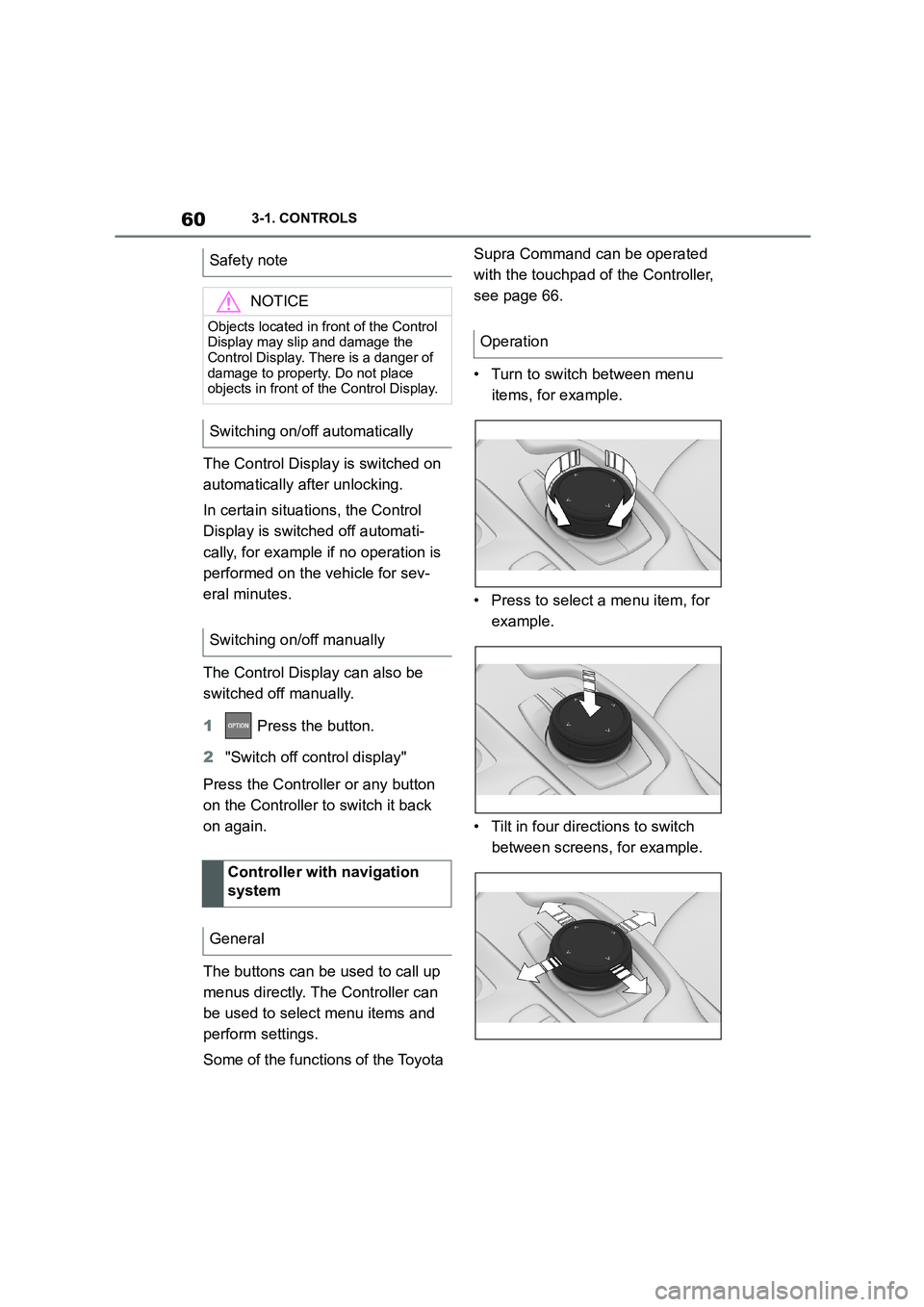
• Turn to switch between menu
items, for example.
• Press to select a menu item, for
example.
• Tilt in four directions to switch
between screens, for example.
Safety note
NOTICE
Objects located in front of the Control
Display may slip and damage the Control Display. There is a danger of
damage to property. Do not place
objects in front of the Control Display.
Switching on/off automatically
Switching on/off manually
Controller with navigation
system
General
Operation
Page 63 of 498
61
3
3-1. CONTROLS
CONTROLS
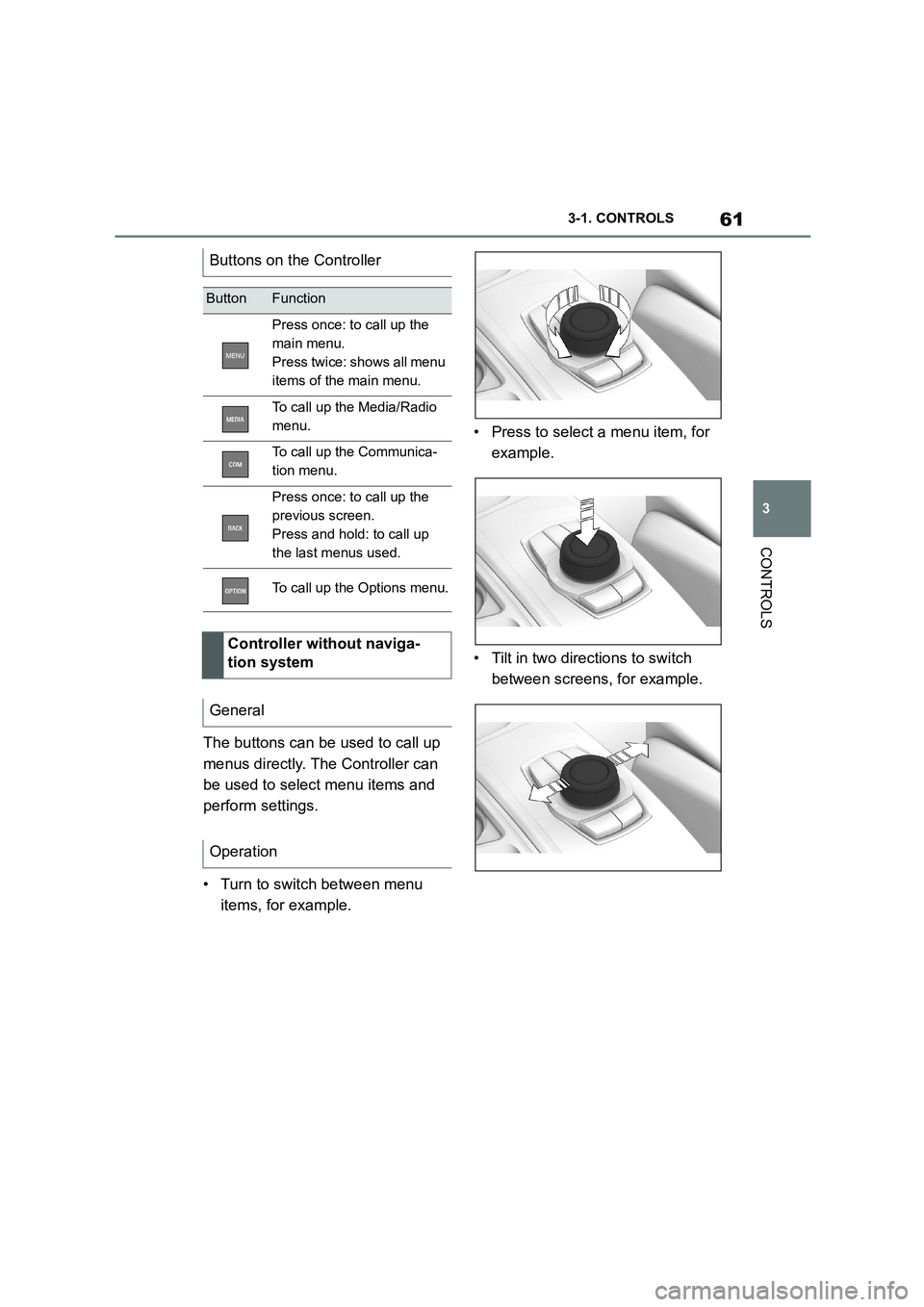
The buttons can be used to call up
menus directly. The Controller can
be used to select menu items and
perform settings.
• Turn to switch between menu
items, for example.
• Press to select a menu item, for
example.
• Tilt in two directions to switch
between screens, for example.
Buttons on the Controller
ButtonFunction
Press once: to call up the
main menu.
Press twice: shows all menu
items of the main menu.
To call up the Media/Radio
menu.
To call up the Communica-
tion menu.
Press once: to call up the
previous screen.
Press and hold: to call up
the last menus used.
To call up the Options menu.
Controller without naviga-
tion system
General
Operation
Page 64 of 498
623-1. CONTROLS
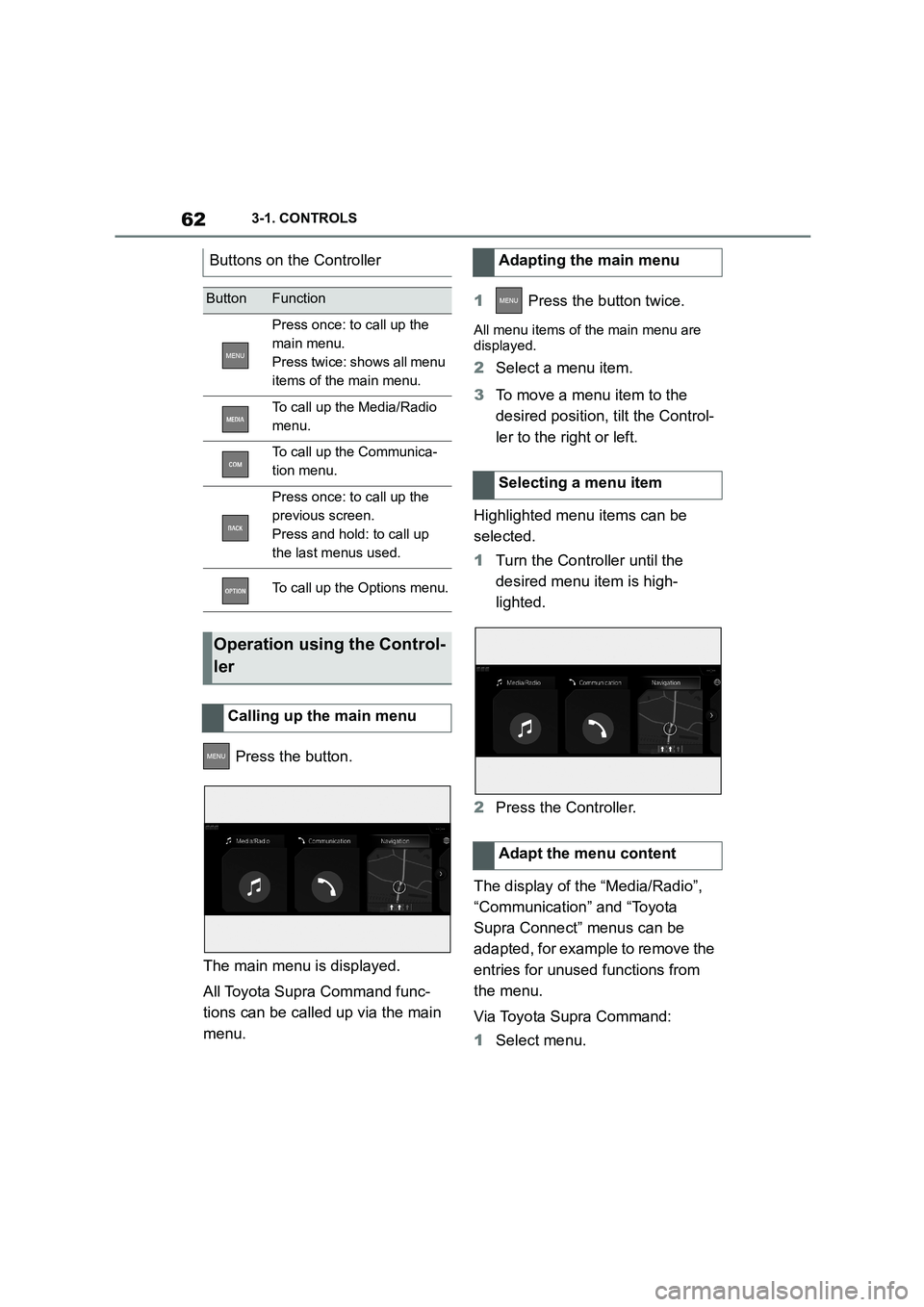
Press the button.
The main menu is displayed.
All Toyota Supra Command func-
tions can be called up via the main
menu.
1 Press the button twice.
All menu items of the main menu are
displayed.
2 Select a menu item.
3 To move a menu item to the
desired position, tilt the Control-
ler to the right or left.
Highlighted menu items can be
selected.
1 Turn the Controller until the
desired menu item is high-
lighted.
2 Press the Controller.
The display of the “Media/Radio”,
“Communication” and “Toyota
Supra Connect” menus can be
adapted, for example to remove the
entries for unused functions from
the menu.
Via Toyota Supra Command:
1 Select menu.
Buttons on the Controller
ButtonFunction
Press once: to call up the
main menu.
Press twice: shows all menu
items of the main menu.
To call up the Media/Radio
menu.
To call up the Communica-
tion menu.
Press once: to call up the
previous screen.
Press and hold: to call up
the last menus used.
To call up the Options menu.
Operation using the Control-
ler
Calling up the main menu
Adapting the main menu
Selecting a menu item
Adapt the menu content