buttons TOYOTA SUPRA 2022 User Guide
[x] Cancel search | Manufacturer: TOYOTA, Model Year: 2022, Model line: SUPRA, Model: TOYOTA SUPRA 2022Pages: 498, PDF Size: 104.06 MB
Page 70 of 498
683-1. CONTROLS
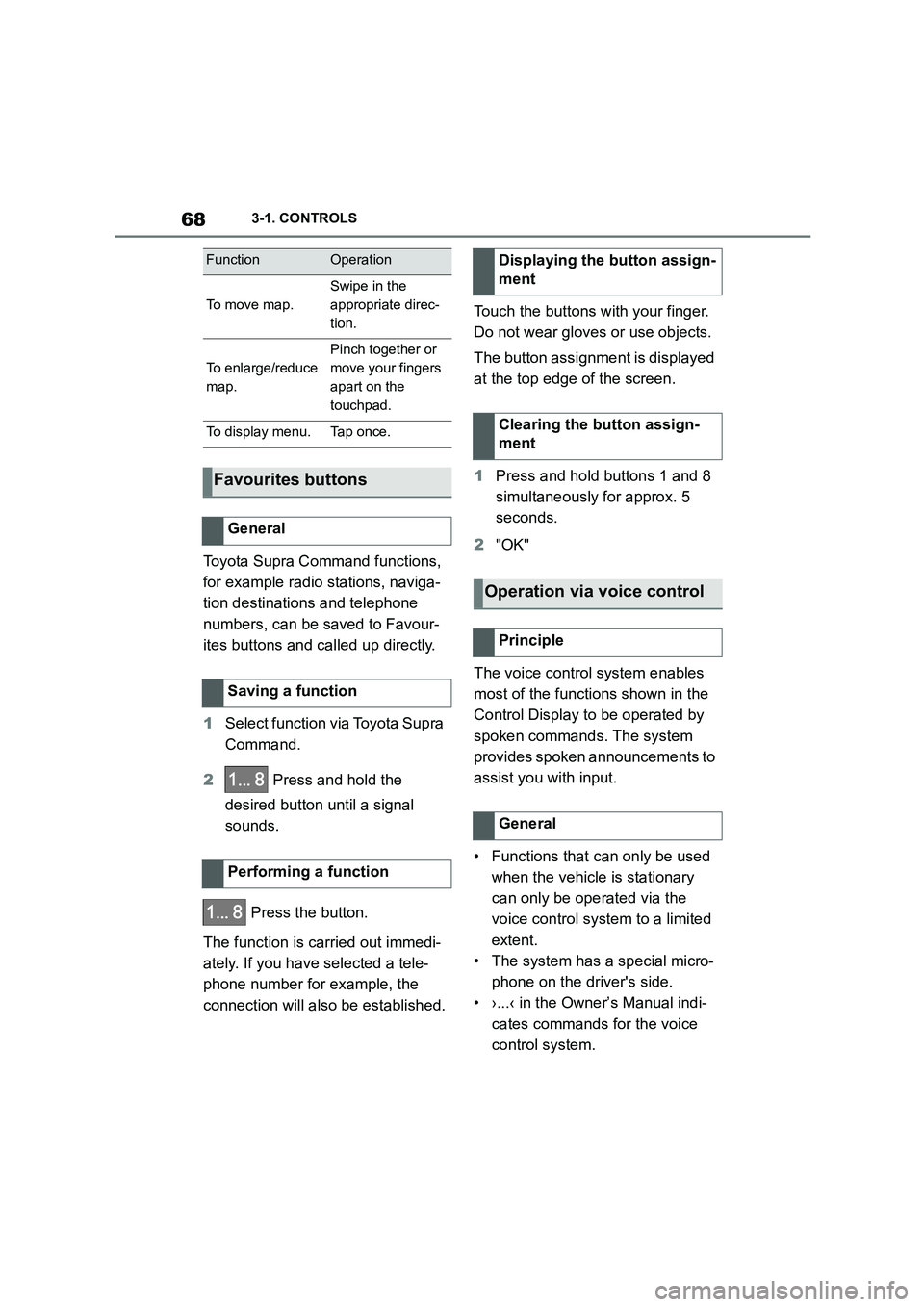
Toyota Supra Command functions,
for example radio stations, naviga-
tion destinations and telephone
numbers, can be saved to Favour-
ites buttons and called up directly.
1 Select function via Toyota Supra
Command.
2 Press and hold the
desired button until a signal
sounds.
Press the button.
The function is carried out immedi-
ately. If you have selected a tele-
phone number for example, the
connection will also be established.
Touch the buttons with your finger.
Do not wear gloves or use objects.
The button assignment is displayed
at the top edge of the screen.
1 Press and hold buttons 1 and 8
simultaneously for approx. 5
seconds.
2 "OK"
The voice control system enables
most of the functions shown in the
Control Display to be operated by
spoken commands. The system
provides spoken announcements to
assist you with input.
• Functions that can only be used
when the vehicle is stationary
can only be operated via the
voice control system to a limited
extent.
• The system has a special micro-
phone on the driver's side.
• ›...‹ in the Owner’s Manual indi-
cates commands for the voice
control system.
FunctionOperation
To m o v e m a p .
Swipe in the
appropriate direc-
tion.
To enlarge/reduce
map.
Pinch together or
move your fingers
apart on the
touchpad.
To display menu.Tap once.
Favourites buttons
General
Saving a function
Performing a function
Displaying the button assign-
ment
Clearing the button assign-
ment
Operation via voice control
Principle
General
Page 77 of 498
75
3
3-1. CONTROLS
CONTROLS
This chapter describes all standard,
country-specific and special equip-
ment available for the model series.
It may therefore describe equip-
ment which is not installed in your
vehicle, for exampl e on account of
the special equipment selected or
the country specific ation. This also
applies to safety-relevant functions
and systems. Please comply with
the relevant laws and regulations
when using the corresponding func-
tions and systems.
The vehicle offers various functions
which require data to be transferred
to Toyota or a service provider. The
transfer of data can be deactivated
for some functions.
If data transfer has been deacti-
vated for a function, then that func-
tion cannot be used.
Only perform settings with the vehi-
cle at a standstill.
Follow the instruct ions on the Con-
trol Display.
Via Toyota Supra Command:
1 "My Vehicle"
2 "System settings"
3 "Data privacy"
4 Select the desired setting.
Depending on use, the vehicle
stores personal data such as saved
radio stations. This personal data
can be permanently deleted using
Toyota Supra Command.
Depending on the equipment in
your vehicle, the following data can
be deleted:
• Driver profile settings.
• Saved radio stations.
• Saved Favourites buttons.
• Trip and on-board computer val-
ues.
• Music hard disc.
• Navigation, for example saved
destinations.
• Phone book.
• Online data, for example Favour-
ites, cookies.
• Office data, for example voice
Personal settings
Vehicle equipment
Data protection
Data transfer
Principle
General
Activating/deactivating
Deleting persona l data in the
vehicle
Principle
General
Page 79 of 498
77
3
3-1. CONTROLS
CONTROLS
files.
To ensure that the correct driver
profile can be set, the system must
be able to allocate the detected
remote control uniquely to the
driver.
This is ensured if the following con-
ditions are met:
• The driver is only carrying their
own remote control.
• The driver unlocks the vehicle.
• The driver enters the vehicle
through the driver's door.
The name of the currently used
driver profile is displayed when the
Control Display is switched on.
Select a driver profile, see page 77.
As soon as the engine is started or
any button pressed, the display
selected last is shown on the Con-
trol Display.
To cancel the welcome screen via
Toyota Supra Command: "OK"
Settings for the following systems
and functions are saved in the cur-
rently used driv er profile. Which
settings can be saved depends on
the country and equipment.
• Unlocking and locking.
•Lights.
• Air conditioning.
• Radio.
• Instrument cluster.
• Favourites buttons.
• Volumes, sound.
• Control Display.
• Parking Sensors.
• Rear-view camera.
• Head-Up Display.
• Sport mode switch.
• Seat position, exterior mirror
position
The positions set via the seat memory
and the last position set are saved.
• Cruise Control.
• Toyota Supra Safety.
Regardless of which remote control
is currently being used, it is possi-
ble to call up a different driver pro-
file. This enables the personal
vehicle settings to be called up,
even if the vehicle was not
unlocked with the driver's own
remote control.
Via Toyota Supra Command:
1 "My Vehicle"
2 "Driver profiles"
3 Select a driver profile.
4 "OK"
• The settings saved in the
selected driver profile are
applied automatically.
Operating requirements
Currently used driver profile
Settings
Profile management
Selecting a driver profile
Page 92 of 498
903-1. CONTROLS
unlocked.
• With anti-theft system: The
anti-theft system is switched off.
• With alarm system: The alarm
system is switched off.
Depending on the settings, the win-
dow is lowered further when open-
ing a door.
The vehicle is operational after one
of the front doors is opened.
The lighting functions may depend
on the ambient brightness.
The windows are opened for as
long as the button on the remote
control is pressed.
Exterior mirrors which were folded
in via the comfort closing feature
are folded out.
The behaviour of the vehicle in the
case of remote control locking
depends on the following settings:
• Whether locking of the vehicle is
acknowledged with a light signal.
• Whether the exterior mirrors are
automatically folded in when the
vehicle is unlocked and locked.
• Whether the headlight courtesy
delay feature is activated when
the vehicle is locked.
1 Close the driver's door.
2 Press the button on the
remote control.
The following functions are carried
out:
• All the doors, the boot lid and
fuel filler flap are locked.
• With anti-theft system: The
anti-theft system is switched on.
This prevents the doors from
being unlocked using the locking
buttons or the door openers.
• With alarm system: The alarm
system is switched on.
If the drive-ready state is still
switched on when locking, the vehi-
cle horn sounds twice. In this case,
switch off the drive-ready state
using start/ stop button.
Press remote control button
twice in direct succession to
activate comfort memory.
Comfort opening
Opening
Press and hold the button on
the remote control.
Locking
General
Locking the vehicle
Page 97 of 498
95
3
3-1. CONTROLS
CONTROLS
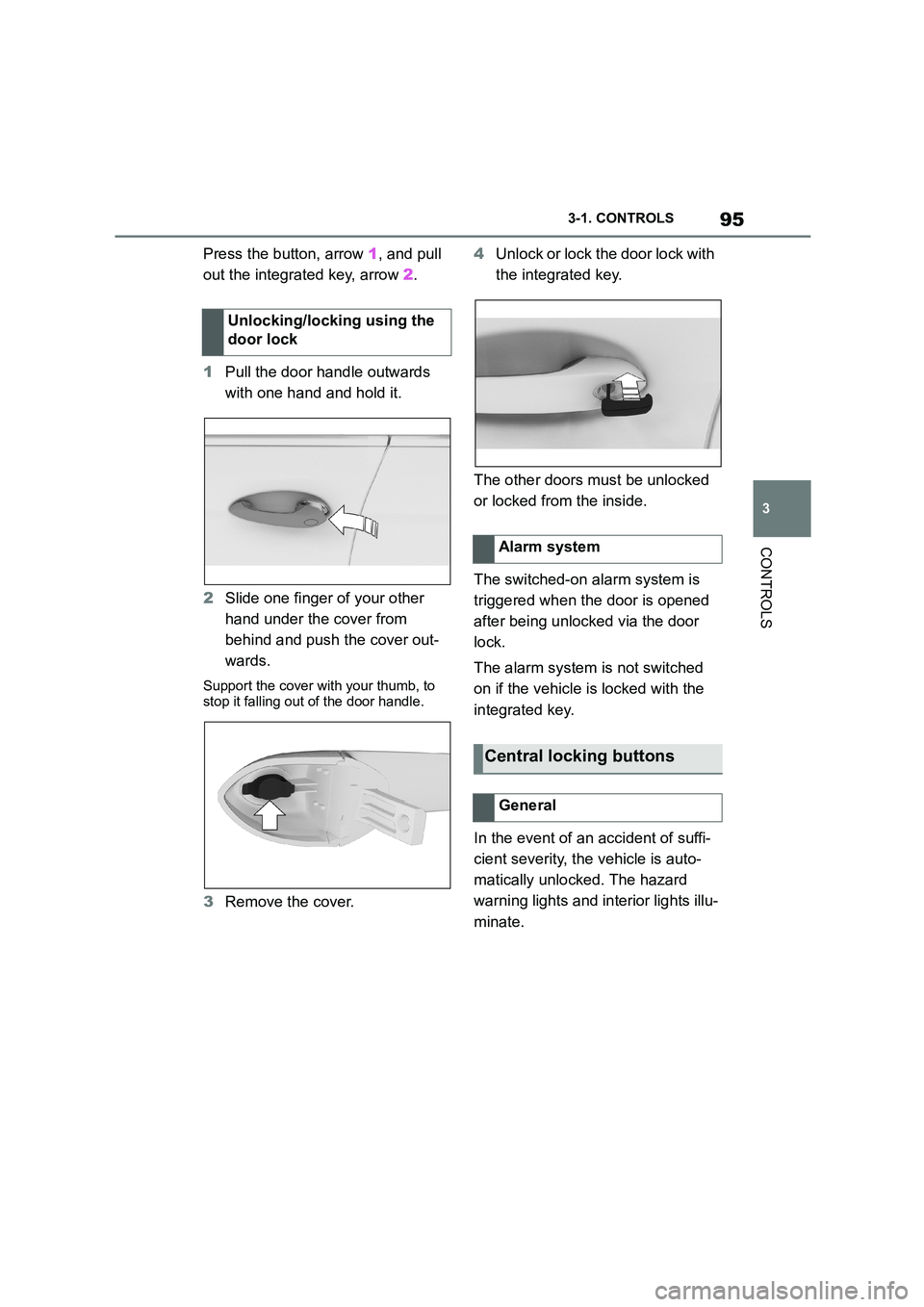
Press the button, arrow 1, and pull
out the integrated key, arrow 2.
1 Pull the door handle outwards
with one hand and hold it.
2 Slide one finger of your other
hand under the cover from
behind and push the cover out-
wards.
Support the cover with your thumb, to
stop it falling out of the door handle.
3 Remove the cover.
4 Unlock or lock the door lock with
the integrated key.
The other doors must be unlocked
or locked from the inside.
The switched-on alarm system is
triggered when the door is opened
after being unlocked via the door
lock.
The alarm system is not switched
on if the vehicle is locked with the
integrated key.
In the event of an accident of suffi-
cient severity, the vehicle is auto-
matically unlocked. The hazard
warning lights and in terior lights illu-
minate.
Unlocking/locking using the
door lock
Alarm system
Central locking buttons
General
Page 98 of 498
963-1. CONTROLS
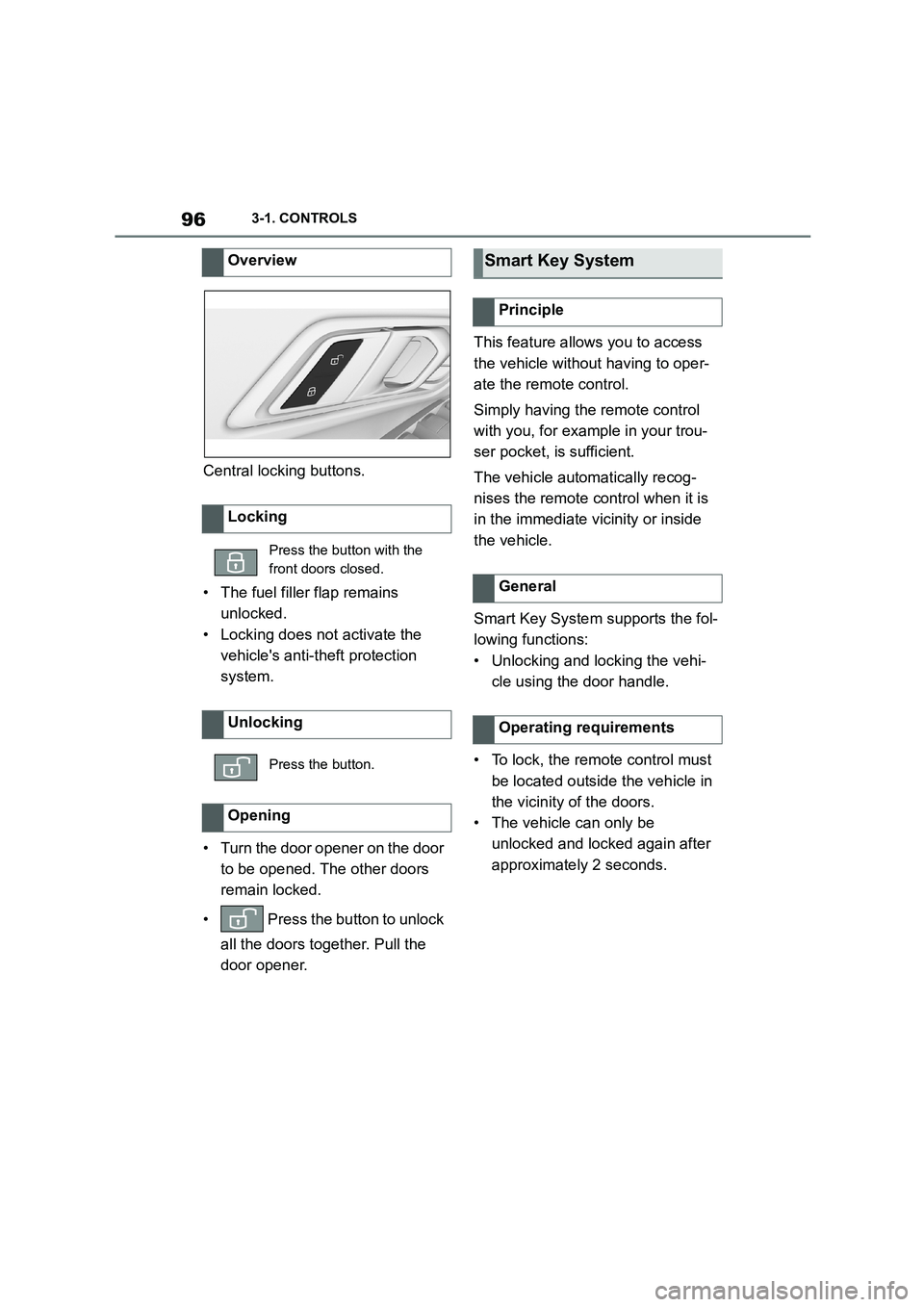
Central locking buttons.
• The fuel filler flap remains
unlocked.
• Locking does not activate the
vehicle's anti-theft protection
system.
• Turn the door opener on the door
to be opened. The other doors
remain locked.
• Press the button to unlock
all the doors together. Pull the
door opener.
This feature allows you to access
the vehicle without having to oper-
ate the remote control.
Simply having the remote control
with you, for example in your trou-
ser pocket, is sufficient.
The vehicle automatically recog-
nises the remote control when it is
in the immediate vicinity or inside
the vehicle.
Smart Key System supports the fol-
lowing functions:
• Unlocking and locking the vehi-
cle using the door handle.
• To lock, the remote control must
be located outside the vehicle in
the vicinity of the doors.
• The vehicle can only be
unlocked and locked again after
approximately 2 seconds.
Overview
Locking
Press the button with the
front doors closed.
Unlocking
Press the button.
Opening
Smart Key System
Principle
General
Operating requirements
Page 101 of 498
99
3
3-1. CONTROLS
CONTROLS
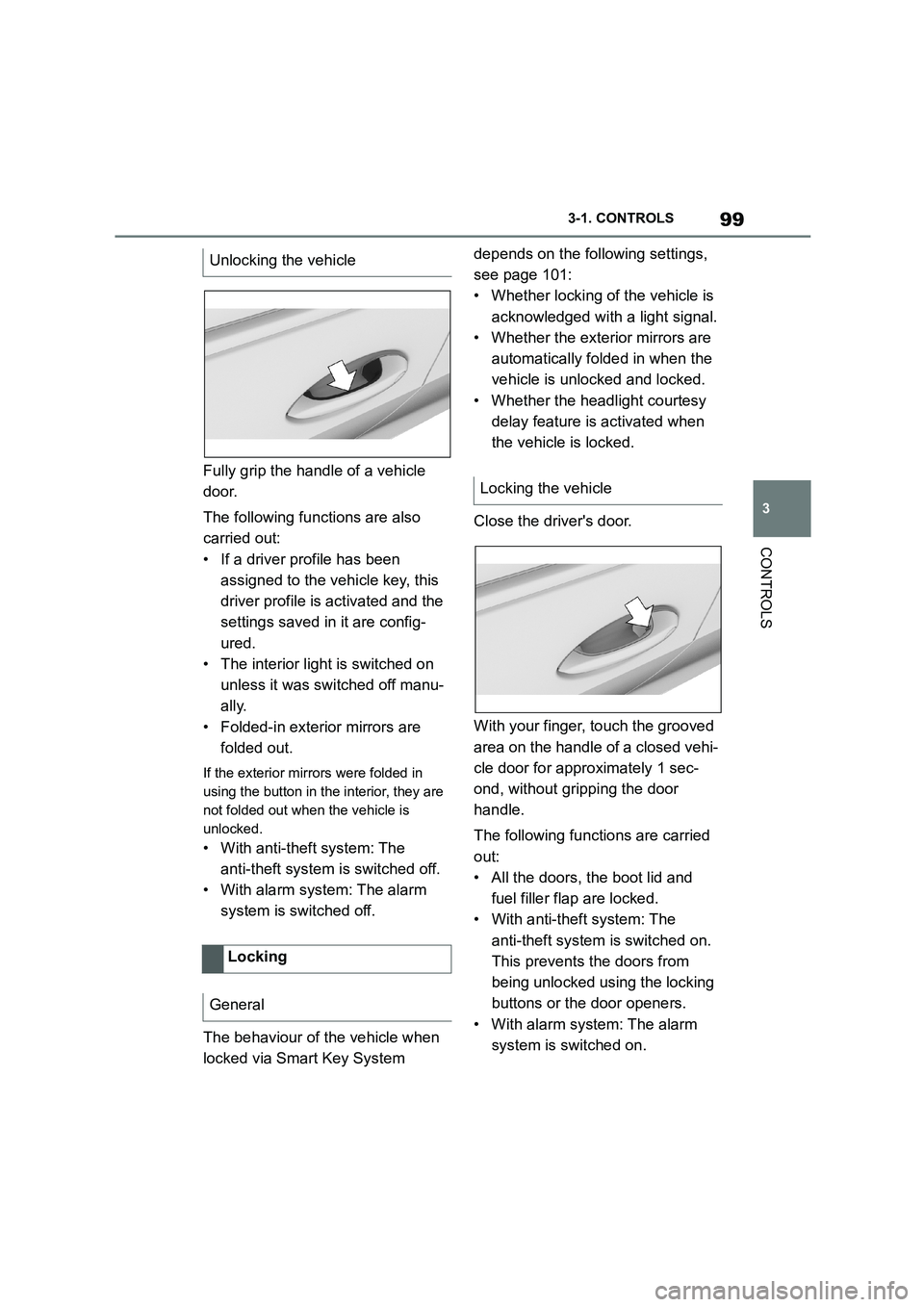
Fully grip the handle of a vehicle
door.
The following functions are also
carried out:
• If a driver profile has been
assigned to the vehicle key, this
driver profile is activated and the
settings saved in it are config-
ured.
• The interior light is switched on
unless it was switched off manu-
ally.
• Folded-in exterior mirrors are
folded out.
If the exterior mirrors were folded in
using the button in the interior, they are
not folded out when the vehicle is
unlocked.
• With anti-theft system: The
anti-theft system is switched off.
• With alarm system: The alarm
system is switched off.
The behaviour of the vehicle when
locked via Smart Key System
depends on the following settings,
see page 101:
• Whether locking of the vehicle is
acknowledged with a light signal.
• Whether the exterior mirrors are
automatically folded in when the
vehicle is unlocked and locked.
• Whether the headlight courtesy
delay feature is activated when
the vehicle is locked.
Close the driver's door.
With your finger, touch the grooved
area on the handle of a closed vehi-
cle door for approximately 1 sec-
ond, without gripping the door
handle.
The following functions are carried
out:
• All the doors, the boot lid and
fuel filler flap are locked.
• With anti-theft system: The
anti-theft system is switched on.
This prevents the doors from
being unlocked using the locking
buttons or the door openers.
• With alarm system: The alarm
system is switched on.
Unlocking the vehicle
Locking
General
Locking the vehicle
Page 122 of 498
1203-1. CONTROLS
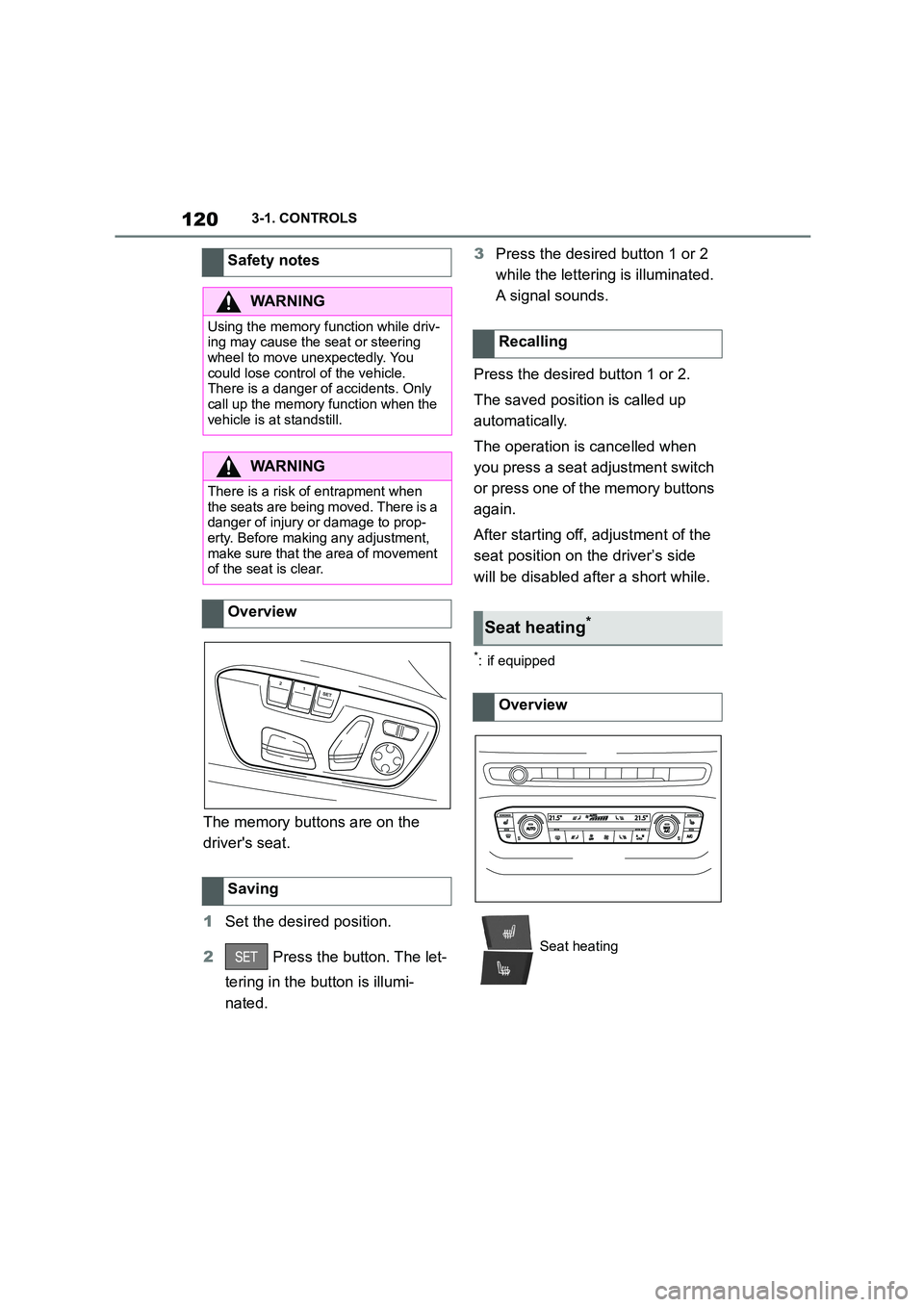
The memory buttons are on the
driver's seat.
1 Set the desired position.
2 Press the button. The let-
tering in the button is illumi-
nated.
3 Press the desired button 1 or 2
while the lettering is illuminated.
A signal sounds.
Press the desired button 1 or 2.
The saved position is called up
automatically.
The operation is cancelled when
you press a seat adjustment switch
or press one of the memory buttons
again.
After starting off, adjustment of the
seat position on the driver’s side
will be disabled after a short while.
*: if equipped
Safety notes
WA R N I N G
Using the memory function while driv-
ing may cause the seat or steering wheel to move unexpectedly. You
could lose control of the vehicle.
There is a danger of accidents. Only call up the memory function when the
vehicle is at standstill.
WA R N I N G
There is a risk of entrapment when the seats are being moved. There is a
danger of injury or damage to prop-
erty. Before making any adjustment, make sure that the area of movement
of the seat is clear.
Overview
Saving
Recalling
Seat heating*
Overview
Seat heating
Page 179 of 498
177
3
3-1. CONTROLS
CONTROLS
to the standard.
If signs are detected that apply to
a parallel road.
In the case of country-specific
signs or road layouts.
During the camera calibration
process immediately after vehi-
cle delivery.
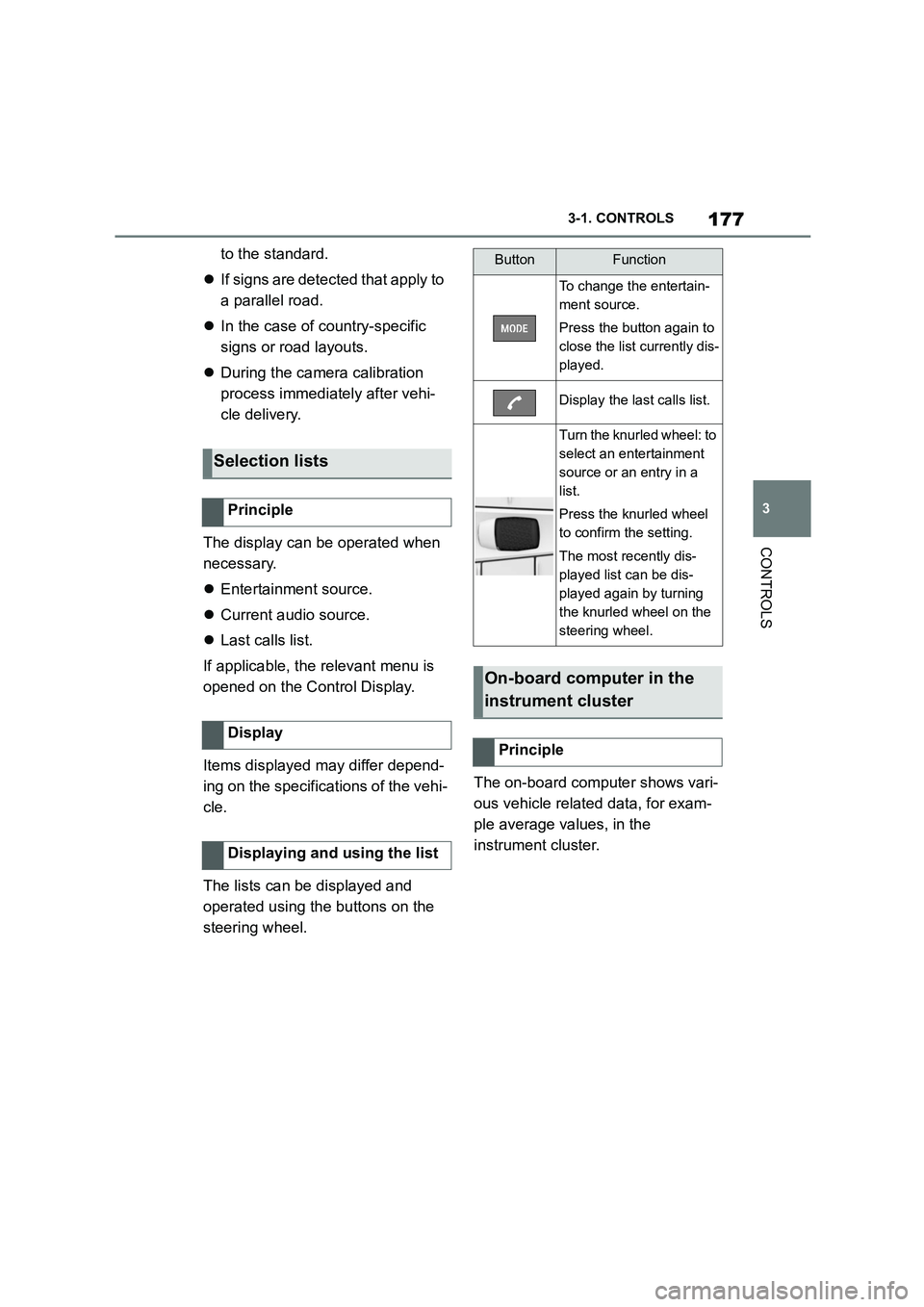
The display can be operated when
necessary.
Entertainment source.
Current audio source.
Last calls list.
If applicable, the relevant menu is
opened on the Control Display.
Items displayed may differ depend-
ing on the specifications of the vehi-
cle.
The lists can be displayed and
operated using the buttons on the
steering wheel.
The on-board computer shows vari-
ous vehicle related data, for exam-
ple average values, in the
instrument cluster.
Selection lists
Principle
Display
Displaying and using the list
ButtonFunction
To change the entertain-
ment source.
Press the button again to
close the list currently dis-
played.
Display the last calls list.
Turn the knurled wheel: to
select an entertainment
source or an entry in a
list.
Press the knurled wheel
to confirm the setting.
The most recently dis-
played list can be dis-
played again by turning
the knurled wheel on the
steering wheel.
On-board computer in the
instrument cluster
Principle
Page 193 of 498
191
3
3-1. CONTROLS
CONTROLS
The automatic high-beam may only
function to a limited extent.
The availability of the adaptive light
functions might be restricted.
The brightness can only be
adjusted when the side lights or the
low-beam headlights are switched
on.
Depending on the equipment, the
interior light, the footwell lights and
door entry lighting are controlled
automatically.
To switch off permanently: press
and hold the button for approxi-
mately 3 seconds.
System limits
Instrument lighting
Operating requirements
Adjusting
The brightness can be
set using the knurled
wheel.
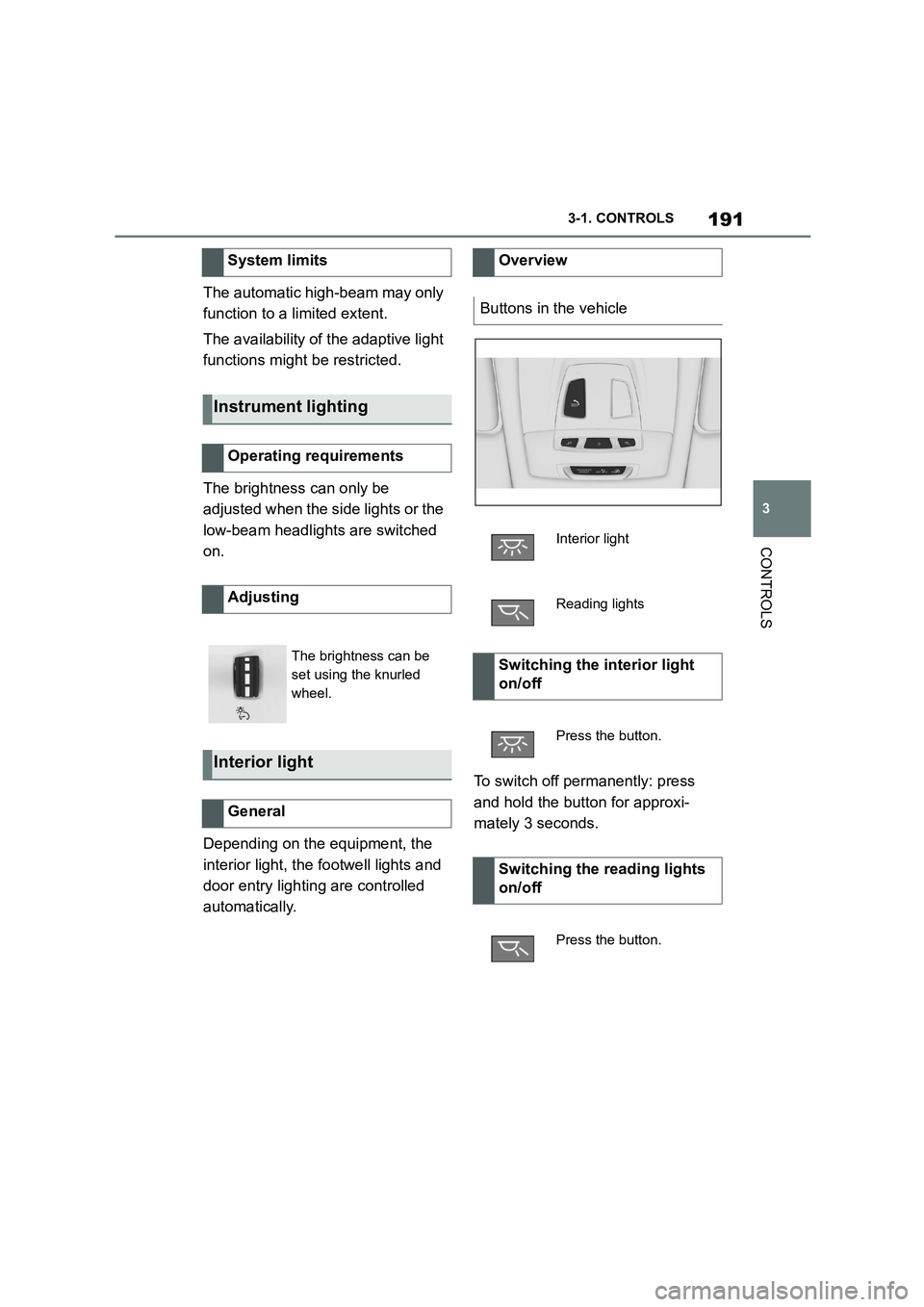
Interior light
General
Overview
Buttons in the vehicle
Interior light
Reading lights
Switching the interior light
on/off
Press the button.
Switching the reading lights
on/off
Press the button.