mirror controls TOYOTA SUPRA 2022 Owners Manual
[x] Cancel search | Manufacturer: TOYOTA, Model Year: 2022, Model line: SUPRA, Model: TOYOTA SUPRA 2022Pages: 498, PDF Size: 104.06 MB
Page 4 of 498
2TABLE OF CONTENTS
1-1. NOTES
Notes ...................................... 4
2-1. QUICK REFERENCE
Getting in .............................. 26
Adjustment and operation ..... 32
On the move ......................... 36
3-1. CONTROLS
Driving area .......................... 46
Sensors of the vehicle .......... 50
Vehicle operating state ......... 53
Toyota Supra Command ....... 57
General settings.................... 71
Personal settings .................. 75
Connections .......................... 80
Opening and closing ............. 88
Seats, mirrors and steering
wheel ................................ 107
Carrying children safely ...... 121
Driving................................. 144
Displays .............................. 162
Lights .................................. 184
Safety.................................. 192
Driving Stability Control Systems
.......................................... 228
Driver Assistance Systems
.......................................... 232
Driving comfort.................... 259
Air conditioning ................... 260
Interior equipment ............... 269
Storage compartments ....... 273
Boot .................................... 275
4-1. DRIVING HINTS
Driving precautions ............. 280
Saving fuel .......................... 286
5-1. MOBILITY
Refuelling ............................ 290
Wheels and tyres ................ 292
Engine compartment........... 319
Operating fluids................... 322
Maintenance ....................... 330
Scheduled maintenance (except
for Europe and Australia) .. 334
Replacing parts ................... 339
Breakdown Assist ............... 350
General care ....................... 362
6-1. REFERENCE
Technical data ..................... 370
Certification ......................... 376
Alphabetical Index .............. 484
1NOTES
2QUICK REFERENCE
3CONTROLS
4DRIVING HINTS
5MOBILITY
6REFERENCE
Index
Page 32 of 498
302-1. QUICK REFERENCE
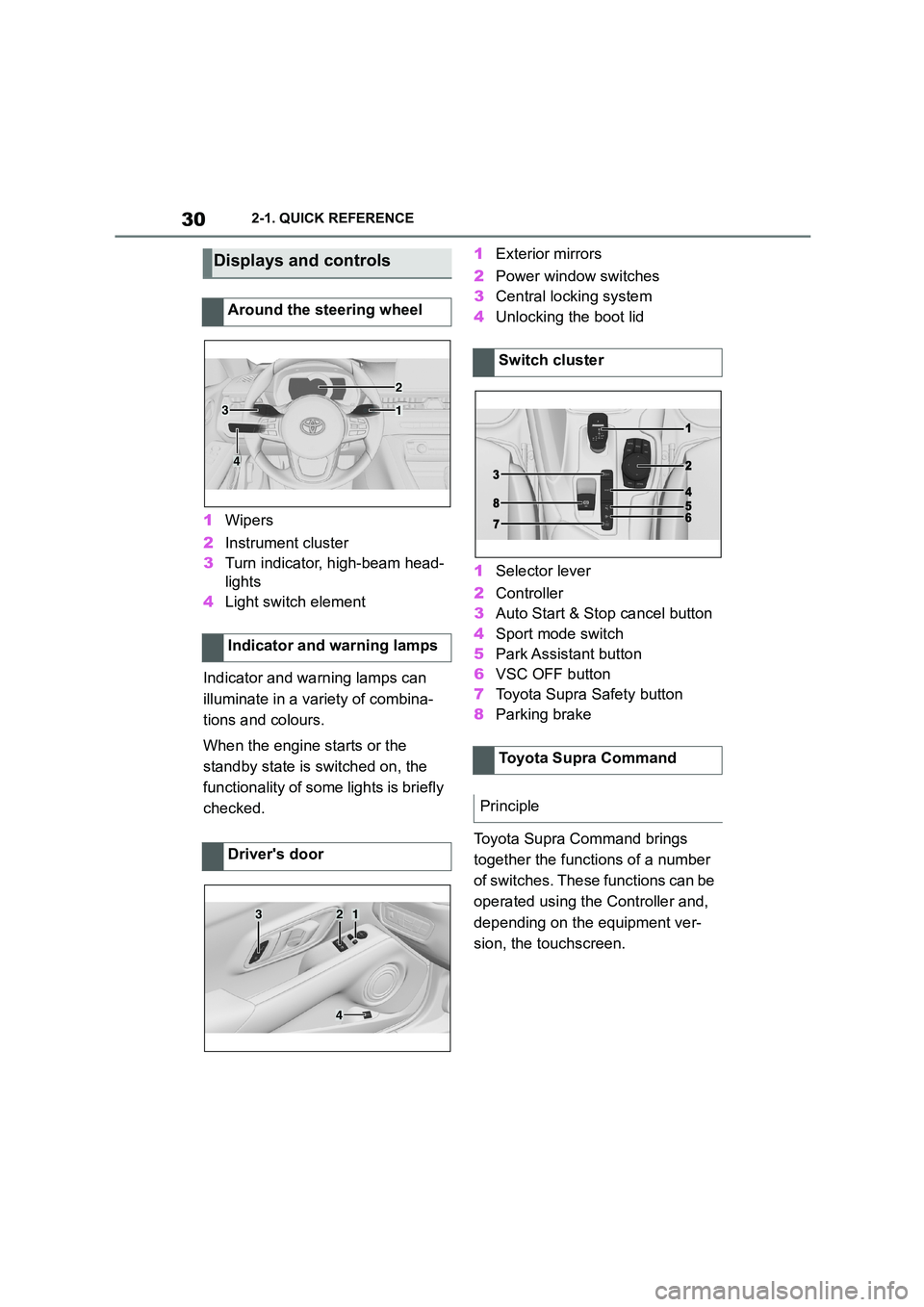
1Wipers
2 Instrument cluster
3 Turn indicator, high-beam head-
lights
4 Light switch element
Indicator and warning lamps can
illuminate in a variety of combina-
tions and colours.
When the engine starts or the
standby state is switched on, the
functionality of some lights is briefly
checked.
1 Exterior mirrors
2 Power window switches
3 Central locking system
4 Unlocking the boot lid
1 Selector lever
2 Controller
3 Auto Start & Stop cancel button
4 Sport mode switch
5 Park Assistant button
6 VSC OFF button
7 Toyota Supra Safety button
8 Parking brake
Toyota Supra Command brings
together the functions of a number
of switches. These functions can be
operated using the Controller and,
depending on the equipment ver-
sion, the touchscreen.
Displays and controls
Around the steering wheel
Indicator and warning lamps
Driver's door
1
2
3
4
321
4
Switch cluster
Toyota Supra Command
Principle
Page 47 of 498
3
45
3
CONTROLS
CONTROLS
.3-1. CONTROLS
Driving area ........................ 46
Sensors of the vehicle ........ 50
Vehicle operating state ....... 53
Toyota Supra Command ..... 57
General settings ................. 71
Personal settings ................ 75
Connections........................ 80
Opening and closing ........... 88
Seats, mirrors and steering
wheel .............................. 107
Carrying children safely .... 121
Driving .............................. 144
Displays ............................ 162
Lights ................................ 184
Safety ............................... 192
Driving Stability Control Sys-
tems................................ 228
Driver Assistance Systems
....................................... 232
Driving comfort ................. 259
Air conditioning ................. 260
Interior equipment............. 269
Storage compartments ..... 273
Boot .................................. 275
Page 48 of 498
463-1. CONTROLS
3-1.CONTROLS
This chapter describes all standard, country-specific and special equipment
available for the model series. It may therefore describe equipment and
functions which are not installed in your vehicle, for example on account of
the special equipment selected or t he country specification. This also
applies to safety-relevant functions and systems. Please comply with the
relevant laws and regulations when using the corresponding functions and
systems.
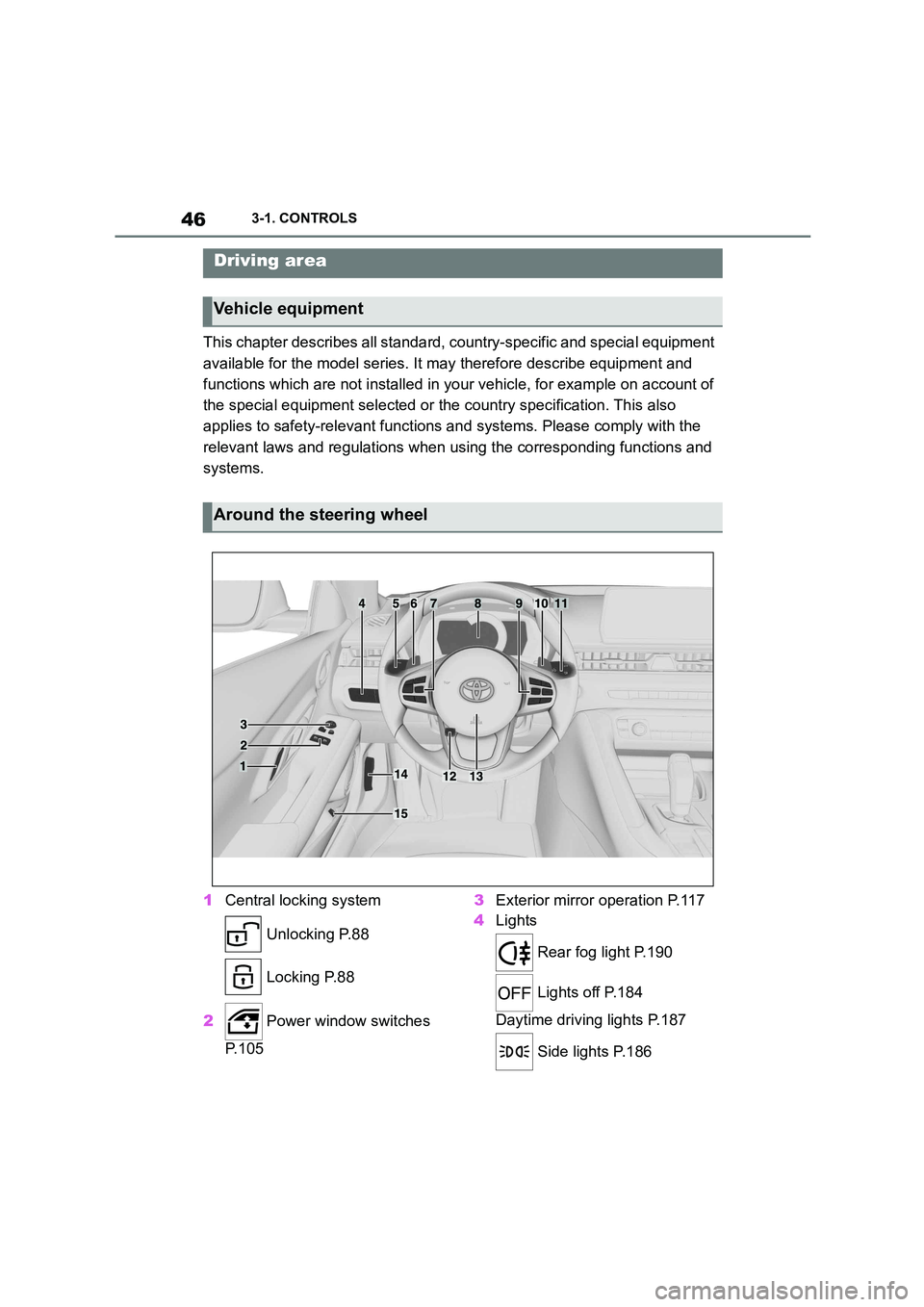
1 Central locking system
Unlocking P.88
Locking P.88
2 Power window switches
P. 1 0 5
3 Exterior mirror operation P.117
4 Lights
Rear fog light P.190
Lights off P.184
Daytime driving lights P.187
Side lights P.186
Driving area
Vehicle equipment
Around the steering wheel
Page 52 of 498
503-1. CONTROLS
This chapter describes all standard,
country-specific and special equip-
ment available for the model series.
It may therefore describe equip-
ment and functions which are not
installed in your vehicle, for exam-
ple on account of the special equip-
ment selected or the country
specification. This also applies to
safety-relevant functions and sys-
tems. Please comply with the rele-
vant laws and regulations when
using the corresponding functions
and systems.
Depending on the equipment, the
following cameras and sensors are
installed in the vehicle:
• Cameras behind the windscreen.
• Rear-view camera.
• Front radar sensor.
• Side radar sensors, rear.
• Ultrasonic sensors in the bump-
ers.
Keep the vehicle clean and unob-
structed in the area of the cameras
and sensors.
*: if equipped
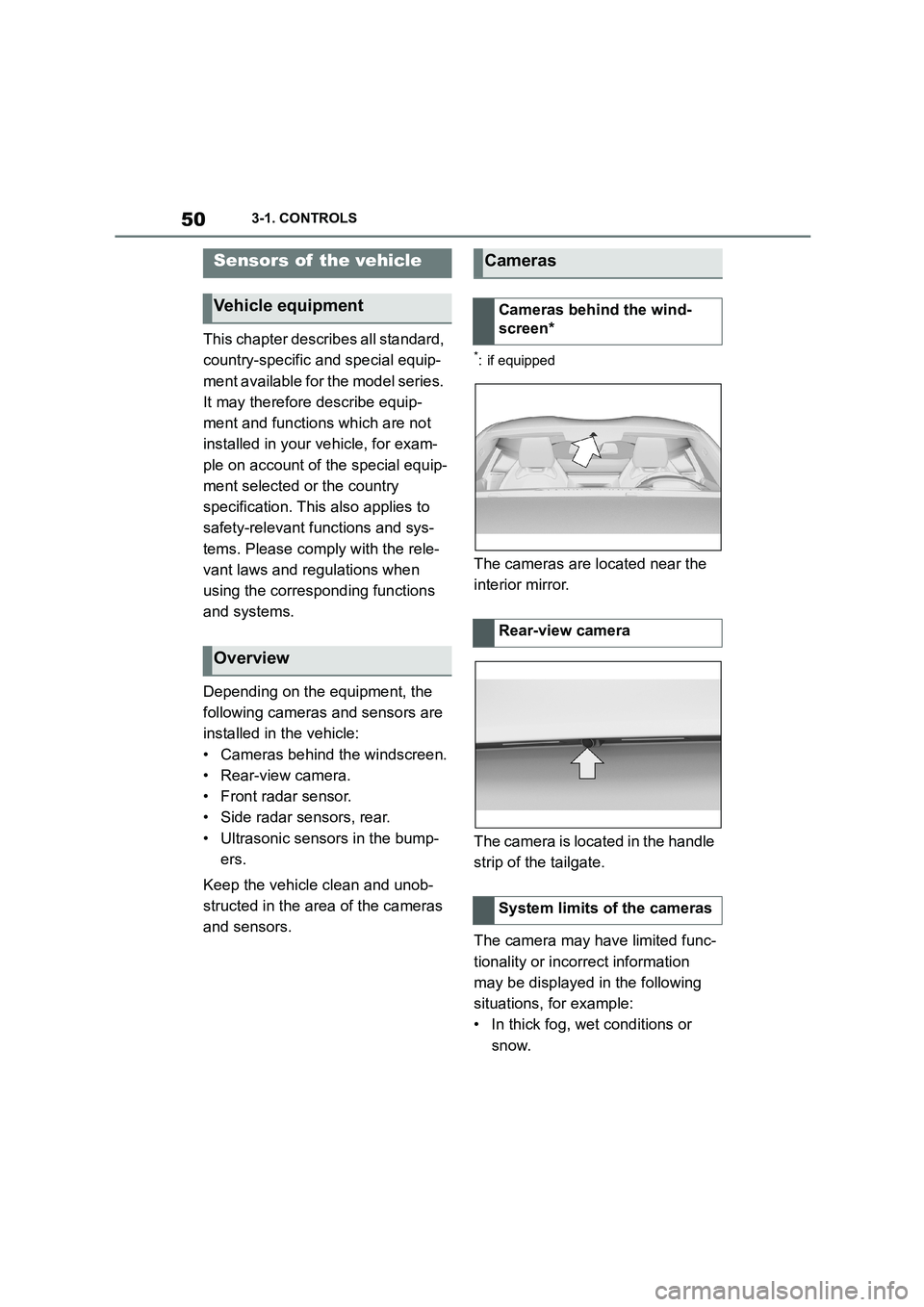
The cameras are located near the
interior mirror.
The camera is located in the handle
strip of the tailgate.
The camera may have limited func-
tionality or incorrect information
may be displayed in the following
situations, for example:
• In thick fog, wet conditions or
snow.
Sensors of the vehicle
Vehicle equipment
Overview
Cameras
Cameras behind the wind-
screen*
Rear-view camera
System limits of the cameras
Page 72 of 498
703-1. CONTROLS
mands‹.
• To have information about the
voice control system read aloud:
›General information on voice
control‹.
• To have help on the current
menu read aloud: ›Help‹.
The voice control system should
not be used for emergency calls.
Under stress, a person's speech
and voice pitch can change. This
could unnecessarily delay connec-
tion of your call.
Instead, use the SOS button, see
page 353, located near the
rear-view mirror.
You can select whether the system
uses the standard dialogue or the
short variant.
If the short variant is selected, the
system announcements are played
in shortened form.
Via Toyota Supra Command:
1 "My Vehicle"
2 "System settings"
3 "Language"
4 "Voice control:"
5 Select the desired setting.
It is possible to answer while the
voice control system is querying
your previous spoken instruction.
The function can be deactivated if
the queries are frequently cancelled
inadvertently, for example due to
background noise or speaking.
Via Toyota Supra Command:
1 "My Vehicle"
2 "System settings"
3 "Language"
4 "Speaking during voice output"
Online speech processing enables
use of the dictation function, facili-
tates the natural input of destina-
tions and improves the quality of
voice recognition. To use the func-
tion, data is sent across an
encrypted connection to a service
provider and stored locally there.
Via Toyota Supra Command:
1 "My Vehicle"
2 "System settings"
3 "Language"
4 "Server speech recognition"
Turn the volume knob during the
spoken instructions until the
desired volume is obtained.
• The volume setting is retained
Information for emergency calls
Settings
Selecting the speech dialogue
Speaking during voice output
Online speech processing
Adjusting the volume
Page 79 of 498
77
3
3-1. CONTROLS
CONTROLS
files.
To ensure that the correct driver
profile can be set, the system must
be able to allocate the detected
remote control uniquely to the
driver.
This is ensured if the following con-
ditions are met:
• The driver is only carrying their
own remote control.
• The driver unlocks the vehicle.
• The driver enters the vehicle
through the driver's door.
The name of the currently used
driver profile is displayed when the
Control Display is switched on.
Select a driver profile, see page 77.
As soon as the engine is started or
any button pressed, the display
selected last is shown on the Con-
trol Display.
To cancel the welcome screen via
Toyota Supra Command: "OK"
Settings for the following systems
and functions are saved in the cur-
rently used driv er profile. Which
settings can be saved depends on
the country and equipment.
• Unlocking and locking.
•Lights.
• Air conditioning.
• Radio.
• Instrument cluster.
• Favourites buttons.
• Volumes, sound.
• Control Display.
• Parking Sensors.
• Rear-view camera.
• Head-Up Display.
• Sport mode switch.
• Seat position, exterior mirror
position
The positions set via the seat memory
and the last position set are saved.
• Cruise Control.
• Toyota Supra Safety.
Regardless of which remote control
is currently being used, it is possi-
ble to call up a different driver pro-
file. This enables the personal
vehicle settings to be called up,
even if the vehicle was not
unlocked with the driver's own
remote control.
Via Toyota Supra Command:
1 "My Vehicle"
2 "Driver profiles"
3 Select a driver profile.
4 "OK"
• The settings saved in the
selected driver profile are
applied automatically.
Operating requirements
Currently used driver profile
Settings
Profile management
Selecting a driver profile
Page 82 of 498
803-1. CONTROLS
This chapter describes all standard,
country-specific and special equip-
ment available for the model series.
It may therefore describe equip-
ment which is not installed in your
vehicle, for exampl e on account of
the special equipment selected or
the country variant. This also
applies to safety-relevant functions
and systems. Please comply with
the relevant laws and regulations
when using the corresponding func-
tions and systems.
Various types of connection are
available in the vehicle for using
mobile devices. Which connection
type to select depends on the
mobile device and the function you
wish to use.
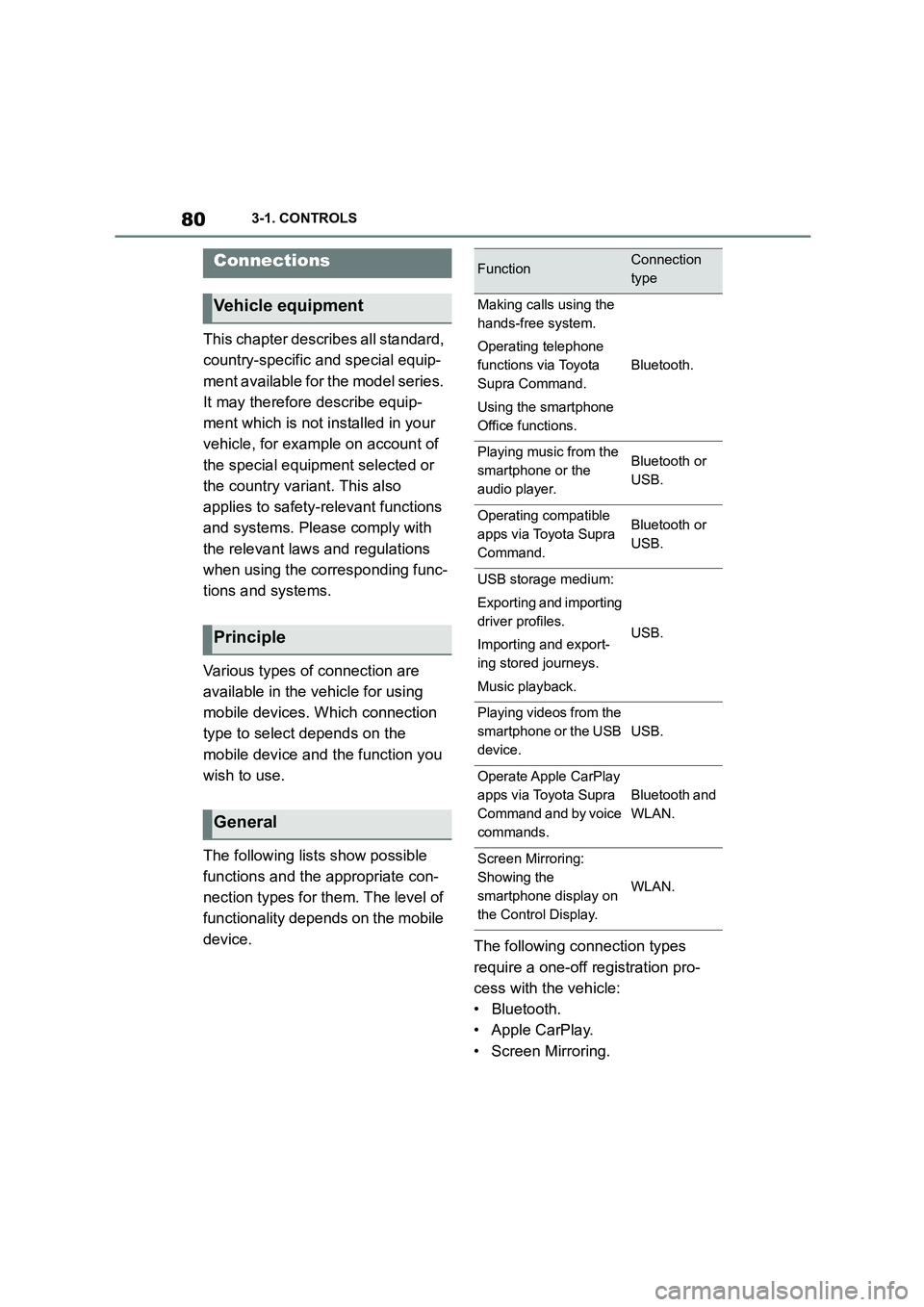
The following lists show possible
functions and the appropriate con-
nection types for them. The level of
functionality depends on the mobile
device. The following connection types
require a one-off registration pro-
cess with the vehicle:
• Bluetooth.
• Apple CarPlay.
• Screen Mirroring.
Connections
Vehicle equipment
Principle
General
FunctionConnection
type
Making calls using the
hands-free system.
Operating telephone
functions via Toyota
Supra Command.
Using the smartphone
Office functions.
Bluetooth.
Playing music from the
smartphone or the
audio player.
Bluetooth or
USB.
Operating compatible
apps via Toyota Supra
Command.
Bluetooth or
USB.
USB storage medium:
Exporting and importing
driver profiles.
Importing and export-
ing stored journeys.
Music playback.
USB.
Playing videos from the
smartphone or the USB
device.
USB.
Operate Apple CarPlay
apps via Toyota Supra
Command and by voice
commands.
Bluetooth and
WLAN.
Screen Mirroring:
Showing the
smartphone display on
the Control Display.
WLAN.
Page 84 of 498
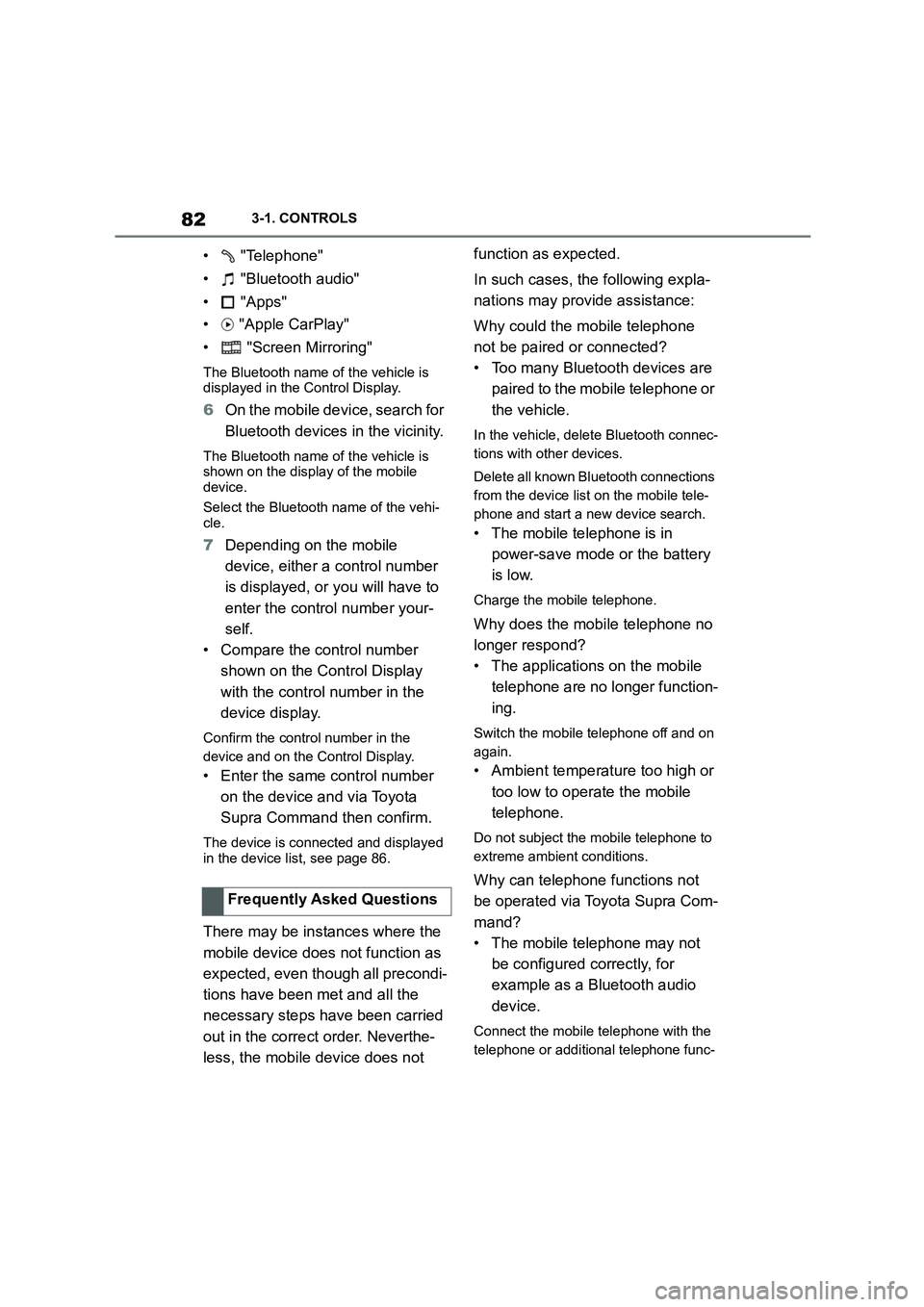
823-1. CONTROLS
• "Telephone"
• "Bluetooth audio"
• "Apps"
• "Apple CarPlay"
• "Screen Mirroring"
The Bluetooth name of the vehicle is displayed in the Control Display.
6 On the mobile device, search for
Bluetooth devices in the vicinity.
The Bluetooth name of the vehicle is shown on the display of the mobile
device.
Select the Bluetooth name of the vehi- cle.
7 Depending on the mobile
device, either a control number
is displayed, or you will have to
enter the control number your-
self.
• Compare the control number
shown on the Control Display
with the control number in the
device display.
Confirm the control number in the
device and on the Control Display.
• Enter the same control number
on the device and via Toyota
Supra Command then confirm.
The device is connected and displayed
in the device list, see page 86.
There may be instances where the
mobile device does not function as
expected, even though all precondi-
tions have been met and all the
necessary steps have been carried
out in the correct order. Neverthe-
less, the mobile device does not
function as expected.
In such cases, the following expla-
nations may provide assistance:
Why could the mobile telephone
not be paired or connected?
• Too many Bluetooth devices are
paired to the mobile telephone or
the vehicle.
In the vehicle, delete Bluetooth connec-
tions with other devices.
Delete all known Bluetooth connections
from the device list on the mobile tele-
phone and start a new device search.
• The mobile telephone is in
power-save mode or the battery
is low.
Charge the mobile telephone.
Why does the mobile telephone no
longer respond?
• The applications on the mobile
telephone are no longer function-
ing.
Switch the mobile telephone off and on
again.
• Ambient temperature too high or
too low to operate the mobile
telephone.
Do not subject the mobile telephone to
extreme ambient conditions.
Why can telephone functions not
be operated via Toyota Supra Com-
mand?
• The mobile telephone may not
be configured correctly, for
example as a Bluetooth audio
device.
Connect the mobile telephone with the
telephone or additional telephone func-
Frequently Asked Questions
Page 87 of 498
85
3
3-1. CONTROLS
CONTROLS
• "Bluetooth"
• "Apple CarPlay"
Register iPhone via Bluetooth on
the vehicle, see page 81.
Select CarPlay as the function:
"Apple CarPlay"
The iPhone is connected to the
vehicle and displayed in the device
list, see page 86.
For further infor mation, see the
Navigation system Owner's man-
ual .
There may be instances where the
mobile device does not function as
expected, even though all precondi-
tions have been met and all the
necessary steps have been carried
out in the correct order. Neverthe-
less, the mobile device does not
function as expected.
In such cases, the following expla-
nations may provide assistance:
The iPhone has already been
paired with Apple CarPlay. When a
new connection is established,
CarPlay can no longer be selected.
• Delete the iPhone concerned
from the device list.
• On the iPhone, delete the vehicle
concerned from the list of saved
connections under Bluetooth and
under WLAN.
• Pair the iPhone as a new device.
If the steps listed have been carried
out and the desire d function still
cannot be run: contact the cus-
tomer support, any authorized
Toyota retailer or Toyota authorized
repairer, or any reliable repairer.
Screen Mirroring enables you to
display your smartphone screen on
the Control Display.
• Compatible smartphone with
Screen Mirroring interface.
• Screen Mirroring is switched on
in the smartphone.
• WLAN is switched on in the vehi-
cle.
Via Toyota Supra Command:
1 "My Vehicle"
2 "System settings"
3 "Mobile devices"
4 "Settings"
5 "Vehicle WiFi"
Registering iPhone with
CarPlay
Operation
Frequently Asked Questions
Screen Mirroring
General
Operating requirements
Switching on WLAN