ignition DODGE HORNET 2023 Workshop Manual
[x] Cancel search | Manufacturer: DODGE, Model Year: 2023, Model line: HORNET, Model: DODGE HORNET 2023Pages: 288, PDF Size: 14.2 MB
Page 93 of 288
STARTING AND OPERATING91
NOTE:
The Mode button also activates the Adaptive Cruise
Control (ACC) system. Pushing the Mode button will
switch between activating the Active Speed Limiter or
the Adaptive Cruise Control systems. They cannot be
active at the same time.
The Active Speed Limiter can be set while the vehicle is
in motion, or with the gear selector in the PARK posi -
tion.
ACTIVATION
To activate the feature, push the Mode button located on
the left side of the steering wheel. A white indicator light in
the instrument cluster display to signal that Active Speed
Limiter has been enabled.
After the Active Speed Limiter system is enabled, activate
the system by setting the speed limit of the vehicle by
pushing the SET switch upward or downward.
Pushing the SET switch upward or downward to the first
detent, and releasing, will result in a 1 mph (1 km/h)
speed adjustment. Each subsequent movement of the
switch to the first detent will result in an adjustment of
1 mph (1 km/h).
If the switch is pushed upward or downward briefly to
the second detent, the set speed will adjust in 5 mph
(10 km/h) increments. The new set speed is reflected in
the instrument cluster display. If the switch is held upward or downward, the set speed
will continue to adjust until the switch is released.
NOTE:
Once the speed as been set, the indicator light in the
instrument cluster display will change to green.
If Adaptive Cruise Control (ACC) or the Active Speed
Limiter is active when the ignition is placed in the
OFF position, it will remain activated when the vehicle
is started again.
ACC will be unavailable while the Active Speed Limiter
is in use.
EXCEEDING THE SET SPEED
By fully pressing the accelerator pedal, the programmed
maximum speed can be exceeded while the device is
active.
In the event that the Active Speed Limiter set value is
exceeded manually with a driver acceleration, an audible
chime will sound. The indicator light will flash rapidly, and
a message will appear in the instrument cluster display.
The feature will remain disabled until the vehicle speed
drops below the set Active Speed Limiter value, where it
will reactivate automatically.
NOTE:While driving at a higher speed than previously set, the set
limit can be updated by pushing the SET switch upward or
downward to the new desired speed.
DEACTIVATION
To turn off Active Speed Limiter, push the Mode button
again. The indicator light in the instrument cluster display
will no longer be illuminated to confirm that the feature
has been turned off, and Adaptive Cruise Control will be
active.
The Active Speed Limiter can be deactivated by pressing
the CANC button. In this case, the system is not completely
turned off, and the driver can reactivate the Active Speed
Limiter by pressing the RES button to the previously set
speed.
INTELLIGENT SPEED ASSIST (ISA) —
IF EQUIPPED
The Intelligent Speed Assist (ISA) system
combines the Active Speed Limiter and
Traffic Sign Recognition (TSR) systems to
automatically adjust the maximum speed of
the vehicle based on detected speed limit signs.
When the ISA system is activated, the maximum speed of
the vehicle will be adjusted according to the detected
traffic signs depending on the Sign Capture Mode selected
within Uconnect Settings
Úpage 130.
4
23_GG_OM_EN_USC_t.book Page 91
Page 97 of 288
STARTING AND OPERATING95
To Cancel
The following conditions cancel ACC:
The brake pedal is applied
The CANC (cancel) button is pushed
The Anti-Lock Brake System (ABS) activates
The gear selector is removed from the DRIVE position
The Electronic Stability Control/Traction Control
System (ESC/TCS) activates
The vehicle parking brake is applied
The Trailer Sway Control (TSC) activates
The driver switches ESC to Full Off mode
The braking temperature exceeds normal range
(overheated)
Driver seat belt is unbuckled at low speeds
Driver door is opened at low speeds
To Turn Off
The system will turn off and clear the set speed in memory
if:
The Mode button is pushed
The ignition is placed in the OFF position
To Resume
If ACC was canceled, and there is a set speed in memory,
push the RES (resume) button and remove your foot from
the accelerator pedal. The instrument cluster display will
show the last set speed. Resume can be used at any speed above 0 mph (0 km/h)
when ACC is active.
NOTE:ACC cannot be resumed if there is a stationary vehicle in
front of your vehicle in close proximity.
To Vary The Speed Setting
To Increase Or Decrease The Set Speed
After setting a speed, you can adjust the speed by pushing
the SET switch upward or decrease the speed by pushing
the SET switch downward.
U.S. Speed (mph)
Pushing the SET switch upward or downward to the first
detent will result in a 1 mph speed adjustment. Each
subsequent movement of the switch to the first detent
will result in an adjustment of 1 mph.
If the switch is pushed upward or downward briefly to
the second detent, the set speed will adjust in 5 mph
increments. The new set speed is reflected in the
instrument cluster display.
If the switch is held upward or downward, the set speed
will continue to adjust until the switch is released.
Metric Speed (km/h)
Pushing the SET switch upward or downward to the first
detent will result in a 1 km/h speed adjustment. Each
subsequent movement of the switch to the first detent
will result in an adjustment of 1 km/h.
If the switch is pushed upward or downward briefly to
the second detent, the set speed will adjust in 10 km/h
increments. The new set speed is reflected in the instru -
ment cluster display.
If the switch is held upward or downward, the set speed
will continue to adjust until the switch is released.
NOTE:
When you override the set speed by pushing the SET
switch upward or downward, the new set speed will be
the current speed of the vehicle.
When you use the SET switch to decelerate, if the
engine’s braking power does not slow the vehicle suffi -
ciently to reach the set speed, the brake system will
automatically slow the vehicle.
The ACC system maintains set speed when driving
uphill and downhill. However, a slight speed change on
moderate hills is normal. In addition, downshifting may
occur while climbing uphill or descending downhill. This
is normal operation and necessary to maintain set
speed. When driving uphill and downhill, the ACC
system will cancel if the braking temperature exceeds
normal range (overheated).
WARNING!
The Resume function should only be used if traffic and
road conditions permit. Resuming a set speed that is
too high or too low for prevailing traffic and road
conditions could cause the vehicle to accelerate or
decelerate too sharply for safe operation. Failure to
follow these warnings can result in a collision and death
or serious personal injury.
4
23_GG_OM_EN_USC_t.book Page 95
Page 107 of 288
STARTING AND OPERATING105
PARKSENSE FRONT/REAR PARK ASSIST
SYSTEM — IF EQUIPPED
The ParkSense Park Assist system provides visual and
audible indications of the distance between the rear, and
if equipped, the front fascia/bumper and a detected
obstacle when backing up or moving forward (e.g. during a
parking maneuver).
NOTE:
The system is designed to assist the driver and not to
substitute the driver.
The driver must stay in full control of the vehicle's
acceleration and braking and is responsible for
controlling the vehicle's movements
Úpage 106.
ParkSense will retain the last system state (enabled or
disabled) from the last ignition cycle when the ignition is
changed to the ON/RUN position.
ParkSense is active in DRIVE or REVERSE, as long as the
system is on. The system will remain active until the
vehicle speed is increased to approximately 8 mph
(13 km/h) or above while in DRIVE or NEUTRAL, and
7 mph (11 km/h) or above while in REVERSE. While in
REVERSE and above the system's operating speed, a
warning will appear in the radio touchscreen indicating the
vehicle speed is too fast. The system will become active
again if the vehicle speed is decreased to less than
approximately 6 mph (9 km/h).
PARKSENSE SENSORS
The six ParkSense sensors (four when vehicle is not
equipped with front sensors), located in the rear fascia/
bumper, and the six ParkSense sensors located in the
front fascia/bumper, monitor the area in front and behind
the vehicle that is within the sensors’ field of view.
The front sensors detect obstacles from approximately
12 inches (30 cm) up to 35 inches (90 cm) from the front fascia/bumper. The rear sensors can detect obstacles
from approximately 12 inches (30 cm) up to 59 inches
(150 cm) from the rear fascia/bumper. These distances
depend on the location, type and orientation of the
obstacle in the horizontal direction.
PARKSENSE WARNING DISPLAY
The ParkSense Warning screen will only be displayed if the
settings are selected within the Uconnect system
Úpage 130.
The ParkSense Warning screen is located within the radio
touchscreen, and provides visual warnings to indicate the
distance between the rear fascia/bumper and/or front
fascia/bumper and the detected obstacle.
PARKSENSE DISPLAY
The warning display will turn on indicating the system status
when the vehicle is in REVERSE, or when the vehicle is in
DRIVE or NEUTRAL and an obstacle has been detected.
The system will determine if an obstacle is in course of
collision with the vehicle and will provide a visual warning
to the driver. The system will indicate a detected obstacle
by showing an arc in the left and/or right front or rear
regions based on the object’s distance and location relative to the vehicle. The color of the arc depends on the
distance and position of the obstacle inside or outside the
trajectory.
If the system detects an obstacle outside of the vehicles
trajectory then it will display in grey. When the obstacle
detected is on course of a collision the system will turn
yellow then red. If the obstacle detected is less than
12 inches (30 cm) then a continuous tone will sound and
the corresponding red arc will be displayed.
Front Park Assist Audible Alerts
When an obstacle in course of a collision gets closer to the
vehicle the tone frequency smoothly increases. The
audible alert will remain on until one of the following
conditions occurs:
The vehicle is at a standstill and the gear selector is
moved out of the REVERSE position.
When the obstacle detected is outside of the vehicle
path.
ParkSense will turn off the Front Park Assist audible alert
(chime) after approximately three seconds when an
obstacle has been detected, or if the vehicle is stationary.
NOTE:ParkSense will reduce the volume of the radio, if on, when
the system is sounding an audible tone.
Adjustable Chime Volume Settings
Front and Rear chime volume settings can be selected
from the Uconnect system
Úpage 130.
The chime volume settings include low, medium, and high.
ParkSense will retain its last known configuration state
through ignition cycles.
4
23_GG_OM_EN_USC_t.book Page 105
Page 108 of 288
106STARTING AND OPERATING
(Continued)
ENABLING AND DISABLING PARKSENSE
ParkSense can be enabled and disabled with
the ParkSense switch, located in front of the
center console, to the rear of the gear selector.
When the ParkSense switch is pushed to disable the
system, the LED in the switch will illuminate, and the
display will read “Parksense Off” when the vehicle is
shifted into DRIVE or REVERSE.
NOTE:The ParkSense switch LED will be off when the system is
active.
The ParkSense switch LED will also be illuminated when
ParkSense requires service. If the ParkSense switch is
pushed, and requires service, the ParkSense switch LED
will blink momentarily, and then the LED will be on.
SERVICE THE PARKSENSE PARK ASSIST
S
YSTEM
During vehicle start up, when the ParkSense System has
detected a faulted condition, the instrument cluster will
display a warning message associated with the detected
fault.
If "Sensor Lock" appears in the instrument cluster display,
make sure the outer surface and the underside of the rear
fascia/bumper and/or front fascia/bumper is clean and
clear of snow, ice, mud, dirt or other obstructions and then
cycle the ignition. If the message continues to appear, see
an authorized dealer.
If the "System Not Available" message appears in the
instrument cluster display, see an authorized dealer.
CLEANING THE PARKSENSE SYSTEM
Clean the ParkSense sensors with water, car wash soap
and a soft cloth. Do not use rough or hard cloths. Do not
scratch or poke the sensors. Otherwise, you could damage
the sensors.
PARKSENSE SYSTEM USAGE
P
RECAUTIONS
Ensure that the front and rear fascias/bumpers are
free of snow, ice, mud, dirt and debris to keep the Park -
Sense system operating properly.
Jackhammers, large trucks, and other vibrations could
affect the performance of ParkSense.
When you turn ParkSense off, the display will read
“Parksense Off” when the vehicle is shifted into DRIVE
or REVERSE. Furthermore, once you turn ParkSense
off, it remains off until you turn it on again, even if you
cycle the ignition.
ParkSense, when on, will reduce the volume of the
radio when it is sounding a tone.
Clean the ParkSense sensors regularly, taking care not
to scratch or damage them. The sensors must not be
covered with ice, snow, slush, mud, dirt or debris.
Failure to do so can result in the system not working
properly. The ParkSense system might not detect an
obstacle behind or in front of the fascia/bumper, or it
could provide a false indication that an obstacle is
behind or in front of the fascia/bumper.
Use the ParkSense switch to turn the ParkSense
system off if objects such as bicycle carriers, etc. are
attached to the rear fascia/bumper. Failure to do so
can result in the system misinterpreting a close object
as a sensor problem, causing the “System Not Avail -
able” message to be displayed in the instrument
cluster display.
NOTE:If any objects are attached to the fascia/bumper within a
6.5 ft (2 m) field of view, they will interfere and cause false
alerts and possibly blockage.
There may be a delay in the object detection rate if the
object is moving.
The rear sensors are automatically deactivated when
the trailer’s electric plug is inserted in the vehicle’s tow
socket. The front sensors (if equipped) will stay active
and can provide acoustic and visual warnings. The rear
sensors are automatically reactivated when the
trailer's cable plug is removed.
WARNING!
Drivers must be careful when backing up even when
using ParkSense. Always check carefully behind your
vehicle, look behind you, and be sure to check for
pedestrians, animals, other vehicles, obstructions,
and blind spots before backing up. You are respon -
sible for safety and must continue to pay attention to
your surroundings. Failure to do so can result in
serious injury or death.
23_GG_OM_EN_USC_t.book Page 106
Page 111 of 288
STARTING AND OPERATING109
During a semi-automatic maneuver, if the driver
touches the steering wheel after being instructed to
remove their hands from the steering wheel, the
system will cancel, and the driver will be required to
manually complete the parking maneuver.
The system may not work in all conditions (e.g. environ -
mental conditions such as heavy rain, snow, etc., or if
searching for a parking space that has surfaces that
will absorb the ultrasonic sensor waves).
New vehicles from the dealership must have at least
30 miles (48 km) accumulated before the ParkSense
Active Park Assist system is fully calibrated and
performs accurately. This is due to the system’s
dynamic vehicle calibration to improve the perfor -
mance of the feature. The system will also continuously
perform the dynamic vehicle calibration to account for
differences such as over or under inflated tires and
new tires.
ENABLING AND DISABLING THE
P
ARKSENSE ACTIVE PARK ASSIST
S
YSTEM
The ParkSense Active Park Assist system can
be enabled and disabled with the ParkSense
Active Park Assist switch, located in front of the
center console, to the rear of the gear selector. To enable the ParkSense Active Park Assist system, push
the ParkSense Active Park Assist switch once (LED turns
on). Pushing the switch a second time will disable the
system (LED turns off).
The ParkSense Active Park Assist system will turn off
automatically for any of the following conditions:
Parking maneuver is complete.
Vehicle speed is greater than 18 mph (30 km/h) when
searching for a parking space.
Vehicle speed is greater than 5 mph (7 km/h) during
active steering guidance into the parking space.
Steering Wheel is touched during active steering guid -
ance into the parking space.
ParkSense Front and Rear Park Assist switch is
pushed.
Driver's door is opened.
Rear liftgate is opened.
Electronic Stability Control/Anti-lock Braking System
intervention.
The ParkSense Active Park Assist system will allow a
maximum number of shifts between DRIVE and REVERSE.
If the maneuver cannot be completed within the maximum
amount of shifts, the system will cancel and the
instrument cluster display will instruct the driver to
complete the maneuver manually. The ParkSense Active Park Assist system will only operate
and search for a parking space when the following
conditions are present:
Gear selector is in DRIVE.
Ignition is in the RUN position.
ParkSense Active Park Assist switch is activated.
Driver's door is closed.
Rear liftgate is closed.
Vehicle speed is less than 18 mph (30 km/h).
The outer surface and the underside of the front and
rear fascias/bumpers are clean and clear of snow, ice,
mud, dirt or other obstructions.
NOTE:If the vehicle is driven above approximately 15 mph
(25 km/h), the instrument cluster display will instruct the
driver to slow down. If the vehicle is driven above approxi -
mately 18 mph (30 km/h), the system will cancel. The driver must then reactivate the system by pushing the
ParkSense Active Park Assist switch.
When pushed, the LED on the ParkSense Active Park
Assist switch will blink momentarily, and then the LED will
turn off if any of the preceding conditions are not present.
If the vehicle is in any other gear than DRIVE, and an
objected is detected, the system will default to Parallel
Park Exit. A prompt will appear in the radio screen, and the
driver will need to select “Yes” or “No” for a Parallel Park
Exit maneuver. Any other conditions will result in a default
to a Parallel Parking maneuver.
4
23_GG_OM_EN_USC_t.book Page 109
Page 116 of 288
114STARTING AND OPERATING
TURNING LANESENSE ON OR OFF
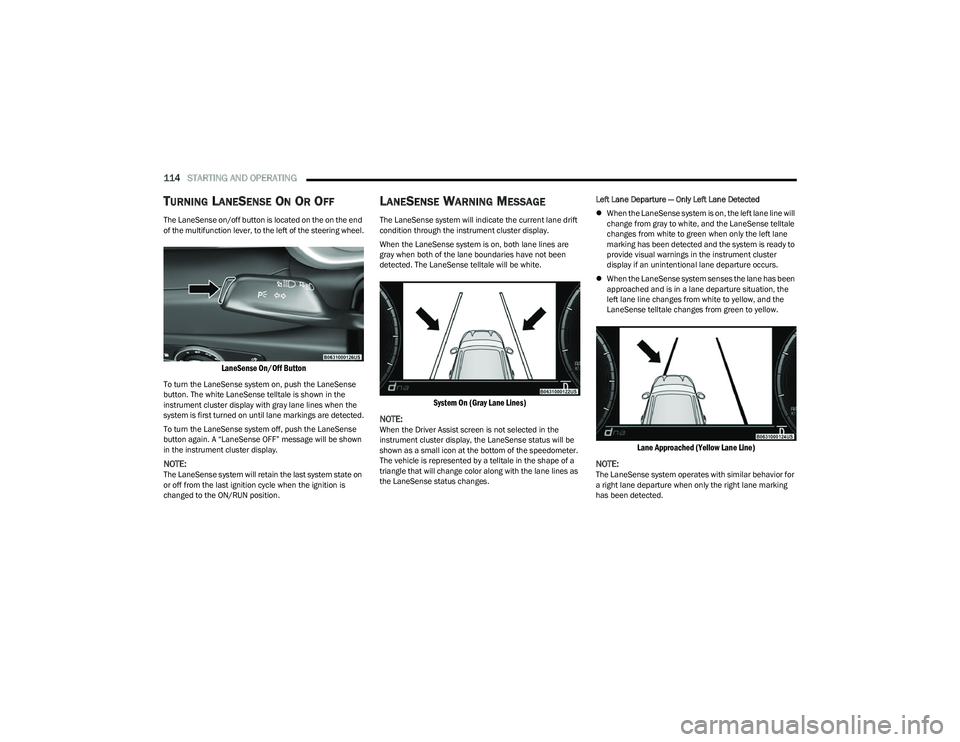
The LaneSense on/off button is located on the on the end
of the multifunction lever, to the left of the steering wheel.
LaneSense On/Off Button
To turn the LaneSense system on, push the LaneSense
button. The white LaneSense telltale is shown in the
instrument cluster display with gray lane lines when the
system is first turned on until lane markings are detected.
To turn the LaneSense system off, push the LaneSense
button again. A “LaneSense OFF” message will be shown
in the instrument cluster display.
NOTE:The LaneSense system will retain the last system state on
or off from the last ignition cycle when the ignition is
changed to the ON/RUN position.
LANESENSE WARNING MESSAGE
The LaneSense system will indicate the current lane drift
condition through the instrument cluster display.
When the LaneSense system is on, both lane lines are
gray when both of the lane boundaries have not been
detected. The LaneSense telltale will be white.
System On (Gray Lane Lines)
NOTE:
When the Driver Assist screen is not selected in the
instrument cluster display, the LaneSense status will be
shown as a small icon at the bottom of the speedometer.
The vehicle is represented by a telltale in the shape of a
triangle that will change color along with the lane lines as
the LaneSense status changes. Left Lane Departure — Only Left Lane Detected
When the LaneSense system is on, the left lane line will
change from gray to white, and the LaneSense telltale
changes from white to green when only the left lane
marking has been detected and the system is ready to
provide visual warnings in the instrument cluster
display if an unintentional lane departure occurs.
When the LaneSense system senses the lane has been
approached and is in a lane departure situation, the
left lane line changes from white to yellow, and the
LaneSense telltale changes from green to yellow.
Lane Approached (Yellow Lane Line)
NOTE:
The LaneSense system operates with similar behavior for
a right lane departure when only the right lane marking
has been detected.
23_GG_OM_EN_USC_t.book Page 114
Page 118 of 288
116STARTING AND OPERATING
CHANGING LANESENSE STATUS
The LaneSense system has settings to adjust the intensity
of the torque warning (low/med/high) and the warning
zone sensitivity (early/late) that you can configure through
the Uconnect system
Úpage 130.
NOTE:
When enabled the system operates above 37 mph
(60 km/h) and below 112 mph (180 km/h).
Use of the turn signal suppresses the warnings.
The system will not apply torque to the steering wheel
whenever a safety system engages (Anti-Lock Brakes,
Traction Control System, Electronic Stability Control,
Forward Collision Warning, etc.).
PARKVIEW REAR BACK UP CAMERA
The ParkView Rear Back Up Camera allows you to see an
on-screen image of the rear surroundings of your vehicle
whenever the gear selector is put into REVERSE. The
image will be displayed on the Navigation/Multimedia
radio display screen along with a caution note to
“Check Entire Surroundings” across the top of the screen.
After five seconds this note will disappear. The ParkView
camera is located on the rear of the vehicle above the rear
license plate. When the vehicle is shifted out of REVERSE with camera
delay turned off, the rear camera mode is exited and the
previous screen appears.
Manual Activation Of The Back Up Camera
1. Press the Controls button located in the Vehicle
Controls menu, or within the Apps drawer. This
button can also be configured as a shortcut on the
bottom of the Uconnect display.
2. Press the Back Up Camera button to turn the Rear View Camera system on.
NOTE:The ParkView Rear Back Up Camera has programmable
modes of operation that may be selected through the
Uconnect system
Úpage 130.
When the vehicle is shifted out of REVERSE with camera
delay turned off, the rear camera mode is exited and the
previous screen appears. When the vehicle is shifted out
of REVERSE with camera delay turned on, the camera
image will continue to be displayed for up to 10 seconds
unless the following conditions occur: The vehicle speed
exceeds 8 mph (13 km/h), the vehicle is shifted into PARK, the vehicle’s ignition is placed in the OFF position,
or the user presses the touchscreen X button to exit out of
the camera video display. When enabled, active guidelines are overlaid on the image
to illustrate the width of the vehicle and its projected back
up path based on the steering wheel position. A dashed
center line overlay indicates the center of the vehicle to
assist with parking or aligning to a hitch/receiver.
Different colored zones indicate the distance to the rear of
the vehicle. The following table shows the approximate
distances for each zone:
Zone Distance To The Rear Of
The Vehicle
Red 0 - 1 ft (0 - 30 cm)
Yellow 1 ft - 3 ft (30 cm - 1 m)
Green 3 ft - 9.5 ft (1 m - 3 m)
WARNING!
Drivers must be careful when backing up even when
using the ParkView Rear Back Up Camera. Always
check carefully behind your vehicle, and be sure to
check for pedestrians, animals, other vehicles,
obstructions, or blind spots before backing up. You are
responsible for the safety of your surroundings and
must continue to pay attention while backing up.
Failure to do so can result in serious injury or death.
23_GG_OM_EN_USC_t.book Page 116
Page 119 of 288
STARTING AND OPERATING117
NOTE:If snow, ice, mud, or any foreign substance builds up on
the camera lens, clean the lens, rinse with water, and dry
with a soft cloth. Do not cover the lens.
SURROUND VIEW CAMERA SYSTEM —
IF EQUIPPED
Your vehicle may be equipped with the Surround View
Camera system that allows you to see an on-screen image
of the surroundings and Top View of your vehicle whenever
the gear selector is put into REVERSE or a different view is
selected through the touchscreen buttons. The Top View
of the vehicle will show which doors are open. The image
will be displayed on the touchscreen display along with a
caution note “Check Entire Surroundings” across the top
of the screen. After five seconds, this note will disappear. The Surround View Camera system is comprised of four
sequential cameras located in the front grille, rear liftgate
and side mirrors.
Automatic Activation Of The Surround View Camera
When the vehicle is shifted into REVERSE, the Rear View
and Top View will automatically be displayed on the
Uconnect touchscreen.
The Surround View Camera will also automatically activate
when the gear selector is in DRIVE or NEUTRAL and the
system detects obstacles it its path. Camera view display
will depend on the location of the detected obstacle.
Manual Activation Of The Surround View Camera
1. Press the Controls or Apps button located within the
Uconnect system.
2. Press the Surround View Camera button
to enter the camera’s menu.
NOTE:The Surround View Camera system has programmable
settings that may be selected through the Uconnect
system
Úpage 130. When the vehicle is shifted out of REVERSE with camera
delay turned on, the camera image will continue to be
displayed for up to 10 seconds unless the vehicle speed
exceeds 8 mph (13 km/h), the vehicle is shifted into PARK
or the ignition is placed in the OFF position. There is a
touchscreen X button to disable the display of the camera
image.
When the vehicle is shifted out of REVERSE with camera
delay turned off, the Surround View Camera mode is
exited and the last known screen appears again.
When enabled, active guidelines are overlaid on the image
to illustrate the width of the vehicle, including the side
view mirrors and its projected back up path based on the
steering wheel position.
Different colored zones indicate the distance to the rear of
the vehicle.
The following table shows the approximate distances for
each zone:
CAUTION!
To avoid vehicle damage, ParkView should only be
used as a parking aid. The ParkView camera is
unable to view every obstacle or object in your
drive path.
To avoid vehicle damage, the vehicle must be driven
slowly when using ParkView to be able to stop in time
when an obstacle is seen. It is recommended that
the driver look frequently over his/her shoulder when
using ParkView.
Zone Distance To The Rear Of
The Vehicle
Red 0 - 1 ft (0 - 30 cm)
Yellow 1 ft - 3 ft (30 cm - 1 m)
Green 3 ft - 9.5 ft (1 m - 3 m)
4
23_GG_OM_EN_USC_t.book Page 117
Page 135 of 288
MULTIMEDIA133
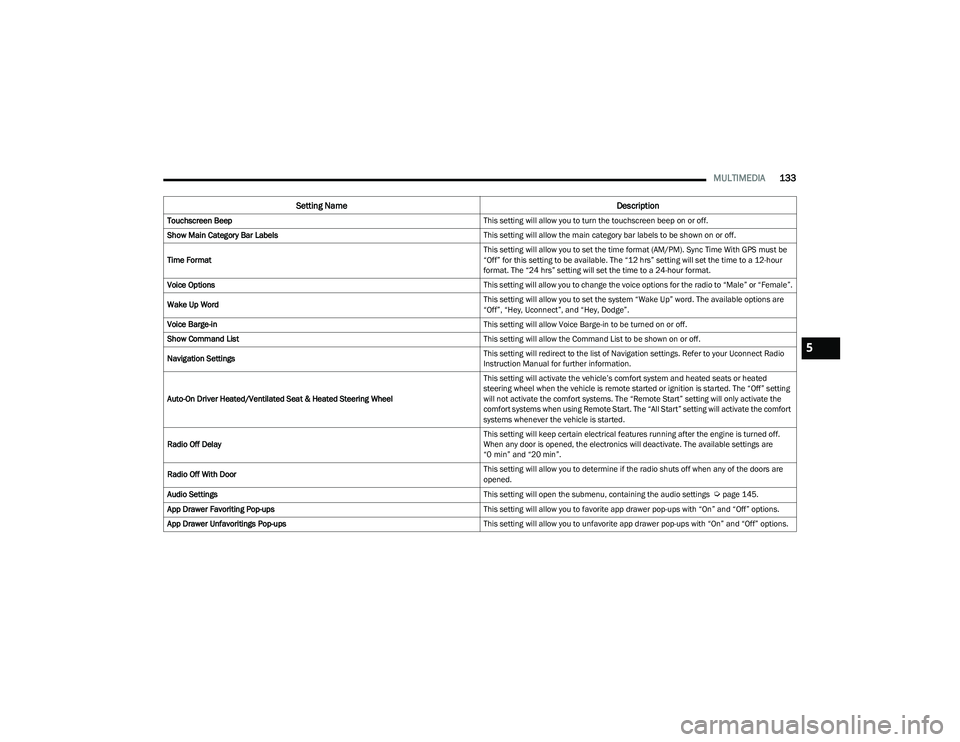
Touchscreen Beep This setting will allow you to turn the touchscreen beep on or off.
Show Main Category Bar Labels This setting will allow the main category bar labels to be shown on or off.
Time Format This setting will allow you to set the time format (AM/PM). Sync Time With GPS must be
“Off” for this setting to be available. The “12 hrs” setting will set the time to a 12-hour
format. The “24 hrs” setting will set the time to a 24-hour format.
Voice Options This setting will allow you to change the voice options for the radio to “Male” or “Female”.
Wake Up Word This setting will allow you to set the system “Wake Up” word. The available options are
“Off”, “Hey, Uconnect”, and “Hey, Dodge”.
Voice Barge-in This setting will allow Voice Barge-in to be turned on or off.
Show Command List This setting will allow the Command List to be shown on or off.
Navigation Settings This setting will redirect to the list of Navigation settings. Refer to your Uconnect Radio
Instruction Manual for further information.
Auto-On Driver Heated/Ventilated Seat & Heated Steering Wheel This setting will activate the vehicle’s comfort system and heated seats or heated
steering wheel when the vehicle is remote started or ignition is started. The “Off” setting
will not activate the comfort systems. The “Remote Start” setting will only activate the
comfort systems when using Remote Start. The “All Start” setting will activate the comfort
systems whenever the vehicle is started.
Radio Off Delay This setting will keep certain electrical features running after the engine is turned off.
When any door is opened, the electronics will deactivate. The available settings are
“0 min” and “20 min”.
Radio Off With Door This setting will allow you to determine if the radio shuts off when any of the doors are
opened.
Audio Settings This setting will open the submenu, containing the audio settings
Úpage 145.
App Drawer Favoriting Pop-ups This setting will allow you to favorite app drawer pop-ups with “On” and “Off” options.
App Drawer Unfavoritings Pop-ups This setting will allow you to unfavorite app drawer pop-ups with “On” and “Off” options.
Setting NameDescription
5
23_GG_OM_EN_USC_t.book Page 133
Page 136 of 288
134MULTIMEDIA
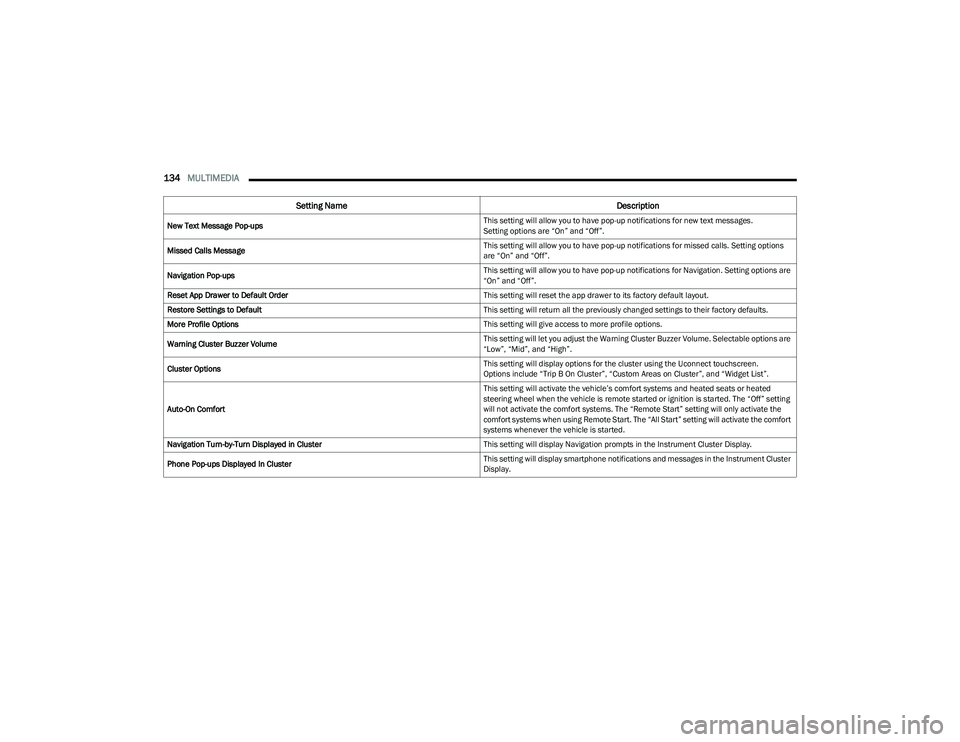
New Text Message Pop-ups This setting will allow you to have pop-up notifications for new text messages.
Setting options are “On” and “Off”.
Missed Calls Message This setting will allow you to have pop-up notifications for missed calls. Setting options
are “On” and “Off”.
Navigation Pop-ups This setting will allow you to have pop-up notifications for Navigation. Setting options are
“On” and “Off”.
Reset App Drawer to Default Order This setting will reset the app drawer to its factory default layout.
Restore Settings to Default This setting will return all the previously changed settings to their factory defaults.
More Profile Options This setting will give access to more profile options.
Warning Cluster Buzzer Volume This setting will let you adjust the Warning Cluster Buzzer Volume. Selectable options are
“Low”, “Mid”, and “High”.
Cluster Options This setting will display options for the cluster using the Uconnect touchscreen.
Options include “Trip B On Cluster”, “Custom Areas on Cluster”, and “Widget List”.
Auto-On Comfort This setting will activate the vehicle’s comfort systems and heated seats or heated
steering wheel when the vehicle is remote started or ignition is started. The “Off” setting
will not activate the comfort systems. The “Remote Start” setting will only activate the
comfort systems when using Remote Start. The “All Start” setting will activate the comfort
systems whenever the vehicle is started.
Navigation Turn-by-Turn Displayed in Cluster This setting will display Navigation prompts in the Instrument Cluster Display.
Phone Pop-ups Displayed In Cluster This setting will display smartphone notifications and messages in the Instrument Cluster
Display.
Setting Name
Description
23_GG_OM_EN_USC_t.book Page 134