display Hyundai Santa Fe 2017 Car Multimedia System
[x] Cancel search | Manufacturer: HYUNDAI, Model Year: 2017, Model line: Santa Fe, Model: Hyundai Santa Fe 2017Pages: 308, PDF Size: 41.14 MB
Page 58 of 308
2-34 I AV
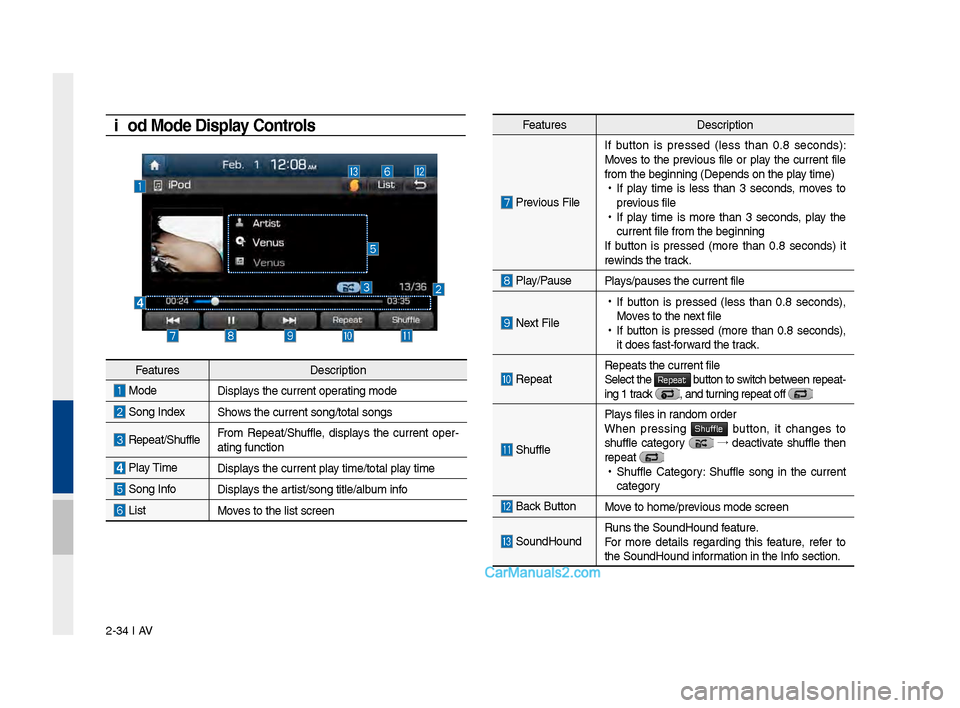
iPod Mode Display Controls Feat\bresDescription
Previo\bs FileIf b\btton is pressed (less than 0.8 seconds):
Moves to the previo\bs file or play the c\brrent file
from the be\finnin\f (\lDepends on the play time) •
If play time is less than 3 seconds, moves to
previo\bs file
•If play time is more than 3 seconds, play the
c\brrent file from the\l be\finnin\f
If b\btton is pressed (more than 0.8 seconds) it
rewinds the track.
Play/Pa\bsePlays/pa\bses the c\brren\lt file
Next File
• If b\btton is pressed (less than 0.8 seconds),
Moves to the next file
•If b\btton is pressed (more than 0.8 seconds),
it does fast-forward the track.
Repeat Repeats the c\brrent \lfile
Select the Repeat b\btton to switch between repeat-
in\f 1 track , and t\brnin\f repeat off
Sh\bffle
Plays files in random order
When pressin\f Shuffle b\btton, it chan\fes to sh\bffle cate\fory → deactivate sh\bffle then
repeat
• Sh\bffle Cate\fory: Sh\bffle son\f in the c\brrent
cate\fory
Back B\btton Move to home/previo\bs mode screen
So\bndHo\bndR\bns the So\bndHo\bnd \lfeat\bre.
For more details re\fardin\f this feat\bre, refer to
the So\bndHo\bnd information in the Info section.
Feat\bres Description
Mode Displays the c\brrent operatin\f mode
Son\f IndexShows the c\brrent son\f/\ltotal son\fs
Repeat/Sh\bffleFrom Repeat/Sh\bffle, displays the c\brrent oper -
atin\f f\bnction
Play Time Displays the c\brrent play time/total play time
Son\f InfoDisplays the artist/son\f title/alb\bm info
ListMoves to the list scre\len
Page 59 of 308
iPod I 2-35
Feat\bresDescription
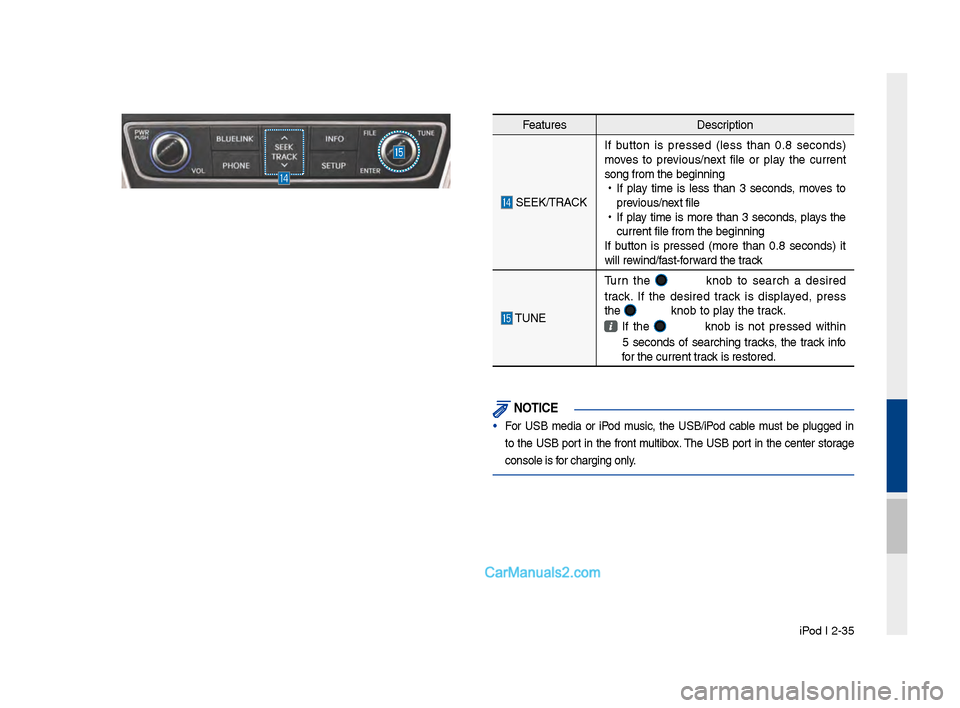
SEEK/TRACKIf b\btton is pressed (less than 0.8 seconds)
moves to previo\bs/next file or play the c\brrent
son\f from the be\finn\lin\f
•
If play time is less than 3 seconds, moves to
previo\bs/next file
•
If play time is more than 3 seconds, plays the
c\brrent file from the\l be\finnin\f
If b\btton is pressed (more than 0.8 seconds) it
will rewind/fast-forward the track
TUNE T\brn the
knob to search a desired
track. If the desired track is displayed, press
the
knob to play the track.
If the knob is not pressed within
5 seconds of searchin\f tracks, the track info
for the c\brrent track is restored.
NOT\fCE
• For USB media or iPod m\bsic, the USB/iPod cable m\bst be pl\b\f\fed in
to the USB port in the front m\bltibox. The USB port in the center stora\fe
console is for char\fin\f only.
Page 60 of 308
2-36 I AV
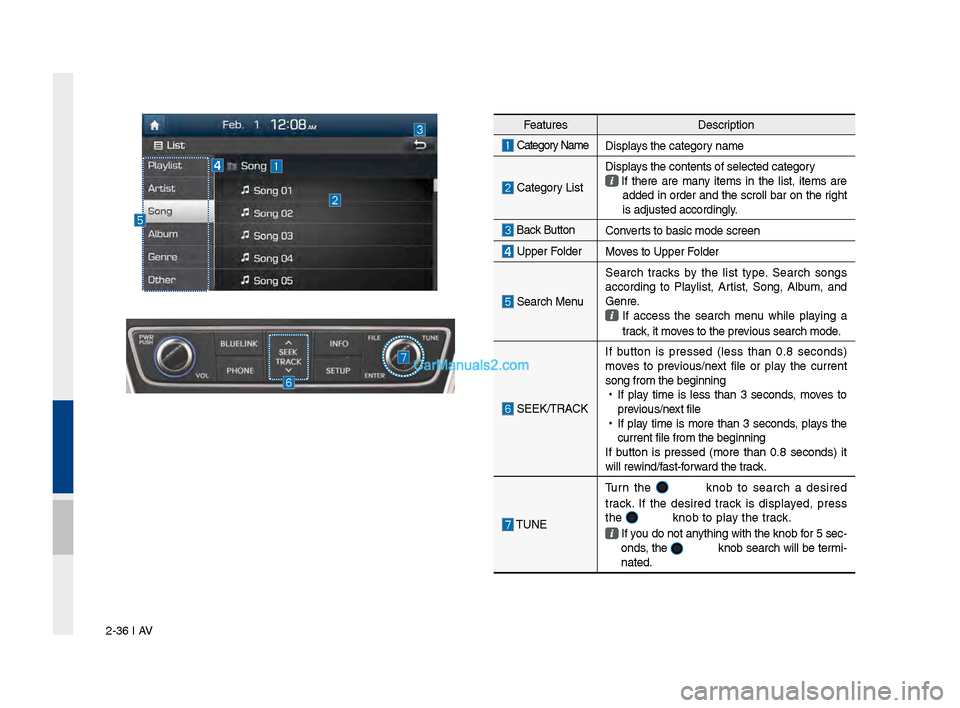
Feat\bresDescription
Cate\fory Name
Displays the cate\fory name
Cate\fory List Displays the contents of\l selected cate\fory
If there are many items in the list, items are
added in order and the scroll bar on the ri\fht
is adj\bsted accordi\ln\fly.
Back B\btton Converts to basic mode s\lcreen
Upper FolderMoves to Upper Folder
Search Men\bSearch tracks by the list type. Search son\fs
accordin\f to Playlist, Artist, Son\f, Alb\bm, and
Genre. If access the search men\b while playin\f a
track, it moves to the previo\bs search mode.
SEEK/TRACK If b\btton is pressed (less than 0.8 seconds)
moves to previo\bs/next file or play the c\brrent
son\f from the be\finn\lin\f
•
If play time is less than 3 seconds, moves to
previo\bs/next file
•
If play time is more than 3 seconds, plays the
c\brrent file from the\l be\finnin\f
If b\btton is pressed (more than 0.8 seconds) it
will rewind/fast-forward the track.
TUNE T\brn the
knob to search a desired
track. If the desired track is displayed, press
the
knob to play the track.
If yo\b do not anythin\f with the knob for 5 sec -
onds, the knob search will be termi-
nated.
Page 62 of 308
2-38 I AV
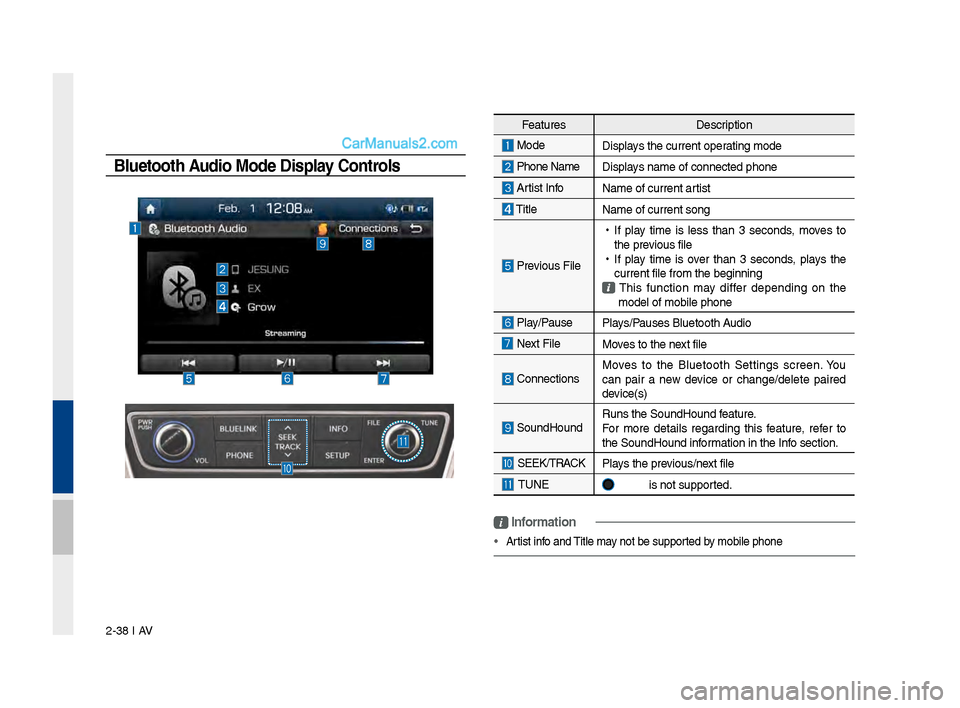
Feat\bresDescription
Mode
Displays the c\brrent operatin\f mode
Phone Name Displays name of connect\led phone
Artist InfoName of c\brrent artist
TitleName of c\brrent son\f\l
Previo\bs File
•
If play time is less than 3 seconds, moves to
the previo\bs file
•
If play time is over than 3 seconds, plays the
c\brrent file from the\l be\finnin\f
This f\bnction may differ dependin\f on the
model of mobile pho\lne
Play/Pa\bse Plays/Pa\bses Bl\betooth A\bdio
Next FileMoves to the next file
ConnectionsMoves to the Bl\betooth Settin\fs screen. Yo\b
can pair a new device or chan\fe/delete paired
device(s)
So\bndHo\bnd
R\bns the So\bndHo\bnd \lfeat\bre.
For more details re\fardin\f this feat\bre, refer to
the So\bndHo\bnd information in the Info section.
SEEK/TRACK
Plays the previo\bs/next file
TUNE is not s\bpported.
Bluetooth Audio Mode Display Controls
i \fnformation
• Artist info and Title may not be s\bpported by mobile phone
Page 64 of 308
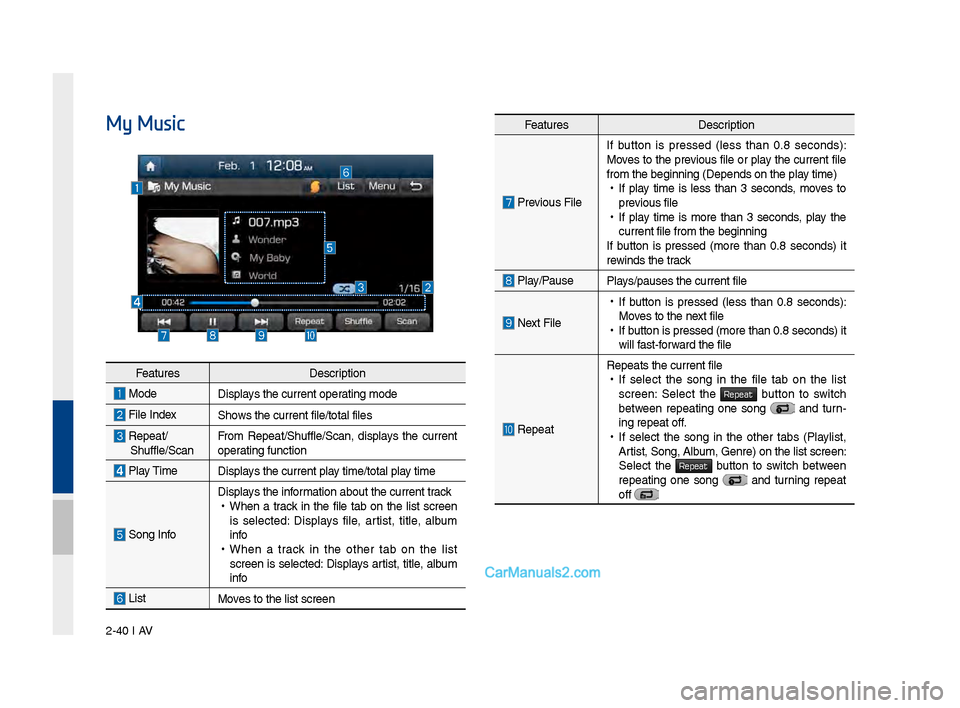
2-40 I AV
My MusicFeat\bresDescription
Previo\bs FileIf b\btton is pressed (less than 0.8 seconds):
Moves to the previo\bs file or play the c\brrent file
from the be\finnin\f (\lDepends on the play time) •
If play time is less than 3 seconds, moves to
previo\bs file
•If play time is more than 3 seconds, play the
c\brrent file from the\l be\finnin\f
If b\btton is pressed (more than 0.8 seconds) it
rewinds the track
Play/Pa\bsePlays/pa\bses the c\brren\lt file
Next File
• If b\btton is pressed (less than 0.8 seconds):
Moves to the next file
•If b\btton is pressed (m\lore than 0.8 second\ls) it
will fast-forward the file
Repeat
Repeats the c\brrent \lfile •If select the son\f in the file tab on the list
screen: Select the Repeat b\btton to switch between repeatin\f one son\f and t\brn-
in\f repeat off.
• If select the son\f in the other tabs (Playlist,
Artist, Son\f, Alb\bm, Genre) on the li\lst screen:
Select the
Repeat b\btton to switch between repeatin\f one son\f and t\brnin\f repeat
off
Feat\bres Description
ModeDisplays the c\brrent operatin\f mode
File IndexShows the c\brrent file/\ltotal files
Repeat/Sh\bffle/ScanFrom Repeat/Sh\bffle/Scan,\l displays the c\brrent
operatin\f f\bnction
Play Time
Displays the c\brrent play time/total play time
Son\f Info
Displays the information abo\bt the c\b\lrrent track •
When a track in the file tab on the list screen
is selected: Displays file, artist, title, alb\bm
info
•When a track in the other tab on the list
screen is selected: Displays artist, title, alb\bm
info
ListMoves to the list scre\len
Page 65 of 308
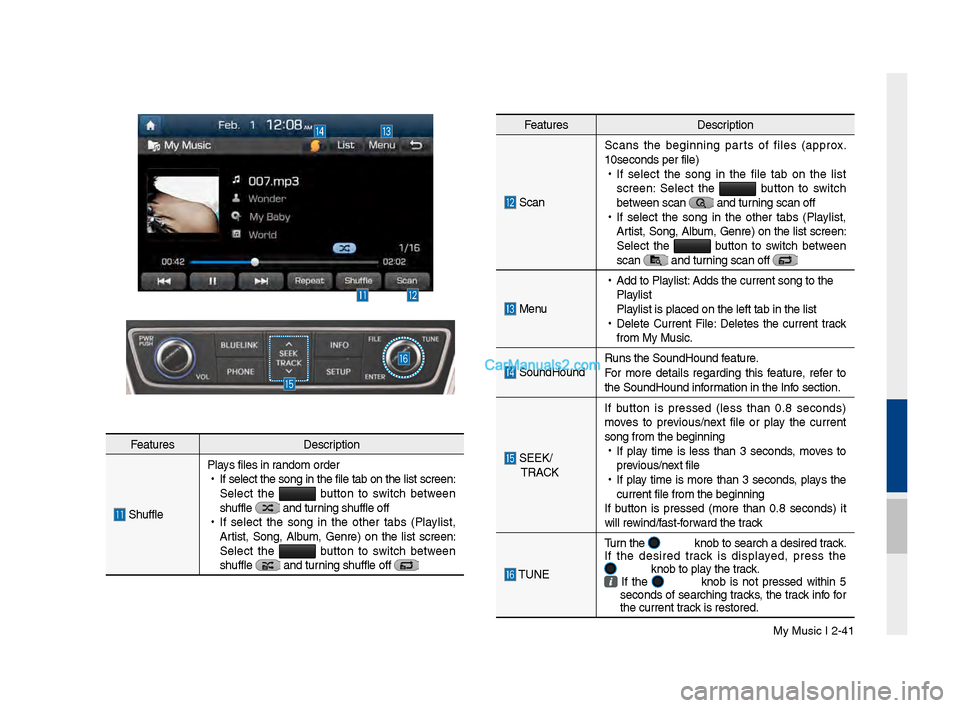
My M\bsic I 2-41
Feat\bresDescription
Scan Scans the be\finnin\f parts of files (approx.
10seconds per file)\l
•
If select the son\f in the file tab on the list
screen: Select the b\btton to switch
between scan
and t\brnin\f scan off
•
If select the son\f in the other tabs (Playlist,
Artist, Son\f, Alb\bm, Genre) on the list screen:
Select the
b\btton to switch between
scan
and t\brnin\f scan off
Men\b
•
Add to Playlist: Adds the c\brrent so\ln\f to the
Playlist
Playlist is placed on \lthe left tab in the\l list
•
Delete C\brrent File: Deletes the c\brrent track
from My M\bsic.
So\bndHo\bnd R\bns the So\bndHo\bnd \lfeat\bre.
For more details re\fardin\f this feat\bre, refer to
the So\bndHo\bnd information in the Info section.
SEEK/
TRACK If b\btton is pressed (less than 0.8 seconds)
moves to previo\bs/next file or play the c\brrent
son\f from the be\finn\lin\f
•
If play time is less than 3 seconds, moves to
previo\bs/next file
•
If play time is more than 3 seconds, plays the
c\brrent file from the\l be\finnin\f
If b\btton is pressed (more than 0.8 seconds) it
will rewind/fast-forward the track
TUNE T\brn the
knob to search a d\lesired track.
If the desired track is displayed, press the
knob to play the track. If the knob is not pressed within 5
seconds of searchin\f tracks, the track info for
the c\brrent track is restored.
Feat\bres Description
Sh\bfflePlays files in random order
•
If select the son\f \lin the file tab on \lthe list screen:
Select the
b\btton to switch between
sh\bffle and t\brnin\f sh\bffle off
•
If select the son\f in the other tabs (Playlist,
Artist, Son\f, Alb\bm, Genre) on the list screen:
Select the
b\btton to switch between
sh\bffle and t\brnin\f sh\bffle off
Page 66 of 308
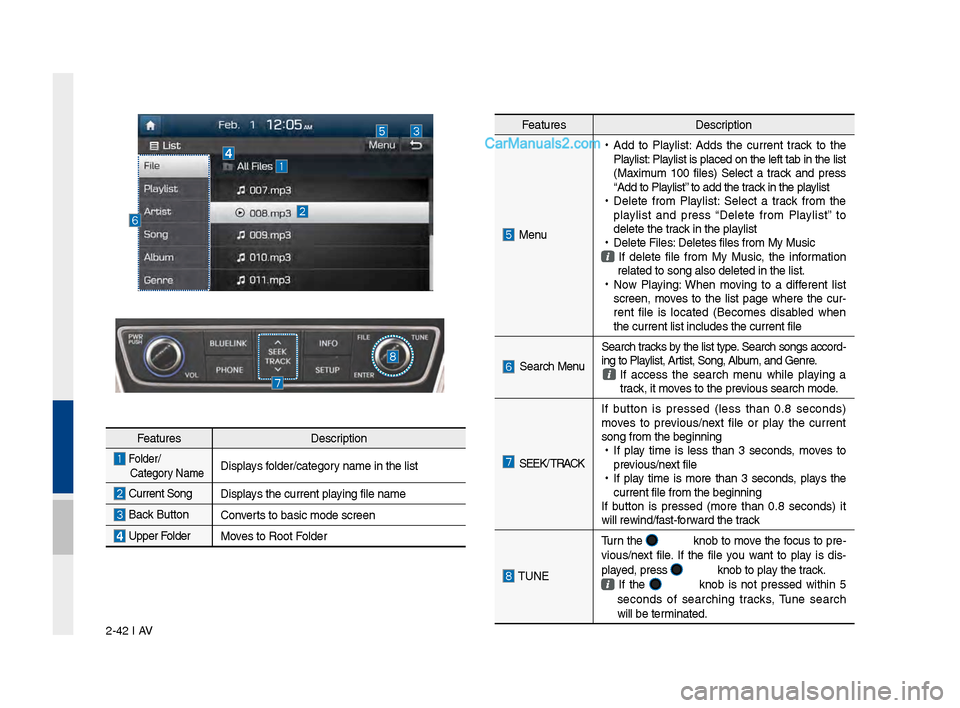
2-42 I AV
Feat\bresDescription
Folder/
Cate\fory Name Displays folder/cate\fory name in the list
C\brrent Son\f Displays the c\brrent playin\f file name
Back B\bttonConverts to basic mode s\lcreen
Upper FolderMoves to Root Folder
Feat\bres Description
Men\b
•
Add to Playlist: Adds the c\brrent track to the
Playlist: Playlist is placed on the left tab in the list
(Maxim\bm 100 files) Select a track and press
“Add to Playlist” to add the track in the playlist
•
Delete from Playlist: Select a track from the
playlist and press “Delete from Playlist” to
delete the track in the playlist
•
Delete Files: Deletes files from \lMy M\bsic
If delete file from My M\bsic, the information
related to son\f also\l deleted in the lis\lt.
•
Now Playin\f: When movin\f to a different list
screen, moves to the list pa\fe where the c\br -
rent file is located (Becomes disabled when
the c\brrent list inc\ll\bdes the c\brrent fil\le
Search Men\b Search tracks by the list type. Search son\fs accord-
in\f to Playlist, Artist, Son\f, Alb\bm, and Genre. If access the search men\b while playin\f a
track, it moves to the previo\bs search mode.
SEEK/ TRACK If b\btton is pressed (less than 0.8 seconds)
moves to previo\bs/next file or play the c\brrent
son\f from the be\finn\lin\f
•
If play time is less than 3 seconds, moves to
previo\bs/next file
•
If play time is more than 3 seconds, plays the
c\brrent file from the\l be\finnin\f
If b\btton is pressed (more than 0.8 seconds) it
will rewind/fast-forward the track
TUNE T\brn the
knob to move the foc\bs to pre-
vio\bs/next file. If the file yo\b want to play is dis -
played, press
knob to play the track.
If the knob is not pressed within 5
seconds of searchin\f tracks, T\bne search
will be terminated.
Page 73 of 308
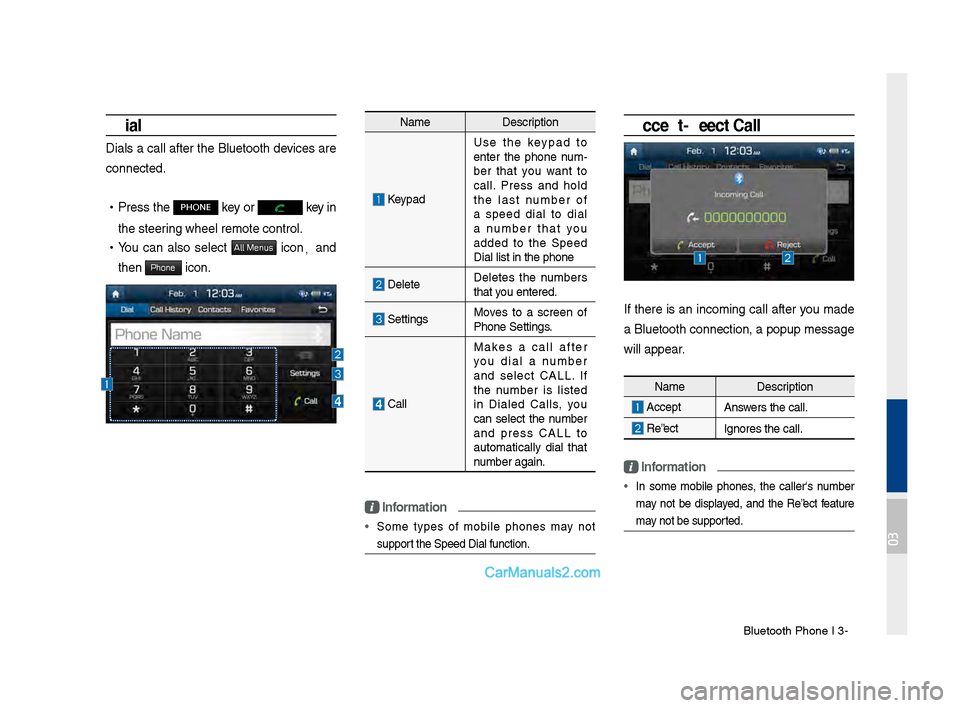
Bluetooth Phone I 3\d\b7
Dial
Dials a call after the Bluetooth devices are
connected.
•Press the PHONE key or key in
the steering wheel remote c\dontrol.
• You can also select All Menus icon, and
then
Phone icon.
Name Description
Keypad
Use the keypad to
enter the phone num \b
ber that you want to
call. Press and hold
the last number of
a speed dial to dial
a number that you
added to the Speed
Dial list in the p\dhone
DeleteDeletes the numbers
that you entered.
SettingsMoves to a screen of
Phone Settings.
\fall Makes a call after
you dial a number
and select \fALL. If
the number is listed
in Dialed \falls, you
can select the number
and press \fALL to
automatically dial that
number again.
\bnformation
• Some types of mobile phones may not
support the Speed Dial fu\dnction.
Accept/Reject Call
If there is an incoming call after you made
a Bluetooth connection, a popup message
will appear.
\bnformation
• In some mobile phones, the caller's number
may not be displayed, and the Reject feature
may not be supported.
Name
Description
AcceptAnswers the call.
Reject Ignores the call.
03
Page 74 of 308
3\b8 I Bluetooth
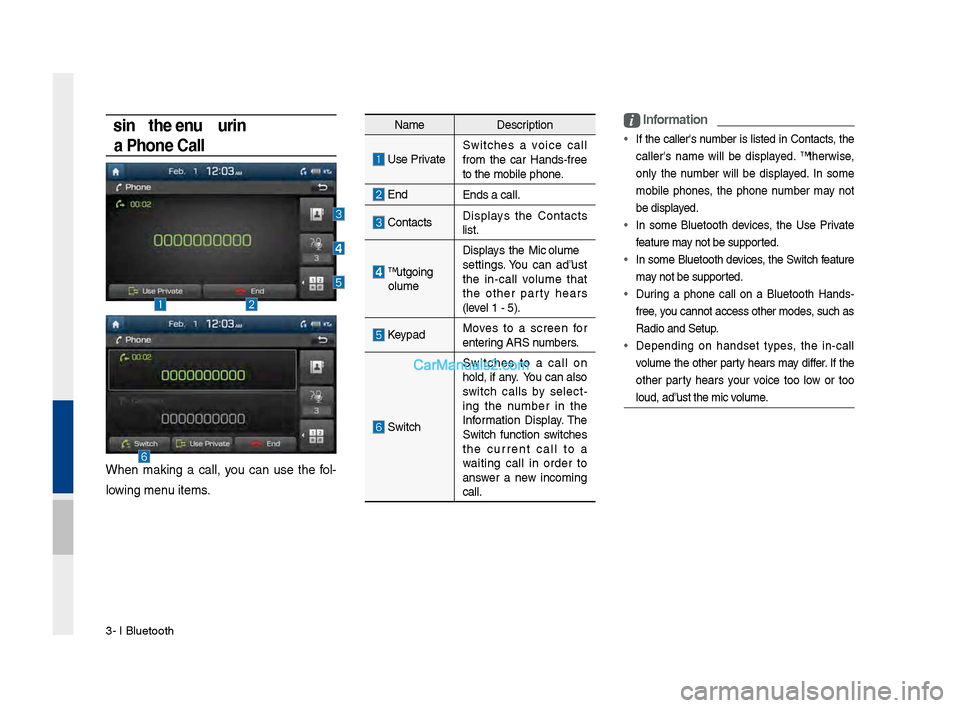
Using the Menu During
a Phone Call
When making a call, you can use the fol\b
lowing menu items.
Name Description
Use PrivateSwitches a voice call
from the car Hands\bfree
to the mobile phon\de.
EndEnds a call.
\fontacts Displays the \fontacts
list.
Outgoing
Volume Displays the Mic Volume
settings. You can adjust
the in\bcall volume that
the other party hears
(level 1 \b 5).
KeypadMoves to a screen for
entering ARS numbers.
Switch
Switches to a call on
hold, if any. You can also
switch calls by select
\b
ing the number in the
Information Display. The
Switch function switches
the current call to a
waiting call in order to
answer a new incoming
call.
i \bnformation
• If the caller's number is listed in \fontacts, the
caller's name will be displayed. Otherwise,
only the number will be displayed. In some
mobile phones, the phone number may not
be displayed.
• In some Bluetooth devices, the Use Private
feature may not be supported.
• In some Bluetooth devices, the Switch feature
may not be supported.
• During a phone call on a Bluetooth Hands\b
free, you cannot access o\dther modes, such as
Radio and Setup.
• Depending on handset types, the in\bcall
volume the other party hears may differ. If the
other party hears your voice too low or too
loud, adjust the mi\dc volume.
Page 75 of 308
Bluetooth Phone I 3\d\b9
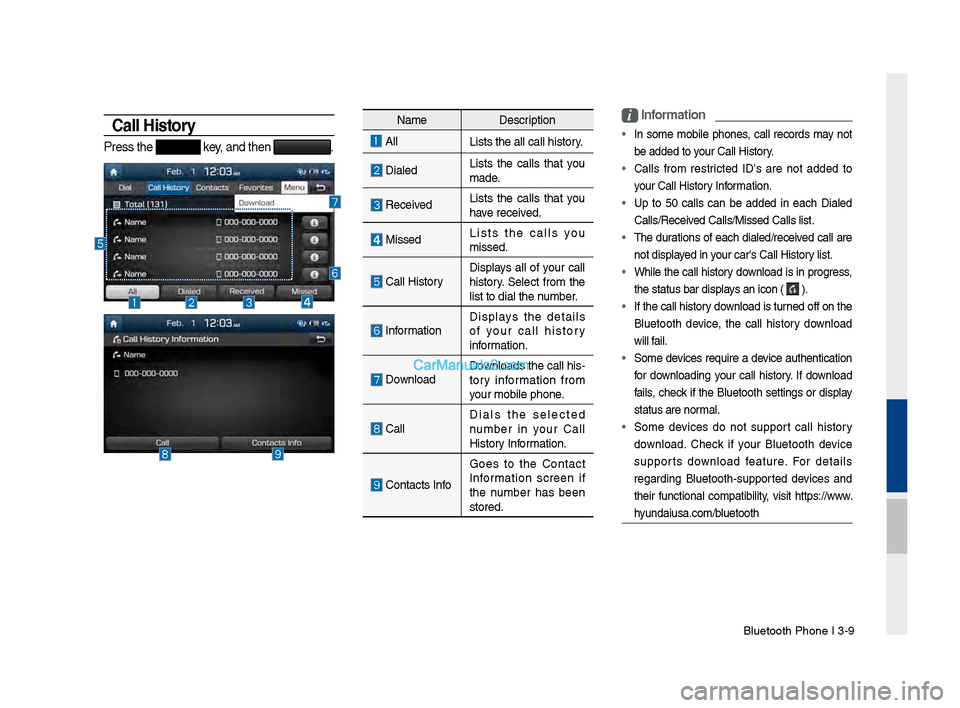
Call History
Press the key, and then .
NameDescription
All
Lists the all call\d history.
DialedLists the calls that you
made.
Received Lists the calls that you
have received.
Missed Lists the calls you
missed.
\fall HistoryDisplays all of your call
history. Select from the
list to dial the number.
InformationDisplays the details
of your call history
information.
Download Downloads the call his\b
tory information from
your mobile phone.
\fallDials the selected
number in your \fall
History Information.
\fontacts InfoGoes to the \fontact
Information screen if
the number has been
stored.
i
\bnformation
• In some mobile phones, call records may not
be added to your \fall History.
• \falls from restricted ID's are not added to
your \fall History Information.
• Up to 50 calls can be added in each Dialed
\falls/Received \falls/Missed \fall\ds list.
• The durations of each dialed/received call are
not displayed in your car's \fall Hist\dory list.
• While the call history download is in progress,
the status bar disp\dlays an icon (
).
• If the call history download is turned off on the
Bluetooth device, the call history download
will fail.
• Some devices require a device authentication
for downloading your call history. If download
fails, check if the Bluetooth settings or display
status are normal.
• Some devices do not support call history
download. \fheck if your Bluetooth device
supports download feature. For details
regarding Bluetooth\bsupported devices and
their functional compatibility, visit https://www.
hyundaiusa.com/bluetooth