set KIA SOUL 2021 Navigation System Quick Reference Guide
[x] Cancel search | Manufacturer: KIA, Model Year: 2021, Model line: SOUL, Model: KIA SOUL 2021Pages: 211, PDF Size: 6.67 MB
Page 3 of 211
1
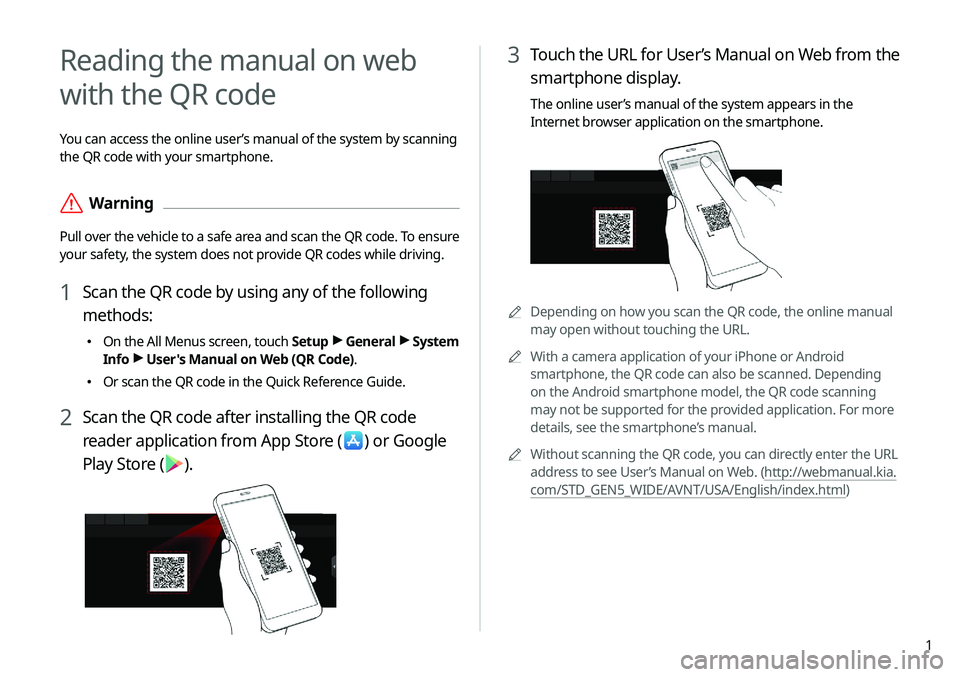
3 Touch the URL for User’s Manual on Web from the
smartphone display.
The online user’s manual of the system appears in the
Internet browser application on the smartphone.
0000ADepending on how you scan the QR code, the online manual
may open without touching the URL.
0000
A
With a camera application of your iPhone or Android
smartphone, the QR code can also be scanned. Depending
on the Android smartphone model, the QR code scanning
may not be supported for the provided application. For more
details, see the smartphone’s manual.
0000
A
Without scanning the QR code, you can directly enter the URL
address to see User’s Manual on Web. (http://webmanual.kia.
com/STD_GEN5_WIDE/AVNT/USA/English/index.html)
Reading the manual on web
with the QR code
You can access the online user’s manual of the system by scanning
the QR code with your smartphone.
\335Warning
Pull over the vehicle to a safe area and scan the QR code. To ensure
your safety, the system does not provide QR codes while driving.
1 Scan the QR code by using any of the following
methods:
\225On the All Menus screen, touch Setup >
General >
System
Info >
User's Manual on Web (QR Code).
\225
Or scan the QR code in the Quick Reference Guide.
2 Scan the QR code after installing the QR code
reader application from App Store (
) or Google
Play Store (
).
Page 6 of 211
4
Component names and functions
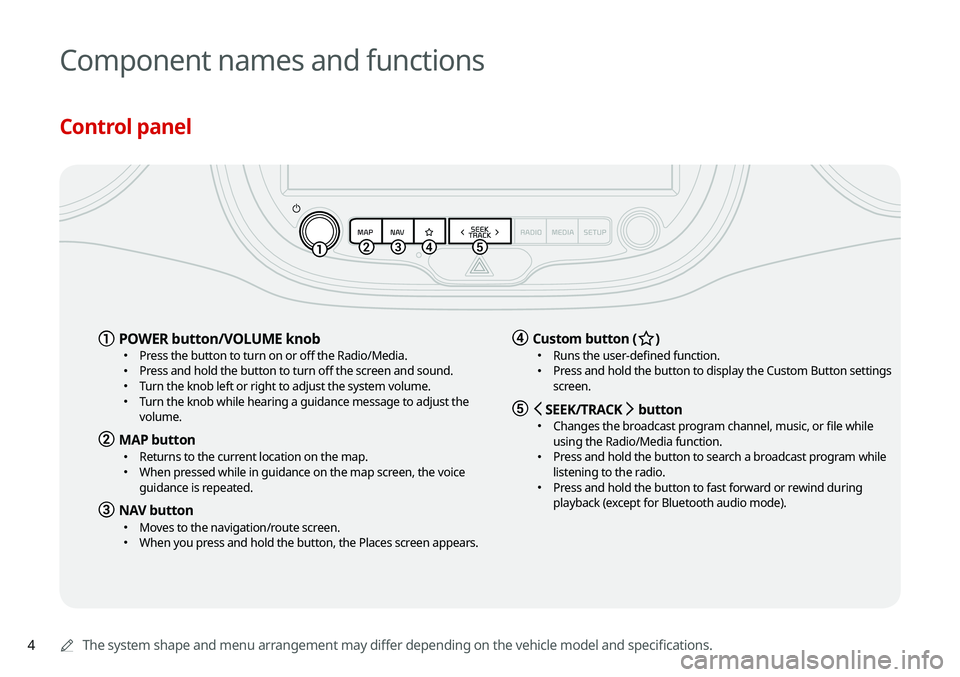
Control panel
0000AThe system shape and menu arrangement may differ depending on the vehicle model and specifications.
a POWER button/VOLUME knob \225
Press the button to turn on or off the Radio/Media. \225Press and hold the button to turn off the screen and sound. \225Turn the knob left or right to adjust the system volume. \225Turn the knob while hearing a guidance message to adjust the
volume.
b MAP button \225Returns to the current location on the map. \225When pressed while in guidance on the map screen, the voice
guidance is repeated.
c NAV button \225Moves to the navigation/route screen. \225When you press and hold the button, the Places screen appears.
d Custom button (B ) \225
Runs the user-defined function. \225Press and hold the button to display the Custom Button settings
screen.
e < SEEK/TRACK > button \225
Changes the broadcast program channel, music, or file while
using the Radio/Media function.
\225Press and hold the button to search a broadcast program while
listening to the radio.
\225Press and hold the button to fast forward or rewind during
playback (except for Bluetooth audio mode).
Page 7 of 211
5
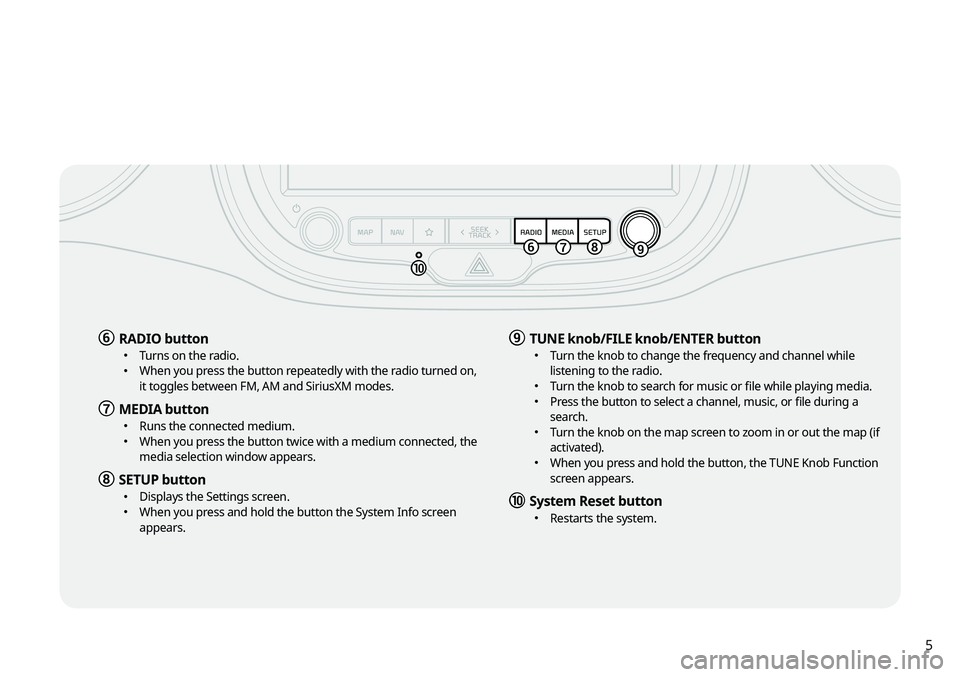
f RADIO button \225Turns on the radio. \225When you press the button repeatedly with the radio turned on,
it toggles between FM, AM and SiriusXM modes.
g MEDIA button \225Runs the connected medium. \225When you press the button twice with a medium connected, the
media selection window appears.
h SETUP button \225Displays the Settings screen. \225When you press and hold the button the System Info screen
appears.
i TUNE knob/FILE knob/ENTER button \225Turn the knob to change the frequency and channel while
listening to the radio.
\225Turn the knob to search for music or file while playing media. \225Press the button to select a channel, music, or file during a
search.
\225Turn the knob on the map screen to zoom in or out the map (if
activated).
\225When you press and hold the button, the TUNE Knob Function
screen appears.
j System Reset button \225Restarts the system.
Page 8 of 211
6
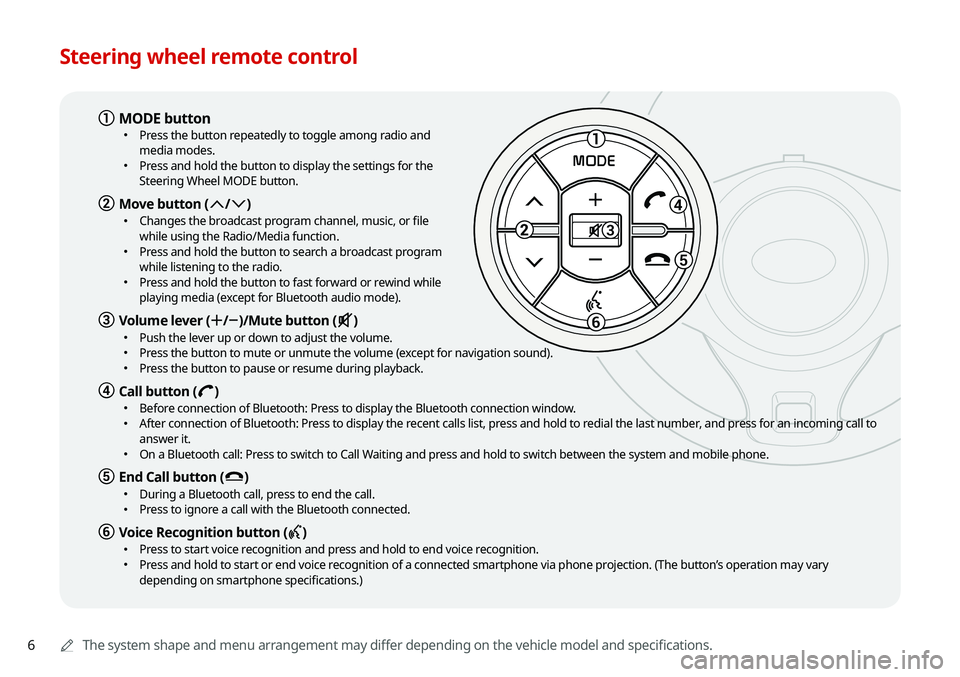
Steering wheel remote control
0000AThe system shape and menu arrangement may differ depending on the vehicle model and specifications.
1
3
5
6
MODE
a MODE button \225
Press the button repeatedly to toggle among radio and
media modes.
\225Press and hold the button to display the settings for the
Steering Wheel MODE button.
b Move button (: /; ) \225
Changes the broadcast program channel, music, or file
while using the Radio/Media function.
\225Press and hold the button to search a broadcast program
while listening to the radio.
\225Press and hold the button to fast forward or rewind while
playing media (except for Bluetooth audio mode).
c Volume lever (+ /- )/Mute button (M ) \225
Push the lever up or down to adjust the volume. \225Press the button to mute or unmute the volume (except for navigation sound). \225Press the button to pause or resume during playback.
d Call button (D ) \225
Before connection of Bluetooth: Press to display the Bluetooth connection window. \225After connection of Bluetooth: Press to display the recent calls list, press and hold to redial the last number, and press for an incoming call to
answer it.
\225On a Bluetooth call: Press to switch to Call Waiting and press and hold to switch between the system and mobile phone.
e End Call button (E ) \225
During a Bluetooth call, press to end the call. \225Press to ignore a call with the Bluetooth connected.
f Voice Recognition button (C ) \225
Press to start voice recognition and press and hold to end voice recognition. \225Press and hold to start or end voice recognition of a connected smartphone via phone projection. (The button’s operation may vary
depending on smartphone specifications.)
Page 17 of 211
7
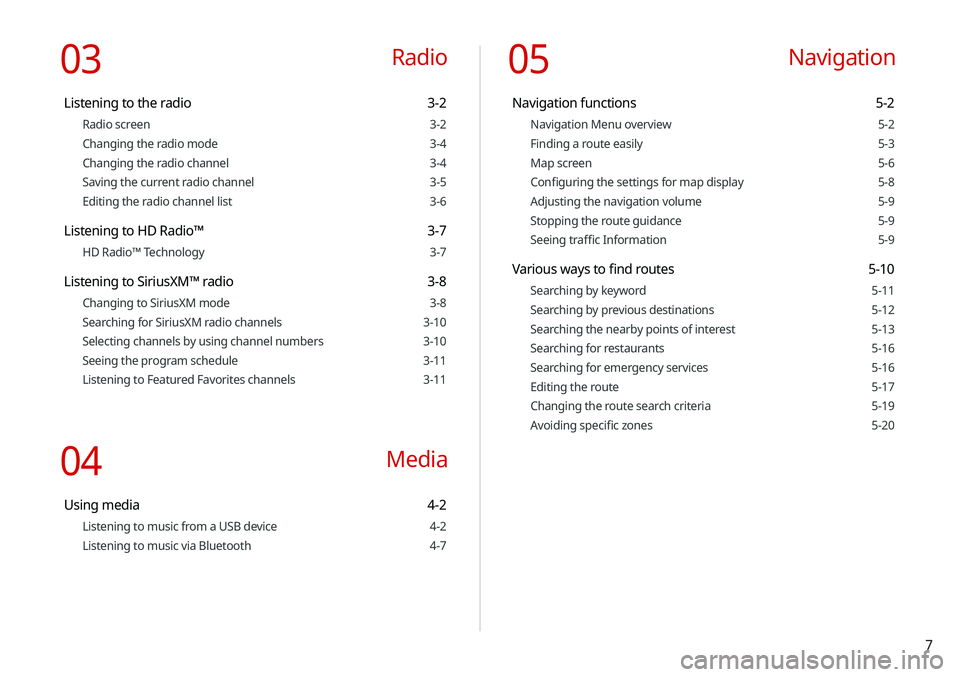
03 Radio
Listening to the radio 3-2
Radio screen 3-2
Changing the radio mode 3-4
Changing the radio channel 3-4
Saving the current radio channel 3-5
Editing the radio channel list 3-6
Listening to HD Radio™ 3-7
HD Radio™ Technology 3-7
Listening to SiriusXM™ radio 3-8
Changing to SiriusXM mode 3-8
Searching for SiriusXM radio channels 3-10
Selecting channels by using channel numbers 3-10
Seeing the program schedule 3-11
Listening to Featured Favorites channels 3-11
04 Media
Using media 4-2
Listening to music from a USB device 4-2
Listening to music via Bluetooth 4-7
05 Navigation
Navigation functions 5-2
Navigation Menu overview 5-2
Finding a route easily 5-3
Map screen 5-6
Configuring the settings for map display 5-8
Adjusting the navigation volume 5-9
Stopping the route guidance 5-9
Seeing traffic Information 5-9
Various ways to find routes 5-10
Searching by keyword 5-11
Searching by previous destinations 5-12
Searching the nearby points of interest 5-13
Searching for restaurants 5-16
Searching for emergency services 5-16
Editing the route 5-17
Changing the route search criteria 5-19
Avoiding specific zones 5-20
Page 18 of 211
8
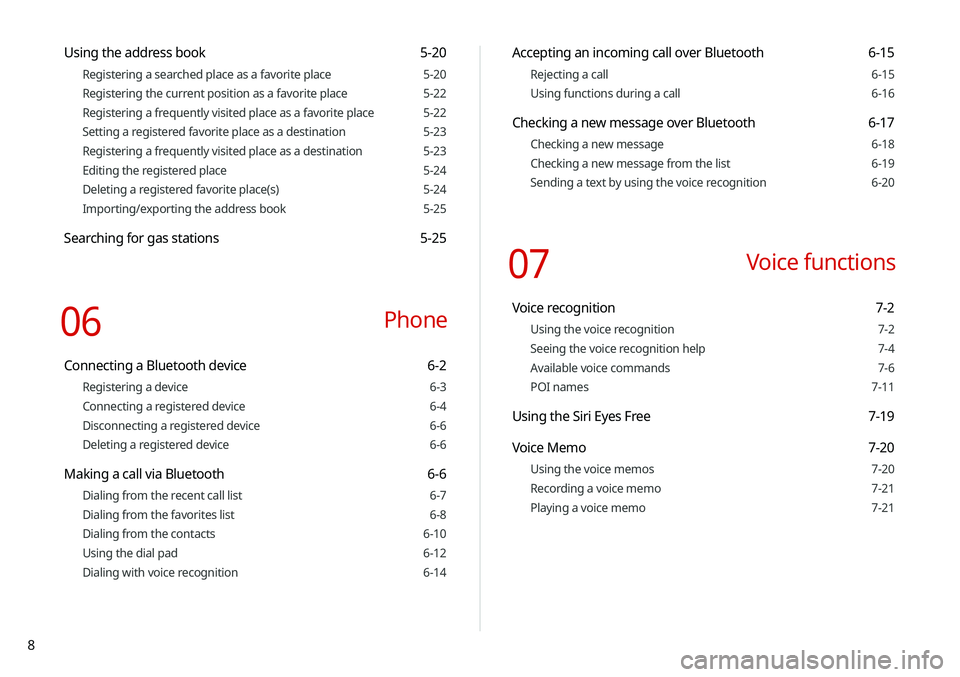
Accepting an incoming call over Bluetooth 6-15
Rejecting a call 6-15
Using functions during a call 6-16
Checking a new message over Bluetooth 6-17
Checking a new message 6-18
Checking a new message from the list 6-19
Sending a text by using the voice recognition 6-20
07 Voice functions
Voice recognition 7-2
Using the voice recognition 7-2
Seeing the voice recognition help 7-4
Available voice commands 7-6
POI names 7-11
Using the Siri Eyes Free 7-19
Voice Memo 7-20
Using the voice memos 7-20
Recording a voice memo 7-21
Playing a voice memo 7-21
Using the address book 5-20
Registering a searched place as a favorite place 5-20
Registering the current position as a favorite place 5-22
Registering a frequently visited place as a favorite place 5-22
Setting a registered favorite place as a destination 5-23
Registering a frequently visited place as a destination 5-23
Editing the registered place 5-24
Deleting a registered favorite place(s) 5-24
Importing/exporting the address book 5-25
Searching for gas stations 5-25
06 Phone
Connecting a Bluetooth device 6-2
Registering a device 6-3
Connecting a registered device 6-4
Disconnecting a registered device 6-6
Deleting a registered device 6-6
Making a call via Bluetooth 6-6
Dialing from the recent call list 6-7
Dialing from the favorites list 6-8
Dialing from the contacts 6-10
Using the dial pad 6-12
Dialing with voice recognition 6-14
Page 19 of 211
9
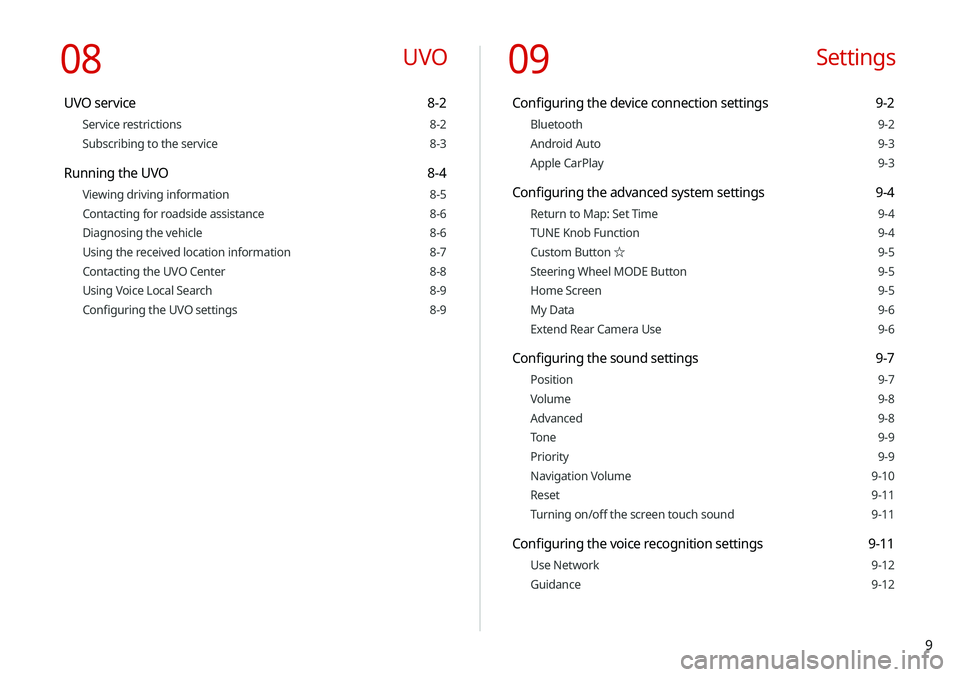
09 Settings
Configuring the device connection settings 9-2
Bluetooth 9-2
Android Auto 9-3
Apple CarPlay 9-3
Configuring the advanced system settings 9-4
Return to Map: Set Time 9-4
TUNE Knob Function 9-4
Custom Button ☆ 9-5
Steering Wheel MODE Button 9-5
Home Screen 9-5
My Data 9-6
Extend Rear Camera Use 9-6
Configuring the sound settings 9-7
Position 9-7
Volume 9-8
Advanced 9-8
Tone 9-9
Priority 9-9
Navigation Volume 9-10
Reset 9-11
Turning on/off the screen touch sound 9-11
Configuring the voice recognition settings 9-11
Use Network 9-12
Guidance 9-12
08 UVO
UVO service 8-2
Service restrictions 8-2
Subscribing to the service 8-3
Running the UVO 8-4
Viewing driving information 8-5
Contacting for roadside assistance 8-6
Diagnosing the vehicle 8-6
Using the received location information 8-7
Contacting the UVO Center 8-8
Using Voice Local Search 8-9
Configuring the UVO settings 8-9
Page 20 of 211
10
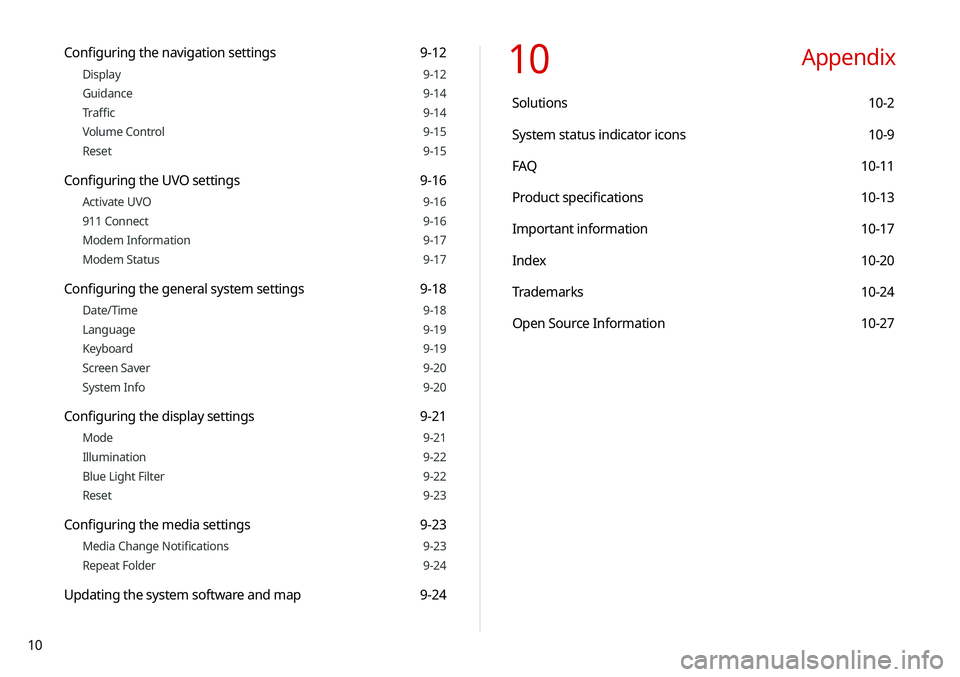
10 Appendix
Solutions 10-2
System status indicator icons 10-9
FAQ 10-11
Product specifications 10-13
Important information 10-17
Index 10-20
Trademarks 10-24
Open Source Information 10-27
Configuring the navigation settings 9-12
Display 9-12
Guidance 9-14
Traffic 9-14
Volume Control 9-15
Reset 9-15
Configuring the UVO settings 9-16
Activate UVO 9-16
911 Connect 9-16
Modem Information 9-17
Modem Status 9-17
Configuring the general system settings 9-18
Date/Time 9-18
Language 9-19
Keyboard 9-19
Screen Saver 9-20
System Info 9-20
Configuring the display settings 9-21
Mode 9-21
Illumination 9-22
Blue Light Filter 9-22
Reset 9-23
Configuring the media settings 9-23
Media Change Notifications 9-23
Repeat Folder 9-24
Updating the system software and map 9-24
Page 22 of 211
1-2
NAV button \225Moves to the navigation/route screen.
\225When you press and hold the button,
the Places screen appears.
> See
“ Searching by keyword.”
RADIO button \225
Turns on the radio.
\225When you press the button
repeatedly with the radio turned
on, it toggles between FM, AM and
SiriusXM modes.
MEDIA button
\225 Runs the connected medium.
\225When you press the button twice
with a medium connected, the media
selection window appears.
SEEK/
TRACK
button
\225 Changes the broadcast program
channel, music, or file while using the
Radio/Media function.
\225Press and hold the button to search a
broadcast program while listening to
the radio.
\225Press and hold the button to fast
forward or rewind during playback
(except for Bluetooth audio mode).
Custom button
(
)
\225 Runs the user-defined function.
\225Press and hold the button to display
the Custom button settings screen.
> See “Custom Button ☆ .”
Component names and
functions
The following describes the part names and controls on the
control panel and steering wheel.
Control panel
0000
A
The shape may differ depending on the vehicle model and
specifications. For more information, see “Quick Reference
Guide” that is separately provided.
POWER button/
VOLUME knob \225Press the button to turn on or off the
Radio/Media.
\225Press and hold the button to turn off
the screen and sound.
\225Turn the knob left or right to adjust
the system volume.
\225Turn the knob while hearing a
guidance message to adjust the
volume.
MAP button
\225 Returns to the current location on the
map.
\225When pressed while in guidance on
the map screen, the voice guidance is
repeated.
Page 23 of 211
1-3
Steering wheel remote control
0000
A
The shape may differ depending on the vehicle model and
specifications. For more information, see “Quick Reference
Guide” that is separately provided.
Voice Recognition
button
(
)
\225 Press to start voice recognition
and press and hold to end voice
recognition.
\225Press and hold to start or end
voice recognition of a connected
smartphone via phone projection.
(The button’s operation may
vary depending on smartphone
specifications.)
MODE button
\225 Press the button repeatedly to toggle
among radio and media modes.
\225Press and hold the button to display
the settings for the Steering wheel
MODE button:
> see “Steering Wheel
MODE Button.”
Volume lever
(+/-) \225 Push the lever up or down to adjust
the volume.
Mute button
(
)
\225 Press the button to mute or unmute
the volume (except for navigation
sound).
\225Press the button to pause or resume
during playback.
SETUP button \225Displays the Settings screen.
\225When you press and hold the button
the System Info screen appears.
> See
“ System Info.”
TUNE knob/
FILE knob/
ENTER button \225
Turn the knob to change the
frequency and channel while listening
to the radio.
\225Turn the knob to search for music or
file while playing media.
\225Press the button to select a channel,
music, or file during a search.
\225Turn the knob on the map screen to
zoom in or out the map (if activated).
> See “ TUNE Knob Function.”
\225
When you press and hold the button,
the TUNE Knob Function screen
appears.
> See “ TUNE Knob Function.”
System Reset
button \225
Restarts the system.