display LAND ROVER FRELANDER 2 2006 Manual PDF
[x] Cancel search | Manufacturer: LAND ROVER, Model Year: 2006, Model line: FRELANDER 2, Model: LAND ROVER FRELANDER 2 2006Pages: 3229, PDF Size: 78.5 MB
Page 2955 of 3229
235
Digital audio broadcasting
R
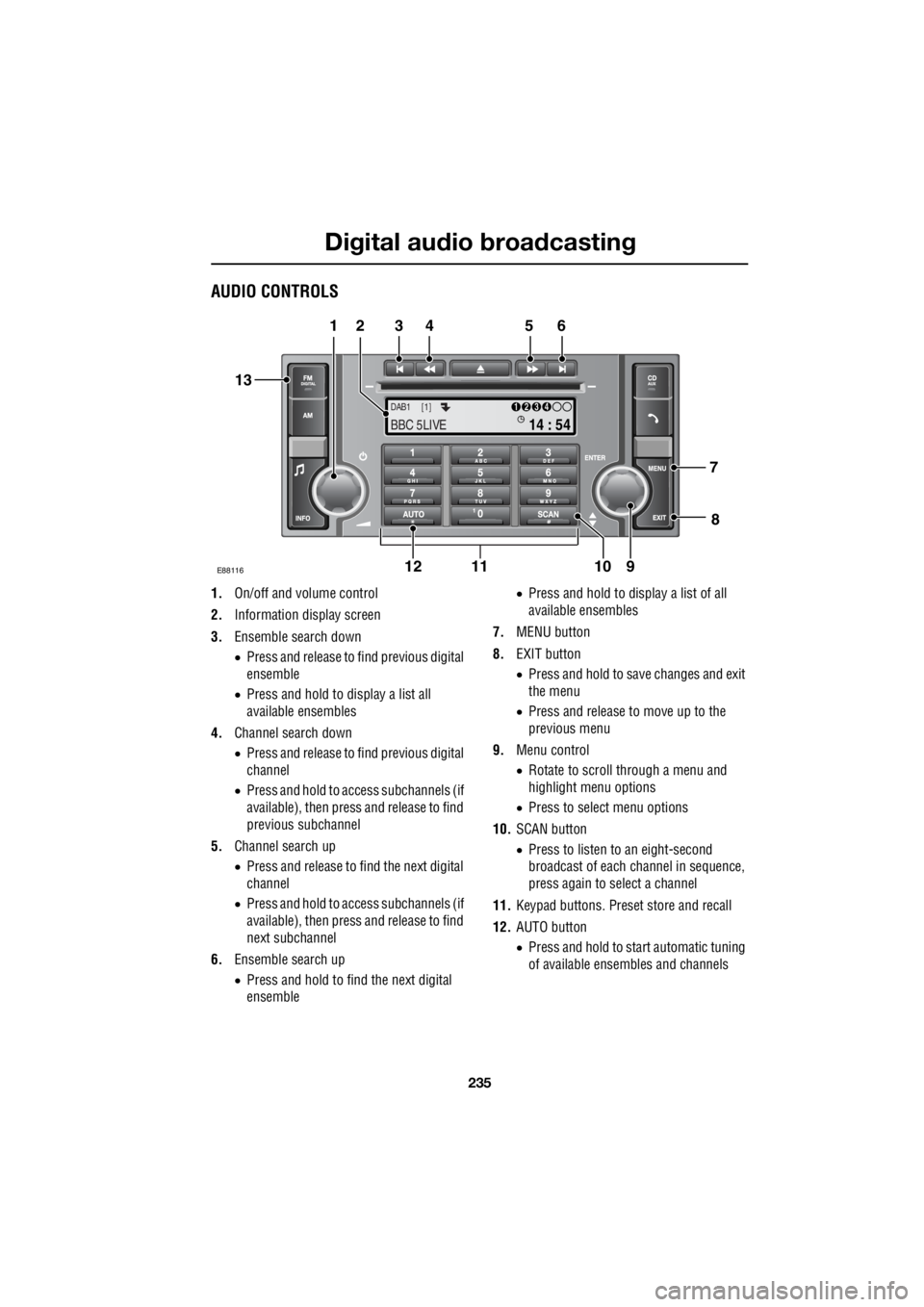
AUDIO CONTROLS
1. On/off and volume control
2. Information display screen
3. Ensemble search down
• Press and release to find previous digital
ensemble
• Press and hold to display a list all
available ensembles
4. Channel search down
• Press and release to find previous digital
channel
• Press and hold to access subchannels (if
available), then press and release to find
previous subchannel
5. Channel search up
• Press and release to find the next digital
channel
• Press and hold to access subchannels (if
available), then press and release to find
next subchannel
6. Ensemble search up
• Press and hold to fi nd the next digital
ensemble •
Press and hold to display a list of all
available ensembles
7. MENU button
8. EXIT button
• Press and hold to save changes and exit
the menu
• Press and release to move up to the
previous menu
9. Menu control
• Rotate to scroll through a menu and
highlight menu options
• Press to select menu options
10. SCAN button
• Press to listen to an eight-second
broadcast of each channel in sequence,
press again to select a channel
11. Keypad buttons. Preset store and recall
12. AUTO button
• Press and hold to start automatic tuning
of available ensembles and channels
TA
NEWSPTY
14 : 54
1234DAB1 [1]
BBC 5LIVE
E88116
12 3 4 5 6
13
11 10 9
12 8
7
Page 2956 of 3229
Digital audio broadcasting
236
L
13. FM/DIGITAL button
• Press and release to select the next
available radio source FM1, FM2, DAB1,
DAB2
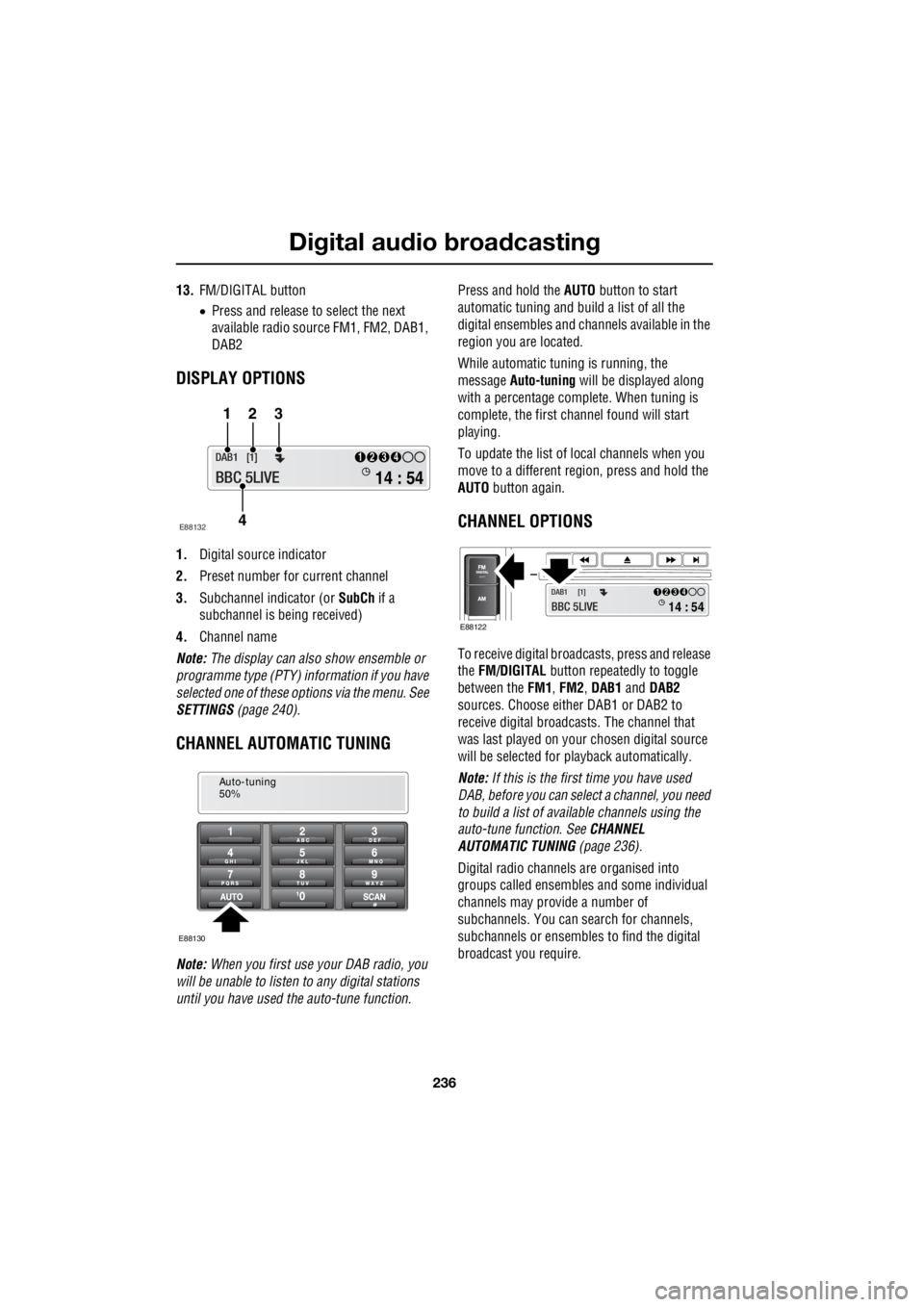
DISPLAY OPTIONS
1. Digital source indicator
2. Preset number for current channel
3. Subchannel indicator (or SubCh if a
subchannel is be ing received)
4. Channel name
Note: The display can also show ensemble or
programme type (PTY) in formation if you have
selected one of these options via the menu. See
SETTINGS (page 240).
CHANNEL AUTOMATIC TUNING
Note: When you first use your DAB radio, you
will be unable to listen to any digital stations
until you have used the auto-tune function. Press and hold the
AUTO button to start
automatic tuning and build a list of all the
digital ensembles and cha nnels available in the
region you are located.
While automatic tuning is running, the
message Auto-tuning will be displayed along
with a percentage complete. When tuning is
complete, the first ch annel found will start
playing.
To update the list of lo cal channels when you
move to a different region, press and hold the
AUTO button again.
CHANNEL OPTIONS
To receive digital broadc asts, press and release
the FM/DIGITAL button repeatedly to toggle
between the FM1, FM2 , DAB1 and DAB2
sources. Choose either DAB1 or DAB2 to
receive digital broadcas ts. The channel that
was last played on your chosen digital source
will be selected for playback automatically.
Note: If this is the first time you have used
DAB, before you can select a channel, you need
to build a list of availa ble channels using the
auto-tune function. See CHANNEL
AUTOMATIC TUNING (page 236).
Digital radio channels are organised into
groups called ensembles and some individual
channels may provide a number of
subchannels. You can search for channels,
subchannels or ensembles to find the digital
broadcast you require.
14 : 54
1234DAB1 [1]
BBC 5LIVE
123
4
E88132
Auto-tuning
50%
E88130
14 : 54
1234DAB1 [1]
BBC 5LIVE E88122
Page 2957 of 3229
237
Digital audio broadcasting
R
Selecting a channel
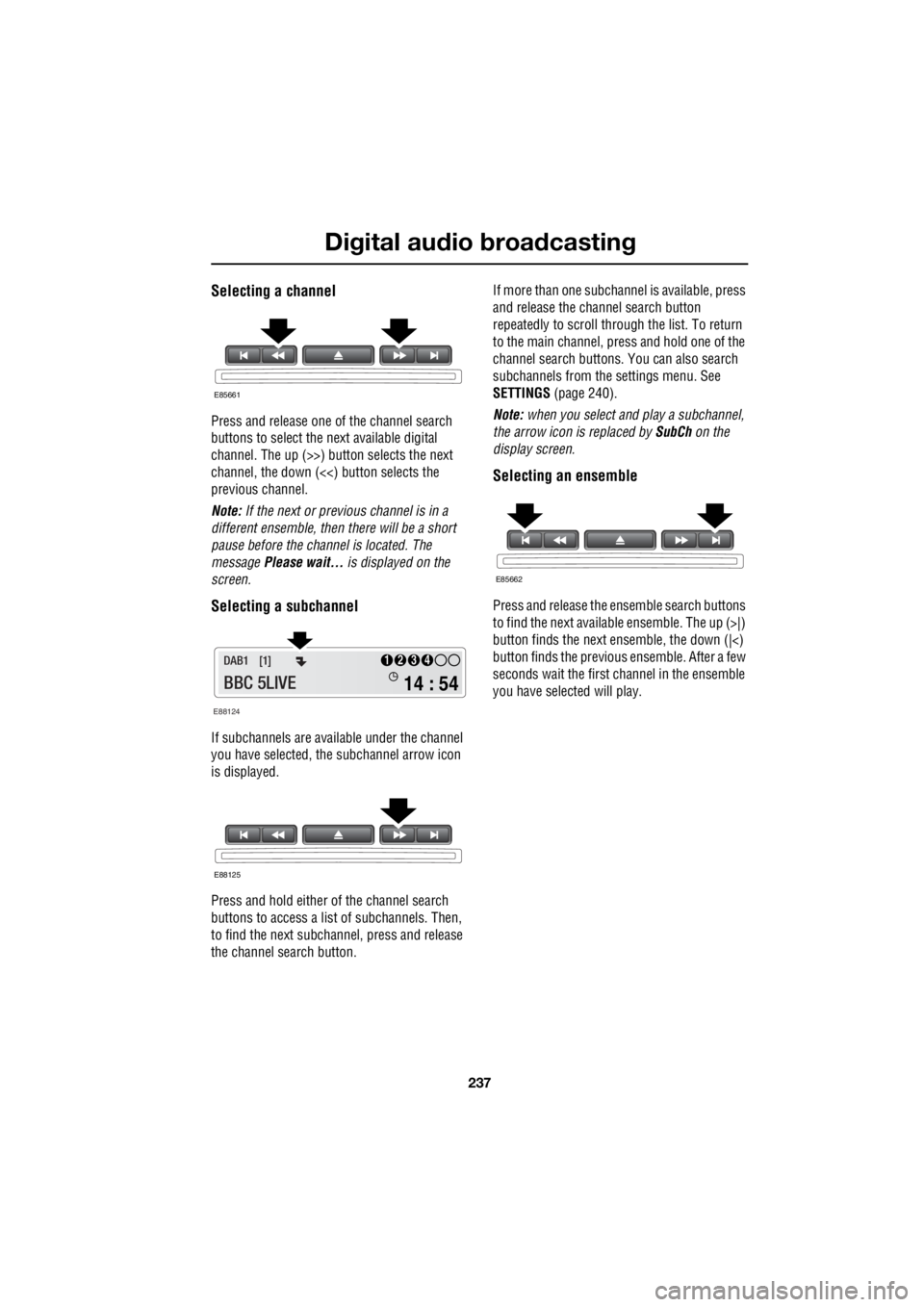
Press and release one of the channel search
buttons to select the next available digital
channel. The up (>>) button selects the next
channel, the down (<<) button selects the
previous channel.
Note: If the next or previous channel is in a
different ensemble, then there will be a short
pause before the channel is located. The
message Please wait... is displayed on the
screen.
Selecting a subchannel
If subchannels are ava ilable under the channel
you have selected, th e subchannel arrow icon
is displayed.
Press and hold either of the channel search
buttons to access a lis t of subchannels. Then,
to find the next subcha nnel, press and release
the channel search button. If more than one subcha
nnel is available, press
and release the channel search button
repeatedly to scroll through the list. To return
to the main channel, press and hold one of the
channel search buttons. You can also search
subchannels from the settings menu. See
SETTINGS (page 240).
Note: when you select and play a subchannel,
the arrow icon is replaced by SubCh on the
display screen.
Selecting an ensemble
Press and release the ensemble search buttons
to find the next available ensemble. The up (>|)
button finds the next en semble, the down (|<)
button finds the previous ensemble. After a few
seconds wait the first ch annel in the ensemble
you have selected will play.
E85661
E88124
14 : 54
1234DAB1 [1]
BBC 5LIVE
E88125
E85662
Page 2958 of 3229
Digital audio broadcasting
238
L
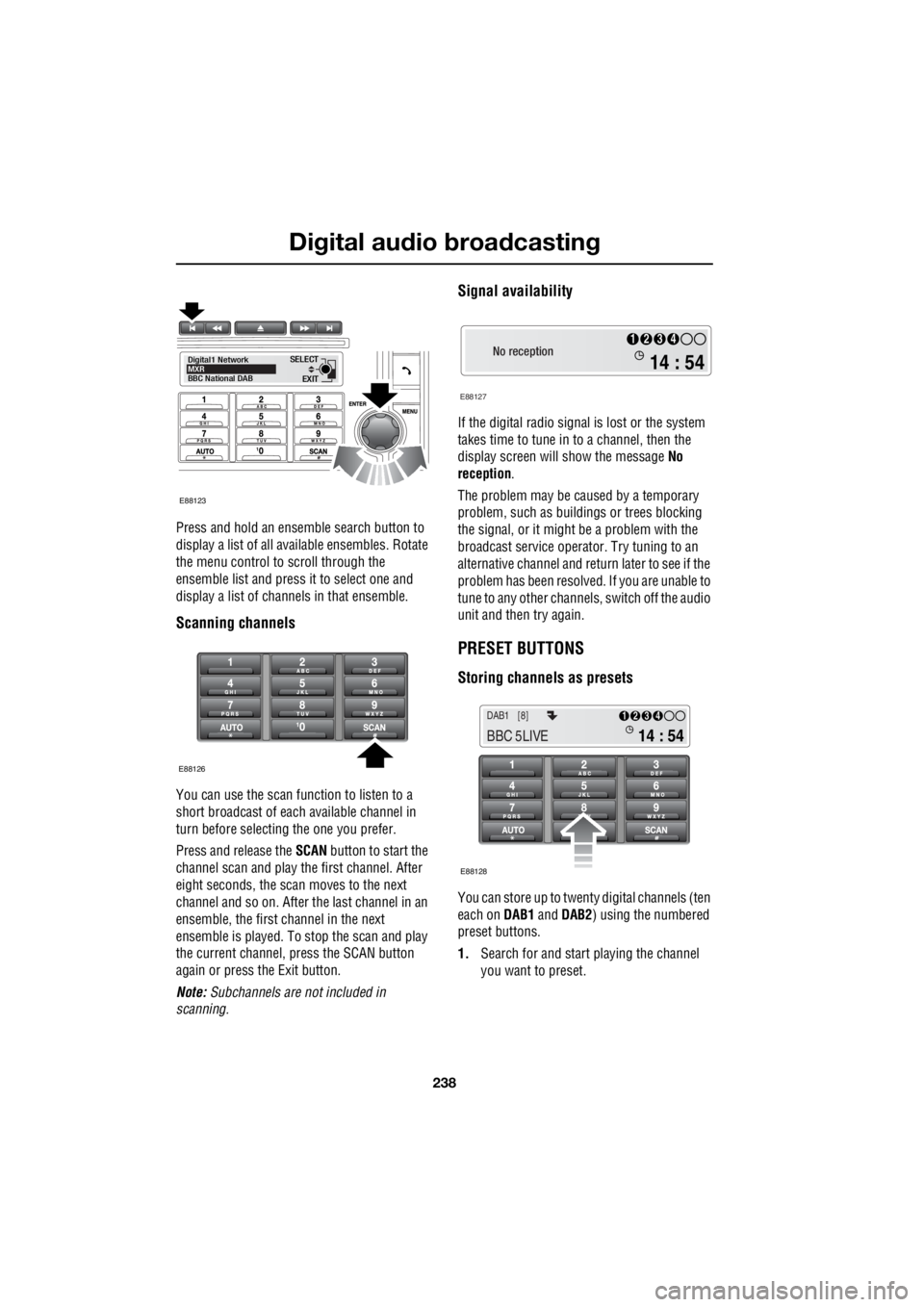
Press and hold an ensemble search button to
display a list of all available ensembles. Rotate
the menu control to scroll through the
ensemble list and press it to select one and
display a list of channels in that ensemble.
Scanning channels
You can use the scan function to listen to a
short broadcast of each available channel in
turn before selecting the one you prefer.
Press and release the SCAN button to start the
channel scan and play the first channel. After
eight seconds, the scan moves to the next
channel and so on. After the last channel in an
ensemble, the first channel in the next
ensemble is played. To stop the scan and play
the current channel, press the SCAN button
again or press the Exit button.
Note: Subchannels are not included in
scanning.
Signal availability
If the digital radio signal is lost or the system
takes time to tune in to a channel, then the
display screen will show the message No
reception .
The problem may be caused by a temporary
problem, such as buildings or trees blocking
the signal, or it might be a problem with the
broadcast service operator. Try tuning to an
alternative channel and return later to see if the
problem has been resolved. If you are unable to
tune to any other channe ls, switch off the audio
unit and then try again.
PRESET BUTTONS
Storing channels as presets
You can store up to twenty digital channels (ten
each on DAB1 and DAB2 ) using the numbered
preset buttons.
1. Search for and start playing the channel
you want to preset.
EXIT
SELECT
Digital1 Network
MXR
BBC National DAB
E88123
E88126
No reception
E88127
14 : 54
1234
14 : 54
1234DAB1 [8]
BBC 5LIVE
E88128
Page 2959 of 3229
239
Digital audio broadcasting
R
2. Press and hold the preset button (for about
two seconds) on which you want to store
the current channel. Audio output is muted
for a further two seconds while the channel
is stored and a confirmation message is
displayed.
3. Repeat steps 1 and 2 for each channel that
you want to store as a preset.
Note: You cannot store a subchannel as a
preset. If you try to stor e a subchannel, you will
store the channel to which the subchannel
belongs.
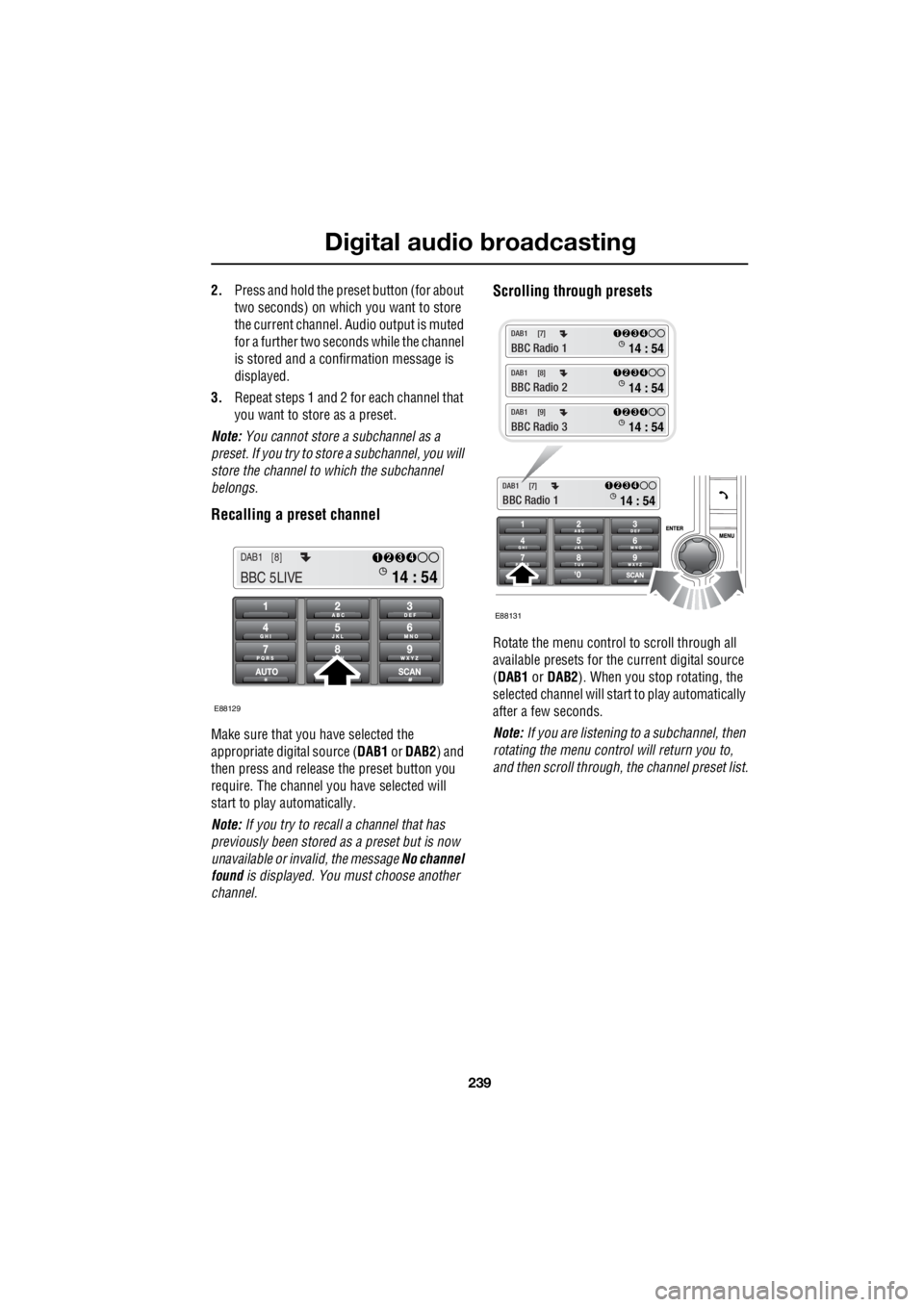
Recalling a preset channel
Make sure that you have selected the
appropriate digital source ( DAB1 or DAB2 ) and
then press and release the preset button you
require. The channel y ou have selected will
start to play automatically.
Note: If you try to recall a channel that has
previously been stored as a preset but is now
unavailable or invalid, the message No channel
found is displayed. You must choose another
channel.
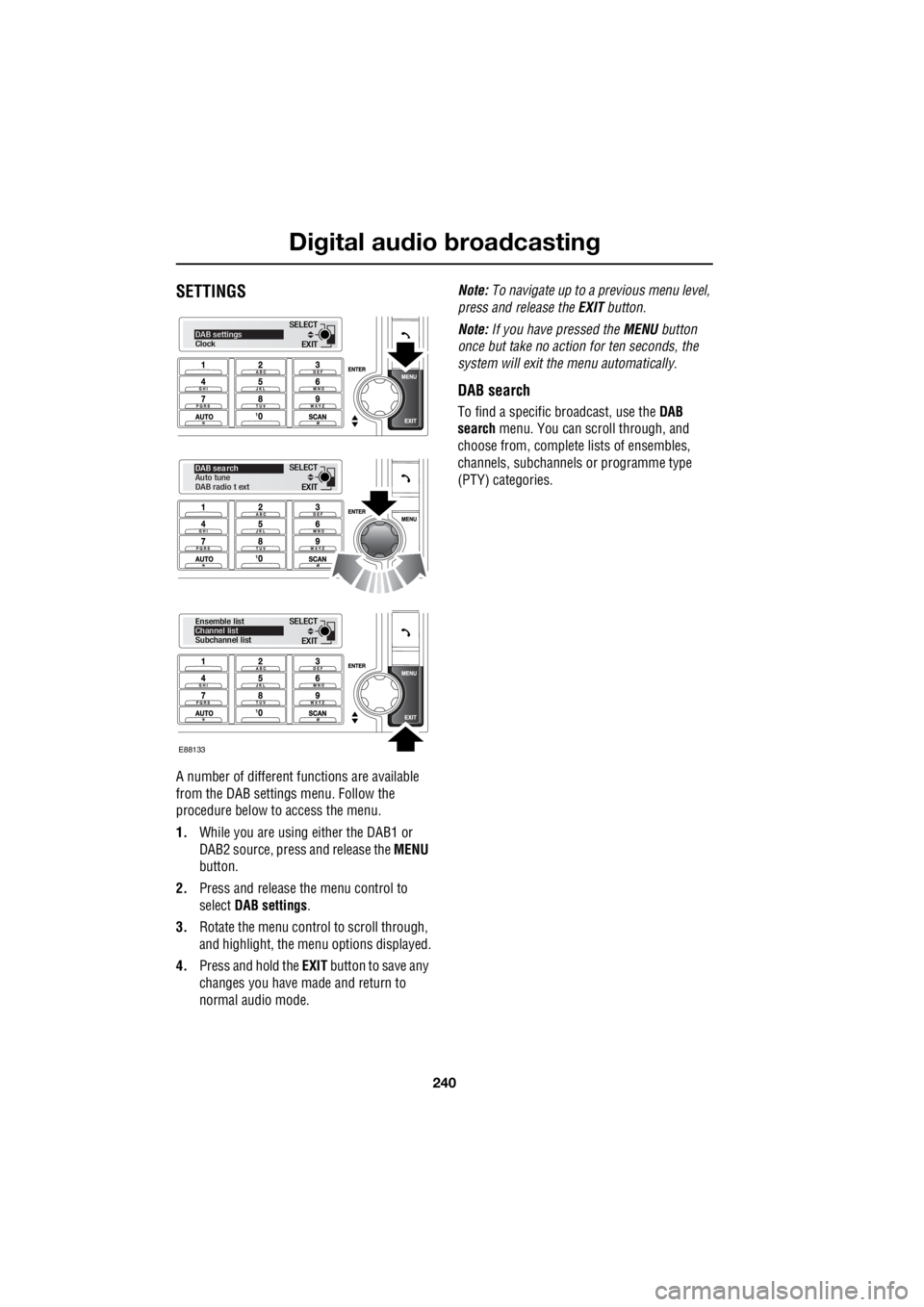
Scrolling through presets
Rotate the menu control to scroll through all
available presets for the current digital source
( DAB1 or DAB2 ). When you stop rotating, the
selected channel will start to play automatically
after a few seconds.
Note: If you are listening to a subchannel, then
rotating the menu control will return you to,
and then scroll through, the channel preset list.
14 : 54
1234DAB1 [8]
BBC 5LIVE
E88129
E88131
14 : 54
1234DAB1 [7]
BBC Radio 1
14 : 54
1234DAB1 [7]
BBC Radio 1
14 : 54
1234DAB1 [8]
BBC Radio 2
14 : 54
1234DAB1 [9]
BBC Radio 3
Page 2960 of 3229
Digital audio broadcasting
240
L
SETTINGS
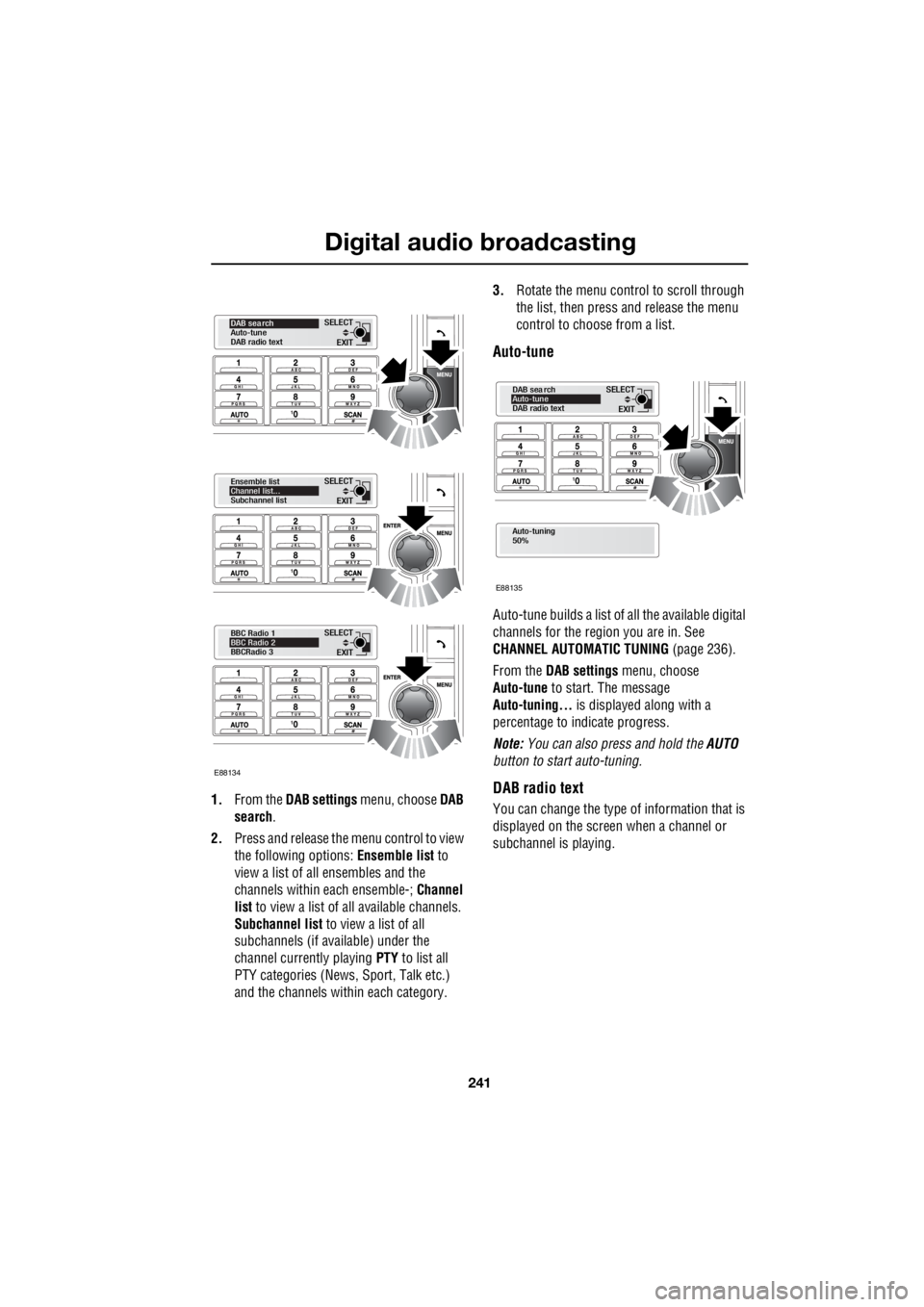
A number of different f unctions are available
from the DAB settings menu. Follow the
procedure below to access the menu.
1. While you are using either the DAB1 or
DAB2 source, press and release the MENU
button.
2. Press and release the menu control to
select DAB settings .
3. Rotate the menu control to scroll through,
and highlight, the menu options displayed.
4. Press and hold the EXIT button to save any
changes you have made and return to
normal audio mode. Note:
To navigate up to a pr evious menu level,
press and release the EXIT button.
Note: If you have pressed the MENU button
once but take no action for ten seconds, the
system will exit the menu automatically.
DAB search
To find a specific br oadcast, use the DAB
search menu. You can scroll through, and
choose from, complete lists of ensembles,
channels, subchannels or programme type
(PTY) categories.
EXIT
SELECTDAB settings
Clock
EXIT
SELECT
DAB sea rch
Auto tune
DAB radio t ext
EXIT
SELECT
Ensemble list
Channel list
Subchannel list
E88133
Page 2961 of 3229
241
Digital audio broadcasting
R
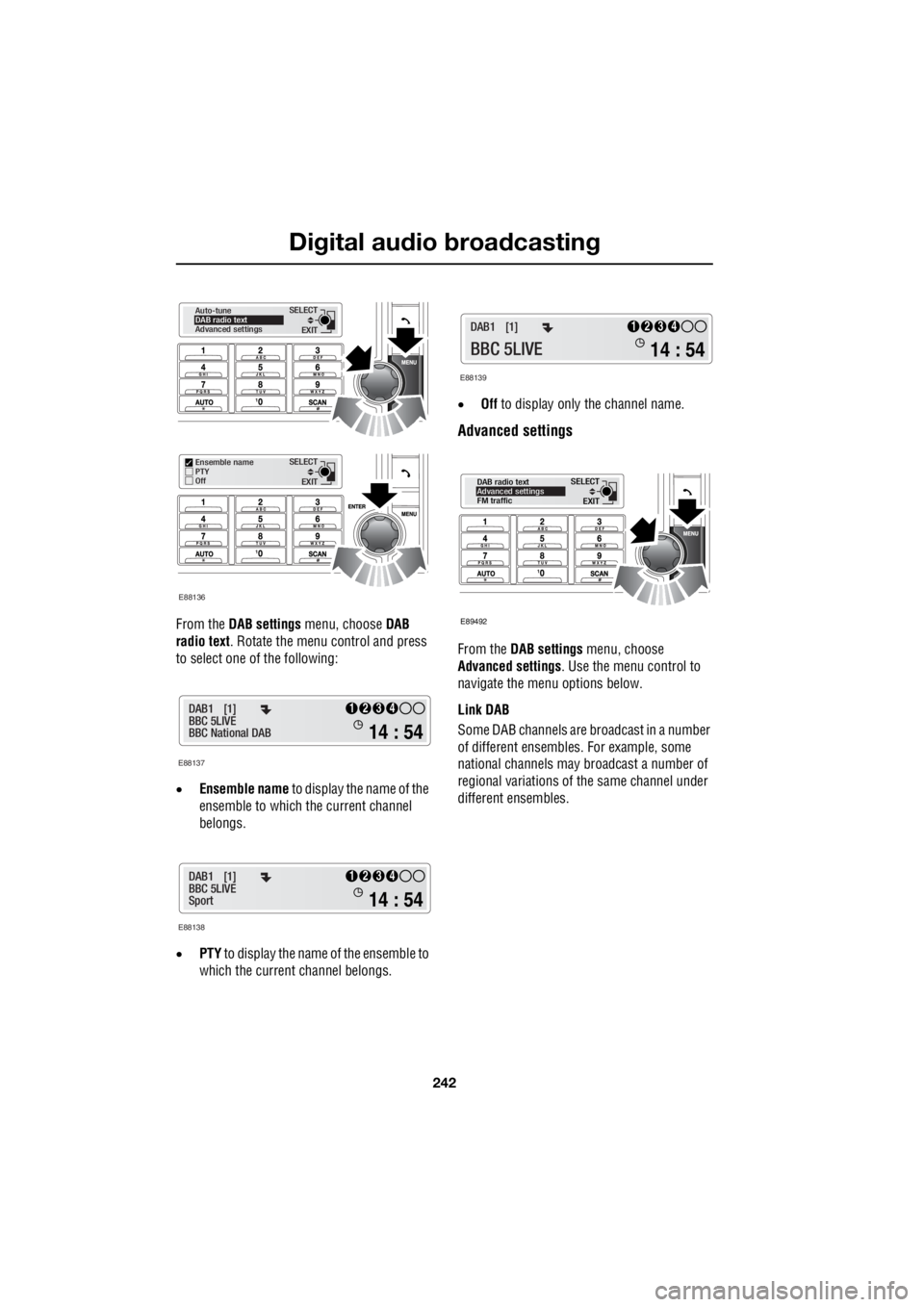
1. From the DAB settings menu, choose DAB
search .
2. Press and release the menu control to view
the following options: Ensemble list to
view a list of all ensembles and the
channels within each ensemble-; Channel
list to view a list of all available channels.
Subchannel list to view a list of all
subchannels (if av ailable) under the
channel currently playing PTY to list all
PTY categories (News, Sport, Talk etc.)
and the channels within each category. 3.
Rotate the menu control to scroll through
the list, then press and release the menu
control to choose from a list.
Auto-tune
Auto-tune builds a list of all the available digital
channels for the region you are in. See
CHANNEL AUTOMATIC TUNING (page 236).
From the DAB settings menu, choose
Auto-tune to start. The message
Auto-tuning... is displayed along with a
percentage to i ndicate progress.
Note: You can also press and hold the AUTO
button to start auto-tuning.
DAB radio text
You can change the type of information that is
displayed on the screen when a channel or
subchannel is playing.
EXIT
SELECT
BBC Radio 1
BBC Radio 2
BBCRadio 3
EXIT
SELECT
Ensemble list
Channel list...
Subchannel list
EXIT
SELECT
DAB sea rch
Auto-tune
DAB radio text
E88134
Auto-tuning
50%
EXIT
SELECT
DAB sea rch
Auto-tune
DAB radio text
E88135
Page 2962 of 3229
Digital audio broadcasting
242
L
From the DAB settings menu, choose DAB
radio text . Rotate the menu control and press
to select one of the following:
• Ensemble name to display the name of the
ensemble to which the current channel
belongs.
• PTY to display the name of the ensemble to
which the current channel belongs. •
Off to display only the channel name.
Advanced settings
From the DAB settings menu, choose
Advanced settings . Use the menu control to
navigate the menu options below.
Link DAB
Some DAB channels are broadcast in a number
of different ensembles. For example, some
national channels may broadcast a number of
regional variations of the same channel under
different ensembles.
EXIT
SELECT
Ensemble name
PTY
Off
EXIT
SELECT
Auto-tune
DAB radio text
Advanced settings
E88136
E88137
14 : 54
1234DAB1 [1]
BBC 5LIVE
BBC National DAB
E88138
14 : 54
1234DAB1 [1]
BBC 5LIVE
Sport
E88139
14 : 54
1234DAB1 [1]
BBC 5LIVE
EXIT
SELECT
DAB radio text
Advanced settings
FM traffic
E89492
Page 2963 of 3229
243
Digital audio broadcasting
R
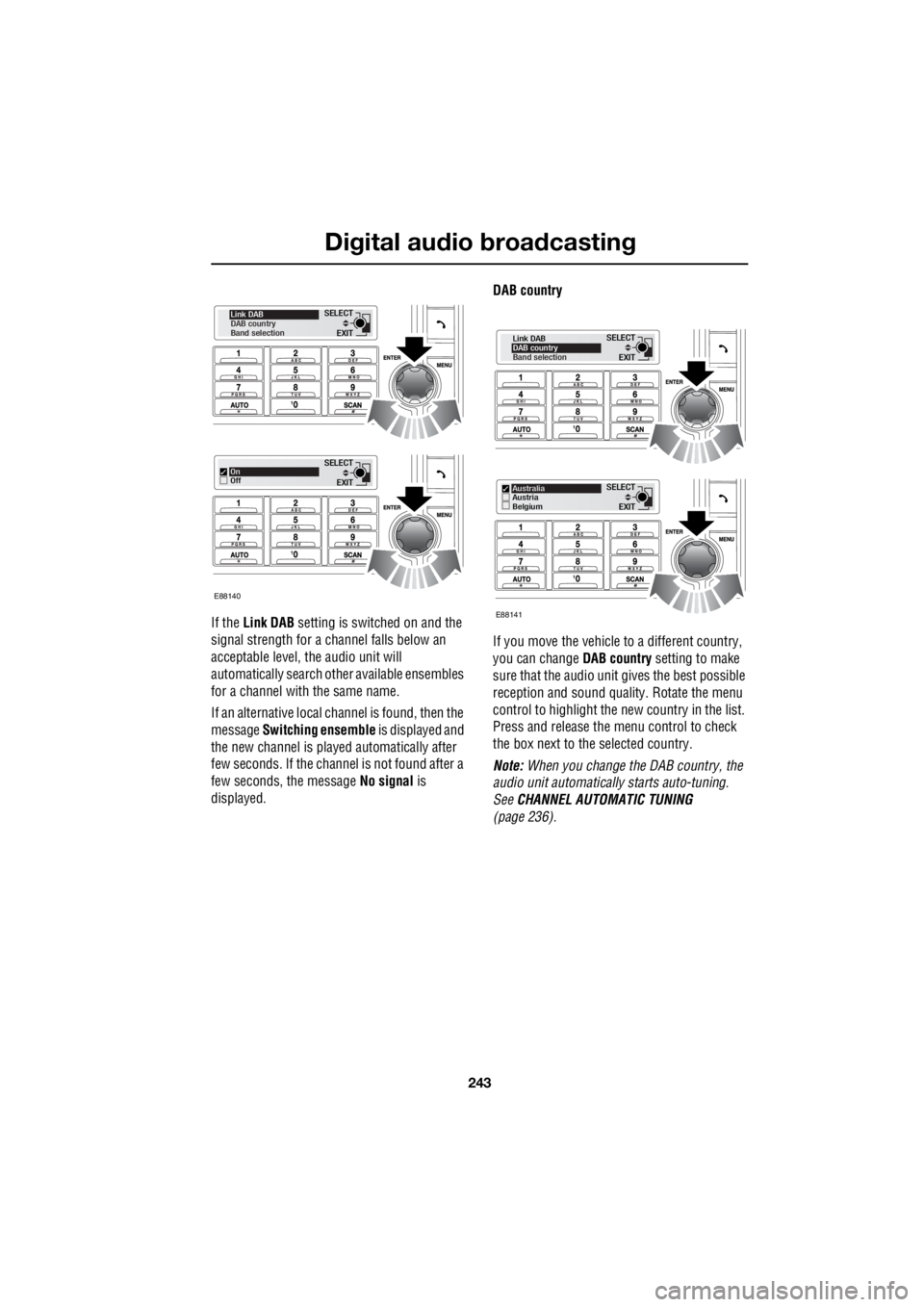
If the Link DAB setting is switched on and the
signal strength for a channel falls below an
acceptable level, the audio unit will
automatically search other available ensembles
for a channel with the same name.
If an alternative local ch annel is found, then the
message Switching ensemble is displayed and
the new channel is played automatically after
few seconds. If the cha nnel is not found after a
few seconds, the message No signal is
displayed. DAB country
If you move the vehicle
to a different country,
you can change DAB country setting to make
sure that the audio unit gives the best possible
reception and sound quali ty. Rotate the menu
control to highlight the new country in the list.
Press and release the menu control to check
the box next to the selected country.
Note: When you change the DAB country, the
audio unit automaticall y starts auto-tuning.
See CHANNEL AUTOMATIC TUNING
(page 236).
EXIT
SELECT
Link DAB
DAB country
Band selection
EXIT
SELECTOn
Off
E88140
E88141
EXIT
SELECT
Link DAB
DAB country
Band selection
EXIT
SELECT
Australia
Austria
Belgium
Page 2965 of 3229
245
Compact disc player
R
Compact disc playerLOADING COMPACT DISCS
Note: Some music CD manufacturers are
using data encryption to copy-protect their
recordings and prevent the production of
counterfeit copies. These CDs differ from the
internationally agreed CD audio standard,
RedBook, a standard that serves as the
operating basis for all CD players and
changers. Copy-pro tected CDs may fail to play
in your CD changer or ma y be played subject to
various limitations, e. g. sound quality may be
impaired. If you do ex perience a problem, try
the CD in other player s before contacting the
CD vendor.
Loading a CD - Single disc player
To insert a disc into the player, make sure that
the label side of the di sc is facing upwards and
present the disc to the slot. Ease the disc into
the slot until the mech anism takes over and
draws the disc in fully.
Loading a CD - Six disc player
Press the CD mode button, then press the
numbered button of the position in which the
compact disc is to be stored ( 1 to 6). Make sure that the label side of the disc is
facing upwards then, when prompted, partially
insert the disc. The play er mechanism will draw
the disc in automatica lly and the disc number
will appear on the display.
Note: If there is a problem with a disc that has
been loaded (inserted upside down, wrong
format etc.), Disc unreadable or Disc error will
appear in the information display, and the disc
will be ejected. If the problem can be corrected
(disc upside down for example), then re-insert
the disc in the correct manner. If the problem
cannot be rectified, do not re-insert the disc.
There will be a pause while the player reads
information from the disc, then play will start at
the first track.
To load another CD, pr ess another numbered
button ( 1 to 6) and repeat the loading
procedure.
Note: The six circles in the top right-hand side
of the information display of the premium unit,
represent the six available CD positions. As
soon as a CD is loaded, its number will appear
in the circle.
Load all
This feature is only available on the standard
audio, six disc CD player.
1. Press and hold the CD button until Load
All appears on the display.
2. When prompted, partia lly insert the first
disc. The player mechanism will draw the
disc in automatically.
3. When prompted, conti nue to insert discs
until all six discs have been loaded. When
fully loaded, the CD player will commence
playing CD1.
CAUTION
Do not force the disc into the slot.
CAUTION
Do not use discs with paper labels, Dual
Discs or DVDPlus discs. The front
loading CD player may load and play this
type of disc, however, it is likely that the disc
will not eject and will block the CD mechanism.
Such damage to a CD player will not be
covered under warranty.