brake LINCOLN NAVIGATOR 2022 Workshop Manual
[x] Cancel search | Manufacturer: LINCOLN, Model Year: 2022, Model line: NAVIGATOR, Model: LINCOLN NAVIGATOR 2022Pages: 646, PDF Size: 7.29 MB
Page 259 of 646
PARKING AID PRECAUTIONS
WARNING: To help avoid personal
injury, always use caution when in reverse
(R) and when using the sensing system. WARNING:
The system may not
detect objects with surfaces that absorb
reflection. Always drive with due care and
attention. Failure to take care may result
in a crash. WARNING:
Traffic control systems,
fluorescent lamps, inclement weather, air
brakes, external motors and fans may
affect the correct operation of the sensing
system. This may cause reduced
performance or false alerts. WARNING:
The system may not
detect small or moving objects, particularly
those close to the ground. WARNING:
The parking aid system
can only assist you to detect objects when
your vehicle is moving at parking speeds.
To help avoid personal injury you must
take care when using the parking aid
system. WARNING:
The system may not
function if the sensor is blocked. WARNING:
In cold and severe
weather conditions the system may not
function. Rain, snow and spray can all limit
sensor performance. WARNING:
If damage occurs in the
immediate area surrounding the sensor,
have your vehicle checked as soon as
possible.
Note: If your vehicle sustains damage
leaving the sensors misaligned, this will
cause inaccurate measurements or false
alerts. When you connect a trailer to your vehicle,
the rear parking aid detects the trailer and
provides an alert. Disable the parking aid
when you connect a trailer to prevent the
alert.
Note:
Certain add-on devices installed
around the bumper or fascia may create
false alerts, for example, large trailer hitches,
bike or surfboard racks, license plate
brackets, bumper covers or any other device
that could block the normal detection zone
of the parking aid system. Aftermarket spare
tires or spare tire covers mounted to the rear
tailgate could cause false alerts from the
park aid system. Remove the add-on device
to prevent false alerts.
Note: Keep the sensors free from snow, ice
and large accumulations of dirt. If the
sensors are covered, the system's accuracy
can be affected.
Do not clean the sensors with sharp objects.
Note: When using a programmed MyKey,
you cannot switch the parking aids off. See
MyKey™
(page 82).
255
2022 Navigator (TB9) Canada/United States of America, enUSA, Edition date: 202109, First-Printing Parking Aids
Page 262 of 646
FRONT PARKING AID AUDIBLE
WARNINGS
A warning tone sounds when there is an
object within 28 in (70 cm) from the front
bumper. As your vehicle moves closer to an
object, the rate of the tone increases.
The warning tone continuously sounds when
an object is
12 in (30 cm) or less from the
front bumper.
Note: If the detected object is
12 in (30 cm)
or less from your vehicle, visual indication
remains on.
SIDE PARKING AID
WHAT IS THE SIDE PARKING AID
The front and rear outermost parking aid
sensors map objects that are near to the
sides of your vehicle.
SIDE PARKING AID LIMITATIONS
The sensor coverage is up to
24 in (60 cm)
from the sides of your vehicle. The side parking aid may not function if:
•
Your vehicle remains stationary for over
two minutes.
• The anti-lock brake system activates.
• The traction control system activates.
• Your vehicle is in park (P).
• The steering wheel angle information is
not available. You must drive at least
492 ft (150 m) above 19 mph (30 km/h) to
reset the steering wheel angle
information.
Note: If you switch traction control off, the
side sensing system also turns off.
To reinitialize the system, drive the length of
your vehicle.
The side parking aid does not detect an
object that is moving toward the side of your
vehicle, for example another vehicle moving
at a low speed, if it does not pass a front or
rear parking aid sensor. If the transmission is in reverse (R), the side
sensing system provides audible warnings.
When your vehicle is moving slowly,
obstacles are detected within
24 in (60 cm)
and are inside the driving path of your
vehicle. If your vehicle remains stationary for
a few seconds, the audible warning turns off.
Visual indication is always present in reverse
(R).
If your vehicle is in neutral (N), the side
sensing system provides visual indication
only when your vehicle is moving slowly and
there is a front or rear parking aid obstacle
detected, and the side obstacle is within
24 in (60 cm)
from the side of your vehicle.
If your vehicle remains stationary for a few
seconds, the visual indication turns off.
If the transmission is in drive (D) or any other
forward gear, the side sensing system
provides audible and visual warnings. When
your vehicle is moving slowly, obstacles are
detected within
24 in (60 cm) and are inside
the driving path of your vehicle. If your
vehicle remains stationary for a few seconds,
the visual indication and audible warning
turns off.
258
2022 Navigator (TB9) Canada/United States of America, enUSA, Edition date: 202109, First-Printing Parking Aids
Page 270 of 646
ENTERING A PARALLEL PARKING
SPACE
1. Press the parking aid button.
Note:
The system detects other vehicles and
curbs to find a parking space.
2. Press the active park assist icon on the touchscreen.
3. Select parallel parking.
4. Use the turn signal lever to search for a parking space on the driver or passenger
side of your vehicle.
Note: If you do not use the turn signal lever,
the system searches for a parking space on
the passenger side of your vehicle.
5. Drive your vehicle approximately 3 ft (1 m)
away from and parallel to the other
parked vehicles when searching for a
parking space.
Note: A tone sounds and a message
appears in the information and
entertainment display when active park
assist finds a suitable parking space.
6. Press and hold the brake pedal. 7.
Release the steering wheel and shift into
neutral (N).
8. Press and hold the active park assist button.
9. Release the brake pedal to allow your vehicle to park.
Note: You can slow down your vehicle at
any time by pressing the brake pedal.
Note: When parallel parking between
objects, the system parks closer to the object
in front of your vehicle to allow easier access
to the luggage compartment.
Note: When parking is complete, your
vehicle shifts into park (P).
ENTERING A PERPENDICULAR
PARKING SPACE
1. Press the parking aid button.
Note: Active park assist does not recognize
parking space lines and centers your vehicle
between objects.
2. Press the active park assist icon on the touchscreen. 3. Select perpendicular parking.
4. Use the turn signal lever to search for a
parking space on the driver or passenger
side of your vehicle.
Note: If you do not use the turn signal lever,
the system searches for a parking space on
the passenger side of your vehicle.
5. Drive your vehicle approximately 3 ft (1 m)
away from and perpendicular to the other
parked vehicles when searching for a
parking space.
Note: A tone sounds and a message
appears in the information and
entertainment display when active park
assist finds a parking space.
6. Press and hold the brake pedal.
7. Release the steering wheel and shift into
neutral (N).
8. Press and hold the parking aid button.
9. Release the brake pedal to allow the vehicle to park.
Note: Active park assist backs your vehicle
into parking spaces.
266
2022 Navigator (TB9) Canada/United States of America, enUSA, Edition date: 202109, First-Printing Active Park Assist
Page 271 of 646
Note:
Active park assist aligns the front end
of your vehicle with the lane side of the
object next to it.
Note: When the system detects only one
object, it allows enough distance to open
the door on either side.
Note: You can slow down your vehicle at
any time by pressing the brake pedal.
Note: When parking is complete, your
vehicle shifts into park (P).
EXITING A PARKING SPACE
Active park assist only assists leaving parallel
parking spaces.
1. Press the parking aid button.
2. Press the active park assist icon on the touchscreen.
3. Select parallel park exit.
4. Use the turn signal to choose the direction to exit the parking space.
5. Press and hold the brake pedal.
6. Release the steering wheel and shift into
neutral (N). 7. Release the parking brake.
8. Press and hold the parking aid button.
9. Release the brake pedal to allow your
vehicle to move.
Note: After active park assist drives your
vehicle to a position where you can exit the
parking space in a forward movement, a
message appears instructing you to take full
control of your vehicle.
10. Take control of your vehicle.
Note: You can slow down your vehicle at
any time by pressing the brake pedal. ACTIVE PARK ASSIST –
TROUBLESHOOTING
ACTIVE PARK ASSIST – INFORMATION
MESSAGES Action
Message
The system requiresservice. Have your
vehicle checked as soon as possible.
Active Park Fault
ACTIVE PARK ASSIST – FREQUENTLY
ASKED QUESTIONS
Why does active park assist not operate
correctly? The system is unable to detect a vehicle,
curb or object to park next to or in
between. The system needs boundary
objects to operate correctly.
Why does active park assist not search for
a parking space? You have switched traction control off.
267
2022 Navigator (TB9) Canada/United States of America, enUSA, Edition date: 202109, First-Printing Active Park Assist
Page 274 of 646
HOW DOES ADAPTIVE CRUISE
CONTROL WITH STOP AND GO
WORK
Adaptive cruise control with stop and go
uses radar and camera sensors to maintain
a set gap between your vehicle and the
vehicle in front of you while following it to a
complete stop. Stop and go can also be set
to follow a vehicle directly in front of you and
adjust the set speed, while you are at a
complete stop.
ADAPTIVE CRUISE CONTROL
PRECAUTIONS
WARNING: You are responsible for
controlling your vehicle at all times. The
system is designed to be an aid and does
not relieve you of your responsibility to
drive with due care and attention. Failure
to follow this instruction could result in the
loss of control of your vehicle, personal
injury or death. WARNING:
Do not use adaptive
cruise control on winding roads, in heavy
traffic or when the road surface is slippery.
This could result in loss of vehicle control,
serious injury or death. WARNING:
Pay close attention to
changing road conditions such as entering
or leaving a highway, on roads with
intersections or roundabouts, roads
without visible lanes of travel, roads that
are unpaved, or steep slopes. Failure to
follow this instruction could result in the
loss of control of your vehicle, personal
injury or death. WARNING:
The system is not a crash
warning or avoidance system. WARNING:
Do not use the system
when towing a trailer that has aftermarket
electronic trailer brake controls. Failure to
follow this instruction could result in the
loss of control of your vehicle, personal
injury or death. WARNING:
Do not use tire sizes
other than those recommended because
this can affect the normal operation of the
system. Failure to do so may result in a loss
of vehicle control, which could result in
serious injury. WARNING:
Do not use the system
with a snow plow blade installed. WARNING:
Do not use the system in
poor visibility, for example fog, heavy rain,
spray or snow.
When Following a Vehicle WARNING: When following a vehicle
that is braking, your vehicle does not
always decelerate quickly enough to avoid
a crash without driver intervention. Apply
the brakes when necessary. Failure to
follow this instruction could result in
personal injury or death.
270
2022 Navigator (TB9) Canada/United States of America, enUSA, Edition date: 202109, First-Printing Adaptive Cruise Control
Page 275 of 646
Hilly Condition Usage
Select a lower gear when the system is
active in situations such as prolonged
downhill driving on steep slopes, for example
in mountainous areas.
ADAPTIVE CRUISE CONTROL
LIMITATIONS
Sensor Limitations
WARNING: On rare occasions,
detection issues can occur due to the road
infrastructures, for example bridges,
tunnels and safety barriers. In these cases,
the system may brake late or
unexpectedly. At all times, you are
responsible for controlling your vehicle,
supervising the system and intervening, if
required. WARNING:
If the system
malfunctions, have your vehicle checked
as soon as possible. WARNING: Large contrasts in outside
lighting can limit sensor performance. WARNING:
The system only warns
of vehicles detected by the radar sensor.
In some cases there may be no warning
or a delayed warning. Apply the brakes
when necessary. Failure to follow this
instruction could result in personal injury
or death. WARNING:
The system may not
detect stationary or slow moving vehicles
below
6 mph (10 km/h). WARNING:
The system does not
detect pedestrians or objects in the road. WARNING:
The system does not
detect oncoming vehicles in the same lane. WARNING:
The system may not
operate properly if the sensor is blocked.
Keep the windshield free from obstruction. WARNING:
The sensor may
incorrectly track lane markings as other
structures or objects. This can result in a
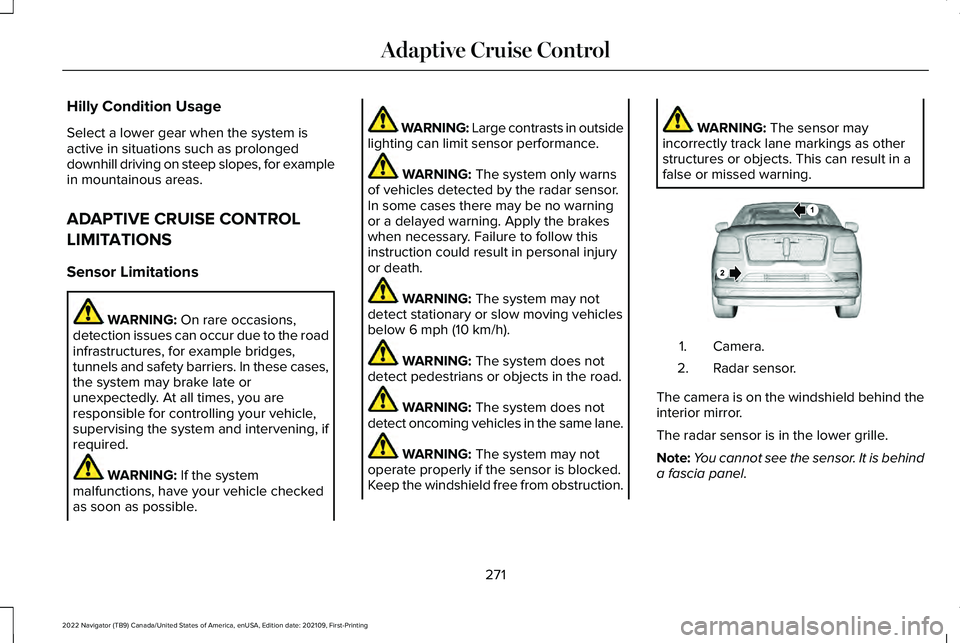
false or missed warning. Camera.
1.
Radar sensor.
2.
The camera is on the windshield behind the
interior mirror.
The radar sensor is in the lower grille.
Note: You cannot see the sensor. It is behind
a fascia panel.
271
2022 Navigator (TB9) Canada/United States of America, enUSA, Edition date: 202109, First-Printing Adaptive Cruise ControlE253503
Page 277 of 646
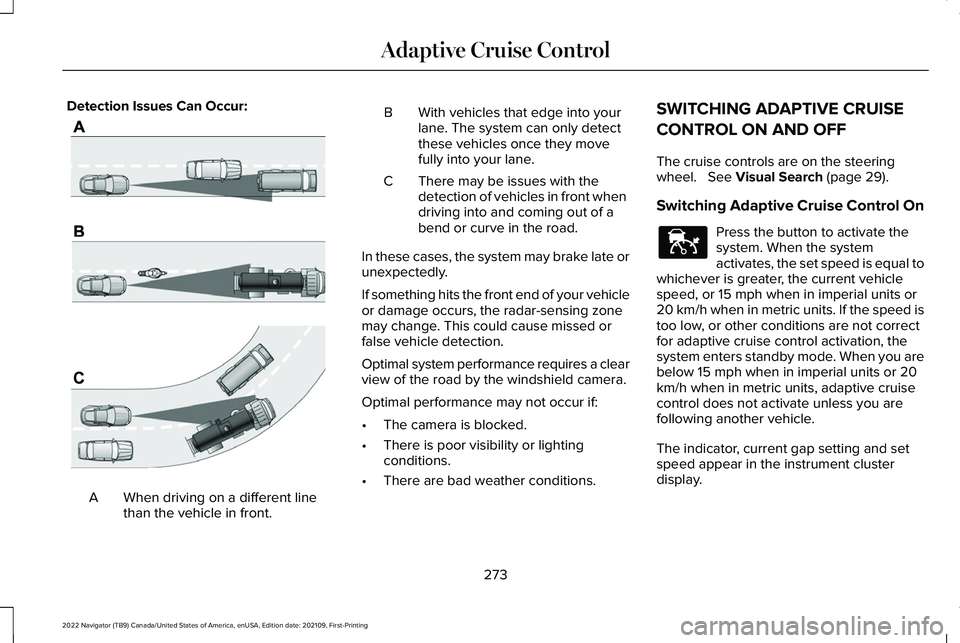
Detection Issues Can Occur:
When driving on a different line
than the vehicle in front.
A B With vehicles that edge into your
lane. The system can only detect
these vehicles once they move
fully into your lane.
There may be issues with the
detection of vehicles in front when
driving into and coming out of a
bend or curve in the road.
C
In these cases, the system may brake late or
unexpectedly.
If something hits the front end of your vehicle
or damage occurs, the radar-sensing zone
may change. This could cause missed or
false vehicle detection.
Optimal system performance requires a clear
view of the road by the windshield camera.
Optimal performance may not occur if:
• The camera is blocked.
• There is poor visibility or lighting
conditions.
• There are bad weather conditions. SWITCHING ADAPTIVE CRUISE
CONTROL ON AND OFF
The cruise controls are on the steering
wheel. See Visual Search (page 29).
Switching Adaptive Cruise Control On Press the button to activate the
system. When the system
activates, the set speed is equal to
whichever is greater, the current vehicle
speed, or 15 mph when in imperial units or
20 km/h when in metric units. If the speed is
too low, or other conditions are not correct
for adaptive cruise control activation, the
system enters standby mode. When you are
below 15 mph when in imperial units or 20
km/h when in metric units, adaptive cruise
control does not activate unless you are
following another vehicle.
The indicator, current gap setting and set
speed appear in the instrument cluster
display.
273
2022 Navigator (TB9) Canada/United States of America, enUSA, Edition date: 202109, First-Printing Adaptive Cruise ControlE71621 E144529
Page 278 of 646
Switching Adaptive Cruise Control Off
Press the button when the system
is in standby mode or switch the
ignition off.
Note: When you switch the system off, the
set speed clears.
ADAPTIVE CRUISE CONTROL
AUTOMATIC CANCELLATION
The system may cancel if:
• The tires lose traction.
• You apply the parking brake.
The system may cancel and set the parking
brake if:
• You unbuckle the seatbelt and open the
driver door after you stop your vehicle.
• Your vehicle is at a stop continuously for
more than three minutes. The system may deactivate or prevent
activating when requested if:
•
The vehicle has a blocked sensor.
• The brake temperature is too high.
• There is a failure in the system or a
related system.
SETTING THE ADAPTIVE CRUISE
CONTROL SPEED
Drive to the speed you prefer. Press either button to set the
current speed.
Take your foot off the accelerator pedal.
The indicator, current gap setting and set
speed appear in the instrument cluster
display when initially activating adaptive
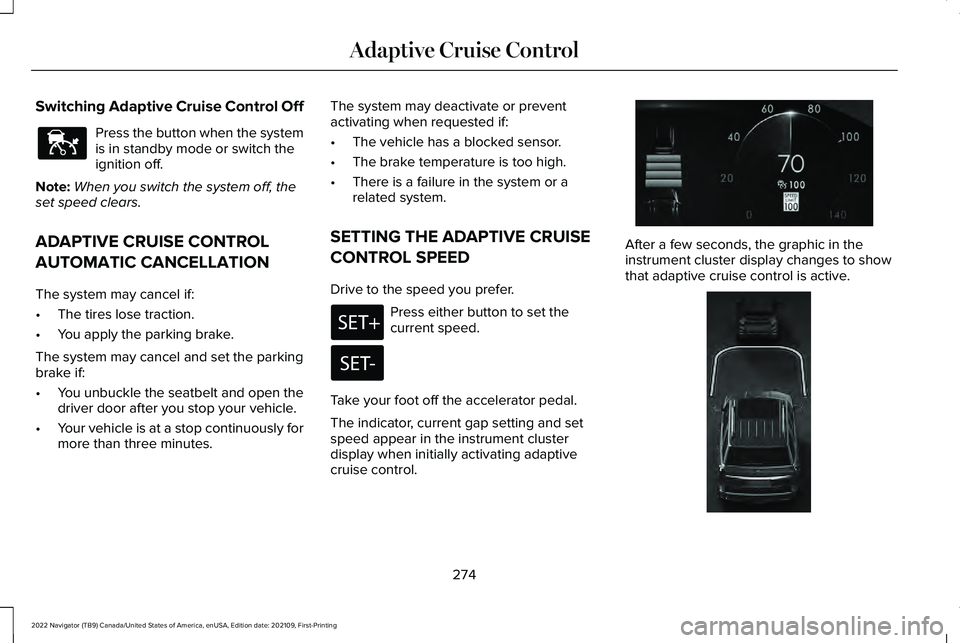
cruise control. After a few seconds, the graphic in the
instrument cluster display changes to show
that adaptive cruise control is active.
274
2022 Navigator (TB9) Canada/United States of America, enUSA, Edition date: 202109, First-Printing Adaptive Cruise ControlE144529 E357760 E354719
Page 279 of 646
A vehicle image illuminates if there is a
vehicle detected in front of you.
Note:
When adaptive cruise control is active,
the speedometer can vary slightly from the
set speed displayed in the instrument cluster
display.
Manually Changing the Set Speed Press the button to increase the
set speed in small increments.
Press and hold the button to
increase the set speed in large increments.
Release the button when the set speed is
equal to the desired speed. Press the button to decrease the
set speed in small increments.
Press and hold the button to
decrease the set speed in large increments.
Release the button when the set speed is
equal to the desired speed.
You can also press the accelerator or brake
pedal until you reach the speed you prefer.
Press either button to select the current
speed as the set speed. The system could apply the brakes to slow
the vehicle to the new set speed. The set
speed continuously displays in the
instrument cluster display when the system
is active.
SETTING THE ADAPTIVE CRUISE
CONTROL GAP
You can decrease or increase the distance
between your vehicle and the vehicle in front
by pressing the gap control.
Press the button to cycle through
the four gap settings.
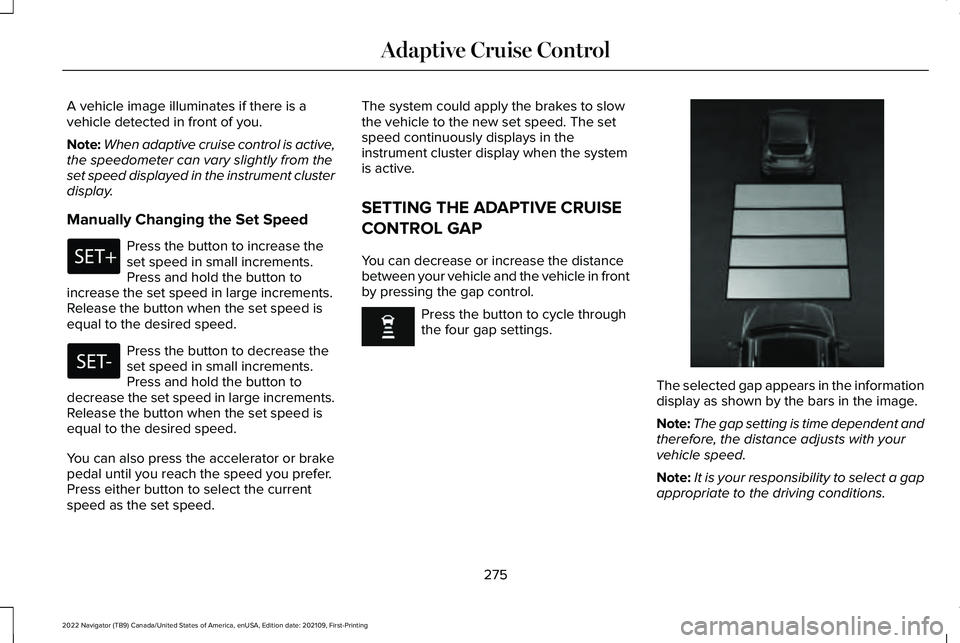
The selected gap appears in the information
display as shown by the bars in the image.
Note:
The gap setting is time dependent and
therefore, the distance adjusts with your
vehicle speed.
Note: It is your responsibility to select a gap
appropriate to the driving conditions.
275
2022 Navigator (TB9) Canada/United States of America, enUSA, Edition date: 202109, First-Printing Adaptive Cruise Control E354843
Page 280 of 646
Adaptive Cruise Control Gap Settings
Dynamic
Behavior
Gap Distance
Graphic
Display,
Bars Indic- ated
Between Vehicles
Sport.
Closest.
1
Normal.
Close.
2
Normal.
Medium.
3
Comfort.
Far.
4
Each time you switch the system on, it
selects the last chosen gap setting.
Following a Vehicle
When a vehicle ahead of you enters the
same lane or a slower vehicle is ahead in the
same lane, the vehicle speed adjusts to
maintain the gap setting. Note:
When you are following a vehicle and
you switch on a turn signal lamp, adaptive
cruise control may provide a small,
temporary acceleration to help you pass.
Your vehicle maintains a consistent gap from
the vehicle ahead until:
• The vehicle in front of you accelerates to
a speed above the set speed.
• The vehicle in front of you moves out of
the lane you are in.
• You set a new gap distance.
The system applies the brakes to slow down
your vehicle to maintain a safe gap distance
from the vehicle in front of you. The system
only applies limited braking. You can
override the system by applying the brakes.
Note: The brakes may emit noise when
applied by the system.
If the system determines that its maximum
braking level is not sufficient, an audible
warning sounds, a message appears in the
information display and an indicator flashes
when the system continues to brake. Take
immediate action. CANCELING THE SET SPEED Press the button or tap the brake
pedal.
The set speed does not erase.
RESUMING THE SET SPEED Press the button.
The vehicle speed returns to the previously
set speed and gap setting. The set speed
displays continuously in the information
display when the system is active.
Note: Only use resume if you are aware of
the set speed and intend to return to it.
Resuming the Set Speed from a
Complete Stop (If Equipped)
If your vehicle follows a vehicle to a complete
stop and remains stationary for less than a
few seconds, your vehicle accelerates from
a stationary position to follow the vehicle
ahead.
276
2022 Navigator (TB9) Canada/United States of America, enUSA, Edition date: 202109, First-Printing Adaptive Cruise ControlE308130 E308130