wheel MERCEDES-BENZ SPRINTER 2019 MY19 with 7” screen
[x] Cancel search | Manufacturer: MERCEDES-BENZ, Model Year: 2019, Model line: SPRINTER, Model: MERCEDES-BENZ SPRINTER 2019Pages: 354, PDF Size: 6.15 MB
Page 193 of 354
Operating media playback with
the on-boa rd
compu ter On-board computer:
4 Media 1
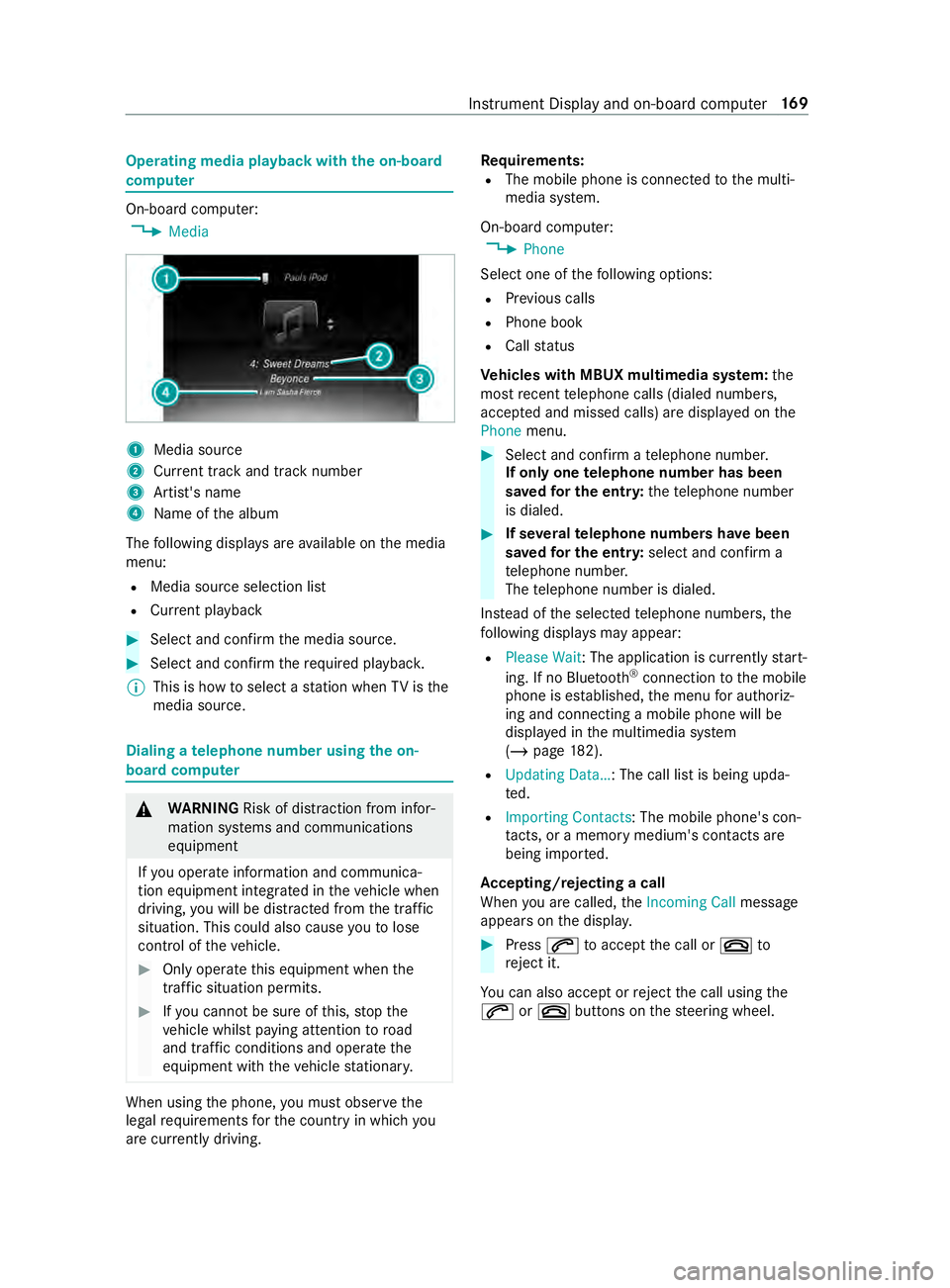
Media source
2 Current track and track number
3 Artist's name
4 Name of the album
The following displa ysare available on the media
menu:
R Media source selection list
R Current pl ayback #
Select and con firm the media source. #
Select and confirm there qu ired playbac k.
% This is how
toselect a station when TVisthe
media source. Dialing a
telephone number using the on-
board compu ter &
WARNING Risk of distraction from infor‐
mation sy stems and communications
equipment
If yo u operate information and communica‐
tion equipment integ rated in theve hicle when
driving, you will be distracted from the tra ffic
situation. This could also cause youto lose
control of theve hicle. #
Only operate this equipment when the
traf fic situation permits. #
Ifyo u cannot be sure of this, stop the
ve hicle whilst paying attention toroad
and traf fic conditions and ope rate the
equipment with theve hicle stationar y. When using
the phone, you must obse rvethe
legal requirements forth e count ryin which you
are cur rently driving. Re
quirements:
R The mobile phone is connec tedto the multi‐
media sy stem.
On-board computer: 4 Phone
Select one of thefo llowing options:
R Prev ious calls
R Phone book
R Call status
Ve hicles with MBUX multimedia sy stem: the
most recent telephone calls (dialed numbe rs,
accep ted and missed calls) are displa yed on the
Phone menu. #
Select and confirm a telephone numbe r.
If only one telephone number has been
sa ve dfo r the entr y:thete lephone number
is dialed. #
If se veralte lephone numbers ha vebeen
sa ve dfo r the entr y:select and confirm a
te lephone numbe r.
The telephone number is dialed.
Ins tead of the selected telephone numbe rs,the
fo llowing displa ysmay appear:
R Please Wait : The application is cur rently start‐
ing. If no Blue tooth®
connection tothe mobile
phone is es tablished, the menu for authoriz‐
ing and connecting a mobile phone will be
displa yed in the multimedia sy stem
(/ page 182).
R Updating Data…: The call list is being upda‐
ted.
R Importing Contacts: The mobile phone's con‐
ta cts, or a memo rymedium's contacts are
being impor ted.
Ac cepting/rejecting a call
When you are called, theIncoming Call message
appears on the displa y. #
Press 0061toaccept the call or 0076to
re ject it.
Yo u can also accept or reject the call using the
0061 or0076 buttons on thesteering wheel. Instrument Display and on-board computer
16 9
Page 197 of 354
Overview and operation
Overview of
the MBUX multimedia sy stem &
WARNING Risk of distraction from infor‐
mation sy stems and communications
equipment
If yo u operate information and communica‐
tion equipment integ rated in theve hicle when
driving, you will be distracted from the tra ffic
situation. This could also cause youto lose
control of theve hicle. #
Only operate this equipment when the
traf fic situation permits. #
Ifyo u cannot be sure of this, stop the
ve hicle whilst paying attention toroad
and traf fic conditions and ope rate the
equipment with theve hicle stationar y. Yo
u must obse rveth e legal requirements forthe
country in whi chyou are cur rently driving when
ope rating the multimedia sy stem.
MBUX stands for Mercedes-Benz User Experi‐
ence. 1
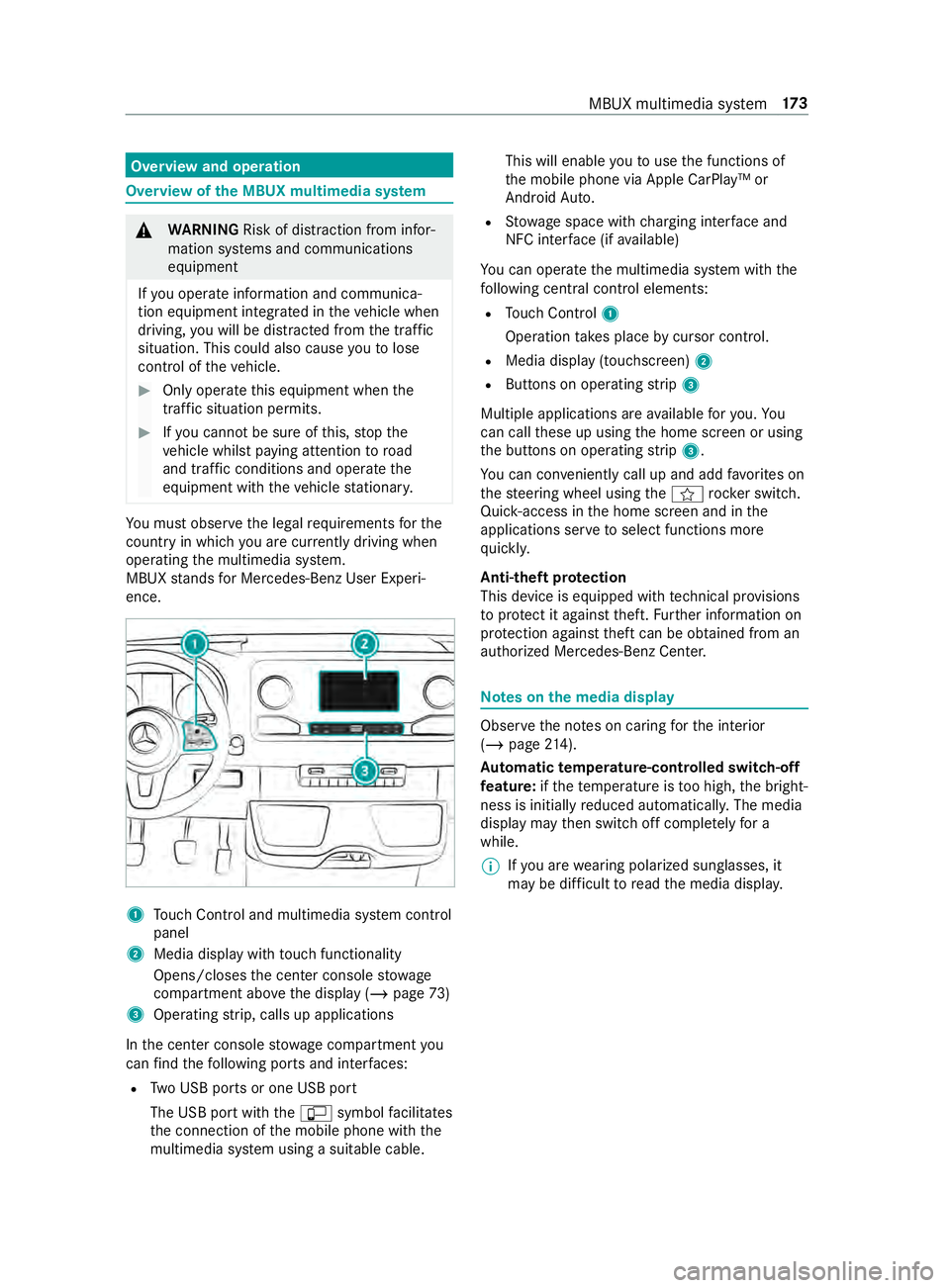
Touch Control and multimedia sy stem cont rol
panel
2 Media display with touch functionality
Opens/closes the center console stowage
compartment abo vethe display (/ page73)
3 Operating strip, calls up applications
In the center console stowage compartment you
can find thefo llowing ports and inter faces:
R Two USB ports or one USB port
The USB port with the00C2 symbol facilitates
th e connection of the mobile phone with the
multimedia sy stem using a suitable cable. This will enable
youto use the functions of
th e mobile phone via Apple CarPlay™ or
Android Auto.
R Stow age space with charging inter face and
NFC inter face (if available)
Yo u can operate the multimedia sy stem with the
fo llowing central control elements:
R Touch Control 1
Operation takes place bycursor control.
R Media display (tou chscreen) 2
R Buttons on operating strip 3
Multiple applications are available foryo u. Yo u
can call these up using the home screen or using
th e buttons on operating strip 3.
Yo u can con veniently call up and add favo rite s on
th esteering wheel using the004B rock er switch.
Quic k-access in the home screen and in the
applications ser vetoselect functions more
qu ickl y.
Anti-theft pr otection
This device is equipped with tech nical pr ovisions
to protect it against theft. Further information on
pr otection against theft can be obtained from an
authorized Mercedes-Benz Center. Note
s onthe media display Obser
vethe no tes on caring forth e interior
(/ page 214).
Au tomatic temperature-cont rolled switch-off
fe ature: ifth ete mp erature is too high, the bright‐
ness is initially reduced automaticall y.The media
display may then switch off comple tely for a
while.
% If
yo u are wearing polarized sun glasses, it
may be dif ficult toread the media displa y. MBUX multimedia sy
stem 17 3
Page 200 of 354
Calls up navigation
Re
quiremen t:the mobile phone is connected
to the multimedia sy stem via the USB port
00C2 using a suitable cable. Via Apple Car‐
Play™ or Android Autothe navigation applica‐
tion of the mobile phone can be used. #
Toaccess stations and music trac ks
qu ickl y:press button 5.
The control menu appears forth e audio
source that wa s last selected. #
Swipe tothe left or right.
Ra dio: the pr evious or next station is set.
Media source: the pr evious or the next music
tra ck is selec ted. #
Tohide the control menu: press button5.
Using the home screen
The home screen is shown in the media display
when youstart theve hicle. #
Select the application byswiping and tapping.
or #
In any displa y:press the© button on the
To uch Control.
or #
Tap on the© symbol on theto uchsc reen.
The applications are displa yed. #
Select the application byswiping and tapping.
Changing the ar rangement of applications on
th e home screen #
Call up the home screen #
Touch and hold an application on the
to uchsc reen until symbols appear. #
Tap on 0059 or0065 and mo vethe applica‐
tion in the menu. #
Tap on 00FB. Switching
the sound on/off On
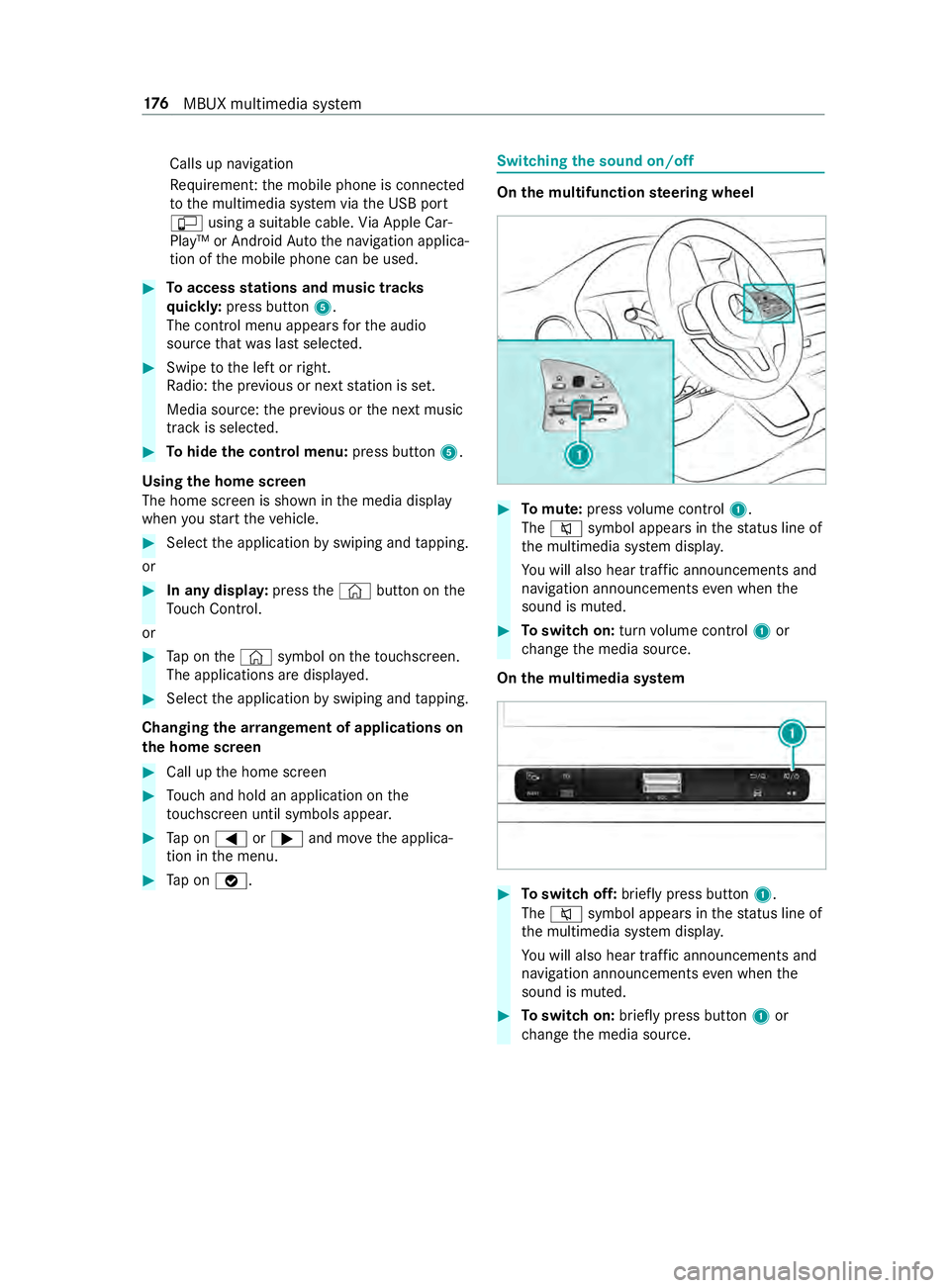
the multifunction steering wheel #
Tomute: pressvolume control 1.
The 0063 symbol appears in thest atus line of
th e multimedia sy stem displa y.
Yo u will also hear traf fic announcements and
navigation announcements even when the
sound is muted. #
Toswitch on: turnvolume control 1or
ch ange the media source.
On the multimedia sy stem #
Toswitch off: briefly press button 1.
The 0063 symbol appears in thest atus line of
th e multimedia sy stem displa y.
Yo u will also hear traf fic announcements and
navigation announcements even when the
sound is muted. #
Toswitch on: brieflypress button 1or
ch ange the media source. 176
MBUX multimedia sy stem
Page 201 of 354
Ad
justing the volume On
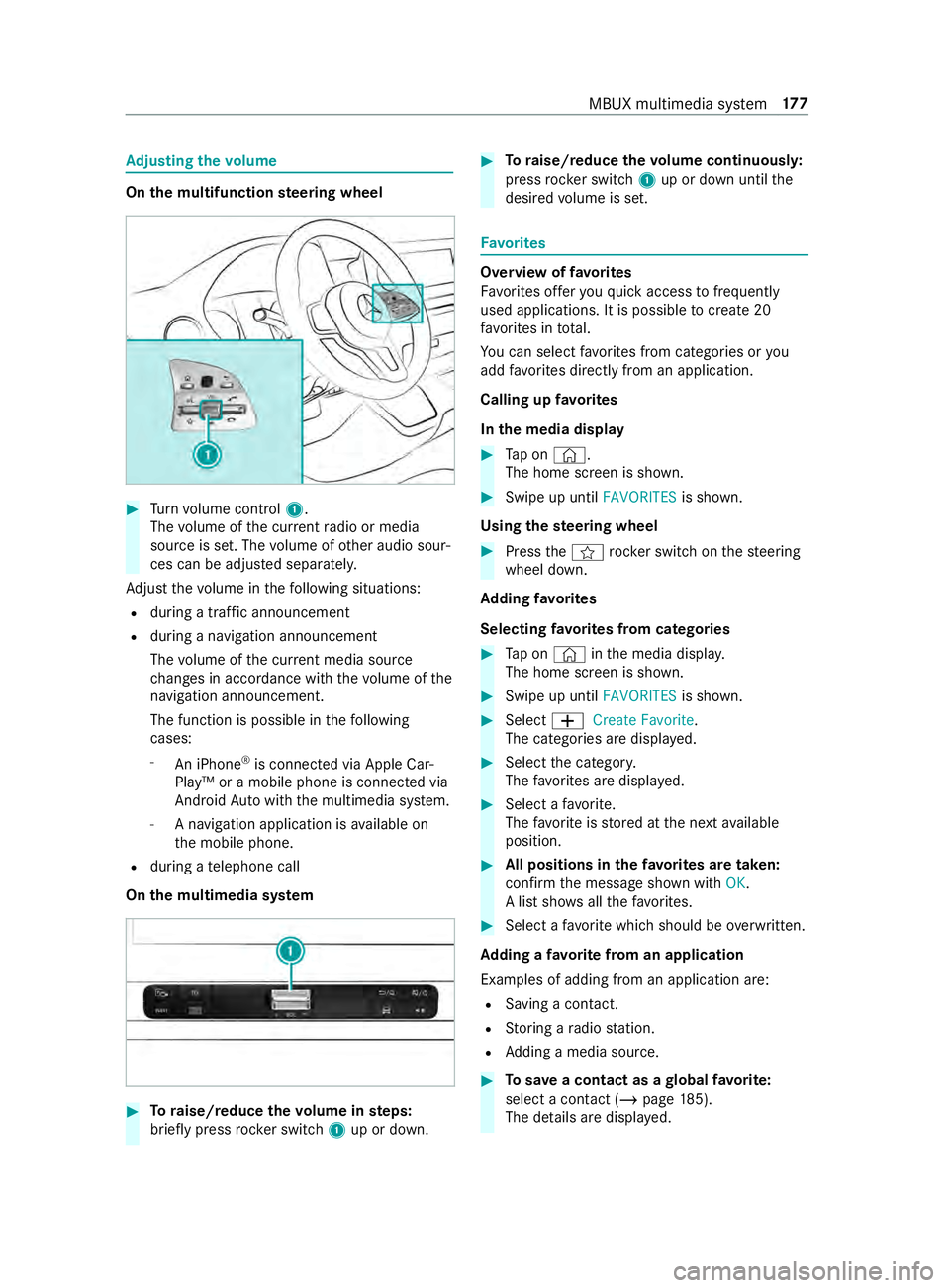
the multifunction steering wheel #
Turn volume control 1.
The volume of the cur rent radio or media
source is set. The volume of other audio sour‐
ces can be adjus ted separately.
Ad just thevo lume in thefo llowing situations:
R during a traf fic announcement
R during a navigation announcement
The volume of the cur rent media sou rce
ch anges in accordance with thevo lume of the
navigation announcement.
The function is possible in thefo llowing
cases:
- An iPhone ®
is connec ted via Apple Car‐
Play™ or a mobile phone is connected via
Android Autowith the multimedia sy stem.
- A navigation application is available on
th e mobile phone.
R during a telephone call
On the multimedia sy stem #
Toraise/reduce thevo lume in steps:
brief lypress rocker switch 1up or down. #
Toraise/reduce thevo lume continuousl y:
press rocker switch 1up or down until the
desired volume is set. Favo
rites Overview of
favo rites
Favo rite s of feryo uqu ick access tofrequently
used applications. It is possible tocrea te20
fa vo rite s in tota l.
Yo u can select favo rite s from categories or you
add favo rite s directly from an application.
Calling up favo rites
In the media display #
Tap on ©.
The home screen is shown. #
Swipe up until FAVORITESis shown.
Using thest eering wheel #
Press the004B rocker switch on thesteering
wheel down.
Ad ding favo rites
Selecting favo rite s from categories #
Tap on © inthe media displa y.
The home screen is shown. #
Swipe up until FAVORITESis shown. #
Select 0081Create Favorite .
The categories are displa yed. #
Select the categor y.
The favo rite s are displa yed. #
Select a favo rite.
The favo rite isstored at the next available
position. #
All positions in thefa vo rite s are taken:
confirm the message shown with OK.
A list sho wsallthefa vo rite s. #
Select a favo rite which should be overwritten.
Ad ding a favo rite from an application
Examples of adding from an application are: R Saving a contact.
R Storing a radio station.
R Adding a media source. #
Tosave a contact as a global favo rite :
select a contact (/ page 185).
The de tails are displa yed. MBUX multimedia sy
stem 17 7
Page 208 of 354
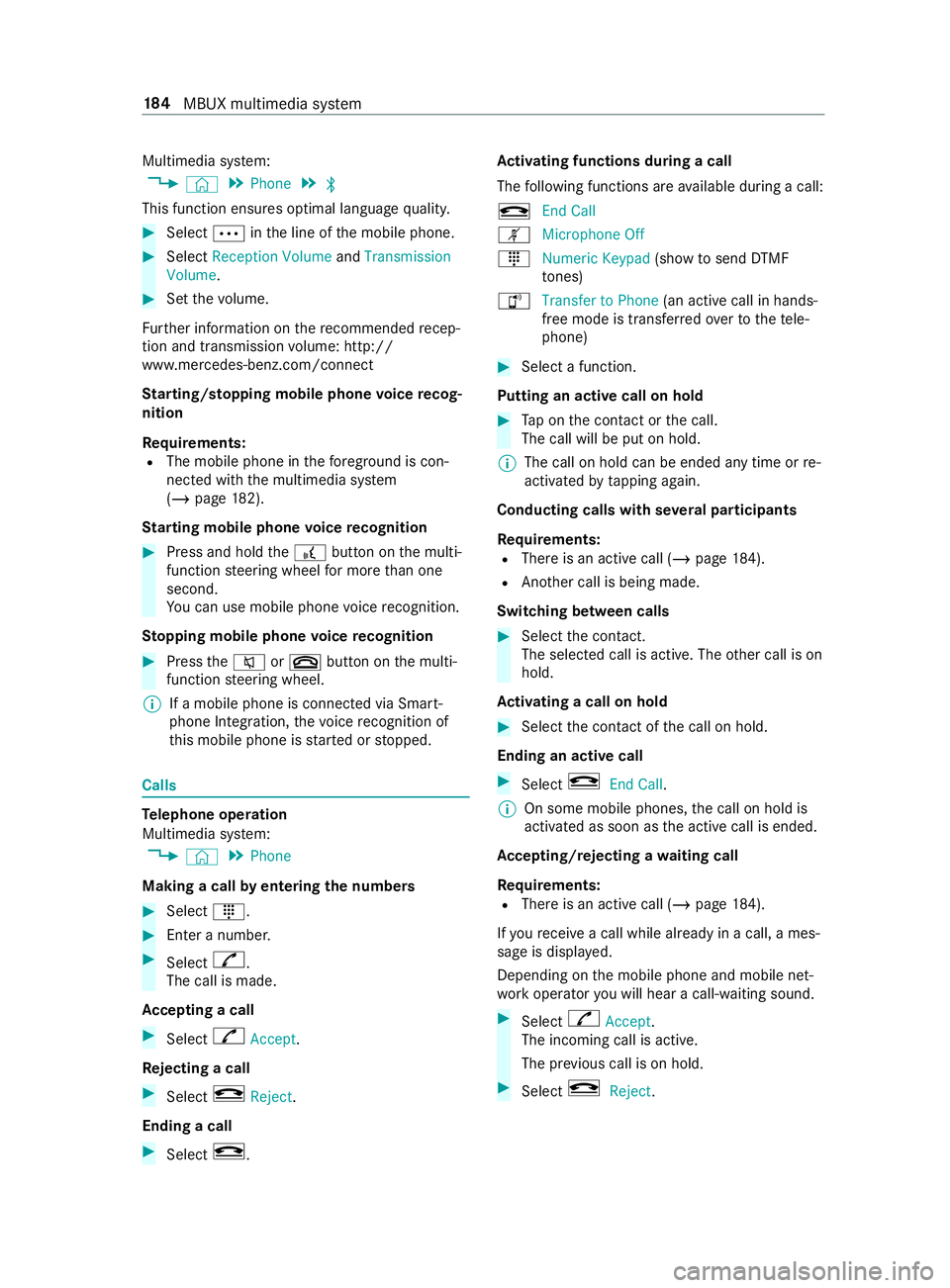
Multimedia sy
stem:
4 © 5
Phone 5
00A5
This function ensures optimal language quality. #
Select 0062inthe line of the mobile phone. #
Select Reception Volume andTransmission
Volume. #
Set thevo lume.
Fu rther information on there commended recep‐
tion and transmission volume: http://
www.me rcedes-benz.com/connect
St arting/ stopping mobile phone voice recog‐
nition
Re quirements:
R The mobile phone in thefo re ground is con‐
nected with the multimedia sy stem
(/ page 182).
St arting mobile phone voice recognition #
Press and hold the£ button on the multi‐
function steering wheel for more than one
second.
Yo u can use mobile phone voice recognition.
St opping mobile phone voice recognition #
Press the0063 or0076 button on the multi‐
function steering wheel.
% If a mobile phone is connected via Smart‐
phone Integration, thevo ice recognition of
th is mobile phone is star ted or stopped. Calls
Te
lephone operation
Multimedia sy stem:
4 © 5
Phone
Making a call byentering the numbers #
Select _. #
Enter a number. #
Select R.
The call is made.
Ac cepting a call #
Select RAccept.
Re jecting a call #
Select kReject.
Ending a call #
Select k. Ac
tivating functions during a call
The following functions are available during a call:
k End Call
m Microphone Off
_ Numeric Keypad (showtosend DTMF
to nes)
h Transfer to Phone
(an activecall in hands-
free mode is transfer redove rto thete le‐
phone) #
Select a function.
Putting an active call on hold #
Tap on the contact or the call.
The call will be put on hold.
% The call on hold can be ended any time or
re-
activated bytapping again.
Conducting calls with se veral participants
Re quirements:
R There is an active call (/ page184).
R Ano ther call is being made.
Switching between calls #
Select the contact.
The selected call is active. The other call is on
hold.
Ac tivating a call on hold #
Select the contact of the call on hold.
Ending an active call #
Select kEnd Call.
% On some mobile phones,
the call on hold is
activated as soon as the active call is ended.
Ac cepting/rejecting a waiting call
Re quirements:
R There is an active call (/ page184).
If yo ure ceive a call while al ready in a call, a mes‐
sage is displa yed.
Depending on the mobile phone and mobile net‐
wo rkoperator you will hear a call- waiting sound. #
Select RAccept.
The incoming call is active.
The pr evious call is on hold. #
Select kReject. 184
MBUX multimedia sy stem
Page 210 of 354
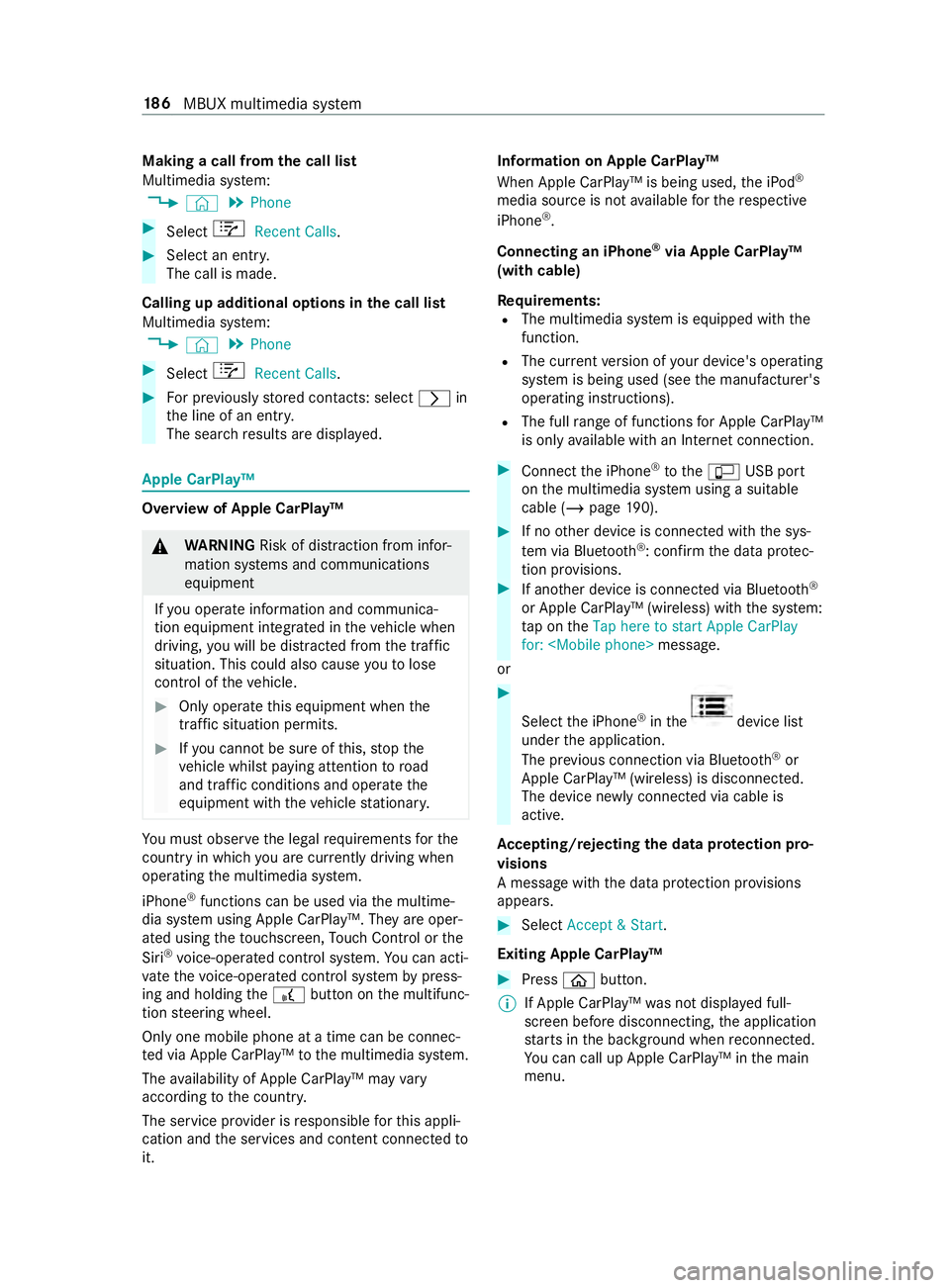
Making a call from
the call list
Multimedia sy stem:
4 © 5
Phone #
Select +Recent Calls. #
Select an entry.
The call is made.
Calling up additional options in the call list
Multimedia sy stem:
4 © 5
Phone #
Select +Recent Calls. #
For pr eviously stored contacts: select 0048in
th e line of an entry.
The sear chresults are displa yed. Apple CarPlay™
Overview of Apple CarPlay™
&
WARNING Risk of distraction from infor‐
mation sy stems and communications
equipment
If yo u operate information and communica‐
tion equipment integ rated in theve hicle when
driving, you will be distracted from the tra ffic
situation. This could also cause youto lose
control of theve hicle. #
Only operate this equipment when the
traf fic situation permits. #
Ifyo u cannot be sure of this, stop the
ve hicle whilst paying attention toroad
and traf fic conditions and ope rate the
equipment with theve hicle stationar y. Yo
u must obse rveth e legal requirements forthe
country in whi chyou are cur rently driving when
ope rating the multimedia sy stem.
iPhone ®
functions can be used via the multime‐
dia sy stem using Apple CarPlay™. They are oper‐
ated using theto uchsc reen, Touch Control or the
Siri ®
vo ice-operated control sy stem. You can acti‐
va te thevo ice-opera ted control sy stem bypress‐
ing and holding the£ button on the multifunc‐
tion steering wheel.
Only one mobile phone at a time can be connec‐
te d via Apple CarPlay™ tothe multimedia sy stem.
The availability of Apple CarPlay™ may vary
according tothe count ry.
The service pr ovider is responsible forth is appli‐
cation and the services and content connected to
it. Information on Apple CarPlay™
When Apple CarPlay™ is being used,
the iPod ®
media source is not available forth ere spective
iPhone ®
.
Connecting an iPhone ®
via Apple CarPlay™
(with cable)
Re quirements:
R The multimedia sy stem is equipped with the
function.
R The cur rent version of your device's operating
sy stem is being used (see the manufacturer's
operating instructions).
R The full range of functions for Apple CarPlay™
is only available with an In tern et connection. #
Connect the iPhone ®
to the00C2 USB port
on the multimedia sy stem using a suitable
cable (/ page190). #
Ifno other device is connected with the sys‐
te m via Blue tooth®
: confirm the data pr otec‐
tion pr ovisions. #
If ano ther device is connected via Blue tooth®
or Apple CarPlay™ (wireless) with the sy stem:
ta p on theTap here to start Apple CarPlay
for:
or #
Select the iPhone ®
in the device list
under the application.
The pr evious connection via Blue tooth®
or
Apple CarPlay™ (wireless) is disconnected.
The device newly connected via cable is
active.
Ac cepting/rejecting the data pr otection pro‐
visions
A message with the data pr otection pr ovisions
appears. #
Select Accept & Start.
Exiting Apple CarPlay™ #
Press 00E2button.
% If Apple CarPlay™
was not displa yed full-
screen before disconnecting, the application
st arts in the bac kground when reconnected.
Yo u can call up Apple CarPlay™ in the main
menu. 18 6
MBUX multimedia sy stem
Page 211 of 354
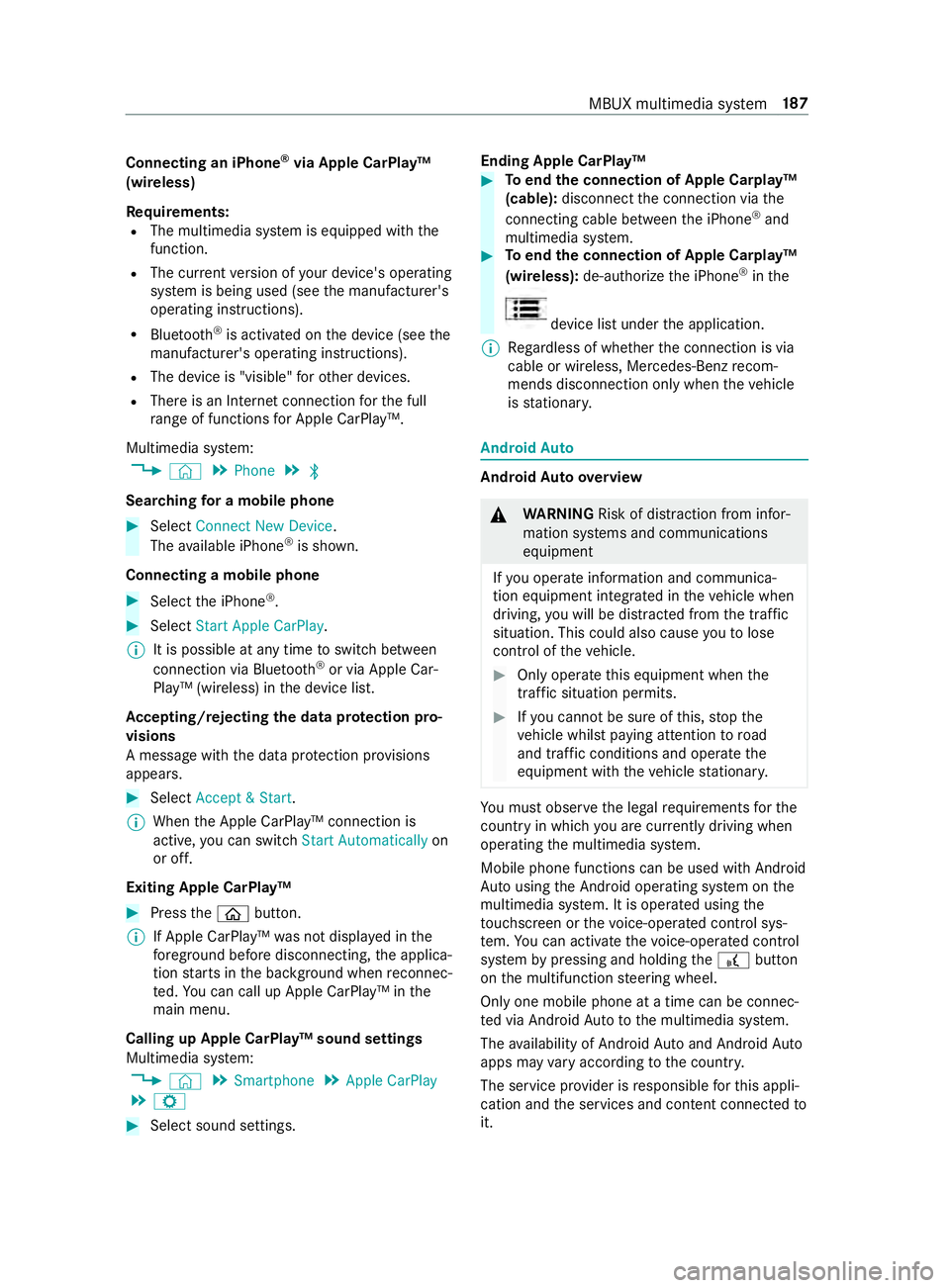
Connecting an iPhone
®
via Apple CarPlay™
(wireless)
Requ irements:
R The multimedia sy stem is equipped with the
function.
R The cur rent version of your device's operating
sy stem is being used (see the manufacturer's
operating instructions).
R Blue tooth ®
is activated on the device (see the
manufacturer's operating instructions).
R The device is "visible" forot her devices.
R There is an Internet connection forth e full
ra nge of functions for Apple CarPlay™.
Multimedia sy stem:
4 © 5
Phone 5
00A5
Sear ching for a mobile phone #
Select Connect New Device.
The available iPhone ®
is shown.
Connecting a mobile phone #
Select the iPhone ®
. #
Select Start Apple CarPlay.
% It is possible at any time
toswitch between
connection via Blue tooth®
or via Apple Car‐
Play™ (wireless) in the device list.
Ac cepting/rejecting the data pr otection pro‐
visions
A message with the data pr otection pr ovisions
appears. #
Select Accept & Start.
% When
the Apple CarPlay™ connection is
active, you can swit chStart Automatically on
or off.
Exiting Apple CarPlay™ #
Press the00E2 button.
% If Apple CarPlay™
was not displa yed in the
fo re ground before disconnecting, the applica‐
tion starts in the bac kground when reconnec‐
te d. You can call up Apple CarPlay™ in the
main menu.
Calling up Apple CarPlay™ sound settings
Multimedia sy stem:
4 © 5
Smartphone 5
Apple CarPlay
5 Z #
Select sound settings. Ending Apple CarPlay™ #
Toend the connection of Apple Carplay™
(cable): disconnect the connection via the
connecting cable between the iPhone ®
and
multimedia sy stem. #
Toend the connection of Apple Carplay™
(wireless): de-authorize the iPhone ®
in the device list under
the application.
% Re
gardless of whe ther the connection is via
cable or wireless, Mercedes-Benz recom‐
mends disconnection only when theve hicle
is stationar y. Android
Auto Android
Autoove rview &
WARNING Risk of distraction from infor‐
mation sy stems and communications
equipment
If yo u operate information and communica‐
tion equipment integ rated in theve hicle when
driving, you will be distracted from the tra ffic
situation. This could also cause youto lose
control of theve hicle. #
Only operate this equipment when the
traf fic situation permits. #
Ifyo u cannot be sure of this, stop the
ve hicle whilst paying attention toroad
and traf fic conditions and ope rate the
equipment with theve hicle stationar y. Yo
u must obse rveth e legal requirements forthe
country in whi chyou are cur rently driving when
ope rating the multimedia sy stem.
Mobile phone functions can be used with Android
Au tousing the Android operating sy stem on the
multimedia sy stem. It is operated using the
to uchsc reen or thevo ice-operated control sys‐
te m. You can activate thevo ice-opera ted control
sy stem bypressing and holding the£ button
on the multifunction steering wheel.
Only one mobile phone at a time can be connec‐
te d via Android Auto to the multimedia sy stem.
The availability of Android Autoand Android Auto
apps may vary according tothe count ry.
The service pr ovider is responsible forth is appli‐
cation and the services and content connected to
it. MBUX multimedia sy
stem 187
Page 220 of 354
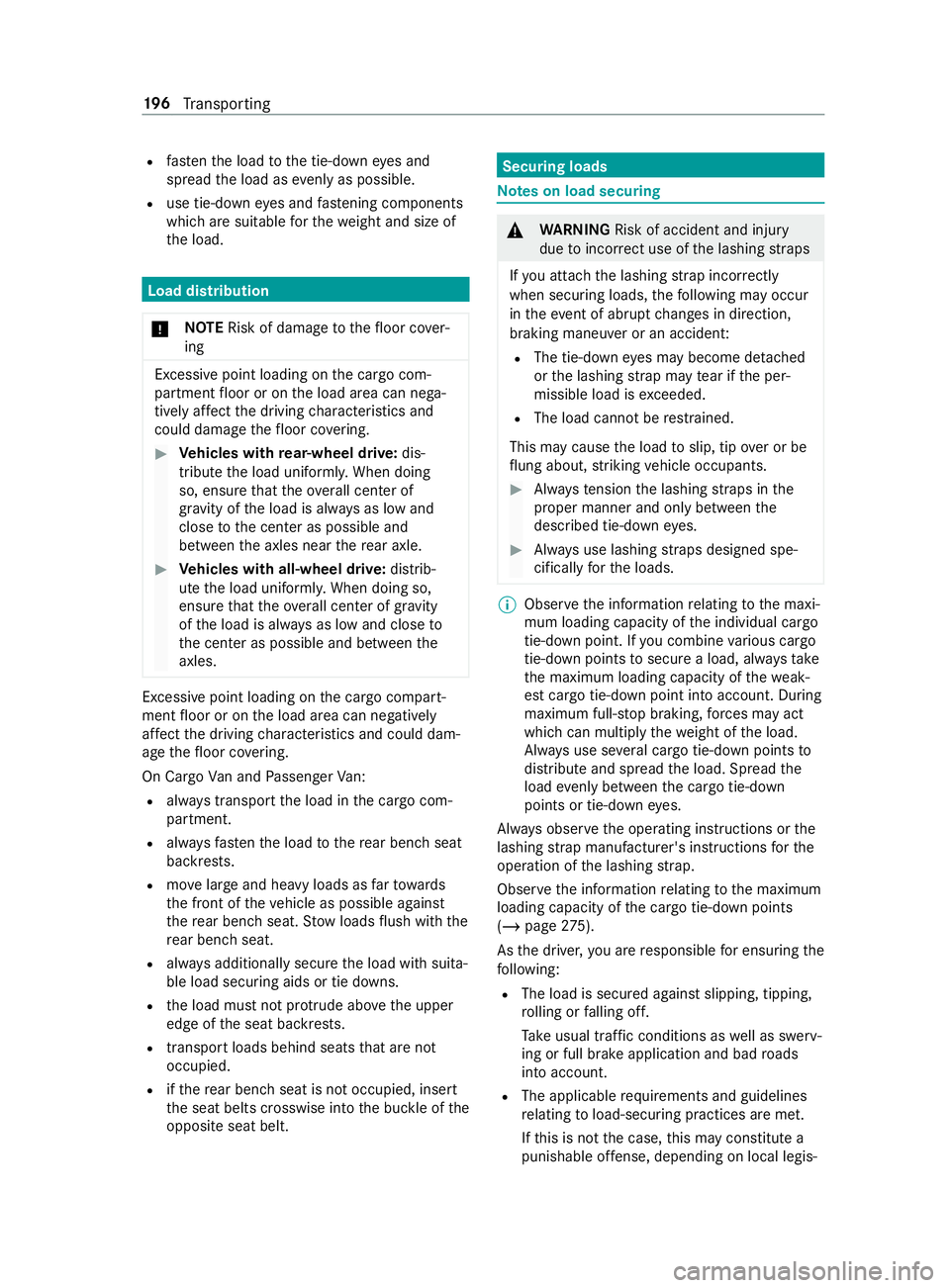
R
fastenthe load tothe tie-down eyes and
spread the load as evenly as possible.
R use tie-down eyes and fastening components
which are suitable forth ewe ight and size of
th e load. Load distribution
* NO
TERisk of damage tothefloor co ver‐
ing Excessive point loading on
the cargo com‐
partment floor or on the load area can nega‐
tively af fect the driving characteristics and
could damage thefloor co vering. #
Vehicles with rear-wheel drive: dis‐
tribu tethe load uniformly. When doing
so, ensure that theove rall cen ter of
gr av ity of the load is alw ays as low and
close tothe center as possible and
between the axles near there ar axle. #
Vehicles with all-wheel drive: distrib‐
ute the load uniforml y.When doing so,
ensure that theove rall cen ter of gr avity
of the load is alw ays as low and close to
th e center as possible and between the
axles. Excessive point loading on
the cargo compart‐
ment floor or on the load area can negatively
af fect the driving characteristics and could dam‐
age thefloor co vering.
On Cargo Van and Passenger Van:
R alwa ys transpo rtthe load in the cargo com‐
partment.
R alwaysfast enthe load tothere ar ben chseat
backrests.
R movelarge and heavy loads as farto wa rds
th e front of theve hicle as possible against
th ere ar ben chseat. Stow loads flush with the
re ar ben chseat.
R always additionally secure the load with suita‐
ble load securing aids or tie downs.
R the load must not pr otru de abo vethe upper
edge of the seat backrests.
R transport loads behind seats that are not
occupied.
R ifth ere ar ben chseat is not occupied, insert
th e seat belts crosswise into the buckle of the
opposite seat belt. Securing loads
Note
s on load securing &
WARNING Risk of accident and injury
due toincor rect use of the lashing stra ps
If yo u attach the lashing stra p incor rectly
when secu ring loads, thefo llowing may occur
in theev ent of abrupt changes in direction,
braking maneuver or an acciden t:
R The tie-down eyes may become de tach ed
or the lashing stra p may tear if the per‐
missible load is exceeded.
R The load cann otbe restra ined.
This may cause the load toslip, tip over or be
fl ung about, striking vehicle occupants. #
Alwayste nsion the lashing stra ps in the
proper manner and only between the
described tie-down eyes. #
Always use lashing stra ps designed spe‐
cifically forth e loads. %
Obser
vethe information relating tothe maxi‐
mum loading capacity of the individual cargo
tie-down point. If you combine various cargo
tie-down points tosecure a load, alw aysta ke
th e maximum loading capacity of thewe ak‐
est cargo tie-down point into account. During
maximum full- stop braking, forc es may act
which can multiply thewe ight of the load.
Alw ays use se veral cargo tie-down points to
distribute and spread the load. Spread the
load evenly between the cargo tie-down
points or tie-down eyes.
Alw ays obser vethe operating instructions or the
lashing stra p manufacturer's instructions forthe
operation of the lashing stra p.
Obser vethe information relating tothe maximum
loading capacity of the cargo tie-down points
(/ page 275).
As the driver, you are responsible for ensuring the
fo llowing:
R The load is secured against slipping, tipping,
rolling or falling off.
Ta ke usual traf fic conditions as well as swerv‐
ing or full brake application and bad roads
into account.
R The applicable requ irements and guidelines
re lating toload-securing practices are met.
If th is is not the case, this may con stitute a
punishable of fense, depending on local legis‐ 19 6
Transporting
Page 221 of 354
lation and any ensuing consequences.
Obser
vecountr y-specific la ws.
Make sure that the load is secure before every
jou rney and at regular inter vals during a long
journe y.Ad just the load securing as necessar y.
Information on how tosecure loads cor rectly can
be obtained from the manufacturers of load
securing aids or tie downs for load-securing, for
ex ample.
When securing loads, obse rveth efo llowing:
R Fill spaces between the load and the cargo
compartment walls or wheel wells. Forth is
purpose, use rigid load securing aids, such as
we dges, wooden fixings or padding.
R Attach secured and stabilized loads in all
directions.
Use the cargo tie-down points or tie-down
ey es and the loading rails in the cargo com‐
partment or on the load sur face.
Only use tie downs, such as lashing rods, lock
ro ds or lashing nets and lashing stra ps, which
has been tested in accordance with cur rent
st andards (e.g. DIN EN). Alw ays use the cargo
tie-down point closest tothe load; pad sharp
edges.
Loads, and heavy loads in particular, should
preferably be secured using the tie-down
ey es.
% Yo
u will obtain tie downs tested in accord‐
ance with cur rent standards (e.g. DIN EN)
from any specialist company or from a quali‐
fi ed specialist workshop.
Note s onthe pa rtition
Wi thout a partition, vehicles that are appr oved as
commercial vehicles (N1, N2) do not fulfill ISO
27 956, whi chdescribes the equipment for prop‐
erly securing a load in deli very vehicles. If the
ve hicle is used totranspo rtgoods, retrofitting the
partition is stro ng lyrecommended, as prope rly
securing the load in vehicles without a partition
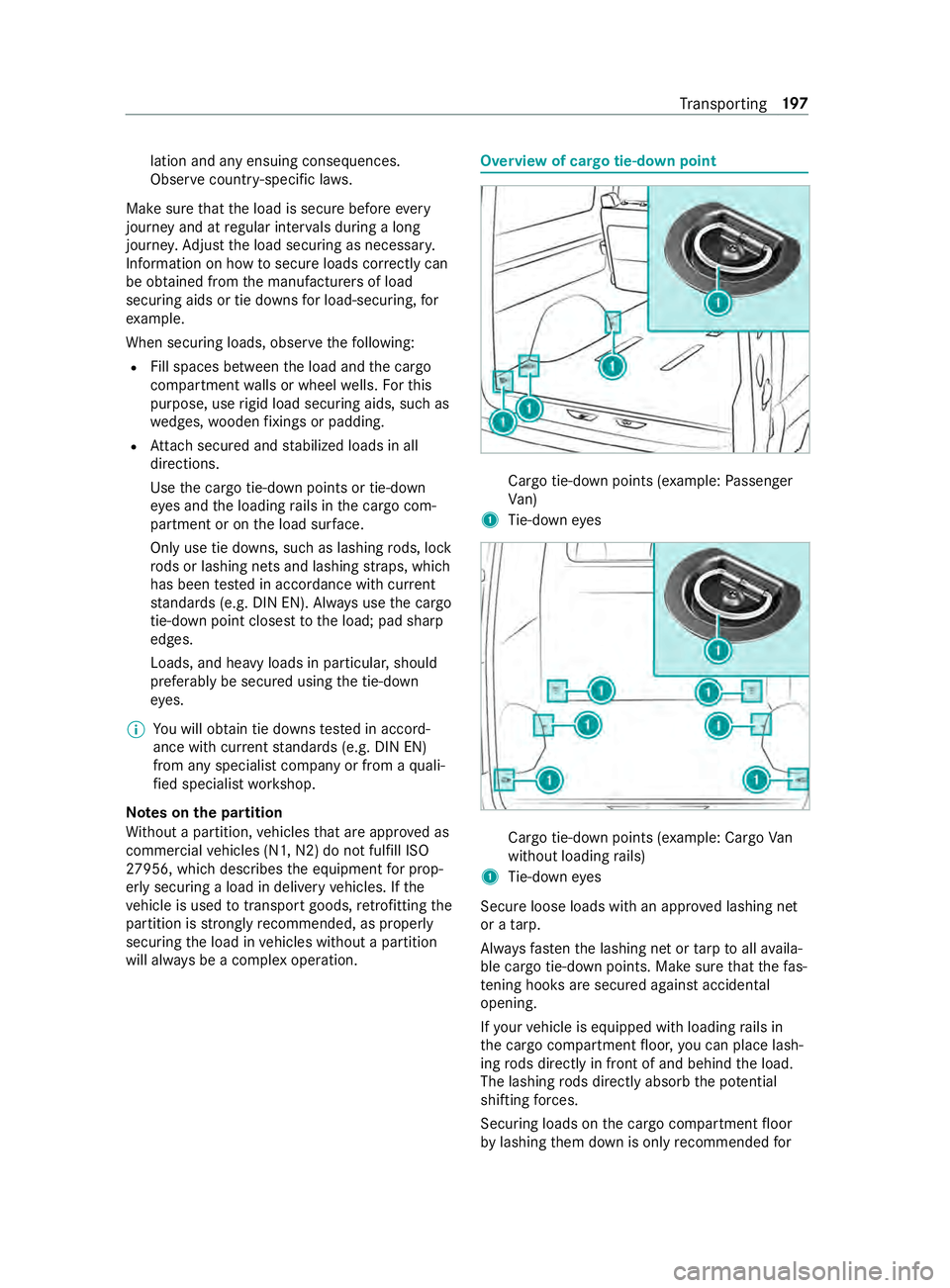
will alw ays be a complex operation. Overview of cargo tie-down point
Cargo tie-down points (e
xample:Passenger
Va n)
1 Tie-down eyes Cargo tie-down points (e
xample: Cargo Van
without loading rails)
1 Tie-down eyes
Secure loose loads with an appr oved lashing net
or a tarp.
Alw aysfast enthe lashing net or tarp toall availa‐
ble cargo tie-down points. Make sure that thefa s‐
te ning hoo ksare secured against acciden tal
opening.
If yo ur vehicle is equipped with loading rails in
th e cargo compartment floor, you can place lash‐
ing rods directly in front of and behind the load.
The lashing rods directly absorb the po tential
shi fting forc es.
Securing loads on the cargo compartment floor
by lashing them down is only recommended for Tr
ansporting 197
Page 225 of 354
#
Turn thering of cargo tie-down ring B until it
is pa rallel tothe longitudinal axis of cargo tie-
down ring C. #
Hold cargo tie-down ring C between the
index finger and middle finger and place your
th umb thro ugh thering of cargo tie-down ring
B and onto the cent ral pressure point. #
Use your thumb topush the locking pin down
as far as it will go. #
Push cargo tie-down ring C near the load
th ro ugh the notches on rack rail2 and mo ve
it appr oximately 0.5 in (12 mm). #
Remo veyour thumb from the pressure point
and slide cargo tie-down ring C until it
engages. #
Turn thering of cargo tie-down ring B until it
is pe rpendicular tothe longitudinal axis of
cargo tie-down ring C.
Cargo tie-down ring C is secu red.
Re moving cargo tie down rings #
Turn thering of cargo tie-down ring B until it
is pa rallel tothe longitudinal axis of cargo tie-
down ring C. #
Grip cargo tie-down ring C as described
ab ove under ins talling and use your thumb to
push the locking pin down as far as it will go. #
Slide cargo tie-down ring C and pull it down
and out thro ugh the notches of rack rail2.
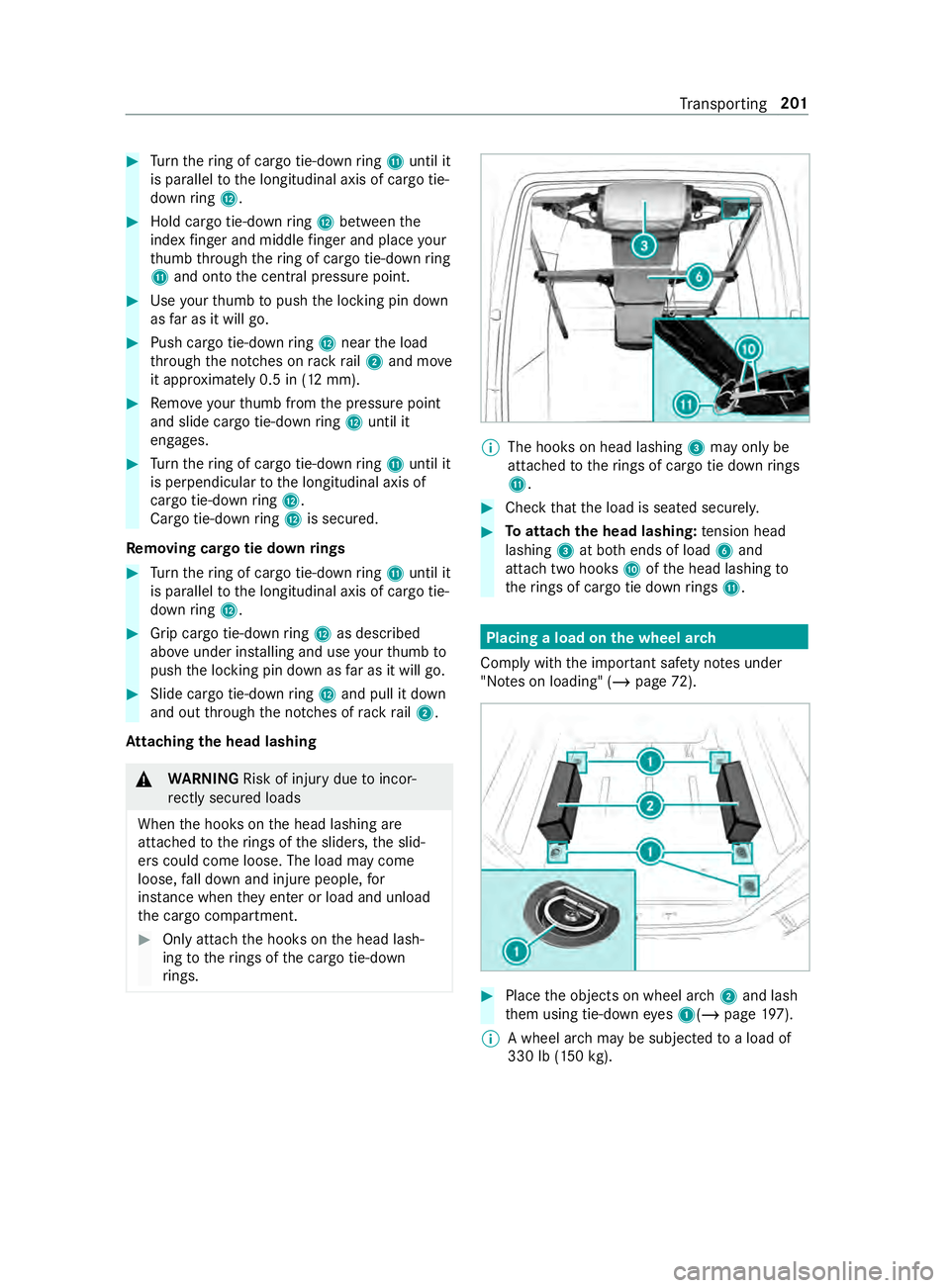
At taching the head lashing &
WARNING Risk of inju rydue toincor‐
re ctly secu red loads
When the hooks on the head lashing are
attached totherings of the sliders, the slid‐
ers could come loose. The load may come
loose, fall down and injure people, for
ins tance when they enter or load and unload
th e cargo compartment. #
Only atta chthe hooks on the head lash‐
ing totherings of the cargo tie-down
ri ngs. %
The hoo
kson head lashing 3may only be
attached totherings of cargo tie down rings
B. #
Check that the load is seated securel y. #
Toattach the head lashing: tension head
lashing 3at bo thends of load 6and
attach two hooks Aofthe head lashing to
th erings of cargo tie down rings B. Placing a load on the wheel ar
ch
Comply with the impor tant sa fety no tes under
"No tes on loading" (/ page72). #
Place the objects on wheel ar ch2 and lash
th em using tie-down eyes 1(/ page197).
% A wheel ar
chmay be subjected toa load of
330 lb (150 kg). Tr
ansporting 201