display TOYOTA LAND CRUISER 2012 Repair Manual
[x] Cancel search | Manufacturer: TOYOTA, Model Year: 2012, Model line: LAND CRUISER, Model: TOYOTA LAND CRUISER 2012Pages: 692, PDF Size: 29.3 MB
Page 283 of 692
283 2-4. Using other driving systems
2
When driving
L/C200_EE (OM60G38E)
*: While the Turn Assist function
of Crawl Control is operating,
the trajectory lines will be dis-
played as dotted lines. At this
time, there may be a differ-
ence between the trajectory
lines and the actual course of
progression.
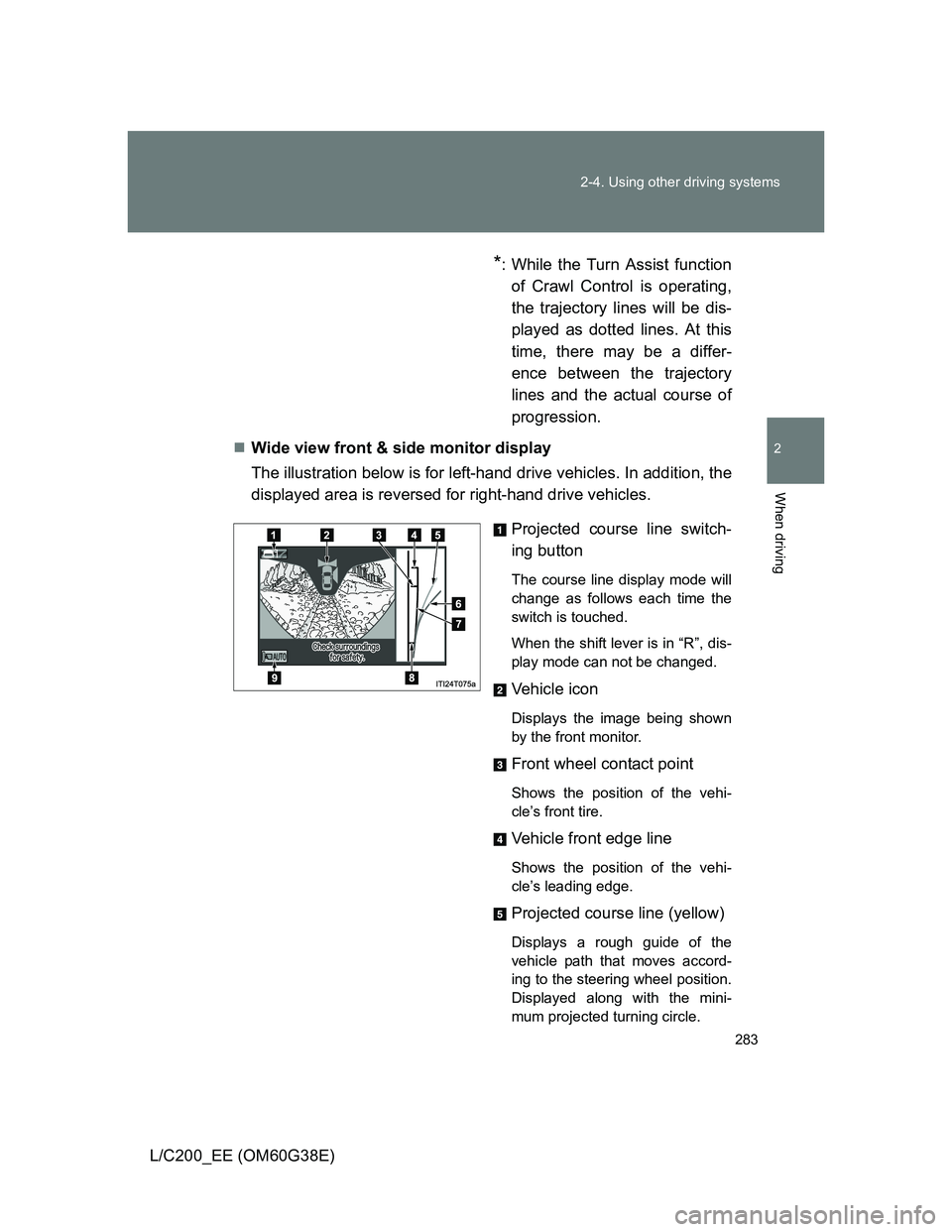
Wide view front & side monitor display
The illustration below is for left-hand drive vehicles. In addition, the
displayed area is reversed for right-hand drive vehicles.
Projected course line switch-
ing button
The course line display mode will
change as follows each time the
switch is touched.
When the shift lever is in “R”, dis-
play mode can not be changed.
Vehicle icon
Displays the image being shown
by the front monitor.
Front wheel contact point
Shows the position of the vehi-
cle’s front tire.
Vehicle front edge line
Shows the position of the vehi-
cle’s leading edge.
Projected course line (yellow)
Displays a rough guide of the
vehicle path that moves accord-
ing to the steering wheel position.
Displayed along with the mini-
mum projected turning circle.
Page 284 of 692
284 2-4. Using other driving systems
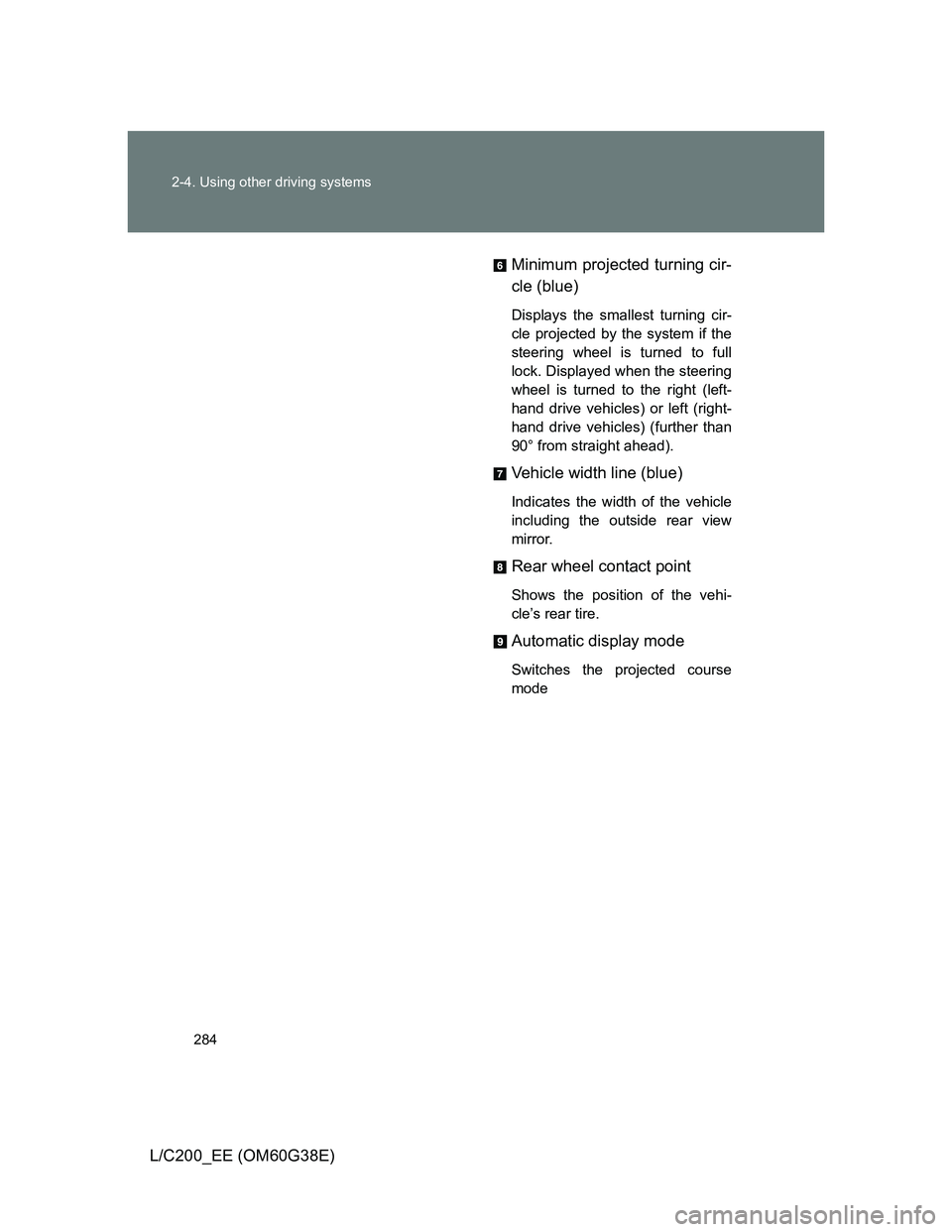
L/C200_EE (OM60G38E)Minimum projected turning cir-
cle (blue)
Displays the smallest turning cir-
cle projected by the system if the
steering wheel is turned to full
lock. Displayed when the steering
wheel is turned to the right (left-
hand drive vehicles) or left (right-
hand drive vehicles) (further than
90° from straight ahead).
Vehicle width line (blue)
Indicates the width of the vehicle
including the outside rear view
mirror.
Rear wheel contact point
Shows the position of the vehi-
cle’s rear tire.
Automatic display mode
Switches the projected course
mode
Page 285 of 692
285 2-4. Using other driving systems
2
When driving
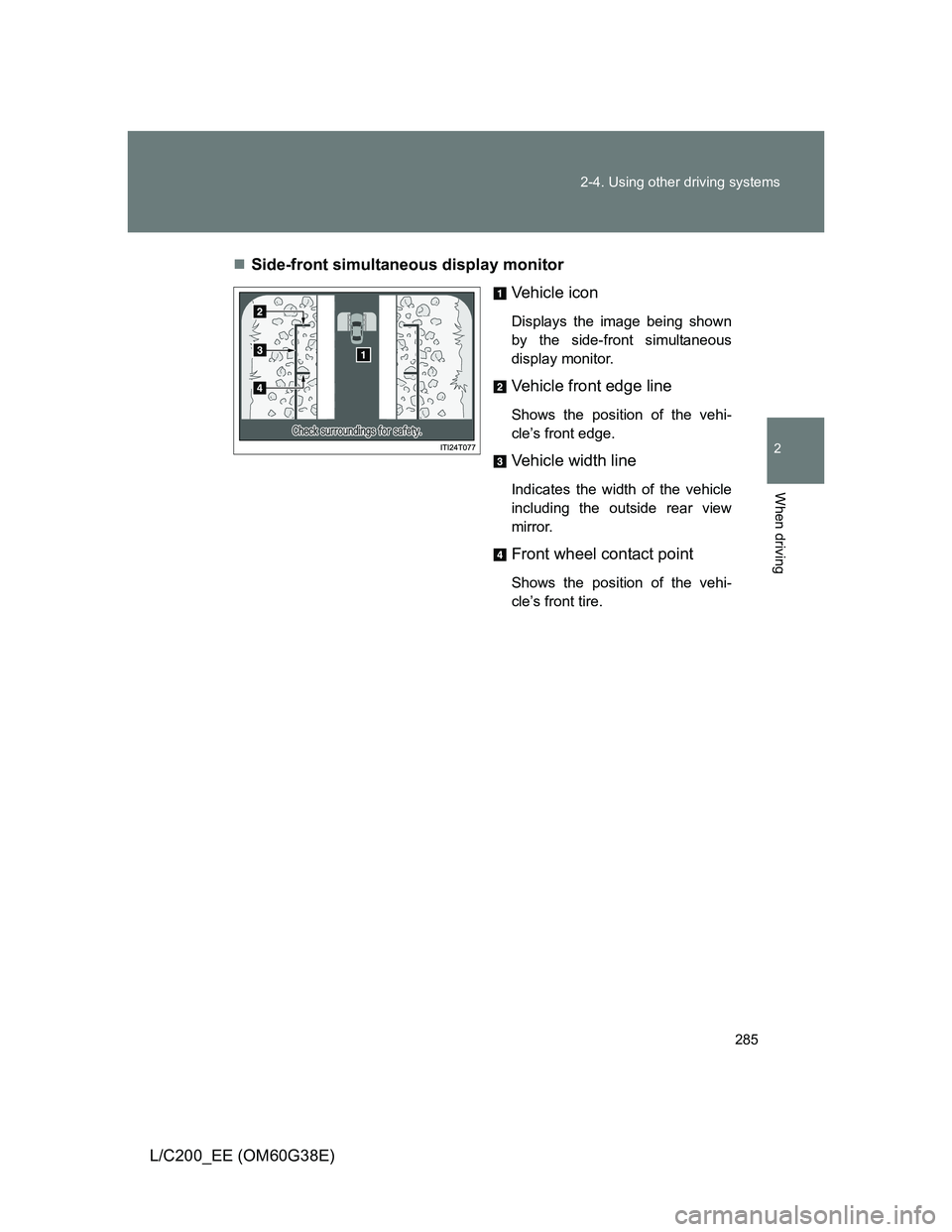
L/C200_EE (OM60G38E)Side-front simultaneous display monitor
Vehicle icon
Displays the image being shown
by the side-front simultaneous
display monitor.
Vehicle front edge line
Shows the position of the vehi-
cle’s front edge.
Vehicle width line
Indicates the width of the vehicle
including the outside rear view
mirror.
Front wheel contact point
Shows the position of the vehi-
cle’s front tire.
Page 286 of 692
286 2-4. Using other driving systems
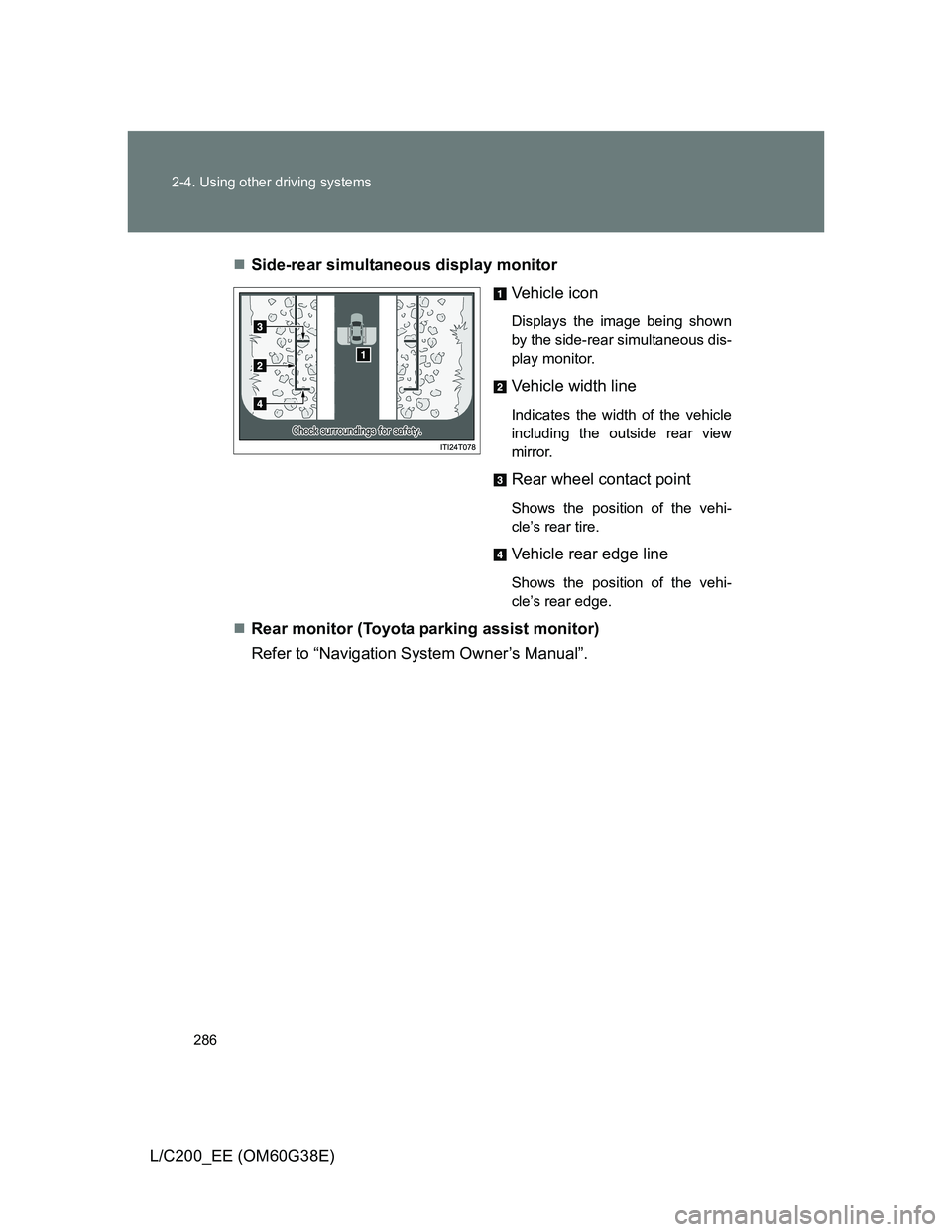
L/C200_EE (OM60G38E)Side-rear simultaneous display monitor
Vehicle icon
Displays the image being shown
by the side-rear simultaneous dis-
play monitor.
Vehicle width line
Indicates the width of the vehicle
including the outside rear view
mirror.
Rear wheel contact point
Shows the position of the vehi-
cle’s rear tire.
Vehicle rear edge line
Shows the position of the vehi-
cle’s rear edge.
Rear monitor (Toyota parking assist monitor)
Refer to “Navigation System Owner’s Manual”.
Page 287 of 692
287 2-4. Using other driving systems
2
When driving
L/C200_EE (OM60G38E)
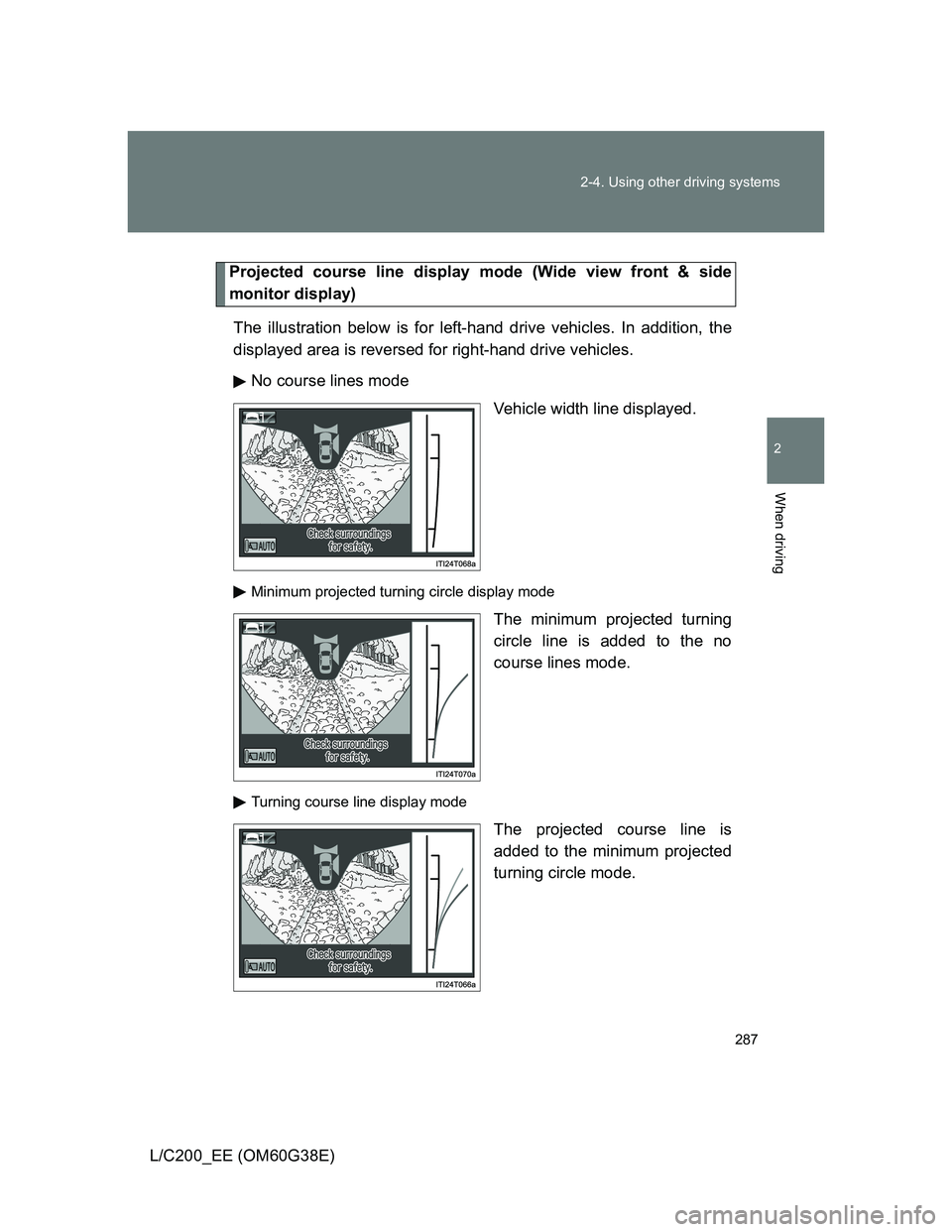
Projected course line display mode (Wide view front & side
monitor display)
The illustration below is for left-hand drive vehicles. In addition, the
displayed area is reversed for right-hand drive vehicles.
No course lines mode
Vehicle width line displayed.
Minimum projected turning circle display mode
The minimum projected turning
circle line is added to the no
course lines mode.
Turning course line display mode
The projected course line is
added to the minimum projected
turning circle mode.
Page 288 of 692
288 2-4. Using other driving systems
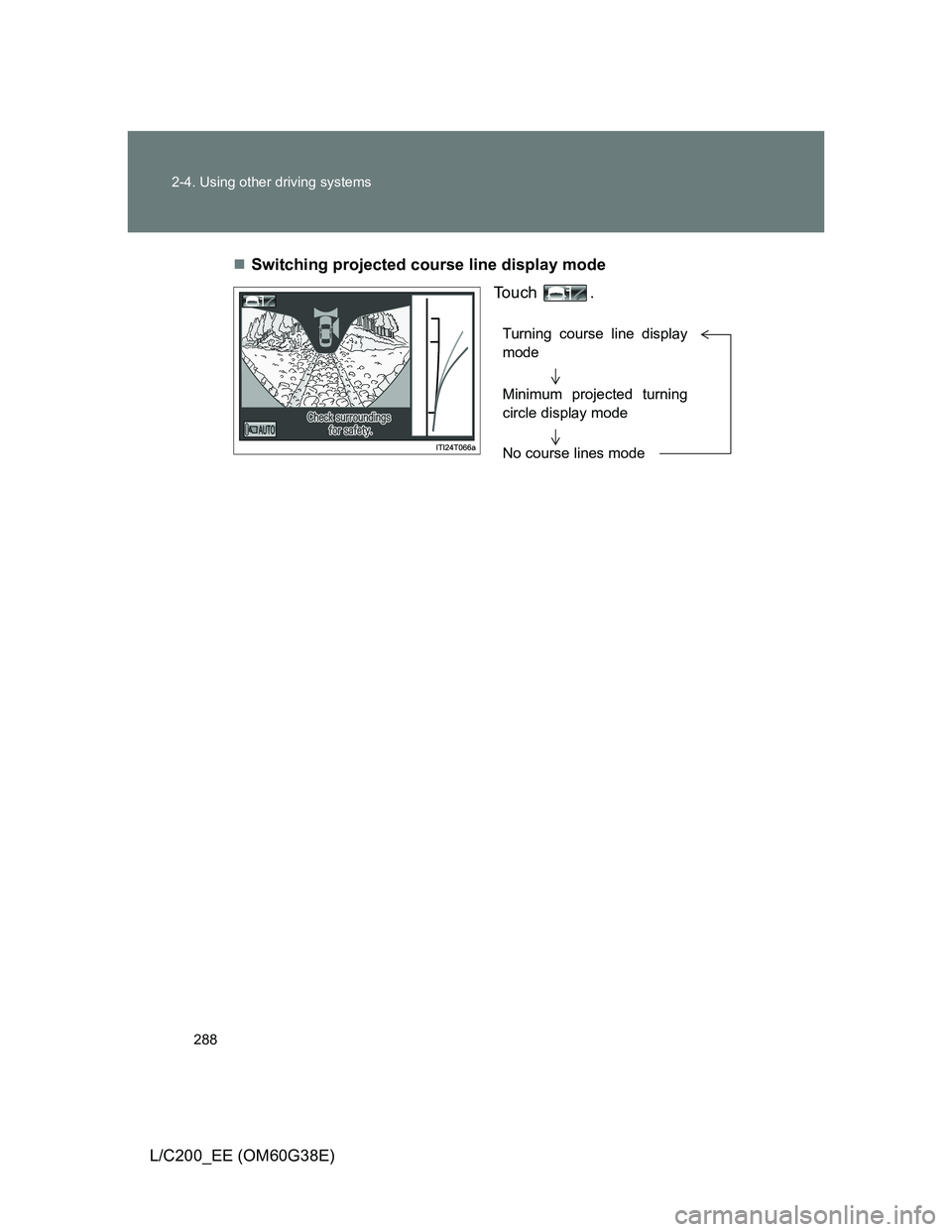
L/C200_EE (OM60G38E)Switching projected course line display mode
To u c h .
Turning course line display
mode
Minimum projected turning
circle display mode
No course lines mode
Page 290 of 692
290 2-4. Using other driving systems
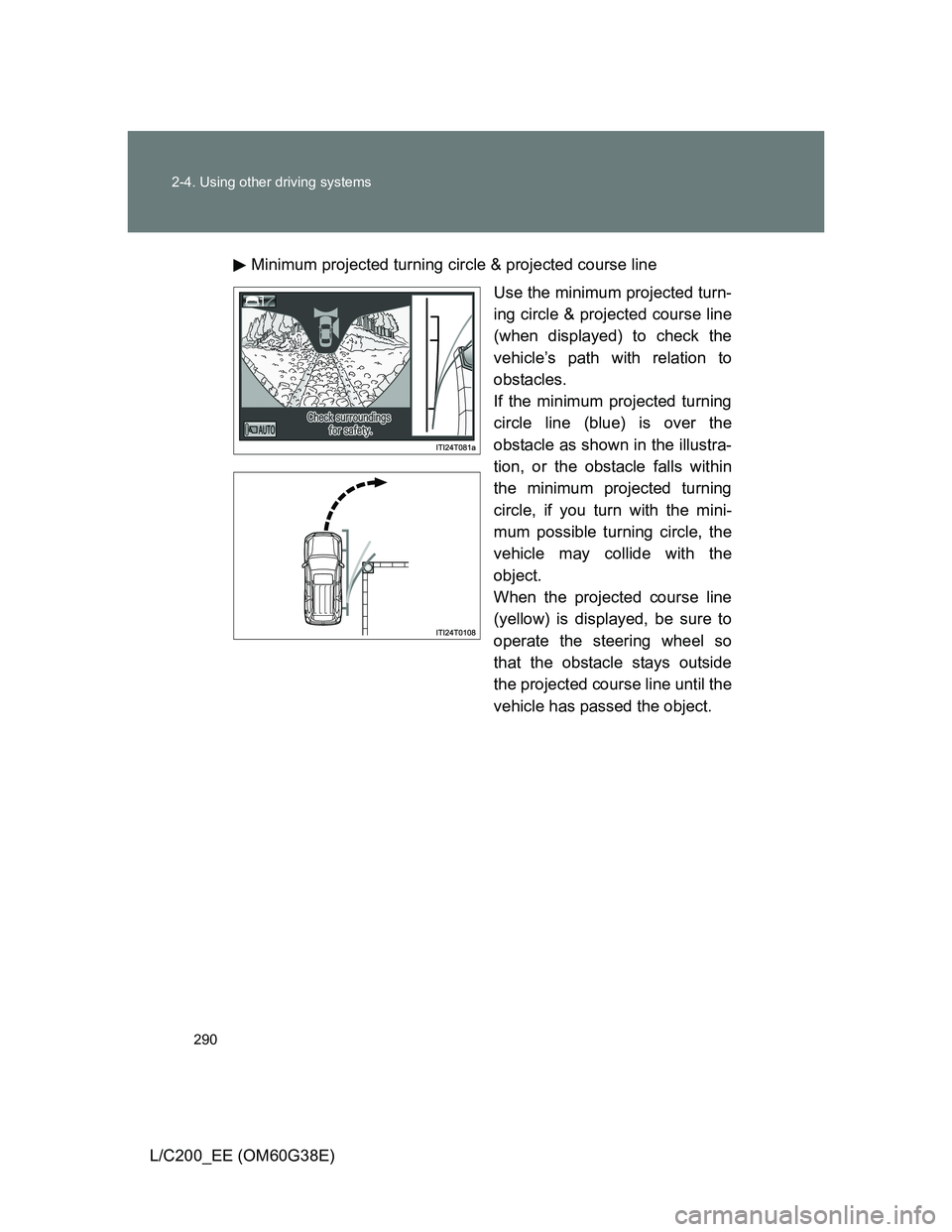
L/C200_EE (OM60G38E)Minimum projected turning circle & projected course line
Use the minimum projected turn-
ing circle & projected course line
(when displayed) to check the
vehicle’s path with relation to
obstacles.
If the minimum projected turning
circle line (blue) is over the
obstacle as shown in the illustra-
tion, or the obstacle falls within
the minimum projected turning
circle, if you turn with the mini-
mum possible turning circle, the
vehicle may collide with the
object.
When the projected course line
(yellow) is displayed, be sure to
operate the steering wheel so
that the obstacle stays outside
the projected course line until the
vehicle has passed the object.
Page 291 of 692
291 2-4. Using other driving systems
2
When driving
L/C200_EE (OM60G38E)
The Multi-terrain Monitor can be operated when
Normal display mode
The vehicle speed is less than approximately 12 km/h (7 mph).
Automatic display mode
When automatic display mode is selected
When the shift lever is shifted to “D”, “S” or “N”
When the shift lever is in “D”, “S” or “N” and the vehicle speed is below
approximately 10 km/h (6 mph)
Automatic system cancellation
In the following situations, the image is canceled automatically.
When the vehicle speed exceeds approximately 12 km/h (7 mph).
After the vehicle speed exceeds approximately 12 km/h (7 mph), the
image will continue to be displayed for a short time.
If the vehicle speed returns to below 12 km/h (7 mph) before the image
extinguishes, the image will continue to be displayed.
When “MAP” or another switch outside the screen has been pressed
Interruption screens
An interruption screen is displayed when an obstacle is within the detection
range of the Toyota parking assist-sensor. (P. 237)
When the door mirrors are folded.
The screen will be turned off temporarily while the door mirrors are folding,
and the screen will return to normal once folding has been completed.
Page 292 of 692
292 2-4. Using other driving systems
L/C200_EE (OM60G38E)
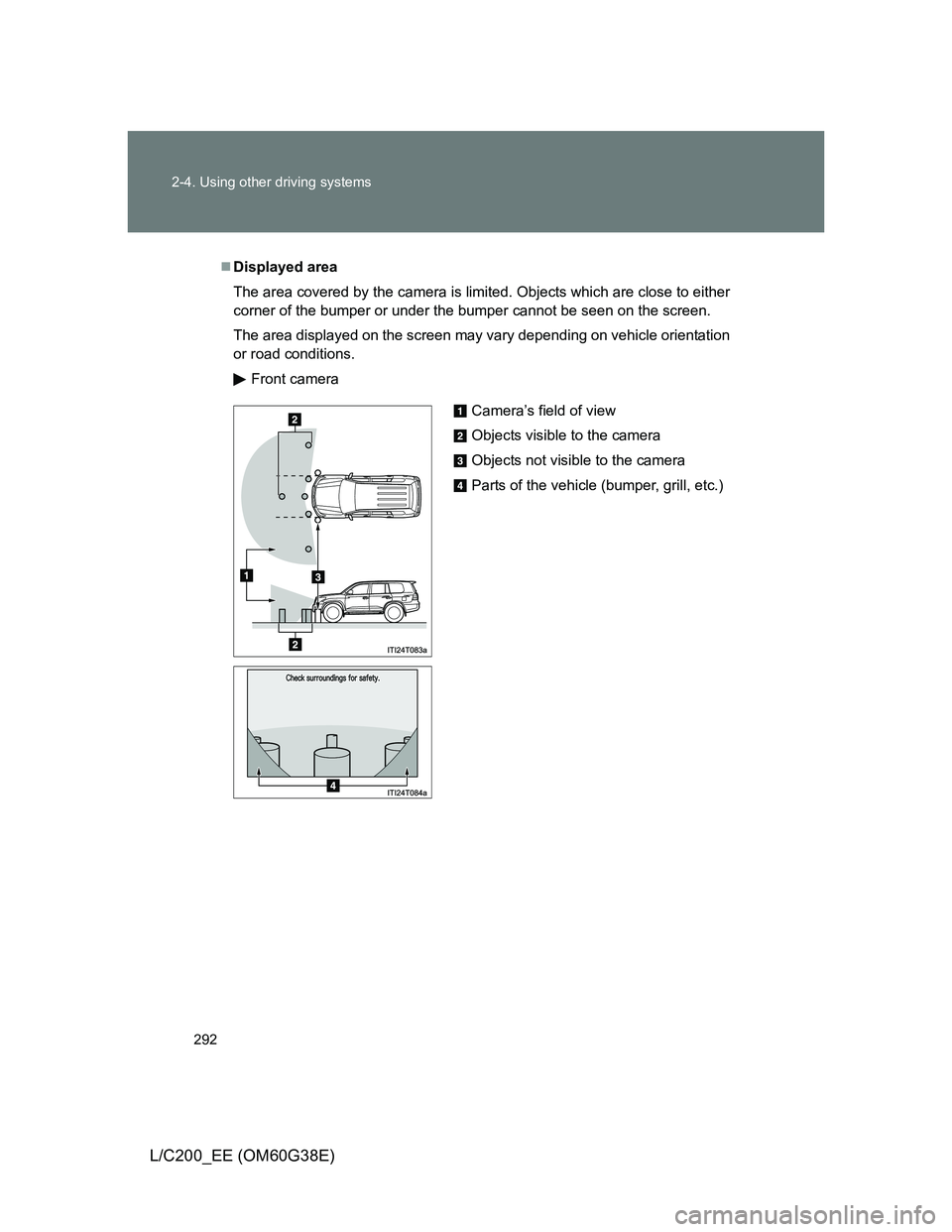
Displayed area
The area covered by the camera is limited. Objects which are close to either
corner of the bumper or under the bumper cannot be seen on the screen.
The area displayed on the screen may vary depending on vehicle orientation
or road conditions.
Front camera
Camera’s field of view
Objects visible to the camera
Objects not visible to the camera
Parts of the vehicle (bumper, grill, etc.)
Page 293 of 692
293 2-4. Using other driving systems
2
When driving
L/C200_EE (OM60G38E)
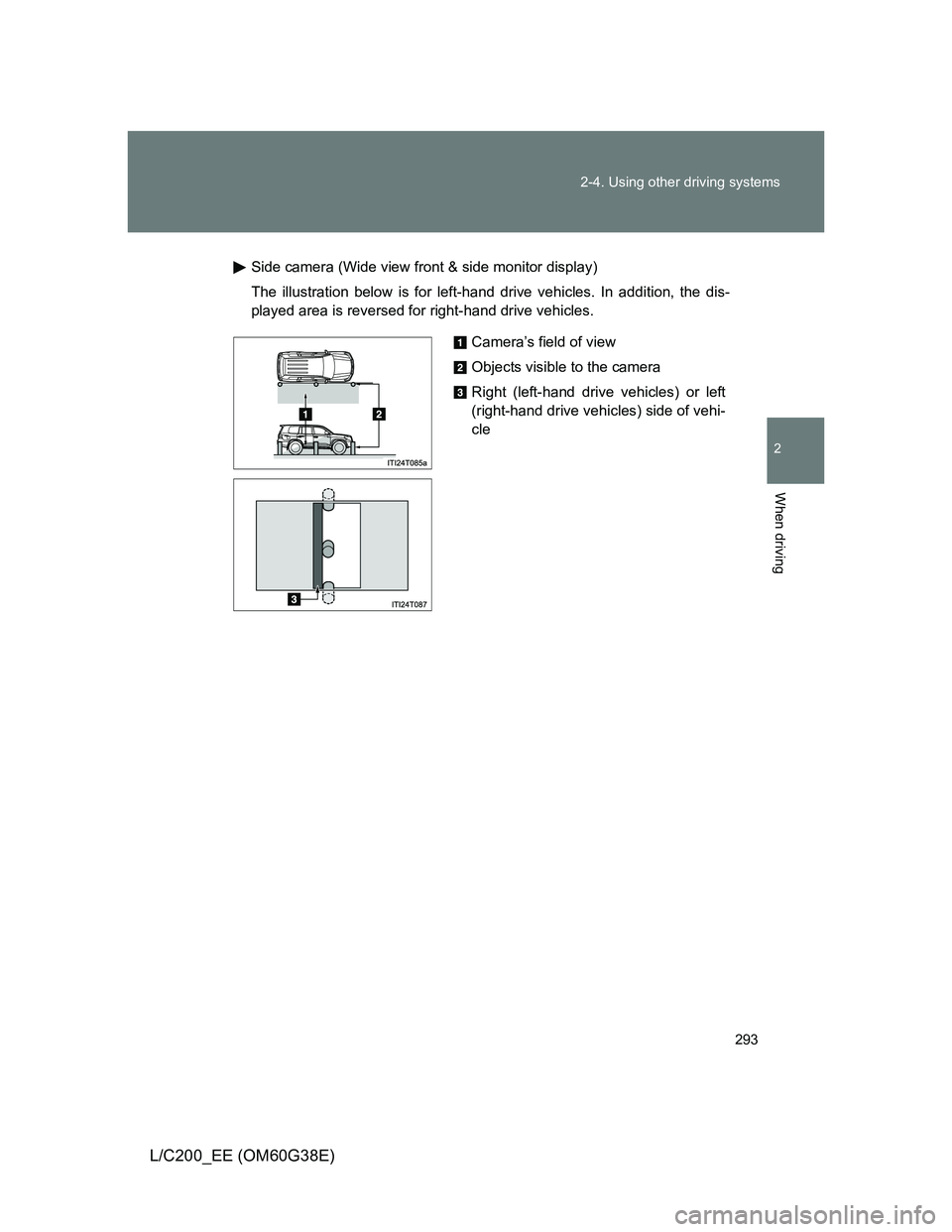
Side camera (Wide view front & side monitor display)
The illustration below is for left-hand drive vehicles. In addition, the dis-
played area is reversed for right-hand drive vehicles.
Camera’s field of view
Objects visible to the camera
Right (left-hand drive vehicles) or left
(right-hand drive vehicles) side of vehi-
cle