light TOYOTA PRIUS PRIME 2023 Owners Manual
[x] Cancel search | Manufacturer: TOYOTA, Model Year: 2023, Model line: PRIUS PRIME, Model: TOYOTA PRIUS PRIME 2023Pages: 680, PDF Size: 14.97 MB
Page 448 of 680
4486-2. Using the interior lights
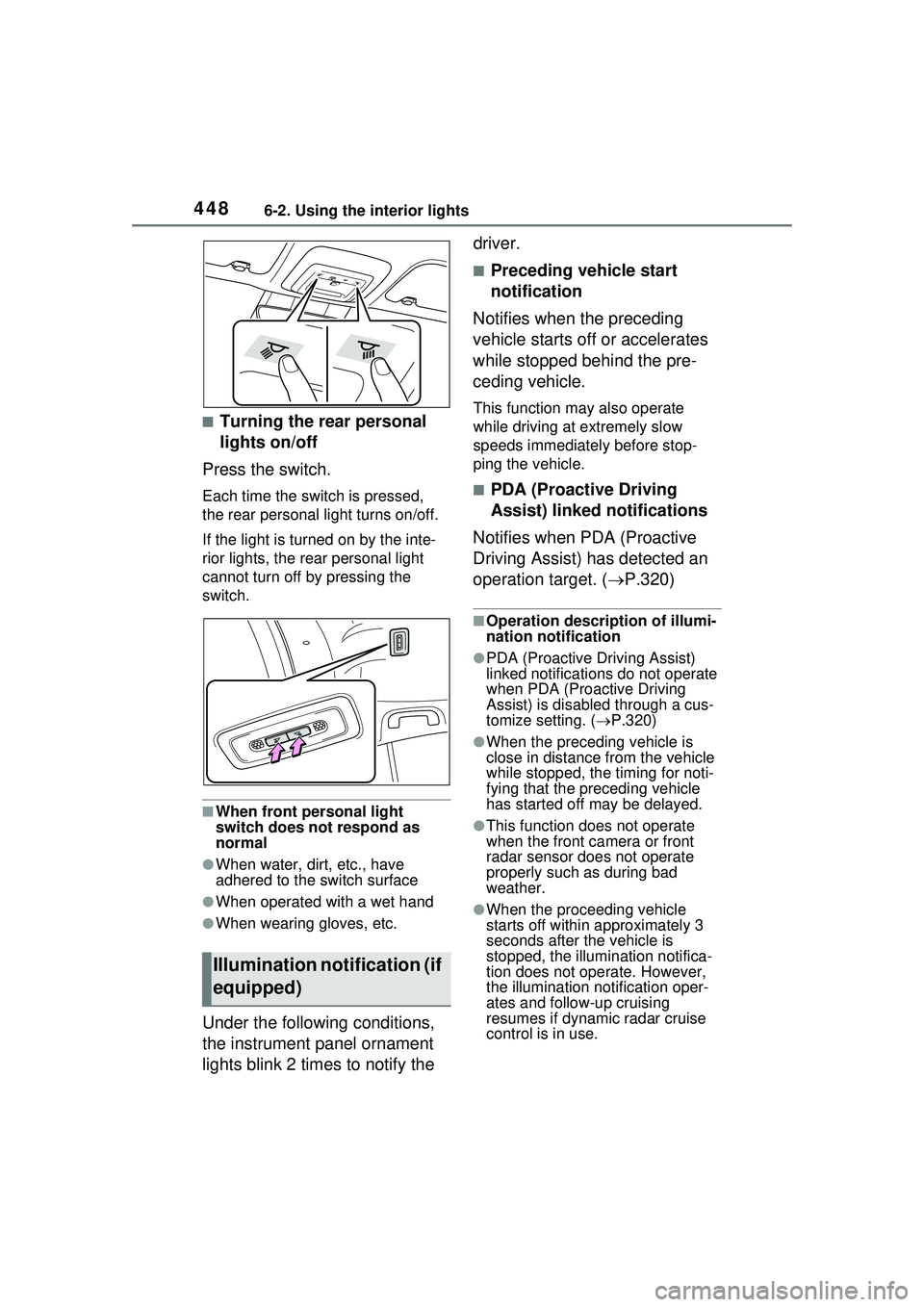
■Turning the rear personal
lights on/off
Press the switch.
Each time the switch is pressed,
the rear personal light turns on/off.
If the light is turned on by the inte-
rior lights, the rear personal light
cannot turn off by pressing the
switch.
■When front personal light
switch does not respond as
normal
●When water, dirt, etc., have
adhered to the switch surface
●When operated with a wet hand
●When wearing gloves, etc.
Under the following conditions,
the instrument panel ornament
lights blink 2 times to notify the driver.
■Preceding vehicle start
notification
Notifies when the preceding
vehicle starts off or accelerates
while stopped behind the pre-
ceding vehicle.
This function may also operate
while driving at extremely slow
speeds immediately before stop-
ping the vehicle.
■PDA (Proactive Driving
Assist) linked notifications
Notifies when PDA (Proactive
Driving Assist) has detected an
operation target. ( P.320)
■Operation description of illumi-
nation notification
●PDA (Proactive Driving Assist)
linked notifications do not operate
when PDA (Proactive Driving
Assist) is disabled through a cus-
tomize setting. (P.320)
●When the preceding vehicle is
close in distance from the vehicle
while stopped, the timing for noti-
fying that the preceding vehicle
has started off may be delayed.
●This function does not operate
when the front ca mera or front
radar sensor does not operate
properly such as during bad
weather.
●When the proceeding vehicle
starts off within approximately 3
seconds after the vehicle is
stopped, the illumi nation notifica-
tion does not operate. However,
the illumination notification oper-
ates and follow-up cruising
resumes if dynamic radar cruise
control is in use.
Illumination notification (if
equipped)
Page 449 of 680
4496-2. Using the interior lights
6
Interior features
■Customization
Settings can be changed to enabled
and disabled illumination notifica-
tions. (Customizable features:
P.618)
Page 450 of 680
4506-3. Using the storage features
6-3.Using the storage features
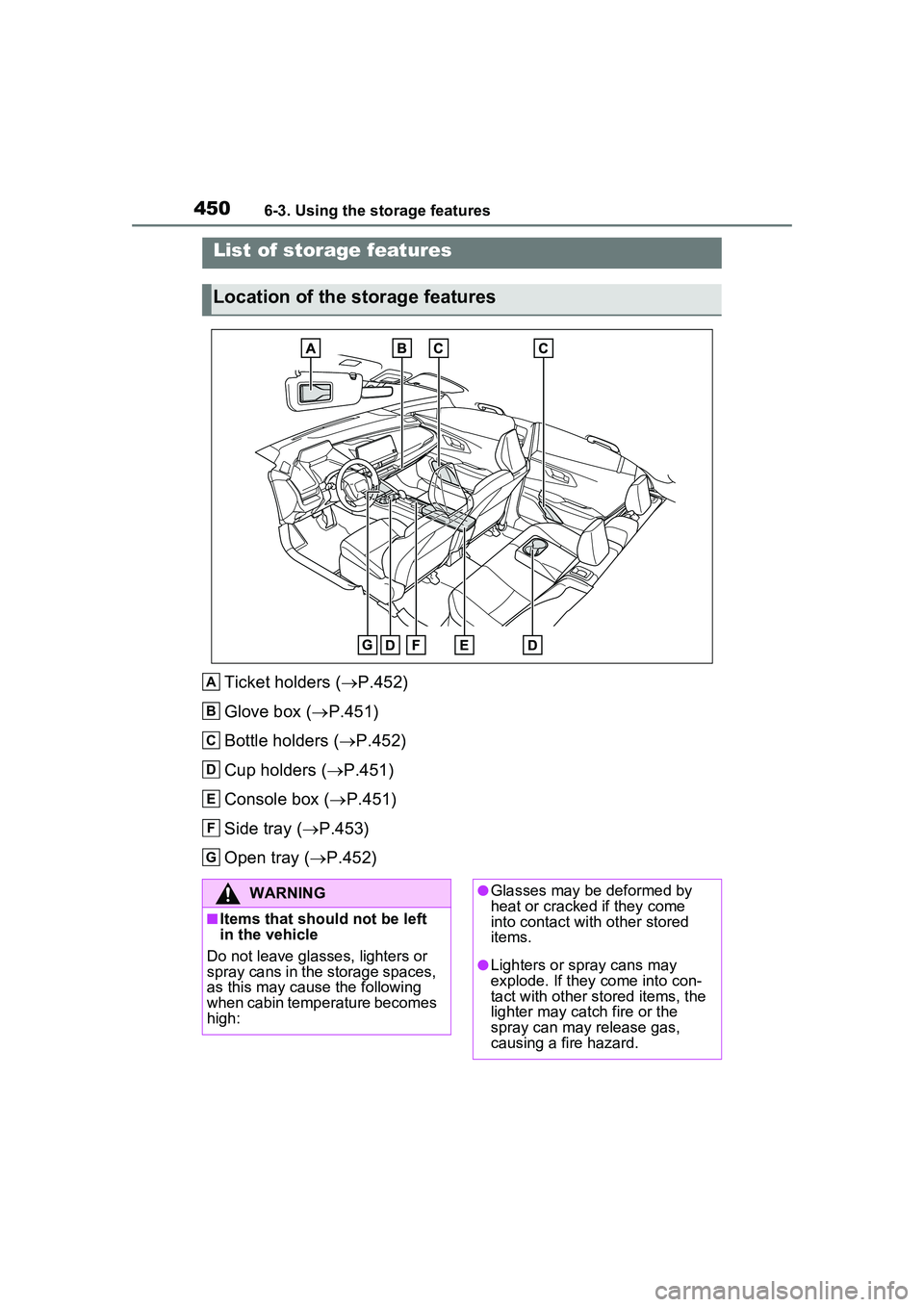
Ticket holders (P.452)
Glove box ( P.451)
Bottle holders ( P.452)
Cup holders ( P.451)
Console box ( P.451)
Side tray ( P.453)
Open tray ( P.452)
List of storage features
Location of the storage features
A
B
C
D
E
F
G
WARNING
■Items that should not be left
in the vehicle
Do not leave glasses, lighters or
spray cans in the storage spaces,
as this may cause the following
when cabin temperature becomes
high:
●Glasses may be deformed by
heat or cracked if they come
into contact with other stored
items.
●Lighters or spray cans may
explode. If they come into con-
tact with other stored items, the
lighter may catch fire or the
spray can may release gas,
causing a fire hazard.
Page 451 of 680
4516-3. Using the storage features
6
Interior features
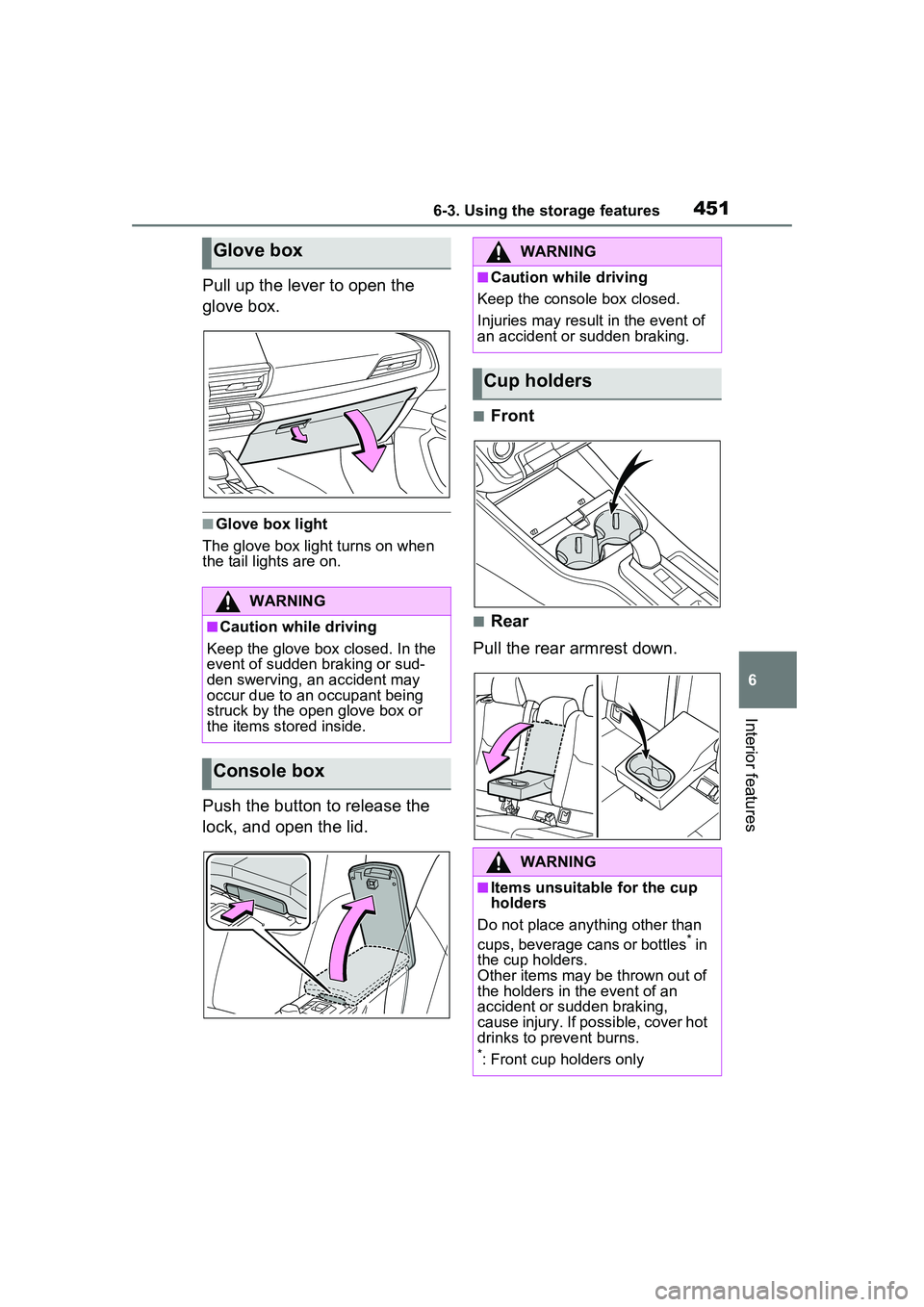
Pull up the lever to open the
glove box.
■Glove box light
The glove box light turns on when
the tail lights are on.
Push the button to release the
lock, and open the lid.
■Front
■Rear
Pull the rear armrest down.
Glove box
WARNING
■Caution while driving
Keep the glove box closed. In the
event of sudden braking or sud-
den swerving, an accident may
occur due to an occupant being
struck by the open glove box or
the items stored inside.
Console box
WARNING
■Caution while driving
Keep the console box closed.
Injuries may result in the event of
an accident or sudden braking.
Cup holders
WARNING
■Items unsuitable for the cup
holders
Do not place anything other than
cups, beverage cans or bottles
* in
the cup holders.
Other items may be thrown out of
the holders in the event of an
accident or sudden braking,
cause injury. If possible, cover hot
drinks to prevent burns.
*: Front cup holders only
Page 456 of 680
4566-4. Using the other interior features
6-4.Using the other interior features
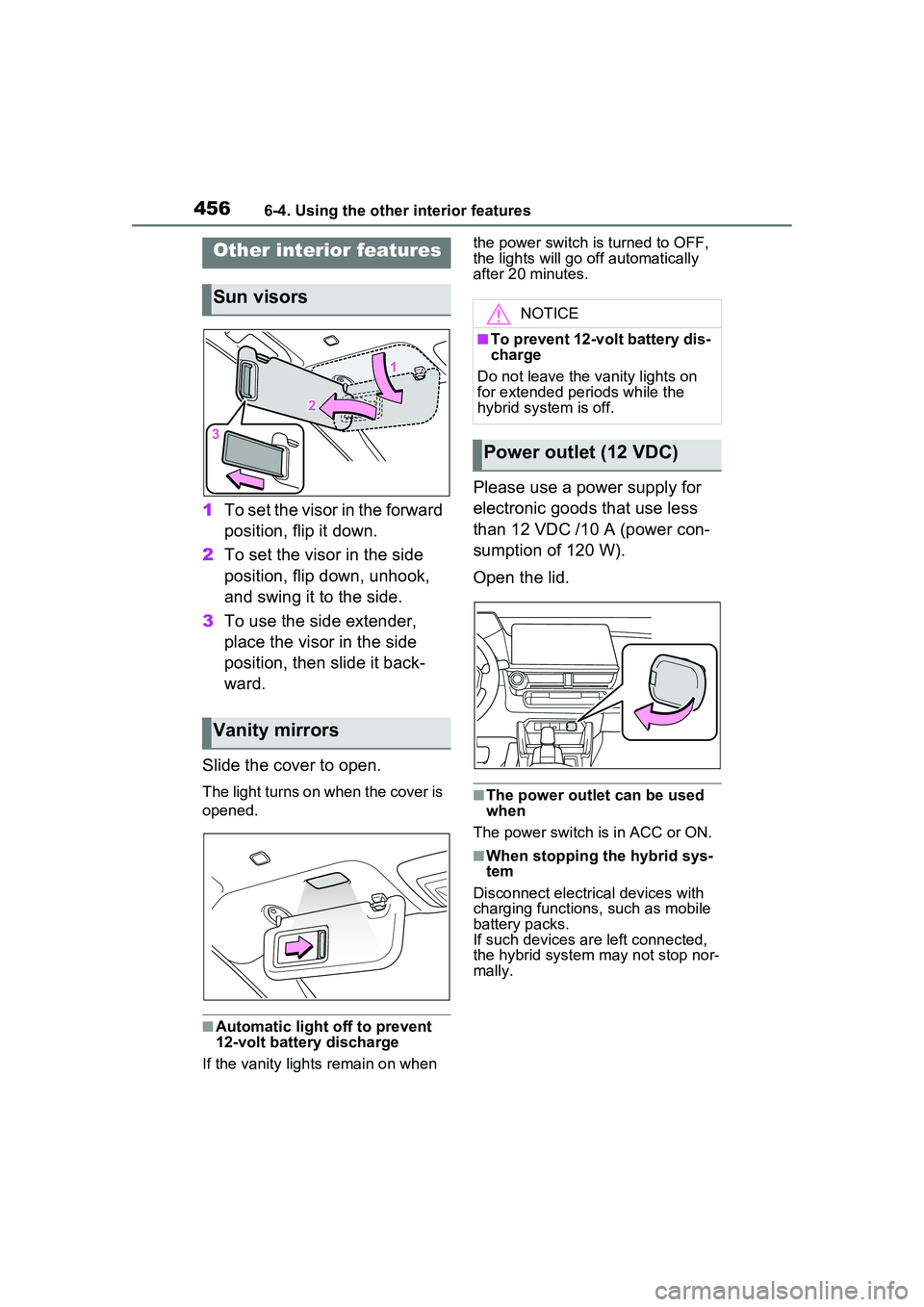
1To set the visor in the forward
position, flip it down.
2 To set the visor in the side
position, flip down, unhook,
and swing it to the side.
3 To use the side extender,
place the visor in the side
position, then slide it back-
ward.
Slide the cover to open.
The light turns on when the cover is
opened.
■Automatic light off to prevent
12-volt battery discharge
If the vanity lights remain on when the power switch is turned to OFF,
the lights will go off automatically
after 20 minutes.
Please use a power supply for
electronic goods that use less
than 12 VDC /10 A (power con-
sumption of 120 W).
Open the lid.
■The power outlet can be used
when
The power switch is in ACC or ON.
■When stopping the hybrid sys-
tem
Disconnect electrical devices with
charging functions, such as mobile
battery packs.
If such devices ar e left connected,
the hybrid system may not stop nor-
mally.
Other interior features
Sun visors
Vanity mirrors
NOTICE
■To prevent 12-volt battery dis-
charge
Do not leave the vanity lights on
for extended periods while the
hybrid system is off.
Power outlet (12 VDC)
Page 459 of 680
4596-4. Using the other interior features
6
Interior features
■The “Qi” logo
The “Qi” logo is a trademark of
the Wireless Power Consortium.
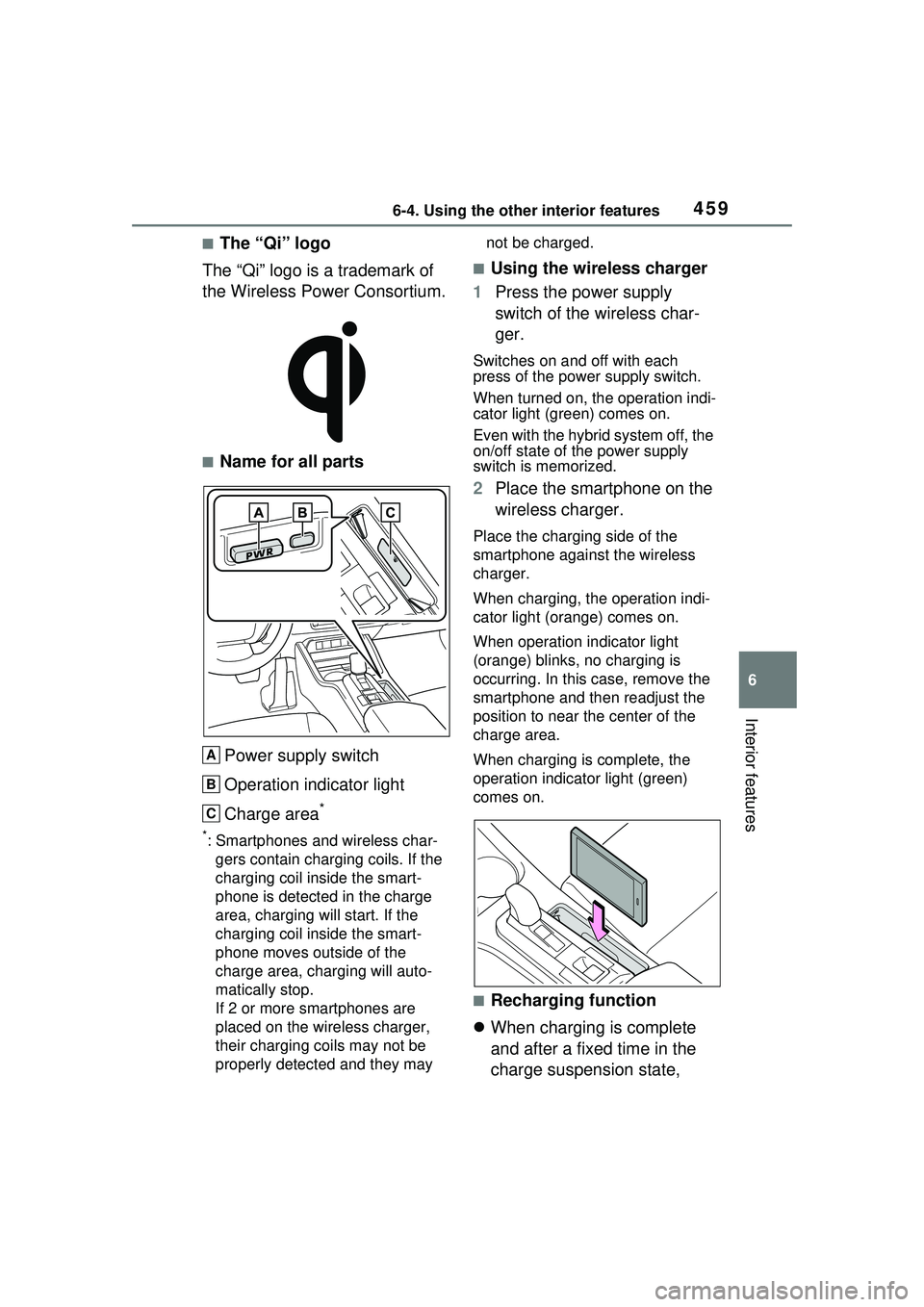
■Name for all parts
Power supply switch
Operation indicator light
Charge area
*
*: Smartphones and wireless char- gers contain charging coils. If the
charging coil inside the smart-
phone is detected in the charge
area, charging will start. If the
charging coil inside the smart-
phone moves outside of the
charge area, charging will auto-
matically stop.
If 2 or more smartphones are
placed on the wireless charger,
their charging coils may not be
properly detected and they may not be charged.
■Using the wireless charger
1 Press the power supply
switch of the wireless char-
ger.
Switches on and off with each
press of the power supply switch.
When turned on, the operation indi-
cator light (green) comes on.
Even with the hybrid system off, the
on/off state of the power supply
switch is memorized.
2Place the smartphone on the
wireless charger.
Place the charging side of the
smartphone against the wireless
charger.
When charging, the operation indi-
cator light (orange) comes on.
When operation indicator light
(orange) blinks, no charging is
occurring. In this case, remove the
smartphone and then readjust the
position to near the center of the
charge area.
When charging is complete, the
operation indicator light (green)
comes on.
■Recharging function
When charging is complete
and after a fixed time in the
charge suspension state,
A
B
C
Page 460 of 680
4606-4. Using the other interior features
charging restarts.
If the smartphone is moved to
somewhere outside of the
charge area, charging will
stop. In this case, the opera-
tion indicator light will blink in
orange. Readjust the position
of the smartphone to near the
center of the charge area.
■Rapid charging function
The following smartphones
support rapid charging.
• Smartphones compliant with
WPC Ver1.2.4 and compatible
with rapid charging
• iPhone’s with an iOS version that supports 7.5 W charging (iPhone
8 and later models)
When a smartphone that sup-
ports rapid charging is
charged, charging automati-
cally switches to the rapid
charging function.
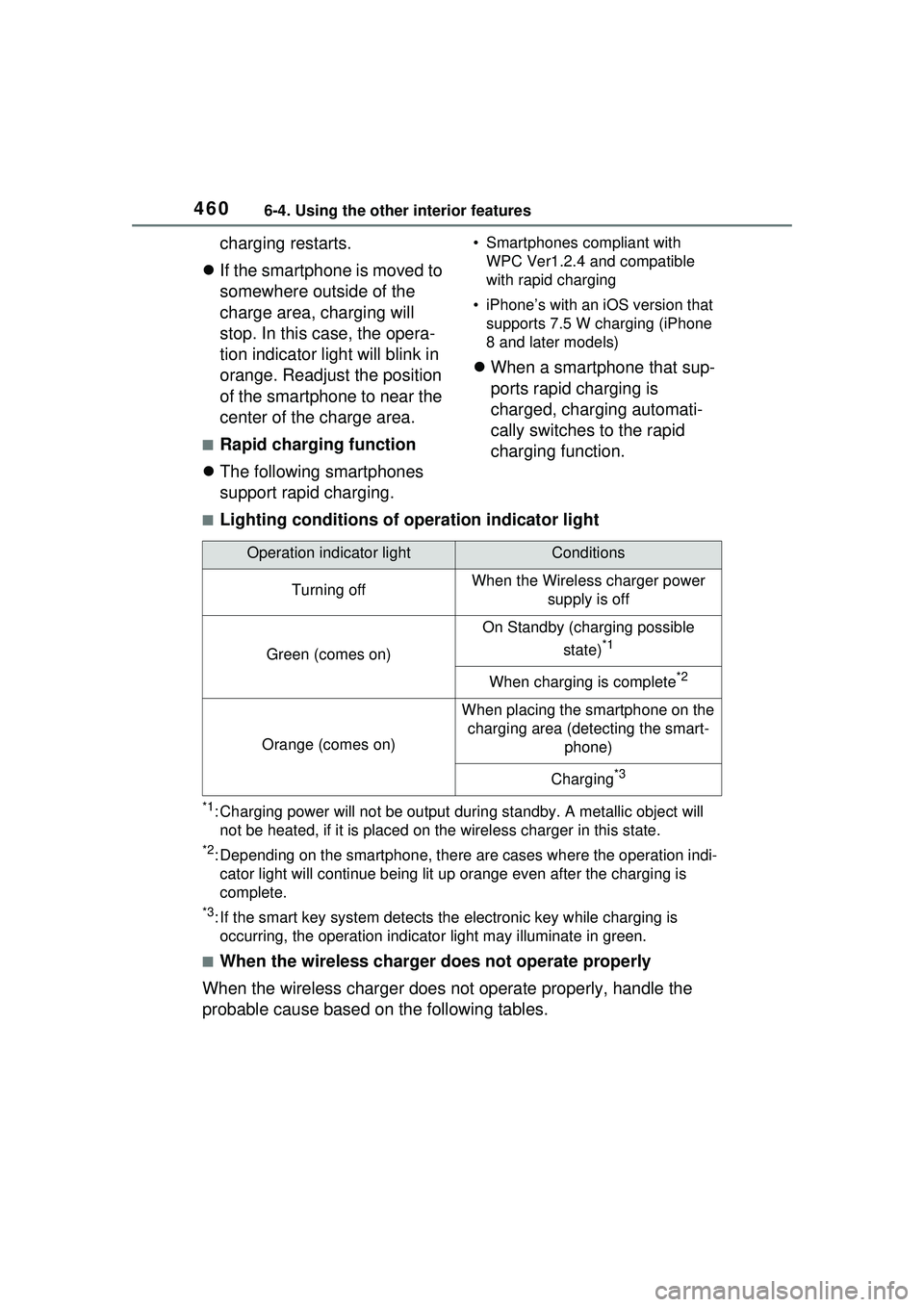
■Lighting conditions of operation indicator light
*1: Charging power will not be output du ring standby. A metallic object will
not be heated, if it is placed on the wireless charger in this state.
*2: Depending on the smartphone, there are cases where the operation indi- cator light will continue being lit up orange even after the charging is
complete.
*3: If the smart key system detects the electronic key while charging is
occurring, the operation indicato r light may illuminate in green.
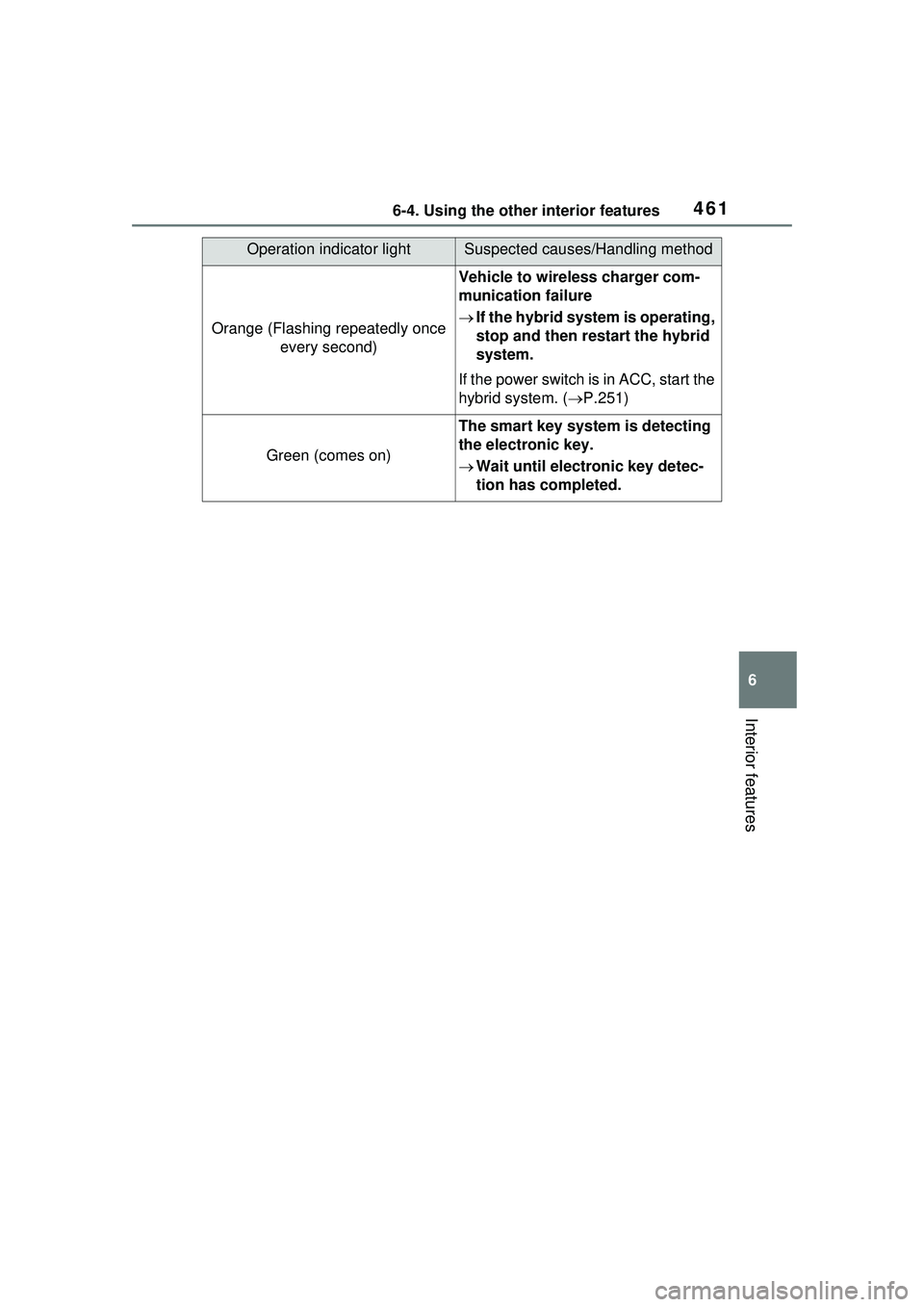
■When the wireless charger does not operate properly
When the wireless charger does not operate properly, handle the
probable cause based on the following tables.
Operation indicator lightConditions
Turning offWhen the Wireless charger power supply is off
Green (comes on)
On Standby (charging possible
state)
*1
When charging is complete*2
Orange (comes on)
When placing the smartphone on the charging area (detecting the smart- phone)
Charging*3
Page 461 of 680
4616-4. Using the other interior features
6
Interior features
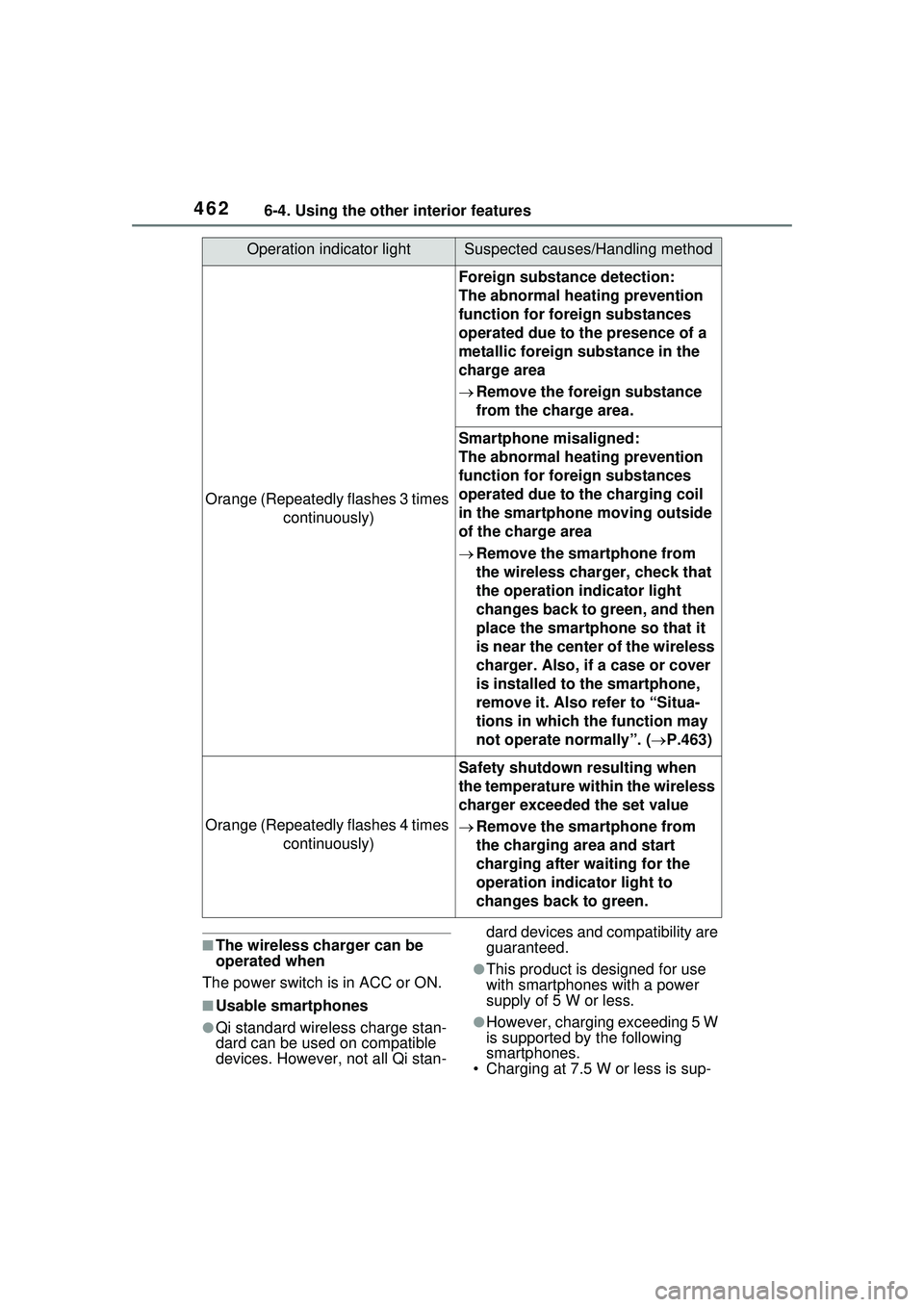
Operation indicator lightSuspected causes/Handling method
Orange (Flashing repeatedly once every second)
Vehicle to wireless charger com-
munication failure
If the hybrid system is operating,
stop and then restart the hybrid
system.
If the power switch is in ACC, start the
hybrid system. ( P.251)
Green (comes on)
The smart key system is detecting
the electronic key.
Wait until electronic key detec-
tion has completed.
Page 462 of 680
4626-4. Using the other interior features
■The wireless charger can be
operated when
The power switch is in ACC or ON.
■Usable smartphones
●Qi standard wireless charge stan-
dard can be used on compatible
devices. However, not all Qi stan- dard devices and compatibility are
guaranteed.
●This product is designed for use
with smartphones with a power
supply of 5 W or less.
●However, charging exceeding 5 W
is supported by the following
smartphones.
• Charging at 7.5 W or less is sup-
Orange (Repeatedly flashes 3 times
continuously)
Foreign substance detection:
The abnormal heating prevention
function for foreign substances
operated due to the presence of a
metallic foreign substance in the
charge area
Remove the foreign substance
from the charge area.
Smartphone misaligned:
The abnormal heating prevention
function for foreign substances
operated due to the charging coil
in the smartphone moving outside
of the charge area
Remove the smartphone from
the wireless charger, check that
the operation indicator light
changes back to green, and then
place the smartphone so that it
is near the center of the wireless
charger. Also, if a case or cover
is installed to the smartphone,
remove it. Also refer to “Situa-
tions in which the function may
not operate normally”. ( P.463)
Orange (Repeatedly flashes 4 times
continuously)
Safety shutdown resulting when
the temperature within the wireless
charger exceeded the set value
Remove the smartphone from
the charging area and start
charging after waiting for the
operation indicator light to
changes back to green.
Operation indicator lightSuspected causes/Handling method
Page 463 of 680
4636-4. Using the other interior features
6
Interior features
ported by iPhone’s that support
7.5 W charging.
• Charging at 10 W or less is sup-
ported by smartphones compliant
with EPP output as defined by
WPC standard Ver1.2.4.
■Using the smart key system
Charging will be suspended for the
smart key system to detect the elec-
tronic key during charging such as
when the electronic key has been
brought outside the vehicle. When
the electronic key is detected,
charging will automatically start
again.
■When covers and accessories
are attached to smartphones
Do not charge in situations where
cover and accessories not able to
handle Qi are attached to the smart-
phone. Depending on the type of
cover (including for certain genuine
manufacturer parts) and accessory,
it may not be possible to charge.
When charging is not performed
even with the smartphone placed on
the charge area, remove the cover
and accessories.
■When a smartphone is placed
on the charging area
The application may be opened
unintentionally such as when the
switch on the side of the smart-
phone is pressed. Prevent this from
occurring such as by changing your
smartphone settings as necessary.
■Noise enters the AM radio while
charging
●Turn off the wireless charger and
confirm that the noise has
decreased. If the noise
decreases, continuously pushing
the power supply switch of the
wireless charger for 2 seconds,
the frequency of the charger can
be changed and the noise can be
reduced.
Also, on that occasion, the opera-
tion indicator light will flash orange
2 times.
●iPhone’s use a particular fre-
quency for rapid charging.
Depending on the iOS version,
rapid charging may not be per-
formed while switching frequen-
cies.
■Important points of the wireless
charger
●If the electronic key cannot be
detected within the vehicle inte-
rior, charging cannot be done.
When the door is opened and
closed, charging may be tempo-
rarily suspended.
●When charging, the wireless
charging device and smartphone
will get warmer, however this is
not a malfunction.
When a smartphone gets warm
while charging, charging may stop
due to the protection function on
the smartphone side. In this case,
when the temperature of the
smartphone drops significantly,
charge again.
■Cleaning the wireless charger
P.491
■Situations in which the function
may not operate normally
Devices may not be charged nor-
mally in the following situations.
●The smartphone is fully charged
●The smartphone is being charged
with a cable connected
●There is foreign matter between
the charge area and smartphone
●Charging has caused the smart-
phone to heat up
●The temperature around the wire-
less charger is 95°F (35°C) or
higher, such as in extreme heat
●The smartphone is placed with its
charging side away from the wire-
less charger
●The smartphone is placed in an
area misaligned from the charge
area
●A foldable and smartphone is