service DODGE JOURNEY 2020 Manual PDF
[x] Cancel search | Manufacturer: DODGE, Model Year: 2020, Model line: JOURNEY, Model: DODGE JOURNEY 2020Pages: 396, PDF Size: 25.53 MB
Page 313 of 396
MULTIMEDIA 311
limitations). Our Internet radio service is available
throughout our satellite service area and in AK and
HI. © 2020 SiriusXM® Radio Inc. Sirius, XM and all
related marks and logos are trademarks of
SiriusXM® Radio Inc.
This functionality is only available for radios
eq
uipped with a Satellite receiver. To receive
satellite radio, the vehicle needs to be outside
with a clear view to the sky.
If the screen shows Acquiring Signal, you might
h a
ve to change the vehicle’s position to receive
a signal. In most cases, the satellite radio does
not receive a signal in underground parking
garages or tunnels.
No Subscription
Radios equipped with a Satellite receiver
r e
quire a subscription to the SiriusXM® Service.
When the Radio does not have the necessary
subscription, the Radio is able to receive the
Preview channel only.
Acquiring SiriusXM® Subscription
To activate the SiriusXM® Satellite Radio
s u
bscription, call 800-643-2112 (USA
residents) or 888-534-7474 (Canadian
Residents). You will need to provide the Sirius ID (ESN) located at the bottom of the Channel 0
screen.
The SiriusXM® Satellite Mode is activated by a
pr
ess of the SAT button on the touchscreen.
When in SiriusXM® Satellite mode:
The SAT button is highlighted.
The SiriusXM® Presets are displayed at the
top of the screen.
The Genre is displayed below the Presets
Bar.
The SiriusXM® Channel Number is displayed
in the center.
The Program Information is displayed at the
bottom of the Channel Number.
The SiriusXM® function buttons are
displayed below the Program Information.
Tuning is done by operating the Tune Knob or by
D i
rect Tune, similar to other Radio Bands, see
Presets, browse, Tune Knob, and Direct Tune.
In addition to the tuning Operation functions
c o
mmon to all Radio modes, the replay, Traffic/
Weather Jump, and Fav button functions are
available in SiriusXM® Mode. Replay
The replay function provides a means to store
a
n
d replay up to 22 minutes of music audio and
4 8
minutes of talk radio. Once the channel is
s w
itched, content in replay memory is lost.
Press the Replay button. The Play/Pause,
R e
wind/Forward and Live buttons will display at
the top of the screen, along with the replay time.
You can exit by pressing the Replay button any
t i
me during the Replay mode.
Play/Pause
Press the Pause/Play buttons to pause playing
of
the content at any time that the content is
playing live or rewound content. Play can be
resumed again by pressing the Pause/Play
button.
Rewind
Press the RW button to rewind the content in
s t
eps of five seconds. Pressing the RW button
for more than two seconds rewinds the content.
The Radio begins playing the content when the
RW button is released.
9
Page 334 of 396
332 MULTIMEDIA
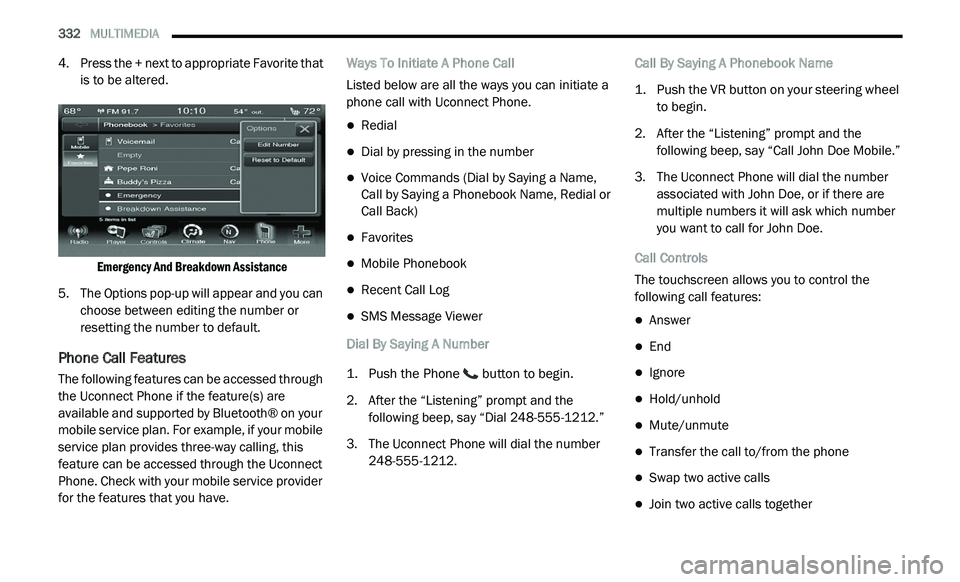
4. Press the + next to appropriate Favorite that
is to be altered.
Emergency And Breakdown Assistance
5. T he Options pop-up will appear and you can
c
hoose between editing the number or
resetting the number to default.
Phone Call Features
The following features can be accessed through
the Uconnect Phone if the feature(s) are
available and supported by Bluetooth® on your
mobile service plan. For example, if your mobile
service plan provides three-way calling, this
feature can be accessed through the Uconnect
Phone. Check with your mobile service provider
for the features that you have. Ways To Initiate A Phone Call
Listed below are all the ways you can initiate a
p
h
one call with Uconnect Phone.
Redial
Dial by pressing in the number
Voice Commands (Dial by Saying a Name,
Call by Saying a Phonebook Name, Redial or
Call Back)
Favorites
Mobile Phonebook
Recent Call Log
SMS Message Viewer
Dial By Saying A Number
1. P ush the Phone
button to begin.
2. A fter the “Listening” prompt and the
f
ollowing beep, say “Dial 248-555-1212.”
3. T he Uconnect Phone will dial the number
2
48-555-1212. Call By Saying A Phonebook Name
1. P
ush the VR button on your steering wheel
t
o begin.
2. A fter the “Listening” prompt and the
f
ollowing beep, say “Call John Doe Mobile.”
3. T he Uconnect Phone will dial the number
a
ssociated with John Doe, or if there are
multiple numbers it will ask which number
you want to call for John Doe.
Call Controls
The touchscreen allows you to control the
f o
llowing call features:
Answer
End
Ignore
Hold/unhold
Mute/unmute
Transfer the call to/from the phone
Swap two active calls
Join two active calls together
Page 336 of 396
334 MULTIMEDIA
Place/Retrieve A Call From Hold
During an active call, press the Hold button on
th
e Phone main screen.
Toggling Between Calls
If two calls are in progress (one active and one
o n
hold), press the Swap button on the Phone
main screen. Only one call can be placed on
hold at a time.
You can also push the Phone button to
toggle between the active and held phone call.
Join Calls
When two calls are in progress (one active and
on
e on hold), press the Join Calls button on the
Phone main screen to combine all calls into a
Conference Call.
Call Termination
To end an in-progress call, momentarily push
t h
e Phone button or press the End button on
the touchscreen. Only the active call(s) will be
t e
rminated and if there is a call on hold, it will
become the new active call. Redial
Press the Redial button on the touchscreen, or
p
u
sh the VR button and after the “Listening”
prompt and the following beep, say “Redial.”
The Uconnect Phone will call the last number
t h
at was dialed from your mobile phone.
Call Continuation
Call continuation is the progression of a phone
c a
ll on the Uconnect Phone after the vehicle
ignition has been switched to Off.
NOTE:
The call will remain within the vehicle audio
sy
stem until the phone becomes out of range
for the Bluetooth® connection. It is recom -
mended to press the Transfer button on the
t o
uchscreen when leaving the vehicle.
Uconnect Phone Features
Emergency Assistance
If you are in an emergency and the mobile
ph
one is reachable:
Pick up the phone and manually dial the
emergency number for your area. If the phone is not reachable and the Uconnect
P
h
one is operational, you may reach the
emergency number as follows:
1. P ush the Phone
button to begin.
2. A fter the “Listening” prompt and the
f
ollowing beep, say “Dial Emergency” and
the Uconnect Phone will instruct the paired
mobile phone to call the emergency
number. This feature is supported in the US,
Canada, and Mexico.
NOTE:
The Emergency call may also be initiated by
using the touchscreen.
The emergency number dialed is based on the
country where the vehicle is purchased (911
for the US and Canada and 060 for Mexico).
The number dialed may not be applicable with
the available mobile service and area.
The Uconnect Phone does slightly lower your
chances of successfully making a phone call
as to that for the mobile phone directly.
Page 337 of 396
MULTIMEDIA 335
Roadside Assistance/Towing Assistance
If you need roadside/towing assistance:
1. Push the Phone
button to begin.
2. A fter the “Listening” prompt and the
f
ollowing beep, say “Roadside Assistance”
or say “Towing Assistance.”
NOTE:
The roadside/towing assistance number dialed
i s
based on the country where the vehicle is
purchased (1-800-521-2779 for the U.S.,
1-800-363-4869 for Canada, 55-14-3454 for
Mexico City, and 1-800-712-3040 for outside
Mexico City in Mexico). Please refer to the FCA
US LLC 24-Hour “Roadside Assistance”
coverage details in the Warranty Information
Booklet. Working With Automated Systems
This method is used in instances where one
g
e
nerally has to push numbers on the mobile
phone keypad while navigating through an
automated telephone system.
You can use your Uconnect Phone to access a
v o
ice mail system or an automated service,
such as a paging service or automated
customer service line. Some services require
immediate response selection. In some
instances, that may be too quick for use of the
Uconnect Phone.
When calling a number with your Uconnect
P h
one that normally requires you to enter in a
touch-tone sequence on your mobile phone
keypad, you can utilize the touchscreen or push
the Voice Command button and say the word
“Send” then the sequence you wish to enter.
F o
r example, if required to enter your PIN
followed with a pound, (3 7 4 6 #), you can push
the Voice Command button and say, “Send
3 7 4 6 #.” Saying “Send” followed by a number,
o r
sequence of numbers, is also to be used for
navigating through an automated customer
service center menu structure, and to leave a
number on a pager.
You can also send stored mobile phonebook
e
n
tries as tones for fast and easy access to voice
mail and pager entries. For example, if you
previously created a Phonebook entry with First
and/or Last Name as “Voicemail Password”, then
if you push the Voice Command button and
say “Send Voicemail Password” the Uconnect
P h
one will then send the corresponding phone
number associated with the phonebook entry, as
tones over the phone.
NOTE:
The first number encountered for that
contact will be sent. All other numbers
entered for that contact will be ignored.
You may not hear all of the tones due to
mobile phone network configurations.
This is normal.
Some paging and voice mail systems have
system time-out settings that are too short
and may not allow the use of this feature.
Pauses, wait or other characters that are
supported by some phones are not
supported over Bluetooth®. These additional
symbols will be ignored in the dialing a
numbered sequence.
WARNING!
Your phone must be turned on and connected
to the Uconnect Phone to allow use of this
vehicle feature in emergency situations, when
the mobile phone has network coverage and
stays connected to the Uconnect Phone.
9
Page 343 of 396
MULTIMEDIA 341
Using The On-Screen Buttons
Press and hold to quickly return to the
main menu.
Press and to see more choices.
Press and hold and to scroll faster.
Finding A Point Of Interest
The detailed maps loaded in your navigation
s y
stem contain points of interest, such as
restaurants, hotels and auto services.
1. Fr om the main menu, press
W
here To? >
Points of Interest
.
2. S elect a category.
3
. I f necessary, select a subcategory.
4
. S elect a destination.
5
. P ress Go!
F
inding A Location By Spelling The Name
1. Fr om the main menu, press
W
here To? >
Points of Interest > Spell Name
.
2. E nter all or part of the name.
3
. P ress Done . 4
. S
elect a destination.
5
. P ress Go!
U
sing The On-screen Keyboard
Press a character on the keyboard to enter a
letter or number.
Press “Space” to add a space.
Press to delete a character.
Press and hold to erase the entire entry.
Press to select the keyboard language
mode.
Press to enter special characters, such as
punctuation marks.
Adding Points To The Active Route
1. W hile navigating a route, press
to return
to the main menu.
2. F rom the main menu, press W
here To?
3. S elect a category.
4
. I f necessary, select a subcategory.
5
. S elect a destination. 6
. P
ress Go!
7
. P ress Add as a Via Point .
C
hanging The Destination Of The Active Route
Before you can change destinations you must
b e
navigating a route.
1. P ress
to return to the main menu.
2. P ress Where To?
3
. S earch for the location.
4
. P ress Go!
5
. P ress Set as a New Destination .
T
aking A Detour
While navigating a route, you can use detours to
a v
oid obstacles ahead of you, such as
construction zones.
NOTE:
If the route you are currently taking is the only
re
asonable option, the navigation system might
not calculate a detour.
1. W hile navigating a route, press .
2
. F rom the main menu, press D
etour.
9
Page 351 of 396
MULTIMEDIA 349
Viewing The Junction View
Before you can view the junction view, you must
be
navigating a route.
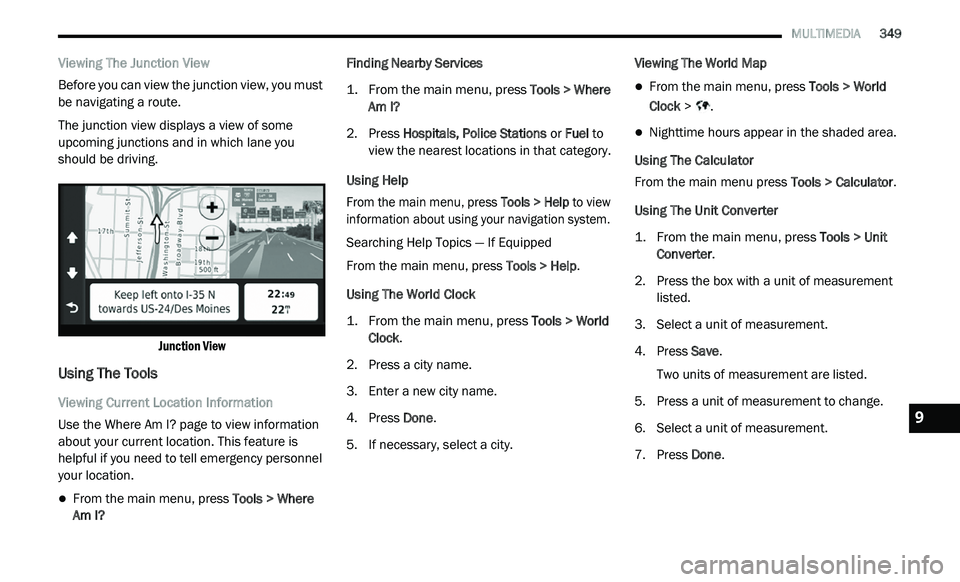
The junction view displays a view of some
u p
coming junctions and in which lane you
should be driving.
Junction View
Using The Tools
Viewing Current Location Information
Use the Where Am I? page to view information
ab
out your current location. This feature is
helpful if you need to tell emergency personnel
your location.
From the main menu, press Tools > Where
Am I? Finding Nearby Services
1. Fr
om the main menu, press
T
ools > Where
Am I?
2. P ress Hospitals, Police Stations
or Fuel to
view the nearest locations in that category.
Using Help
From the main menu, press To
ols > Help to view
information about using your navigation system.
Searching Help Topics — If Equipped
From the main menu, press To
ols > Help.
Using The World Clock
1. From the main menu, press
T
ools > World
Clock
.
2. P ress a city name.
3
. E nter a new city name.
4
. P ress Done .
5
. I f necessary, select a city. V
iewing The World Map
From the main menu, press
Tools > World
Clock > .
Nighttime hours appear in the shaded area.
Using The Calculator
From the main menu press T
o
ols > Calculator.
Using The Unit Converter
1. From the main menu, press
T
ools > Unit
Converter
.
2. P ress the box with a unit of measurement
l
isted.
3. S elect a unit of measurement.
4
. P ress Save .
T
wo units of measurement are listed.
5. Press a unit of measurement to change.
6
. S elect a unit of measurement.
7
. P ress Done .9
Page 352 of 396
350 MULTIMEDIA
8. Repeat steps 5 and 6, if necessary.
9. Enter a value.
1
0. P ress Done .
S
etting Currency Conversion Rates Manually
You can update the currency conversion rates
m a
nually so that you are always using the most
current rates.
1. Fr om the main menu press
T
ools > Unit
Converter
.
2. P ress the box with a currency listed.
3
. S elect C
urrency.
4. P ress Save .
5
. P ress a currency box.
6
. S elect the currency you want to update.
7
. R epeat steps 3-6 to select a currency to
c
onvert to, if necessary.
8. P ress a box under a currency.
9
. E nter a new value for the currency.
1
0. P ress Done .
1
1. R epeat steps 8 and 9, if necessary.
Traffic
Notice
Garmin® is not responsible for the accuracy or
ti
meliness of the traffic information. Your
navigation system may receive traffic content
via Satellite Radio service in North America or
via FM broadcast in other regions.
About The Traffic Icon
When you are receiving traffic information, a
t r
affic icon appears on the map. The traffic icon
changes color to indicate the severity of traffic
conditions. Traffic On Your Route
When calculating your route, the navigation
s
y
stem examines the current traffic and
automatically optimizes the route for the
shortest time. If a severe traffic delay occurs
on your route while you are navigating, the
n a
vigation system automatically recalculates
the route.
You might still be routed through traffic if no
b e
tter alternative routes exist.
Manually Avoiding Traffic On Your Route
1. Fr om the map press the .
2
. P ress Traffic On Route .
3
. I f necessary, press the arrows to view other
t
raffic delays on your route.
4. P ress Avoid .
V
iewing The Traffic Map
The traffic map shows color-coded traffic flow
a n
d delays on nearby roads.
1. Fr om the map press .
2
. P ress Traffic Map
to view the traffic
incidents on a map.
Color
Description
Meaning
GreenLow severity Traffic is flowing freely.
Yellow Medium
s
e
verity Traffic is moving but
t
h
ere is a delay. There
is moderate traffic
congestion.
Red High severity Traffic is not moving or
m
o
ving very slowly.
There is a severe
delay.
Gray No data Traffic information is
n
o
t available.
Page 356 of 396
354 MULTIMEDIA
Custom Points of Interest (POIs)
NOTE:
Custom POI files must be named “poi.gpi”. and
l o
cated on the USB storage device in a folder
named “POI” within a folder named “Garmin®”
(Garmin®/POI/).
You can manually load custom POI databases,
av
ailable from various companies on the
Internet. Some custom POI databases contain
alert information for points such as safety
cameras and school zones. The navigation
system can notify you when you approach one
of these points. You are responsible for
ensuring that your use of safety camera
information is lawful in your area. NOTE:
Each time you load custom POIs to the naviga -
tion system, any other custom POIs already
s a
ved in the system will be overwritten.
Finding Custom POIs
You can view a list of the custom POIs loaded in
y o
ur navigation system.
Press Where To? > Extras > Custom POIs .Deleting Custom POIs
1. P
ress
T
ools > My Data > Delete Custom
POI(s)
.
2. P ress Yes
to confirm.
NOTE:
All custom POIs will be deleted from your navi -
gation system.
Saving Trip Logs
Trip logs are recorded while you navigate a
r o
ute.
SiriusXM® Travel Link (US Market Only)
Now, in addition to delivering over 130 channels
of the best sports, entertainment, talk and
commercial-free music, SiriusXM® now offers
premium infotainment services that work in
conjunction with compatible navigation systems.
To access SiriusXM® Travel Link, press the
ME
NU button then press the Travel Link button.
CAUTION!
Garmin® and FCA US LLC are not responsible
for the consequences of using custom POI
databases, or for the accuracy of custom POI
databases.
After downloading your POI database, use the
Ga
rmin® POI Loader to install the POIs onto a
USB mass storage device. Use the USB mass
storage device to load the POIs. The POI
Loader is available at
garmin.com/products/
poiloader
. Refer to the POI Loader Help file for
more information; click H
e
lp to open the Help
file. The file name can only be POI.gpi. No other
file name or extension should be used.
Page 357 of 396
MULTIMEDIA 355
SiriusXM® Travel Link brings a wealth of useful
information into your vehicle and right to your
fingertips:
Fuel Prices
Check detailed price information for fuel
stations near your current location.
Sort the list of closest fuel stations by price,
distance or alphabetically.
Route to selected fuel station.
Store a favorite fuel station for quick access
to pricing.
Movie Listings
Check which movies are playing at theaters
near your current location.
Sort the list of theaters by distance or alpha -
betically.
Show movie titles, start times, ratings, run
length, and summaries.
Store a favorite theater for quick access to
schedules. Ski Info
View ski and snowboarding conditions at ski
resorts.
Store a favorite location for quick access to
snow conditions.
Sports Scores
View scores and upcoming events for all
major sports.
Store your favorite teams for quick access to
the scores and schedules.
NOTE:
SiriusXM® Travel Link data services subscrip -
tion is separate from your SiriusXM® Satellite
R a
dio (audio) subscription.
SiriusXM® services require subscriptions, sold
s e
parately after the 12-month trial included
with the new vehicle purchase. If you decide to
continue your service at the end of your trial
subscription, the plan you choose will automatically renew and bill at then-current
rates until you call SiriusXM at 866-635-2349
to cancel.
See SiriusXM® Customer Agreement for
c
o
mplete terms for U.S. residents at
www.siriusxm.com , and Canadian residents at
www.siriusxm.ca . All fees and programming
subject to change. Our satellite service is
a v
ailable only to those at least 18 and older in
the 48 contiguous USA and D.C. Our Sirius
satellite service is also available in PR (with
coverage limitations). Our Internet radio service
is available throughout our satellite service area
and in AK and HI. © 2020 Sirius XM Radio Inc.
Sirius, XM and all related marks and logos are
trademarks of SiriusXM® Radio Inc.
Weather
View detailed current conditions at your
current location.
Check extended 12-hour and 5-day fore -
casts.
Store a favorite location for quick access to
weather conditions and forecasts.
CAUTION!
Neither SiriusXM nor FCA US LLC is
responsible for any errors in accuracies in the
SiriusXM data services or its use in vehicles.
9
Page 358 of 396
356 MULTIMEDIA
End-User License Agreement
Software License Agreement
BY USING THE NAVIGATION SYSTEM, YOU
AG
REE TO BE BOUND BY THE TERMS AND
CONDITIONS OF THE FOLLOWING SOFTWARE
LICENSE AGREEMENT. PLEASE READ THIS
AGREEMENT CAREFULLY.
Garmin® Ltd. and its subsidiaries (“Garmin®”)
gr
ant you a limited license to use the software
embedded in this device (the “Software”) in
binary executable form in the normal operation
of the product. Title, ownership rights, and
intellectual property rights in and to the
Software remain in Garmin® and/or its
third-party providers.
You acknowledge that the Software is the
p r
operty of Garmin® and/or its third-party
providers and is protected under the United
States of America copyright laws and
international copyright treaties. You further
acknowledge that the structure, organization,
and code of the Software, for which source code
is not provided, are valuable trade secrets of
Garmin® and/or its third-party providers and that
the Software in source code form remains a
valuable trade secret of Garmin® and/or its
third-party providers. You agree not to decompile, disassemble, modify, reverse assemble, reverse
engineer, or reduce to human readable form the
Software or any part thereof or create any
derivative works based on the Software. You
agree not to export or re-export the Software to
any country in violation of the export control laws
of the United States of America or the export
control laws of any other applicable country.
The Garmin® device you have purchased
(
“
Device”), or the download that you are making
(the “Download”), may contain an application,
content, or both. If a Device, the software
embedded in it (the “Software”), or if a Download,
the application, including its embedded software
(collectively, the “Application”) is owned by
Garmin® Ltd. or its subsidiaries (collectively,
“Garmin®”). The map data that may be
embedded in your Device, the Application or
downloaded separately (the “Map Data”) is either
owned by Garmin®, or by HERE North America
LLC and/or its affiliates (“HERE”) or another third
party and is licensed to Garmin®. Garmin® also
owns, or licenses from third party providers,
information, traffic data, text, images, graphics,
photographs, audio, video, images and other
applications and data that may be embedded
in the Device or Application, or downloaded
s e
parately (“Other Content”). The Map Data and Other Content are collectively the “Content”. The
Software, Application and Content (collectively,
the “Garmin® Products”) are protected under
copyright laws and international copyright
treaties. The Garmin® Products are licensed, not
sold. The structure, organization and code of the
Software and Application are valuable trade
secrets of Garmin® and/or its third-party
providers. The Garmin® Products are each
provided under this License Agreement and are
subject to the following terms and conditions
which are agreed to by End User (“you” or “your”),
on the one hand, and Garmin® and its licensors
and affiliated companies of Garmin® and its
licensor, on the other hand. Garmin’s® licensors,
including the licensors, service providers,
channel partners, suppliers and affiliated
companies of Garmin® and its licensors, are
each a direct and intended third party beneficiary
of this Agreement and may enforce their rights
directly against you in the event of your breach of
this Agreement.
IMPORTANT:
C
AREFULLY READ THIS ENTIRE
LICENSE AGREEMENT BEFORE PURCHASING
OR USING YOUR DEVICE OR DOWNLOADED
APPLICATION OR CONTENT. PURCHASING,
INSTALLING, COPYING, OR OTHERWISE USING
YOUR DEVICE OR DOWNLOADED APPLICATION