Audio JAGUAR XF 2009 1.G Repair Manual
[x] Cancel search | Manufacturer: JAGUAR, Model Year: 2009, Model line: XF, Model: JAGUAR XF 2009 1.GPages: 391, PDF Size: 19.32 MB
Page 303 of 391
303
Portable audio
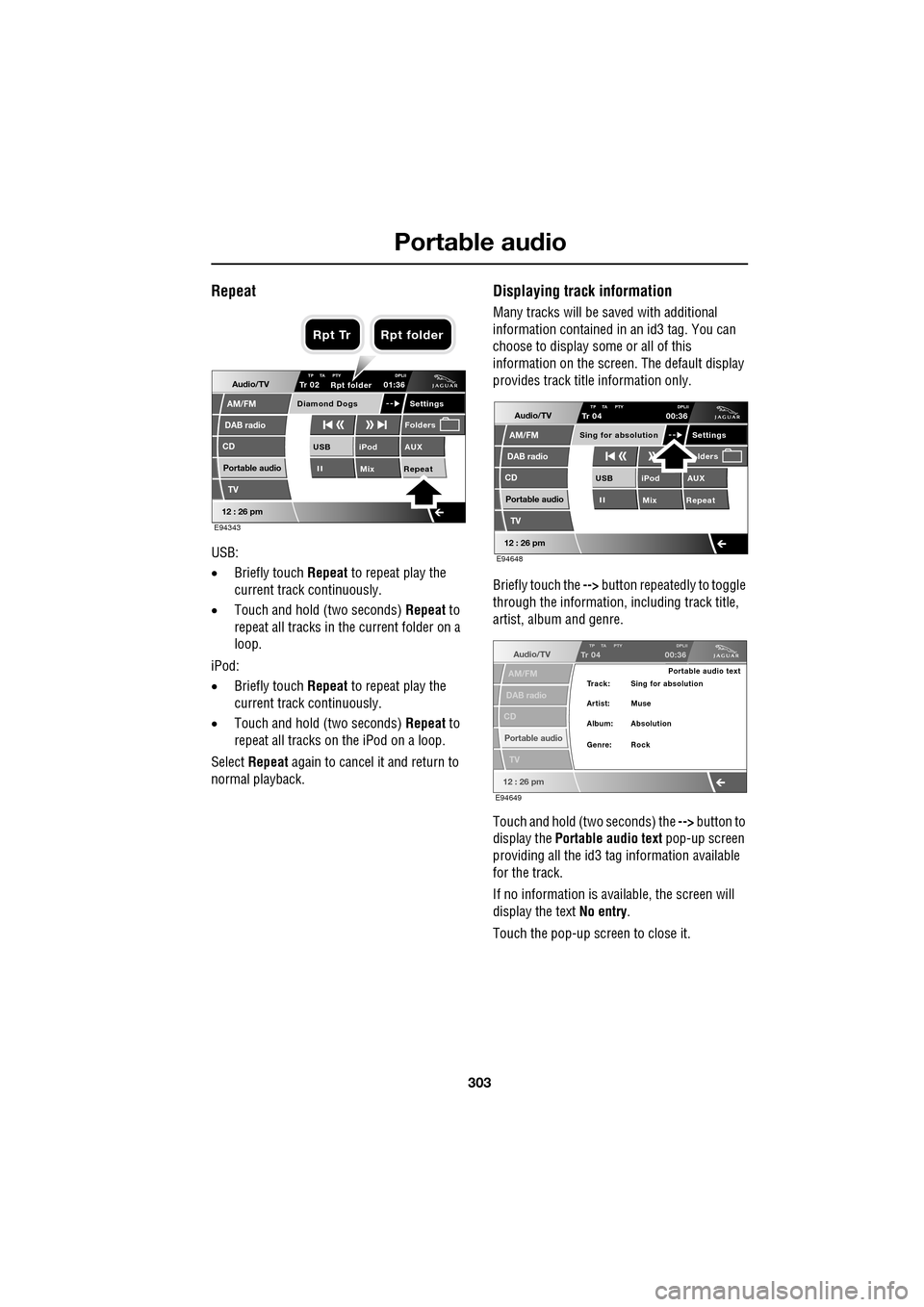
Repeat
USB:
•Briefly touch Repeat to repeat play the
current track continuously.
• Touch and hold (two seconds) Repeat to
repeat all tracks in the current folder on a
loop.
iPod:
• Briefly touch Repeat to repeat play the
current track continuously.
• Touch and hold (two seconds) Repeat to
repeat all tracks on the iPod on a loop.
Select Repeat again to cancel it and return to
normal playback.
Displaying track information
Many tracks will be saved with additional
information contained in an id3 tag. You can
choose to display some or all of this
information on the screen. The default display
provides track title information only.
Briefly touch the --> button repeatedly to toggle
through the information, including track title,
artist, album and genre.
Touch and hold (two seconds) the --> button to
display the Portable audio text pop-up screen
providing all the id3 ta g information available
for the track.
If no information is available, the screen will
display the text No entry.
Touch the pop-up screen to close it.
Audio/TV
DAB radio
CD
AM/FM
12 : 26 pm
iPod AUX
Mix RepeatUSB
Settings
Folders
TP TA PTY DPLIITr 02
Portable audio
TV
Diamond Dogs
01:36
E94343
Rpt folder
Rpt Tr Rpt folder
Audio/TV
DAB radio
CD
AM/FM
12 : 26 pm
iPod AUX
Mix RepeatUSB
Settings lders
TP TA PTY DPLIITr 04
Portable audio
TV
Sing for absolution
00:36
E94648
Audio/TV
DAB radio
CD
AM/FM
12 : 26 pm
TP TA PTY DPLIITr 04
Portable audio
TV
00:36
Portable audio text
Artist: Muse Track: Sing for absolution
Genre: Rock Album: Absolution
E94649
Page 304 of 391
Portable audio
304
Searching a portable device
Next/previous track
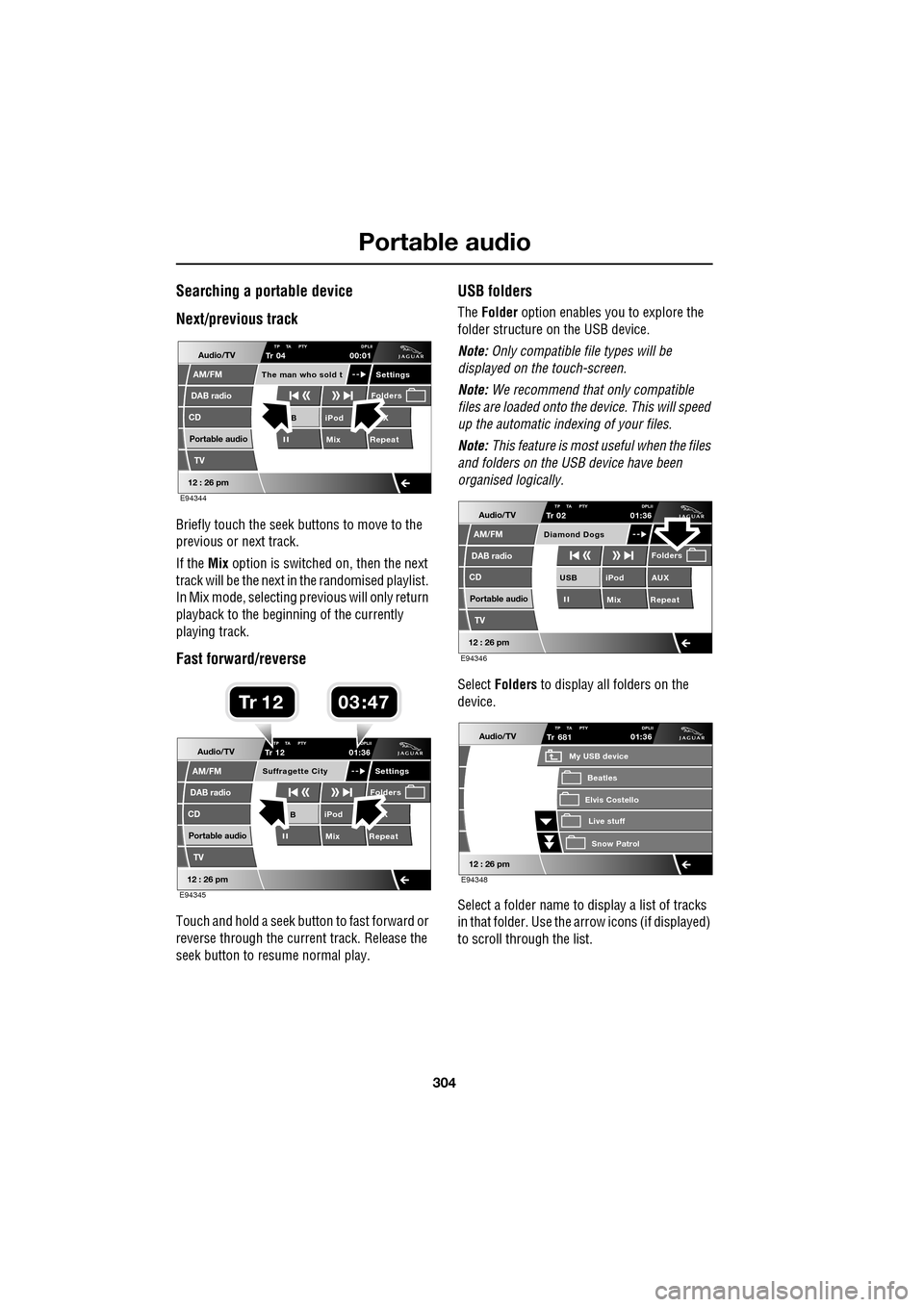
Briefly touch the seek buttons to move to the
previous or next track.
If the Mix option is switched on, then the next
track will be the next in the randomised playlist.
In Mix mode, selecting previous will only return
playback to the beginning of the currently
playing track.
Fast forward/reverse
Touch and hold a seek button to fast forward or
reverse through the current track. Release the
seek button to resume normal play.
USB folders
The Folder option enables you to explore the
folder structure on the USB device.
Note: Only compatible file types will be
displayed on the touch-screen.
Note: We recommend that only compatible
files are loaded onto the device. This will speed
up the automatic indexing of your files.
Note: This feature is most useful when the files
and folders on the USB device have been
organised logically.
Select Folders to display all folders on the
device.
Select a folder name to display a list of tracks
in that folder. Use the arrow icons (if displayed)
to scroll through the list.
Audio/TV
DAB radio
CD
AM/FM
12 : 26 pm
iPod X
Mix RepeatB
Settings
Folders
TP TA PTY DPLIITr 04
Portable audio
TV
The man who sold t
00:01
E94344
Audio/TV
DAB radio
CD
AM/FM
12 : 26 pm
iPod X
Mix RepeatB
Settings
Folders
TP TA PTY DPLIITr 12
Portable audio
TV
Suffragette City
01:36
E94345
03 47Tr 1 2
Audio/TV
DAB radio
CD
AM/FM
12 : 26 pm
iPod AUX
Mix RepeatUSB
Folders
TP TA PTY DPLIITr 02
Portable audio
TV
Diamond Dogs
01:36
E94346
Audio/TV
12 : 26 pm
Tr
Elvis Costello
My USB device
Live stuffSnow Patr ol
Beatles
681TP TA PTY DPLII01:36
E94348
Page 305 of 391
305
Portable audio
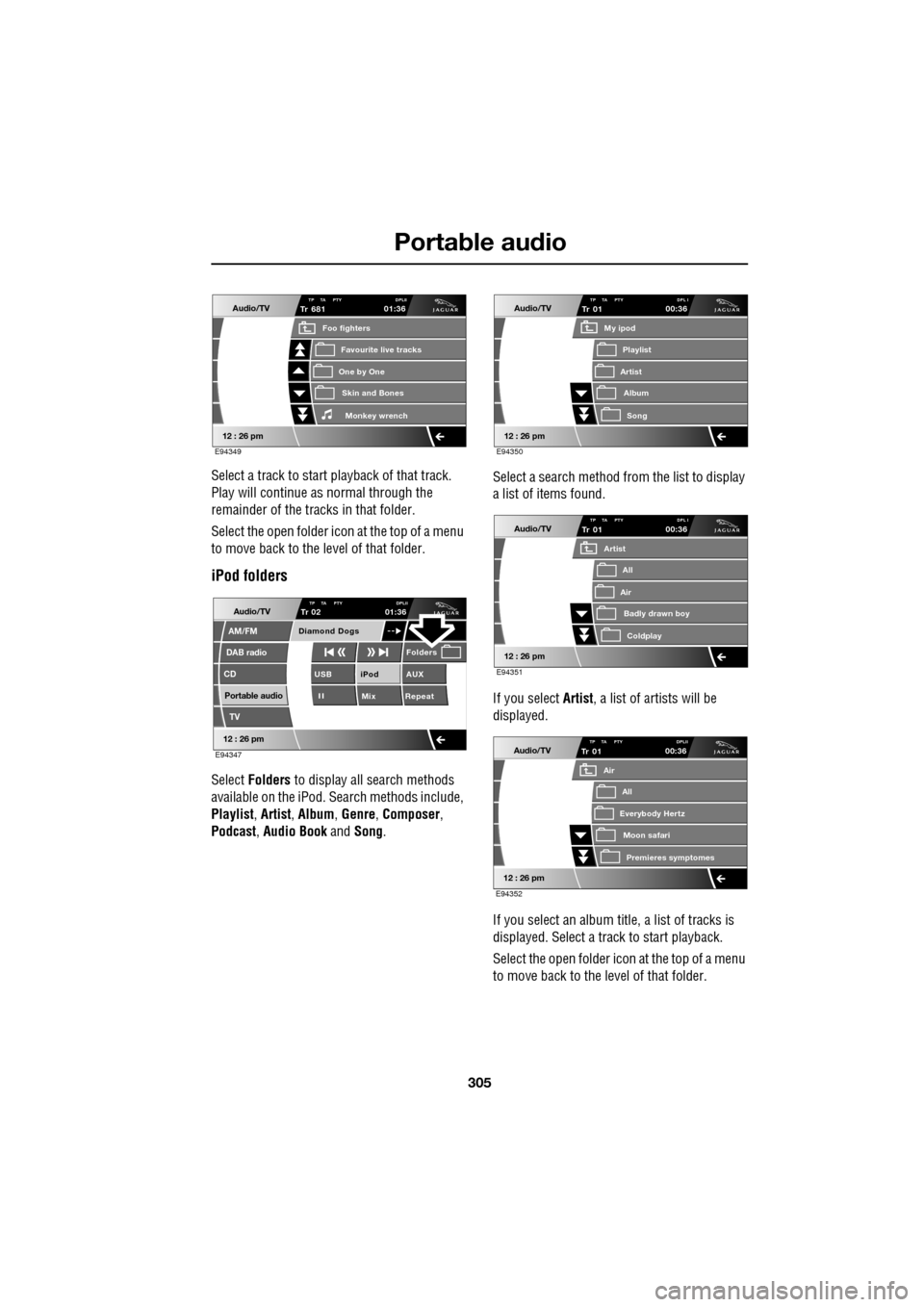
Select a track to start playback of that track.
Play will continue as normal through the
remainder of the tracks in that folder.
Select the open folder icon at the top of a menu
to move back to the level of that folder.
iPod folders
Select Folders to display all search methods
available on the iPod. Search methods include,
Playlist , Artist , Album , Genre , Composer ,
Podcast , Audio Book and Song. Select a search method from the list to display
a list of items found.
If you select Artist
, a list of artists will be
displayed.
If you select an album title, a list of tracks is
displayed. Select a track to start playback.
Select the open folder icon at the top of a menu
to move back to the level of that folder.
Audio/TV
12 : 26 pm
Tr
One by One
Foo fighters
Skin and BonesMonkey wr ench
Favourite live tracks
681TP TA PTY DPLII01:36
E94349
Audio/TV
DAB radio
CD
AM/FM
12 : 26 pm
iPod AUX
Mix RepeatUSB
Folders
TP TA PTY DPLIITr 02
Portable audio
TV
Diamond Dogs
01:36
E94347
Audio/TV
12 : 26 pm
Tr
Artist
My ipod
AlbumSong
Playlist
01TP TA PTY DPL I00:36
E94350
Audio/TV
12 : 26 pm
Tr
Air
Artist
Badly drawn boyColdplay
All
01TP TA PTY DPL I00:36
E94351
Audio/TV
12 : 26 pm
Tr
Everybody Hertz
Air
Moon safariPr emier
es symptomes
All
01TP TA PTY DPLII00:36
E94352
Page 306 of 391
Portable audio
306
Portable device settings
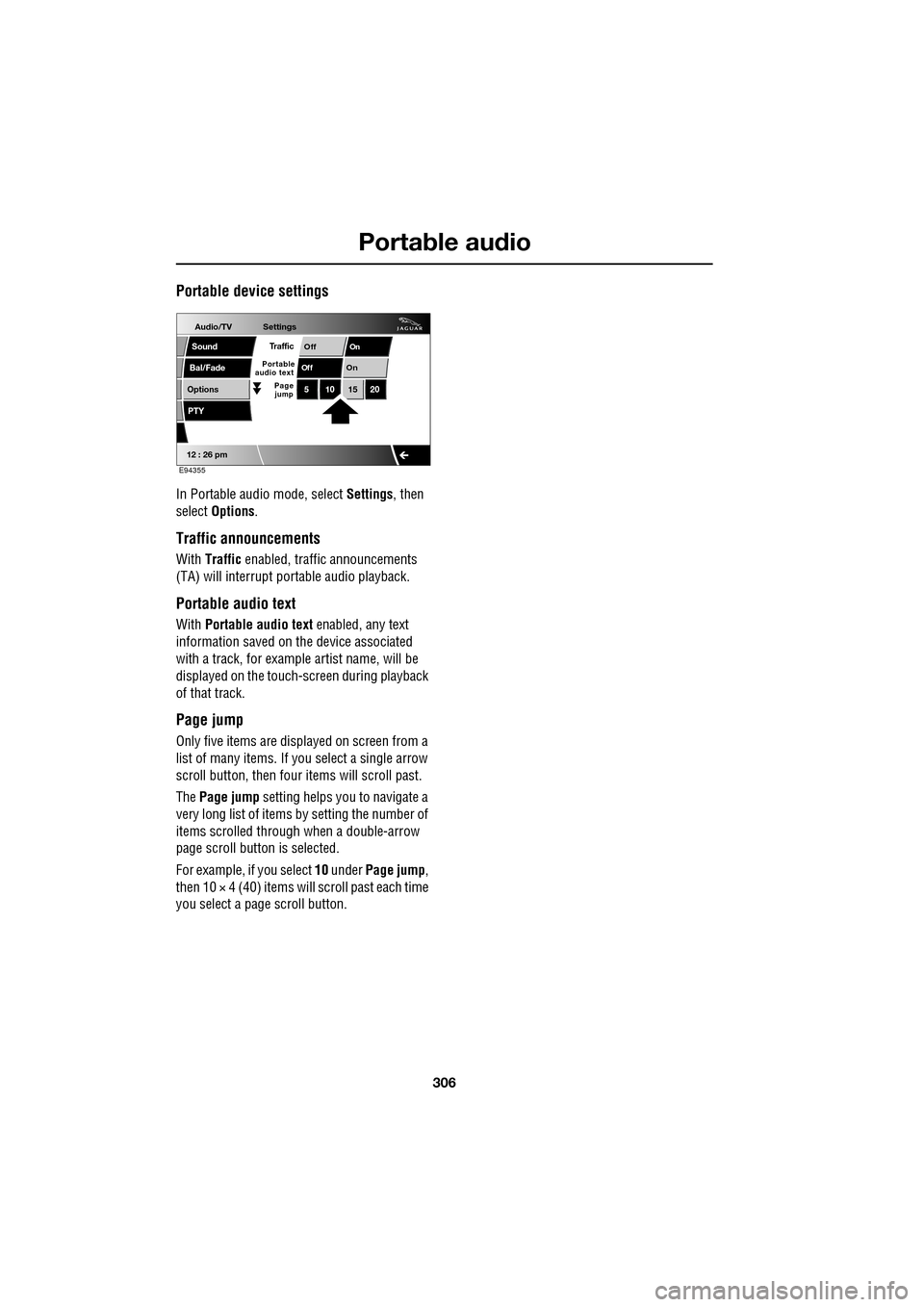
In Portable audio mode, select Settings, then
select Options .
Traffic announcements
With Traffic enabled, traffic announcements
(TA) will interrupt por table audio playback.
Portable audio text
With Portable audio text enabled, any text
information saved on the device associated
with a track, for example artist name, will be
displayed on the touch- screen during playback
of that track.
Page jump
Only five items are displayed on screen from a
list of many items. If yo u select a single arrow
scroll button, then four items will scroll past.
The Page jump setting helps you to navigate a
very long list of items by setting the number of
items scrolled through when a double-arrow
page scroll butto n is selected.
For example, if you select 10 under Page jump ,
then 10 × 4 (40) items will scroll past each time
you select a pa ge scroll button.
Audio/TV
Bal/Fade
Options
Sound
12 : 26 pm
Settings
OnOff
On
Of f
PTY
510 1520
Traffic
Portable
audio text
Page
jump
E94355
Page 307 of 391
307
Telephone
GENERAL INFORMATIONNote: The vehicle telephone system is
designed to function with a wide variety of
Bluetooth® telephones.
As these telephones have a wide range of audio
and echo characteristics, it may take a few
seconds for the vehicle telephone system to
adapt and deliver optimum audio performance.
It may be necessary to reduce the in-vehicle
volume slightly, to fully optimise audio
performance and reduce echo.
In order to achieve th e best possible audio
performance, it may be necessary to select a
lower speed on the heat er blower and reduce
the system volume slightly, when using certain
mobile phones.
Telephone networks
The telephone network standard allows you to
use your telephone in many countries.
However, telephone rece ption may be poor or
unavailable in remote re gions. This may be due
to the inadequate power of the transmitter,
which results in a weak signal or incomplete
coverage.
What is Bluetooth®?
Jaguar Bluetooth® Connectivity was
developed to be used wi th a selected range of
mobile phones, from a number of different
manufacturers. Some mobile phones feature
different operating soft ware versions - the
correct version is needed for successful
integration with the Jaguar Bluetooth®
system.
Bluetooth is an intern ational standard that
allows electronic com ponents to communicate
with each other, using a short-range radio link.
Bluetooth eliminates the need for wires or
cables: Typically, devices can communicate at
a range of up to 10 metres (33 feet).
WARNING
Using the telephone near the car: Do
not telephone inside a garage or near
an open car bonnet. The air may
contain fuel vapours a nd the telephone could
produce sparks and start a fire.
Unusual ambient conditions: Switch
off the telephone in areas where high
explosives are being used. High
frequency remote controls could be interfered
with and cause an explos ion. Switch off your
telephone in areas with a high explosion risk.
This includes filling st ations, fuel storage
areas or chemical factories, as well as places
where the air contains fuel vapour, chemicals
or metal dust. The telephone might produce
sparks and cause a fire or explosion.
Medical equipment: The functioning
of cardiac pacemakers or hearing aids
may be impaired when the phone is in
use. Check with a doctor or manufacturer
whether any such devices you or your
passengers are using, are sufficiently
protected against high-frequency energy.
Always stow your mobile phone
securely. In an accident, loose items
can cause injury.
Using any hand-held appliance while
driving, can be dangerous and is
illegal in cert ain countries.
Page 308 of 391
Telephone
308
The Bluetooth in-car telephone system allows
certain mobile phones to be used hands-free in
your vehicle. There is no need to connect the
mobile phone to a cradle or cable.
Bluetooth® is a registered trademark of
Bluetooth SIG, Inc.
Please refer to the Owner section of the Jaguar
website at www.jaguar.com , for a list of
compatible phones. Altern atively, please refer
to your Dealer/Authorised Repairer.
Note: The Bluetooth technology phones listed
on Jaguar.com, have been tested for
compatibility with Jaguar vehicles.
Performance will vary, based on phone
software version, covera ge and your wireless
carrier. Phones are warranted by their
manufacturer, not Jaguar.
If your mobile phone battery charge becomes
low it may switch off its Bluetooth link to the
vehicle. This is normal operation for mobile
phones, to help preserve the remaining battery
charge. In this event, the touch-screen will
display a phone connection message.
The mobile phone must be paired and docked
with the vehicle system before use.
See TELEPHONE PAIRING AND DOCKING
(page 309). Once paired and docked, the
phone can be operated via the steering wheel
switches or the touch-screen. The mobile
phone doesn’t need to be physically connected
to the vehicle, it can be left in a jacket pocket,
for instance. Calls are routed through the
vehicle’s audio speake rs, and a dedicated
microphone is fitted within the overhead
console and is directionally biased towards the
driver.
You can use the system to answer or reject
incoming calls, make outgoing calls or alter the
call volume. The system does not support SMS
text messaging. Note:
The vehicle ignition system must be on
and the touch-screen system must be active, in
order to use the phone.
Call volume
The volume of telephone calls can be adjusted
for hands-free operation. To adjust the volume,
operate the audio system’s volume control
during a phone call.
If the audio system is in use when the phone
becomes active, the audio system source is
suppressed for the duration of the call.
Charging your phone
It is possible to use the in-car 12V/USB socket
to charge your mobile phone. Refer to the
mobile phone operating instructions for
charging information.
Page 310 of 391
Telephone
310
6.When the vehicle's Bluetooth system is
discovered, your mob ile phone will list
Jaguar as a discovered Bluetooth device.
Select this device from the list.
7. You will now be requested to enter a
Bluetooth PIN. When pairing and docking
from your mobile phone, this number is
always 1313.
Once your phone is paired to the vehicle's
Bluetooth system, it can connect automatically.
If the phone does not automatically connect,
you will have to conne ct manually with the
Jaguar Bluetooth System, via the mobile
phone. Please consul t the mobile phone's
handbook for further information.
Note: Some mobile phones require you to
authorise the connection each time you start
the system. To change this, you must set
Jaguar as ‘authorised’ in the mobile phone’s
known device list. This will enable connections
from the vehicle to the mobile phone to take
place automatically without confirmation each
time. Please consul t the mobile phone’s
handbook for further information.
Pairing and docking using the
touch-screen
1. Switch on your mobile phone’s Bluetooth
connection, using the phone’s menu. Make
sure that your mobile phone is in Bluetooth
discoverable mode, sometimes referred to
as find me mode (s ee your phone’s
operating instructions for more
information).
2. Switch the ignition system on, ensure that
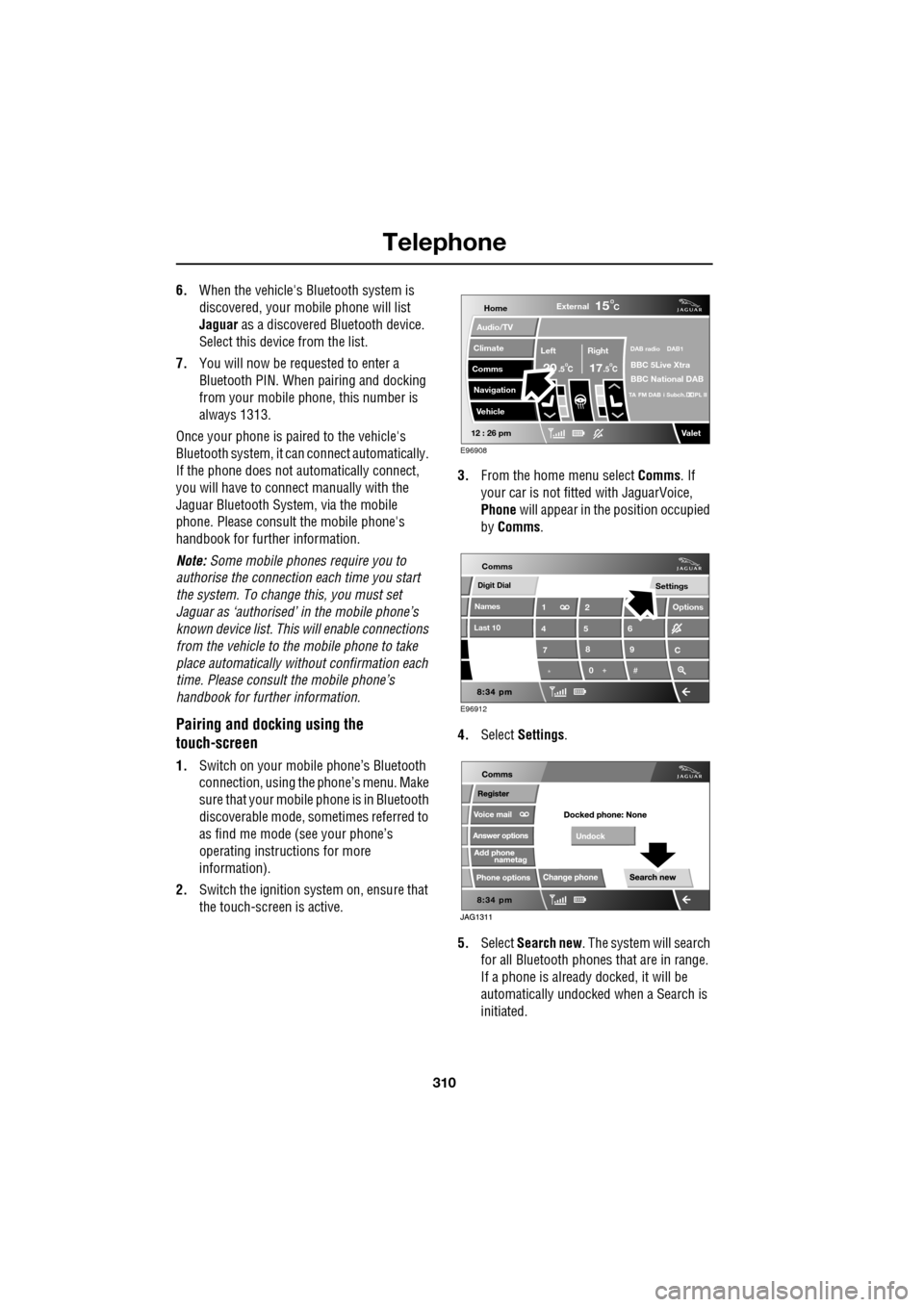
the touch-screen is active. 3.
From the home menu select Comms. If
your car is not fitted with JaguarVoice,
Phone will appear in the position occupied
by Comms .
4. Select Settings .
5. Select Search new . The system will search
for all Bluetooth phones that are in range.
If a phone is already docked, it will be
automatically undocked when a Search is
initiated.
Home
Audio/TV
Climate
Comms
Navigation
VehicleExternal
Left Right
20 17CC
15C
.5 .5
DAB radio DAB1
BBC 5Live Xtra
BBC National DAB
TA FM DAB i Subch. PL II
Valet12 : 26 pm
E96908
Digit Dial
Names
Last 10
Settings
7
1
4
*8
2
5
0 9
6
Options
C
E96912
Comms
Page 312 of 391
Telephone
312
Changing the docked phone
Only one phone can be docked to the vehicle at
any one time. To dock a different paired phone
to the vehicle, follow the steps below:
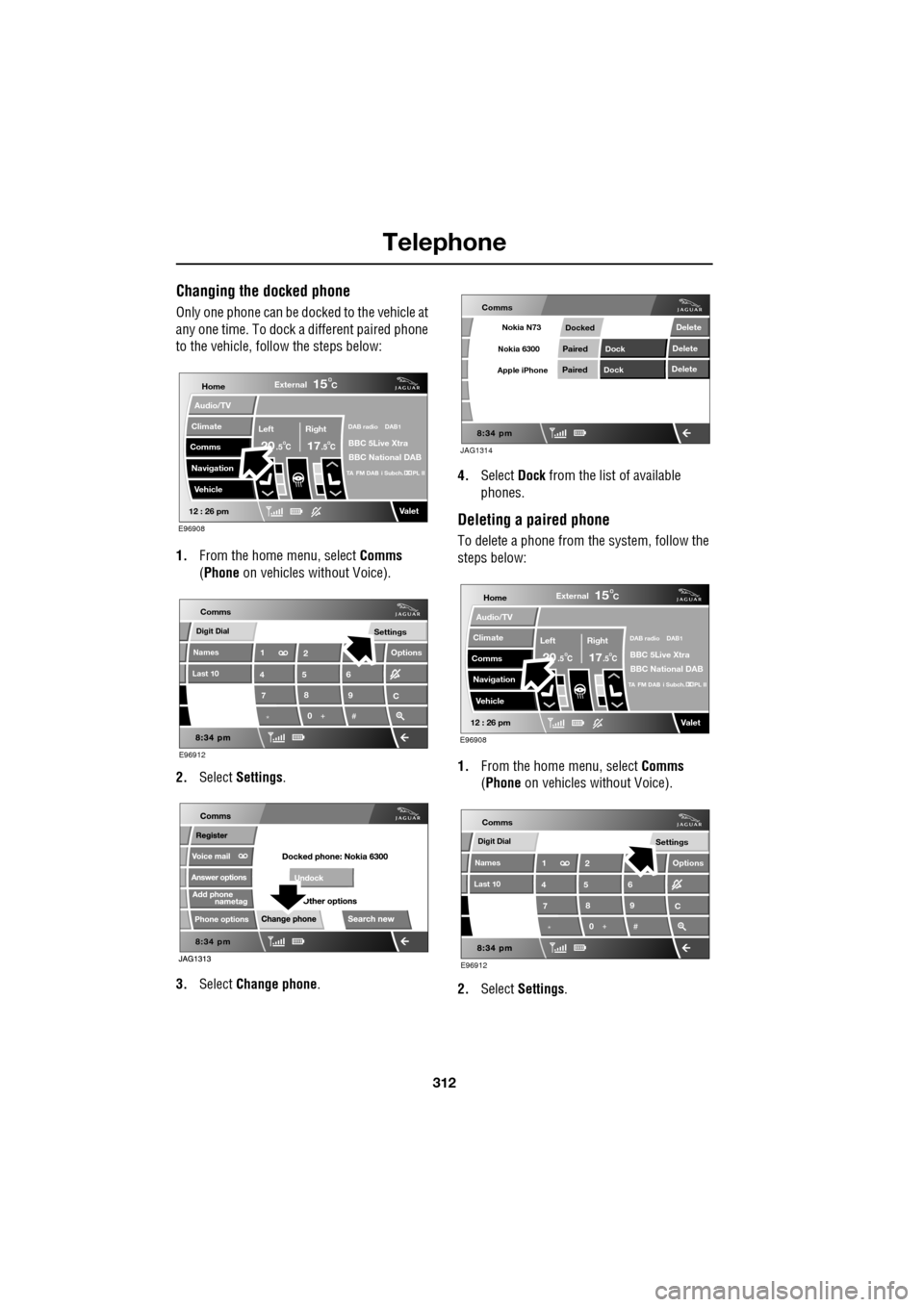
1. From the home menu, select Comms
(Phone on vehicles without Voice).
2. Select Settings .
3. Select Change phone . 4.
Select Dock from the list of available
phones.
Deleting a paired phone
To delete a phone from the system, follow the
steps below:
1. From the home menu, select Comms
(Phone on vehicles without Voice).
2. Select Settings .
Home
Audio/TV
Climate
Comms
Navigation
VehicleExternal
Left Right
20 17CC
15C
.5 .5
DAB radio DAB1
BBC 5Live Xtra
BBC National DAB
TA FM DAB i Subch. PL II
Valet12 : 26 pm
E96908
Digit Dial
Names
Last 10
Settings
7
1
4
*8
2
5
0 9
6
Options
C
E96912
Comms
JAG1314
Comms
Delete
Delete
Delete
Paired
PairedDock
Dock
Docked
Nokia N73
Nokia 6300
Apple iPhone
Home
Audio/TV
Climate
Comms
Navigation
VehicleExternal
Left Right
20 17CC
15C
.5 .5
DAB radio DAB1
BBC 5Live Xtra
BBC National DAB
TA FM DAB i Subch. PL II
Valet12 : 26 pm
E96908
Digit Dial
Names
Last 10
Settings
7
1
4
*8
2
5
0 9
6
Options
C
E96912
Comms
Page 317 of 391
317
Telephone
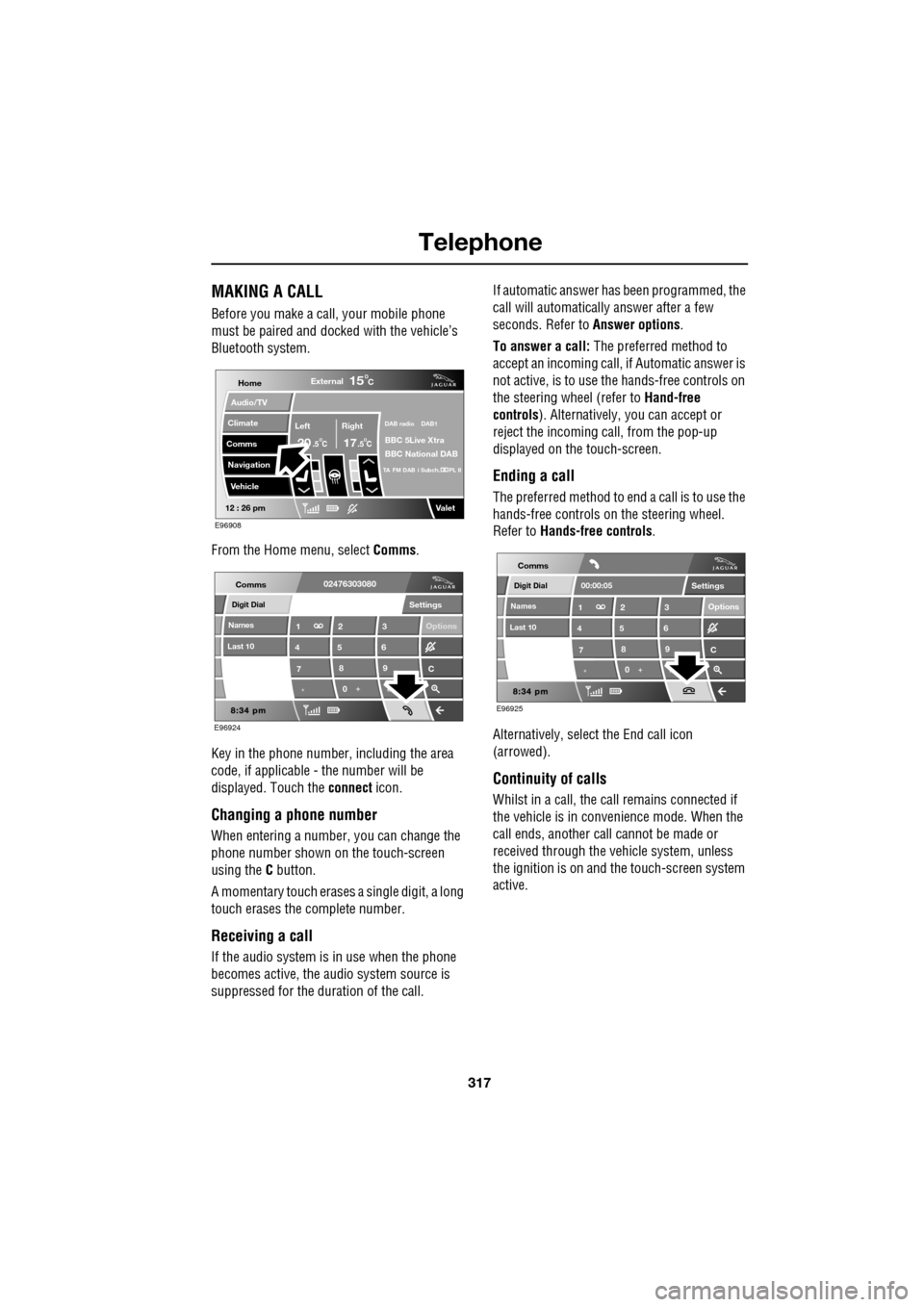
MAKING A CALL
Before you make a call, your mobile phone
must be paired and docked with the vehicle’s
Bluetooth system.
From the Home menu, select Comms.
Key in the phone number, including the area
code, if applicable - the number will be
displayed. Touch the connect icon.
Changing a phone number
When entering a number, you can change the
phone number shown on the touch-screen
using the C button.
A momentary touch erases a single digit, a long
touch erases the complete number.
Receiving a call
If the audio system is in use when the phone
becomes active, the audio system source is
suppressed for the dur ation of the call. If automatic answer has been programmed, the
call will automatically answer after a few
seconds. Refer to
Answer options.
To answer a call: The preferred method to
accept an incoming call, if Automatic answer is
not active, is to use th e hands-free controls on
the steering wheel (refer to Hand-free
controls ). Alternatively, you can accept or
reject the incoming call, from the pop-up
displayed on the touch-screen.
Ending a call
The preferred method to end a call is to use the
hands-free controls on the steering wheel.
Refer to Hands-free controls .
Alternatively, select the End call icon
(arrowed).
Continuity of calls
Whilst in a call, the ca ll remains connected if
the vehicle is in convenience mode. When the
call ends, another call cannot be made or
received through the vehicle system, unless
the ignition is on and the touch-screen system
active.
Home
Audio/TV
Climate
Comms
Navigation
VehicleExternal
Left Right
20 17CC
15C
.5 .5
DAB radio DAB1
BBC 5Live Xtra
BBC National DAB
TA FM DAB i Subch. PL II
Valet12 : 26 pm
E96908
Digit Dial
Names
Last 10
Settings
7
1
4
*8
2
5
0 9
3
6
Options
C
E96924
Comms02476303080Digit Dial
Names
Last 10
Settings
7
1
4
*8
2
5
0 9
3
6
Options
C
E96925
Comms
00:00:05
Page 318 of 391
Telephone
318
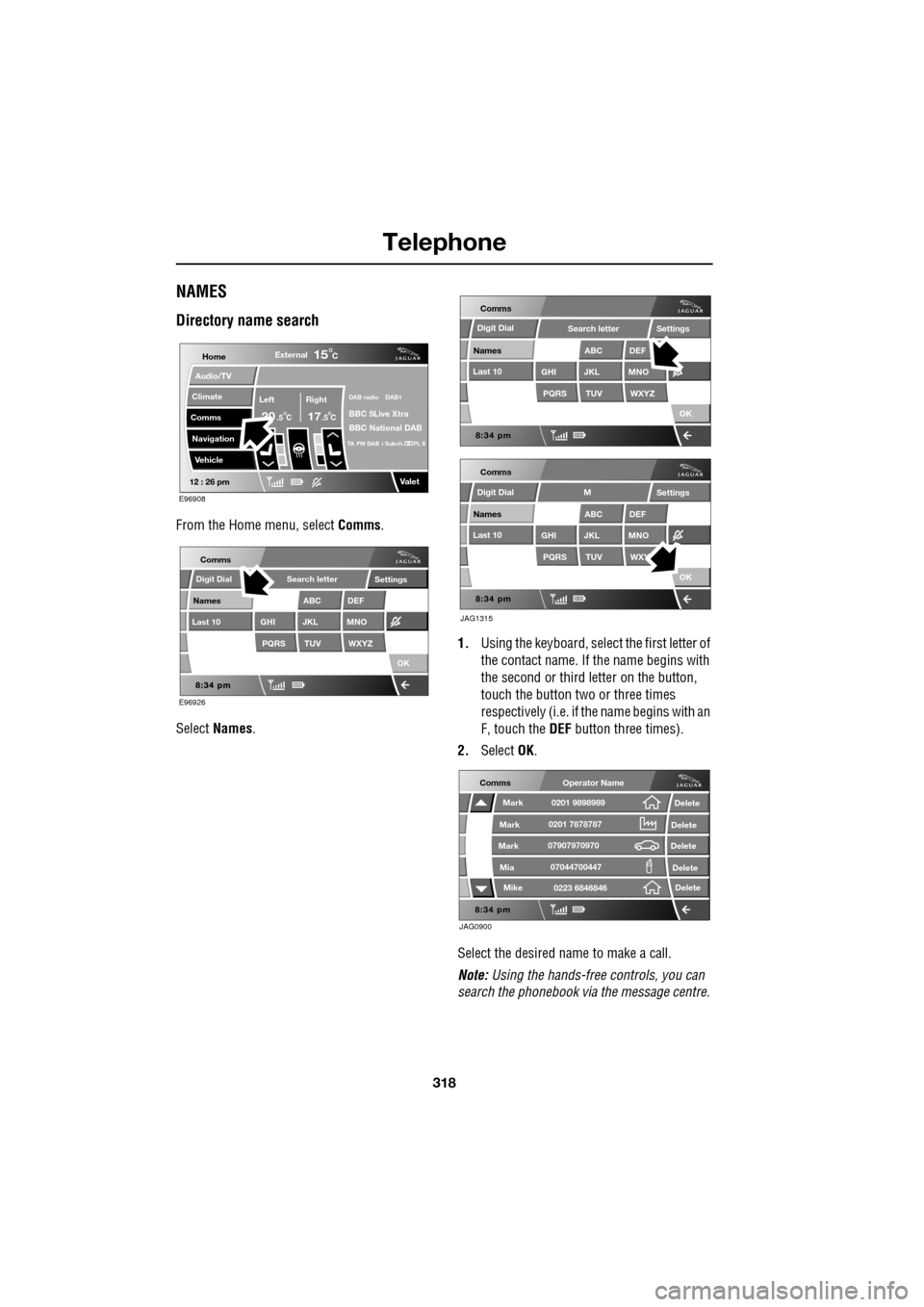
NAMES
Directory name search
From the Home menu, select Comms.
Select Names . 1.
Using the keyboard, select the first letter of
the contact name. If th e name begins with
the second or third letter on the button,
touch the button two or three times
respectively (i.e. if th e name begins with an
F, touch the DEF button three times).
2. Select OK.
Select the desired name to make a call.
Note: Using the hands-free controls, you can
search the phonebook via the message centre.
Home
Audio/TV
Climate
Comms
Navigation
VehicleExternal
Left Right
20 17CC
15C
.5 .5
DAB radio DAB1
BBC 5Live Xtra
BBC National DAB
TA FM DAB i Subch. PL II
Valet12 : 26 pm
E96908
E96926
Comms
Digit Dial
Names
Last 10
Settings
PQRS
GHITUV
ABC
JKL
WXYZ
DEF
MNO
Search letter
OK
Comms
Comms
Names
Last 10
Settings
PQRS
GHITUV
ABC
JKL
WXYZ
DEF
MNO
Search letter
OK
Names
Last 10
Settings
PQRS
GHITUV
ABC
JKL
WXY
DEF
MNO
M
OK
JAG1315
Digit Dial
Digit Dial
JAG0900
Comms
Delete
Delete
Delete
Delete
Delete
Mark
Mark
Mark
Mike
Mia0201 9898989
0201 7878787
0223 6846846
07907970970
07044700447
Operator Name