lock TOYOTA SUPRA 2022 User Guide
[x] Cancel search | Manufacturer: TOYOTA, Model Year: 2022, Model line: SUPRA, Model: TOYOTA SUPRA 2022Pages: 498, PDF Size: 104.06 MB
Page 55 of 498
53
3
3-1. CONTROLS
CONTROLS
This chapter describes all standard,
country-specific and special equip-
ment available for the model series.
It may therefore describe equip-
ment and functions which are not
installed in your vehicle, for exam-
ple on account of the special equip-
ment selected or the country
specification. This also applies to
safety-relevant functions and sys-
tems. Please comply with the rele-
vant laws and regulations when
using the corresponding functions
and systems.
Depending on the situation, the
vehicle is in one of the three states:
• Idle state.
• Standby state.
• Drive-ready state.
If the vehicle is in rest state, it is
switched off.
The vehicle is in idle state before
you open it from outside and once
you have left the vehicle and locked
it.Vehicle operating state
Vehicle equipment
General
Idle state
Principle
General
Safety notes
WA R N I N G
An unsecured vehicle can start mov-
ing and rolling away. There is a dan- ger of accidents. Before leaving the
vehicle, secure it to prevent it from
rolling away.
Observe the following to ensure that
the vehicle is secured against rolling
away:
• Apply the parking brake.
• Turn the front wheels towards the
kerb on upward or downward gradi-
ents.
• Additionally secure the vehicle on
upward or downward gradients, for example with a chock.
WA R N I N G
Unsupervised children or pets in the
vehicle can set the vehicle in motion and endanger themselves or other
road users, for example by the follow-
ing actions:
• Pressing the start/stop button.
• Releasing the parking brake.
• Opening and closing doors or win- dows.
• Engaging selector lever position N.
• Operating vehicle equipment.
There is a risk of accidents or injury.
Do not leave children or pets unsu-
pervised in the vehicle. When leaving the vehicle, take the remote control
with you and lock the vehicle.
Page 57 of 498
55
3
3-1. CONTROLS
CONTROLS
Switching on drive-ready state cor-
responds to starting the engine.
Some functions, for example Vehi-
cle Stability Control VSC, can only
be operated when drive-ready state
is switched on.
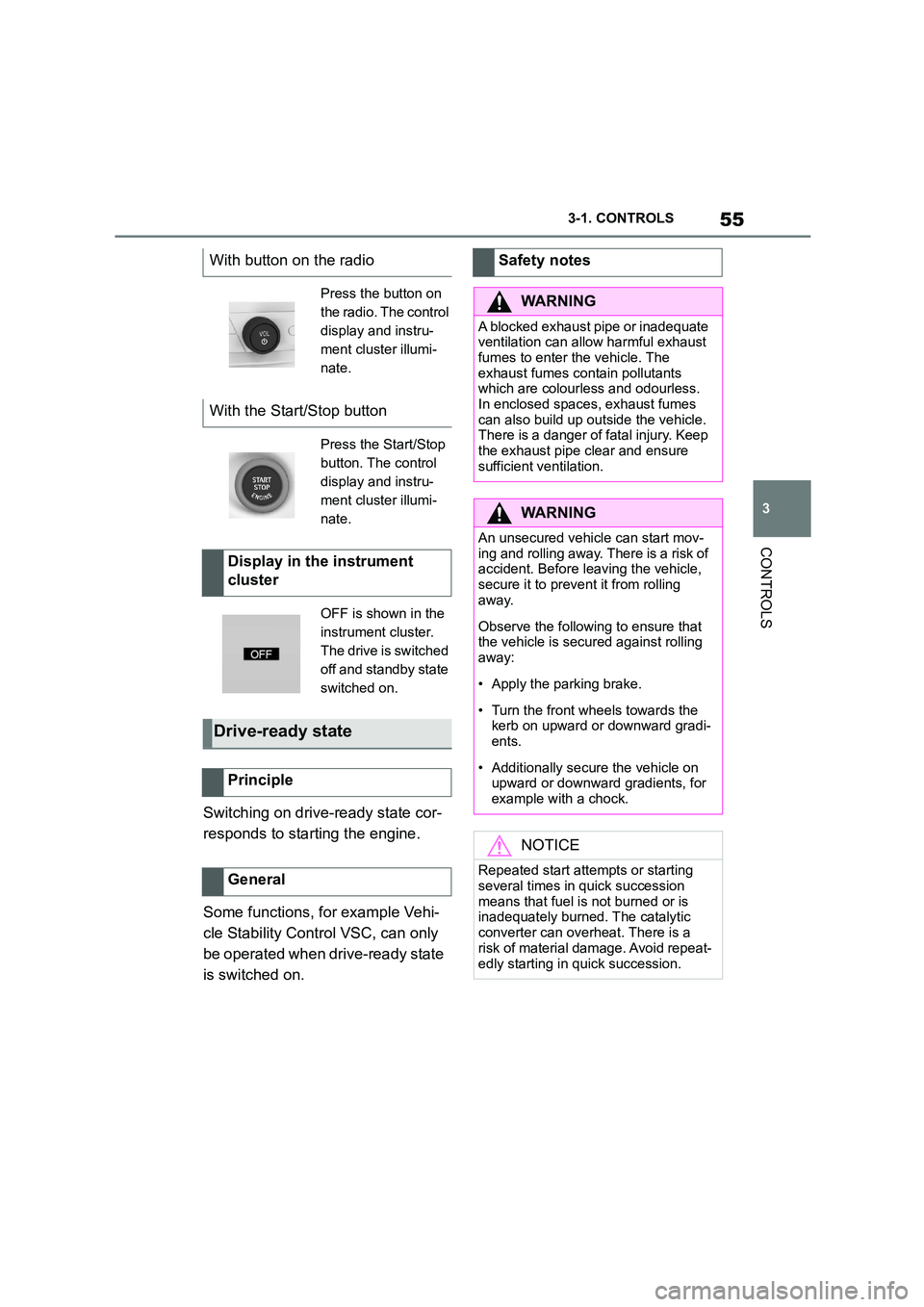
With button on the radio
Press the button on
the radio. The control
display and instru-
ment cluster illumi-
nate.
With the Start/Stop button
Press the Start/Stop
button. The control
display and instru-
ment cluster illumi-
nate.
Display in the instrument
cluster
OFF is shown in the
instrument cluster.
The drive is switched
off and standby state
switched on.
Drive-ready state
Principle
General
Safety notes
WA R N I N G
A blocked exhaust pipe or inadequate
ventilation can allow harmful exhaust fumes to enter the vehicle. The
exhaust fumes contain pollutants
which are colourless and odourless. In enclosed spaces, exhaust fumes
can also build up outside the vehicle.
There is a danger of fatal injury. Keep
the exhaust pipe clear and ensure sufficient ventilation.
WA R N I N G
An unsecured vehicle can start mov-ing and rolling away. There is a risk of
accident. Before leaving the vehicle,
secure it to prevent it from rolling away.
Observe the following to ensure that the vehicle is secured against rolling
away:
• Apply the parking brake.
• Turn the front wheels towards the
kerb on upward or downward gradi- ents.
• Additionally secure the vehicle on upward or downward gradients, for
example with a chock.
NOTICE
Repeated start attempts or starting
several times in quick succession
means that fuel is not burned or is inadequately burned. The catalytic
converter can overheat. There is a
risk of material damage. Avoid repeat-
edly starting in quick succession.
Page 62 of 498
603-1. CONTROLS
The Control Display is switched on
automatically after unlocking.
In certain situations, the Control
Display is switch ed off automati-
cally, for example if no operation is
performed on the vehicle for sev-
eral minutes.
The Control Display can also be
switched off manually.
1 Press the button.
2 "Switch off control display"
Press the Controller or any button
on the Controller to switch it back
on again.
The buttons can be used to call up
menus directly. The Controller can
be used to select menu items and
perform settings.
Some of the functions of the Toyota
Supra Command can be operated
with the touchpad of the Controller,
see page 66.
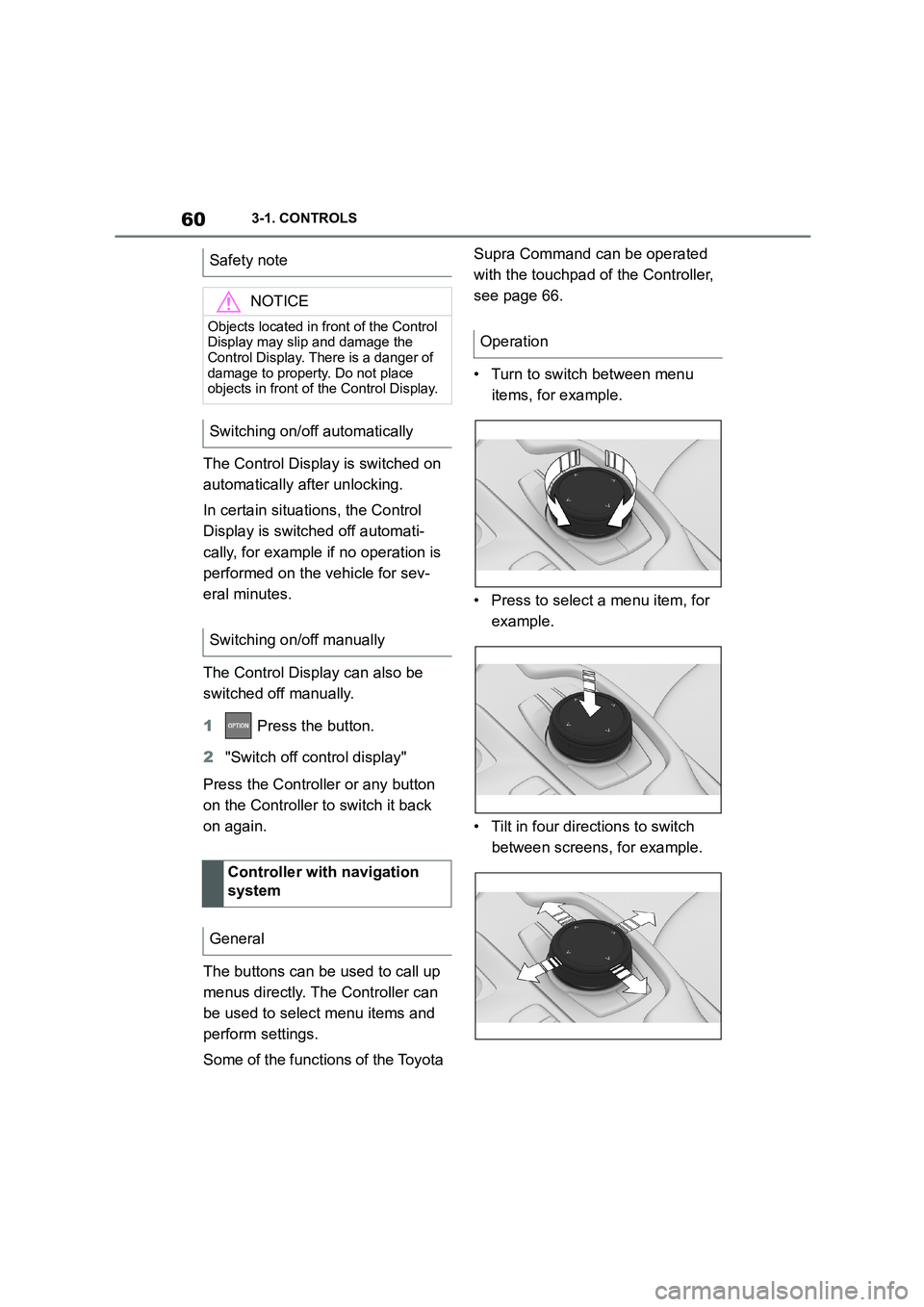
• Turn to switch between menu
items, for example.
• Press to select a menu item, for
example.
• Tilt in four directions to switch
between screens, for example.
Safety note
NOTICE
Objects located in front of the Control
Display may slip and damage the Control Display. There is a danger of
damage to property. Do not place
objects in front of the Control Display.
Switching on/off automatically
Switching on/off manually
Controller with navigation
system
General
Operation
Page 78 of 498
763-1. CONTROLS
memos.
• Login accounts.
It can take up to 15 minutes in total
to delete data.
Data can only be deleted with the
vehicle at a standstill.
Follow the instructions on the Con-
trol Display.
Via Toyota Supra Command:
1 "My Vehicle"
2 "System settings"
3 "Data privacy"
4 "Delete personal data"
5 "Delete personal data"
6 "OK"
7 Exit and lock the vehicle.
Deletion is completed after 15 min-
utes.
If not all data is deleted, repeat the
deletion process if required.
Switch-on drive-ready state to can-
cel data deletion.
Individual settings for several driv-
ers can be saved in the driver pro-
files and called up again as
required.
Three profiles are provided, in
which personal vehicle settings can
be saved. Each remote control is
allocated one of these driver pro-
files.
When the vehicle is unlocked with a
remote control, the allocated driver
profile is activated. All the settings
saved in the driver profile are
applied automatically.
If several drivers each use their
own remote control, the vehicle will
adapt to their personal settings
when it is unlocked. These settings
are also restored if the vehicle is
used in the intervening period by
someone with a different remote
control.
Changes to settings are saved
automatically in the currently used
driver profile.
If a different driver profile is
selected via To yota Supra Com-
mand, the settings saved there are
automatically applied. The new
driver profile is allocated to the cur-
rently used vehicle key.
A guest profile is also available
which is not allocated to any remote
control. It can be used to perform
settings on the vehicle without
changing the personal driver pro-
Operating requirements
Deleting data
Cancelling deletion
Driver profiles
Principle
General
Page 79 of 498
77
3
3-1. CONTROLS
CONTROLS
files.
To ensure that the correct driver
profile can be set, the system must
be able to allocate the detected
remote control uniquely to the
driver.
This is ensured if the following con-
ditions are met:
• The driver is only carrying their
own remote control.
• The driver unlocks the vehicle.
• The driver enters the vehicle
through the driver's door.
The name of the currently used
driver profile is displayed when the
Control Display is switched on.
Select a driver profile, see page 77.
As soon as the engine is started or
any button pressed, the display
selected last is shown on the Con-
trol Display.
To cancel the welcome screen via
Toyota Supra Command: "OK"
Settings for the following systems
and functions are saved in the cur-
rently used driv er profile. Which
settings can be saved depends on
the country and equipment.
• Unlocking and locking.
•Lights.
• Air conditioning.
• Radio.
• Instrument cluster.
• Favourites buttons.
• Volumes, sound.
• Control Display.
• Parking Sensors.
• Rear-view camera.
• Head-Up Display.
• Sport mode switch.
• Seat position, exterior mirror
position
The positions set via the seat memory
and the last position set are saved.
• Cruise Control.
• Toyota Supra Safety.
Regardless of which remote control
is currently being used, it is possi-
ble to call up a different driver pro-
file. This enables the personal
vehicle settings to be called up,
even if the vehicle was not
unlocked with the driver's own
remote control.
Via Toyota Supra Command:
1 "My Vehicle"
2 "Driver profiles"
3 Select a driver profile.
4 "OK"
• The settings saved in the
selected driver profile are
applied automatically.
Operating requirements
Currently used driver profile
Settings
Profile management
Selecting a driver profile
Page 81 of 498
79
3
3-1. CONTROLS
CONTROLS
If necessary, select the USB storage
medium, see page 83.
The existing settings of the cur-
rently used driver profile are over-
written by the settings of the
imported driver profile.
Via Toyota Supra Command:
1 "My Vehicle"
2 "Driver profiles"
3 Select the driver profile to be
overwritten.
The driver profile marked with this
symbol can be overwritten.
4 "Import driver profile"
5 Select a medium for importing
the driver profile.
• USB storage medium: "USB
device"
If necessary, select the USB storage
medium.
6 Select the driver profile to be
imported.
It is not always po ssible to allocate
a remote control uniquely to a
driver. This may be the case in the
following scenarios:
• The front passenger unlocks the
vehicle with their remote control,
but another person is driving.
• The driver unlocks the vehicle
using Smart Key System and is
carrying a number of remote
controls.
• If there is a change of driver with-
out the vehicle being locked and
unlocked.
• If a number of remote controls
are located in the area outside of
the vehicle.
Importing a driver profile
System limits
Page 90 of 498
883-1. CONTROLS
This chapter describes all standard,
country-specific and special equip-
ment available for the model series.
It may therefore describe equip-
ment and functions which are not
installed in your vehicle, for exam-
ple on account of the special equip-
ment selected or the country
specification. This also applies to
safety-relevant functions and sys-
tems. Please comply with the rele-
vant laws and regulations when
using the corresponding functions
and systems.
The delivery specification includes
two remote controls with integrated
keys.
Each remote control contains a
replaceable battery. Replacing the
battery, see page 92.
The button functions can be
assigned, depending on the equip-
ment and the country specifica-
tions. For settings, see page 101.
A driver profile, see page 76, with
personalised settings can be
assigned to a remote control.
To prevent the remote control from
being locked in, take it with you
whenever you leave the vehicle.Opening and closing
Vehicle equipment
Remote control
General
Safety notes
WA R N I N G
The vehicle key has a button cell bat-
tery. Batteries or button cells can be swallowed and lead to serious or fatal
injuries within two hours, for example
due to internal burns or chemical
burns. There is a danger of injury or danger to life. Keep the vehicle key
and batteries out of reach of children.
Immediately seek medical help if there is any suspicion that a battery or
button cell has been swallowed or is
located in any part of the body.
WA R N I N G
Persons remaining in the vehicle or
pets left inside can lock the doors from the inside and lock themselves
in. In this case, the vehicle cannot be
opened from the outside. There is a
danger of injury. Carry the remote control with you so that you can open
the vehicle from the outside.
WA R N I N G
With some country specifications,
unlocking from the inside is only pos-
sible with special knowledge.
There is a risk of injury or danger to
life if persons remain in the vehicle for extended periods and are exposed to
extreme temperatures as a result. Do
not lock the vehicle from the outside when there is someone inside it.
Page 91 of 498
89
3
3-1. CONTROLS
CONTROLS
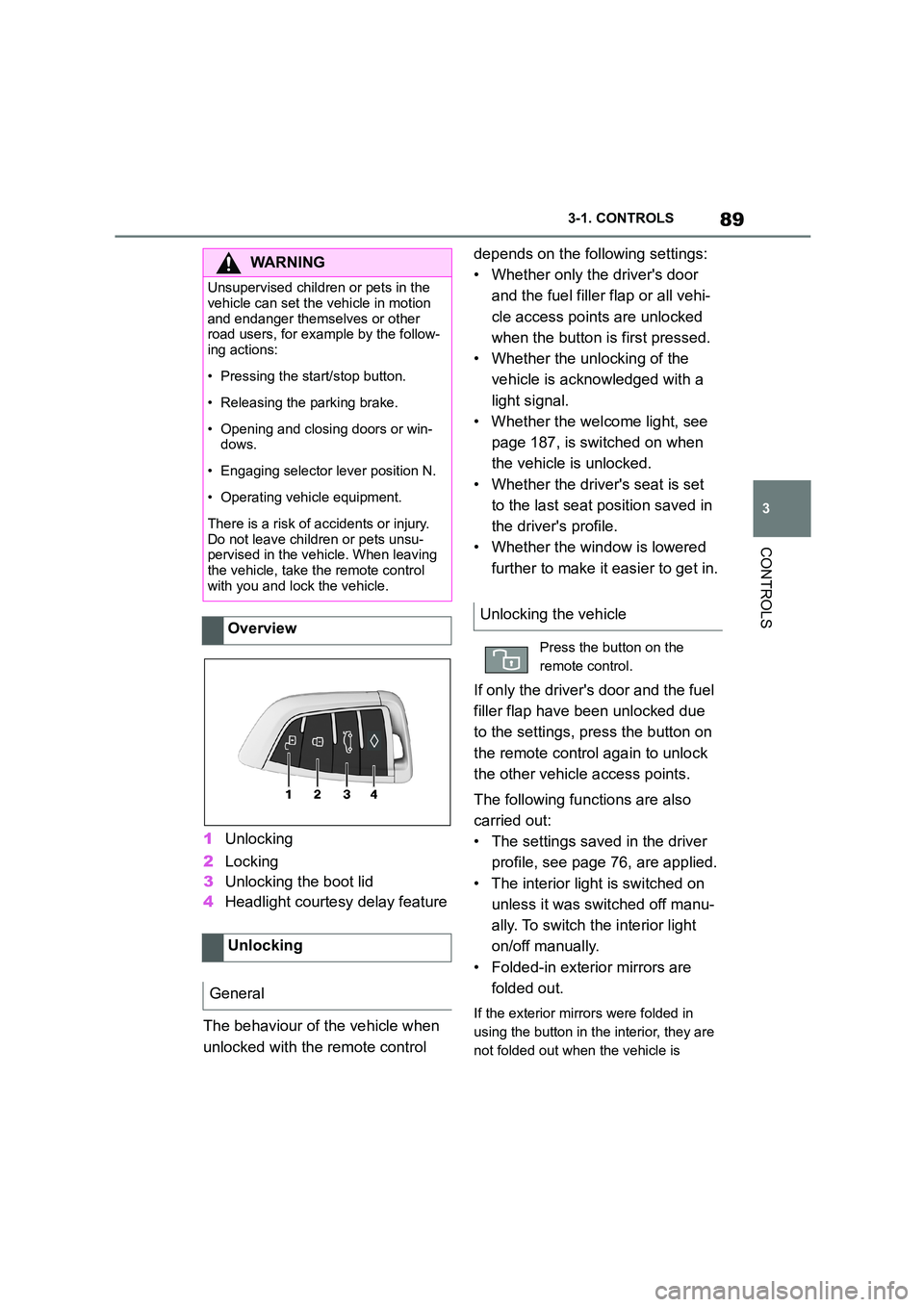
1 Unlocking
2 Locking
3 Unlocking the boot lid
4 Headlight courtesy delay feature
The behaviour of the vehicle when
unlocked with the remote control
depends on the following settings:
• Whether only the driver's door
and the fuel filler flap or all vehi-
cle access poin ts are unlocked
when the button is first pressed.
• Whether the unlocking of the
vehicle is acknowledged with a
light signal.
• Whether the welcome light, see
page 187, is switched on when
the vehicle is unlocked.
• Whether the driver's seat is set
to the last seat position saved in
the driver's profile.
• Whether the window is lowered
further to make it easier to get in.
If only the driver's door and the fuel
filler flap have been unlocked due
to the settings, press the button on
the remote control again to unlock
the other vehicle access points.
The following functions are also
carried out:
• The settings saved in the driver
profile, see page 76, are applied.
• The interior light is switched on
unless it was switched off manu-
ally. To switch the interior light
on/off manually.
• Folded-in exterior mirrors are
folded out.
If the exterior mirrors were folded in
using the button in the interior, they are
not folded out when the vehicle is
WA R N I N G
Unsupervised children or pets in the
vehicle can set the vehicle in motion
and endanger themselves or other road users, for example by the follow-
ing actions:
• Pressing the start/stop button.
• Releasing the parking brake.
• Opening and closing doors or win-
dows.
• Engaging selector lever position N.
• Operating vehicle equipment.
There is a risk of accidents or injury.
Do not leave children or pets unsu- pervised in the vehicle. When leaving
the vehicle, take the remote control
with you and lock the vehicle.
Overview
Unlocking
General
Unlocking the vehicle
Press the button on the
remote control.
Page 92 of 498
903-1. CONTROLS
unlocked.
• With anti-theft system: The
anti-theft system is switched off.
• With alarm system: The alarm
system is switched off.
Depending on the settings, the win-
dow is lowered further when open-
ing a door.
The vehicle is operational after one
of the front doors is opened.
The lighting functions may depend
on the ambient brightness.
The windows are opened for as
long as the button on the remote
control is pressed.
Exterior mirrors which were folded
in via the comfort closing feature
are folded out.
The behaviour of the vehicle in the
case of remote control locking
depends on the following settings:
• Whether locking of the vehicle is
acknowledged with a light signal.
• Whether the exterior mirrors are
automatically folded in when the
vehicle is unlocked and locked.
• Whether the headlight courtesy
delay feature is activated when
the vehicle is locked.
1 Close the driver's door.
2 Press the button on the
remote control.
The following functions are carried
out:
• All the doors, the boot lid and
fuel filler flap are locked.
• With anti-theft system: The
anti-theft system is switched on.
This prevents the doors from
being unlocked using the locking
buttons or the door openers.
• With alarm system: The alarm
system is switched on.
If the drive-ready state is still
switched on when locking, the vehi-
cle horn sounds twice. In this case,
switch off the drive-ready state
using start/ stop button.
Press remote control button
twice in direct succession to
activate comfort memory.
Comfort opening
Opening
Press and hold the button on
the remote control.
Locking
General
Locking the vehicle
Page 93 of 498
91
3
3-1. CONTROLS
CONTROLS
The windows are closed for as long
as the button on the remote control
is pressed.
The exterior mirrors are folded in.
If the hazard warning lights are
switched on, the exterior mirrors
are not folded in.
The function is not available for the
first 10 seconds after locking.
• The interior light is switched on
unless it was switched off manu-
ally. To switch th e interior light
on/off manually, see page 191.
• Depending on the settings, the
exterior lights, see page 187, are
switched on.
The lighting functions may depend
on the ambient brightness.
To prevent the remote control from
being locked in, do not place the
remote control in the boot.
It is possible to set whether the
doors are unlocked when the boot
lid is opened with the remote con-
trol. For settings, see page 101.
On some equipment versions, the
doors are also unlocked each time.
Comfort closing
Safety notes
WA R N I N G
Parts of the body can become trapped when the comfort closing fea-
ture is operated. There is a danger of
injury. When the comfort closing fea-
ture is operating, make sure that the area of movement is kept clear.
Closing
Keep the button on the
remote control pressed after
locking.
Switching on the interior
light and exterior lights
With the vehicle locked,
press the button on the
remote control.
Boot lid
General
Safety notes
WA R N I N G
Parts of the body can become trapped when the boot lid is operated.
There is a danger of injury. When
opening and closing, make sure that the area of movement of the boot lid
is kept clear.
NOTICE
The boot lid swings rearwards and upwards when opened. There is a
danger of damage to property. When
opening and closing, make sure that the area of movement of the boot lid
is kept clear.
Unlocking
Press and hold the button on
the remote control for approx-
imately 1 second.